How do I report and resolve a delivery issue?
Last updated: May 18, 2026
Quick answer
Use this article to report, review, and resolve delivery issues in Delivery Issues.
Common use cases
- Operations manager: Track delivery issues by category, cause, warehouse, merchant, and date.
- Warehouse lead: Log a delivery problem against an order with a clear cause and note.
- Customer service lead: Mark an issue resolved after the operational follow-up is complete.
When to use this
- You need to record a delivery issue against an order.
- You need to review delivery issue records or analytics.
- You need to mark a delivery issue resolved or unresolved.
When not to use this
- You need to create a return label or exchange order.
- You need a carrier refund or claim decision.
- You need Logentic to correct inventory automatically from the delivery issue.
At a glance
| What you are doing | What you need | Good result | Contact us if |
|---|---|---|---|
| Use this article to report, review, and resolve delivery issues in Delivery Issues. | Know the order ID connected to the delivery problem. Know the issue category and cause, such as Wrong item shipped and Process. | The delivery issue appears on the Dashboard, the category and cause are visible, the note explains the issue, and the row can be marked resolved when follow-up is complete. | The order is not accepted by the form, the issue does not save, a needed category or cause is missing, or the resolved/unresolved state looks wrong. |
Before you start
- Know the order ID connected to the delivery problem.
- Know the issue category and cause, such as Wrong item shipped and Process.
- Add a short note that explains what happened and what your team checked.
Steps
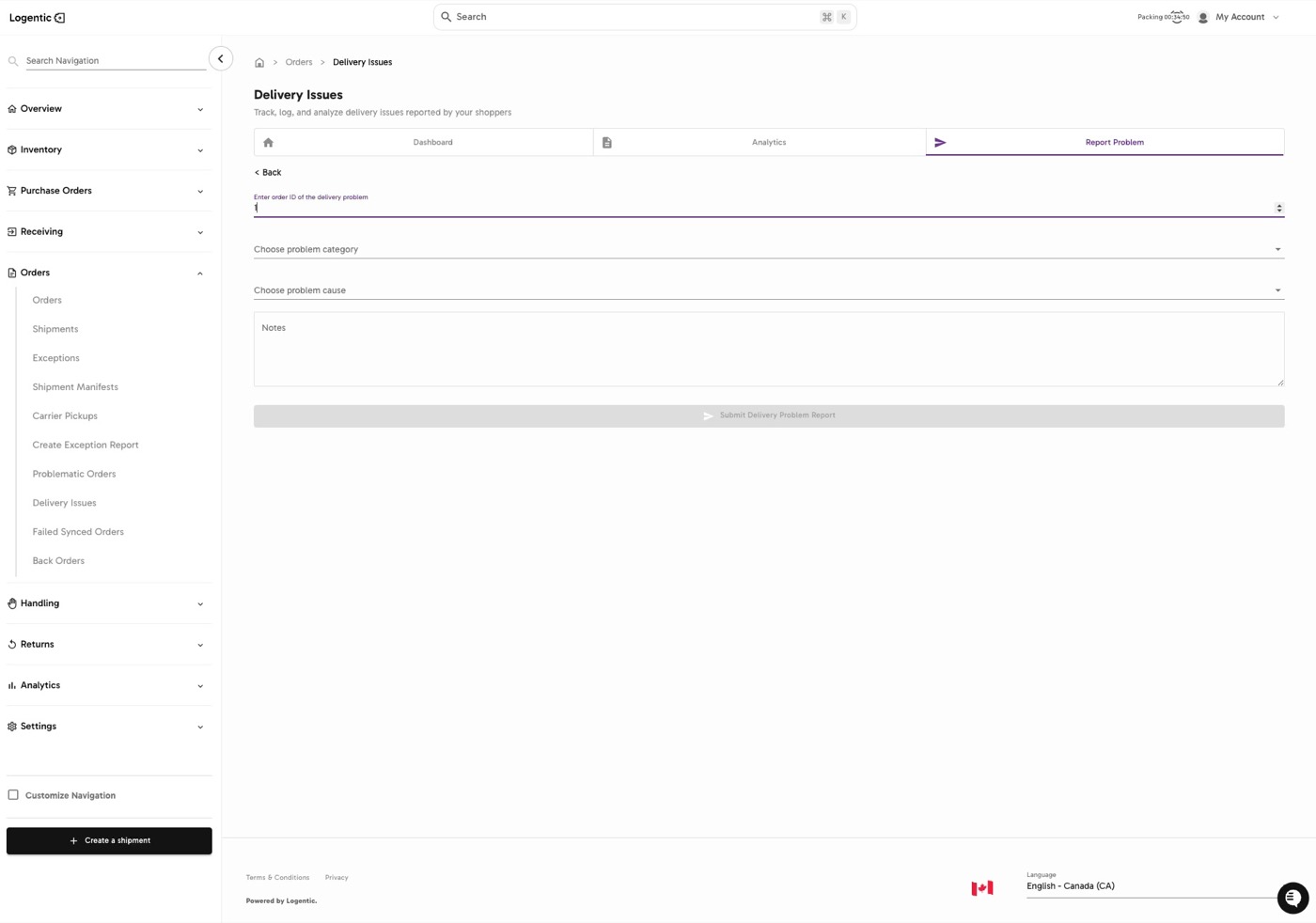
- Go to Orders in the left navigation.
- Open Delivery Issues.
- Select Report Problem.
- Enter the order ID in Enter order ID of the delivery problem.
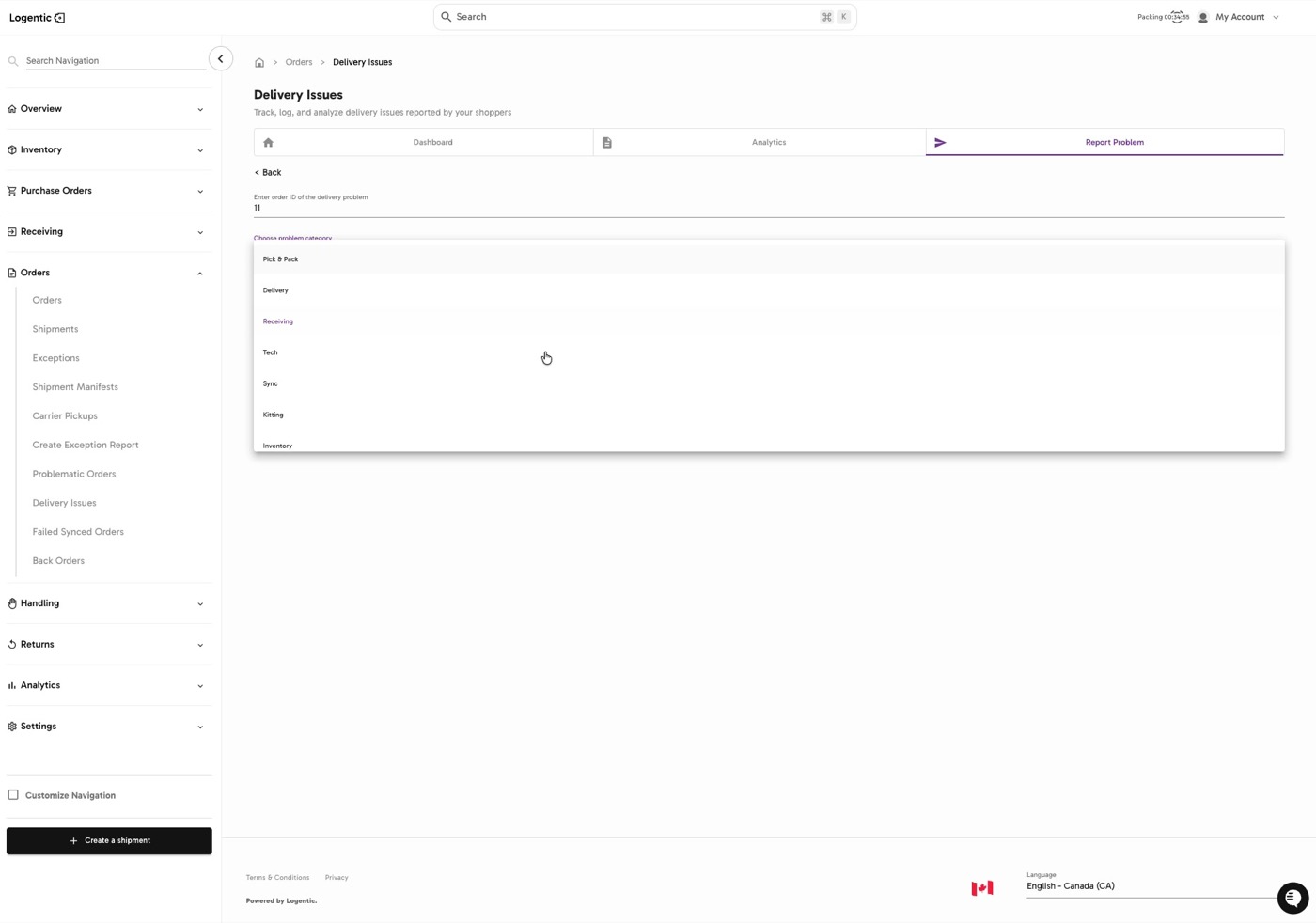
- Choose the problem category.
- Choose the problem cause.
- Add notes that explain the issue.
- Select Submit Delivery Problem Report.
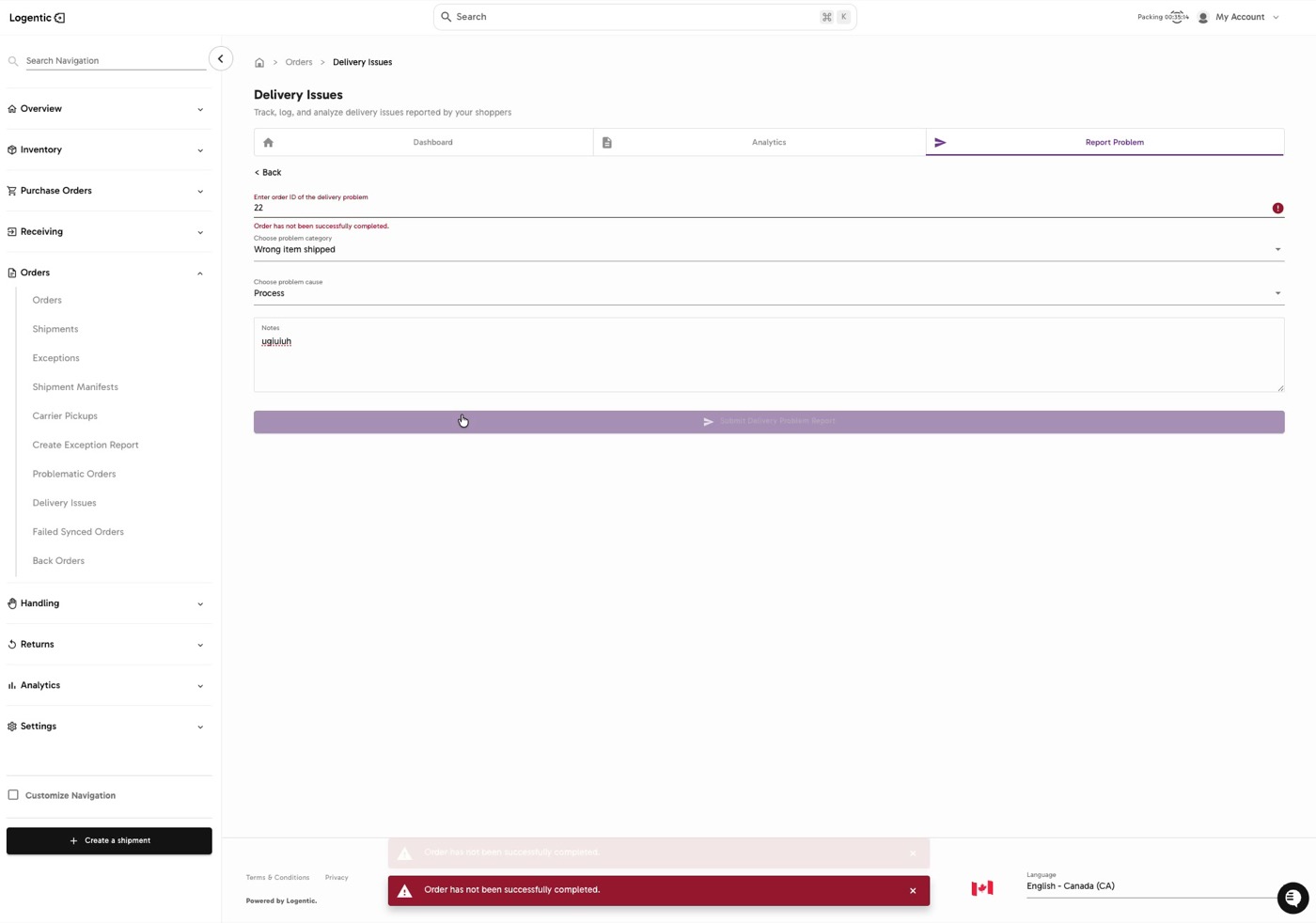
- If Logentic shows an order validation message, check the order ID and whether the order is in the expected completed or shipped state.
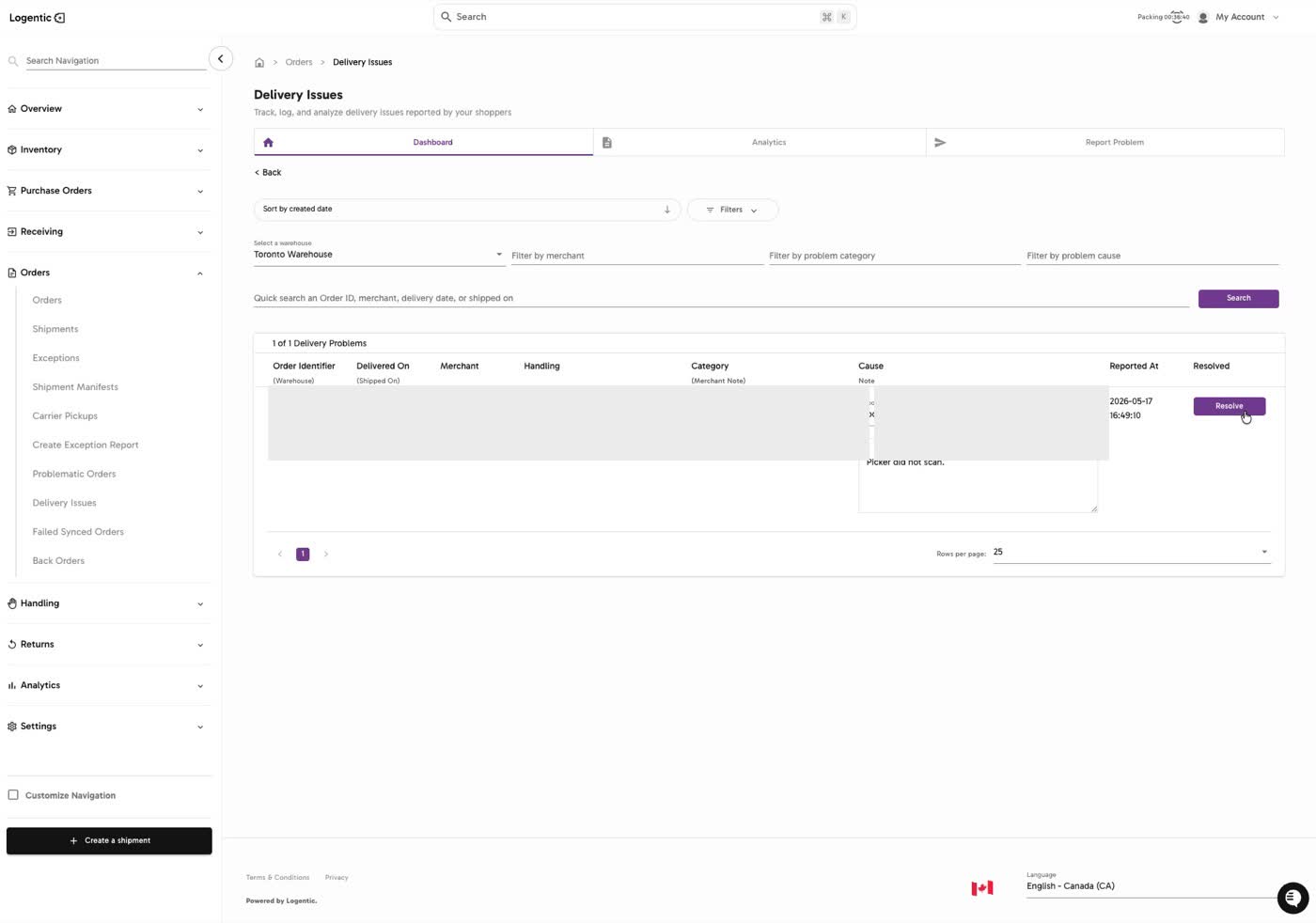
- Select Dashboard to review delivery issue records.
- Use sort, filters, warehouse, merchant, category, cause, and quick search to narrow the list.
- Review the issue row, including order identifier, delivered date, merchant, category, cause, reported date, and resolved state.
- Select Resolve when the issue is complete.
- Select Unresolve if the issue should be reopened.
- Select Analytics when you need a summary of delivery issue volume by date or issue reason.
Screenshots
Steps 1-8: Open Delivery Issues, select Report Problem, and fill in the report fields.
Steps 5-6: Choose the problem category and cause.
Step 9: If Logentic shows an order validation message, check the order ID and order state before trying again.
Steps 10-14: Use Dashboard to review, resolve, or reopen delivery issues.
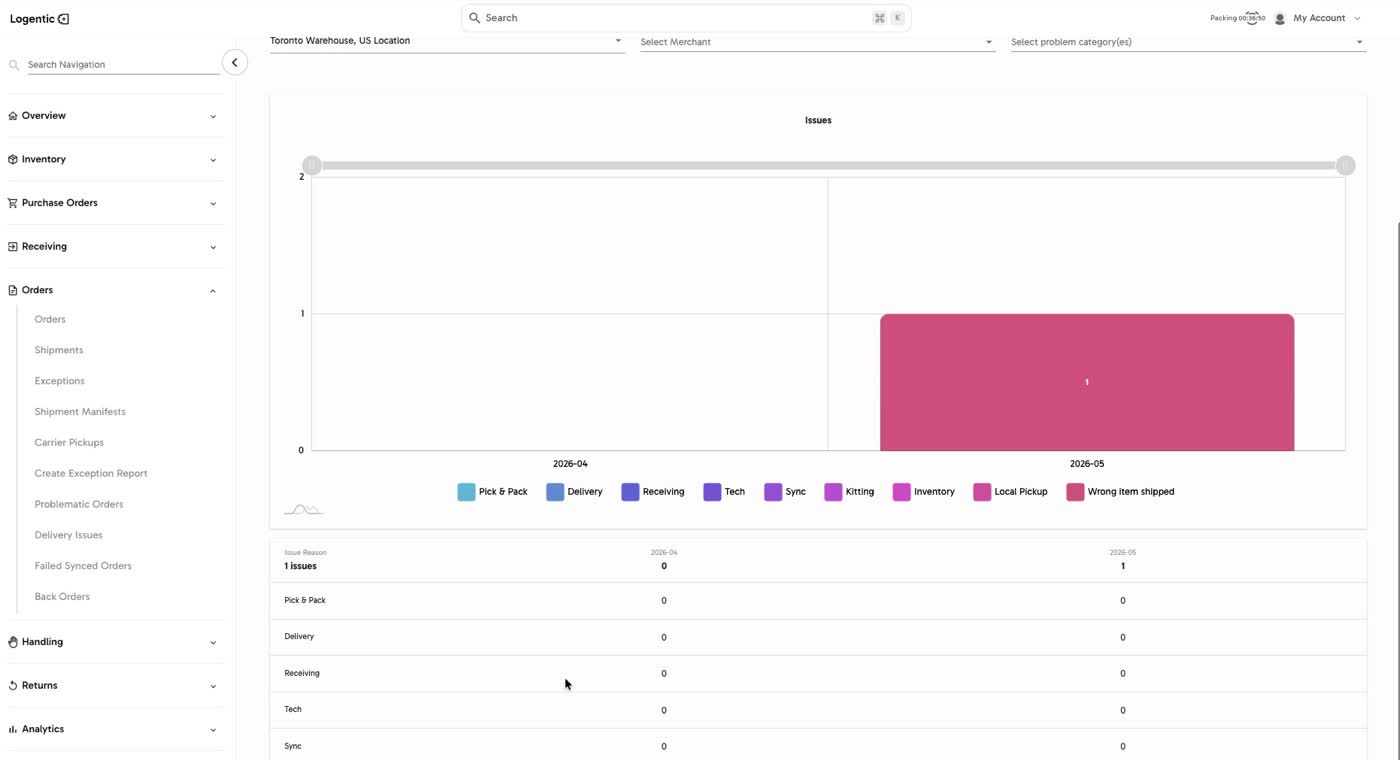
Step 15: Use Analytics to review delivery issue volume by category and month.
What good looks like
The delivery issue appears on the Dashboard, the category and cause are visible, the note explains the issue, and the row can be marked resolved when follow-up is complete.
Common issues and next actions
| If this happens | What to do next |
|---|---|
| The order is not accepted by the form. | Check the order ID and confirm the order is in the expected completed or shipped state for delivery issue reporting. |
| The category or cause is missing. | Use the closest accurate option only if it fits. Contact us if a needed category or cause should exist but is not available. |
| The issue was resolved too early. | Use Unresolve to reopen it when the follow-up is not complete. |
Contact us when
The order is not accepted by the form, the issue does not save, a needed category or cause is missing, or the resolved/unresolved state looks wrong.
Contact options
- Email Logentic Support: best for detailed requests, screenshots, or follow-up context.
- Open in-app chat: fastest when you are already signed in and need help in context.
- Call Logentic: call (855) 529-0009 for an urgent launch, warehouse, or fulfillment blocker.
- Request Slack support access: ask us to add your team to a shared Logentic support channel.
Send us this information
- Order ID and warehouse.
- Problem category and cause.
- Screenshot of the report form or dashboard row.
- Notes entered on the issue.
- Expected result.
- Actual result shown in Logentic.
- Time and timezone.
Related workflow
- Find the order or shipment.
- Report the delivery issue with category, cause, and notes.
- Review the issue on Dashboard or Analytics.
- Resolve or reopen the issue as the operational follow-up changes.