What automation options can I use in Logentic?
Last updated: May 18, 2026
Quick answer
Use this article to choose the right automation area and understand common options you can build with.
Common use cases
- Brand operator: Choose a useful automation without starting from a blank screen.
- Operations manager: Turn repeatable order decisions into draft rules that can be reviewed before going live.
- Customer service lead: Draft return and notification automations that match the brand's policy and tone.
When to use this
- You want examples of useful automations for your brand.
- You need a starting map of common triggers, events, conditions, matching types, and actions.
- You are deciding whether a rule belongs in Communication Automations, Order Automations, or Return Automations.
When not to use this
- You need to guarantee exactly when an automation will run.
- You need to reprocess existing orders or returns.
- You need to confirm billing, refund, label, carrier, delivery, or message-delivery outcomes.
At a glance
| What you are doing | What you need | Good result | Contact us if |
|---|---|---|---|
| Use this article to choose the right automation area and understand common options you can build with. | Decide the customer or operational outcome you want. Confirm who owns the business policy behind the rule. | The automation has one clear business goal, the correct trigger or event, the right condition logic, the right action, and the correct Active status. | The needed option is missing, an automation affects live orders or returns unexpectedly, execution timing matters, the first matching record behaves differently than expected, or you are not sure the rule matches your policy. |
Before you start
- Decide the customer or operational outcome you want.
- Confirm who owns the business policy behind the rule.
- Keep Active unchecked until the rule has been reviewed.
- Test the first matching order, return, or event before relying on the automation.
Automation option map
Use these options as building blocks when you create automation rules. Your account may include additional options depending on setup.
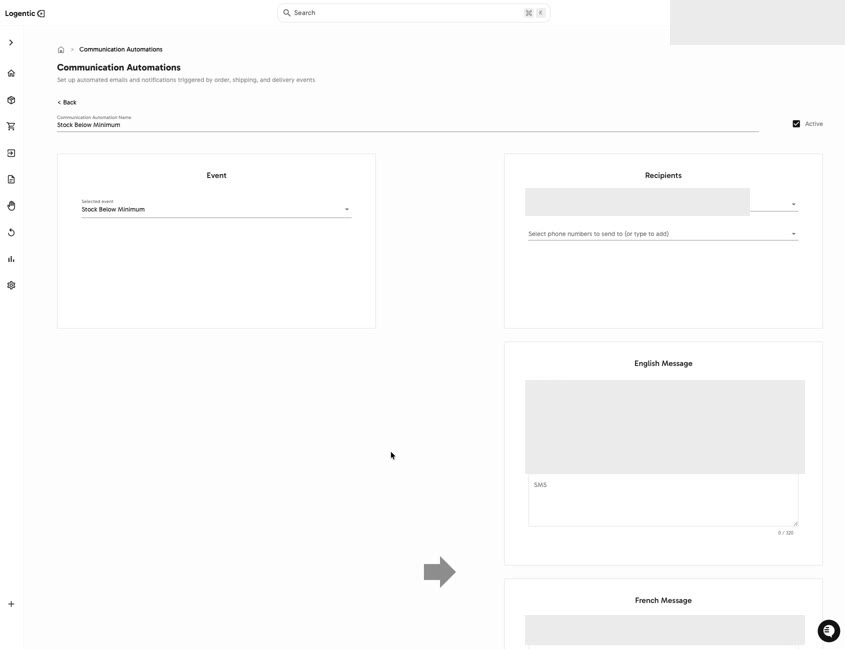
Communication Automations
Events you can use:
- Order Placed
- Order Hold
- Delivery Problem Created
- Return Created
- Return Processed
- Stock Depleted
- Stock Below Minimum
- Receiving Order Placed
- Receiving Order Arrived
Recipients and outputs you can configure:
- To order recipient
- Selected email recipients
- Selected phone recipients
- English Message email subject, email body, and SMS
- French Message email subject, email body, and SMS
- Active status
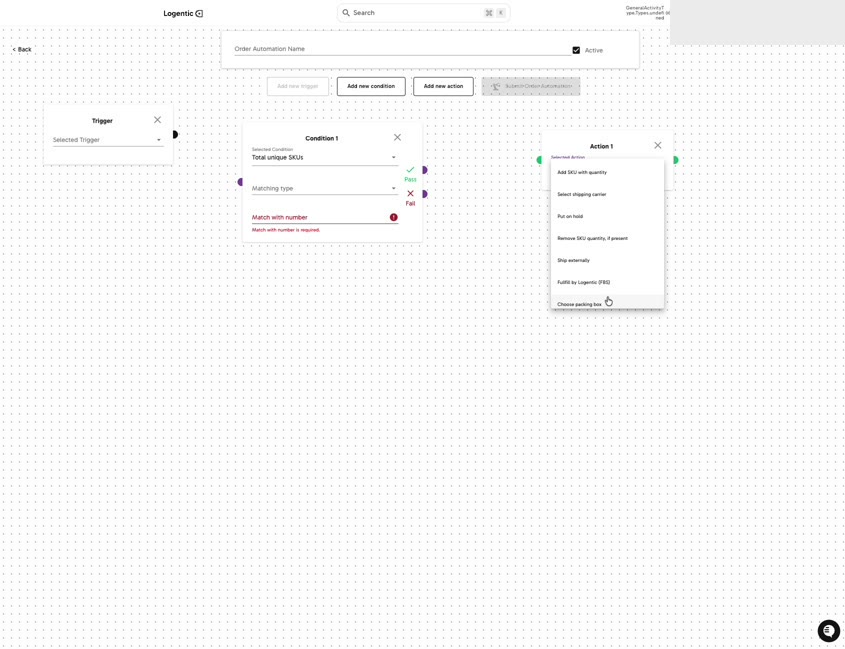
Order Automations
Order triggers you can use:
- Order Created
- Order problematic
- Order on hold
- Order picked
- Order packed
- Order completed
- Order shipment created
- Tags modified
- Hours since order creation
- Tag created
- Order Ready for Pickup
- Manual Rerun
Order conditions you can use:
- Postal code
- City
- Country
- Province or State
- Specific SKU quantity
- Creation date
- Ecommerce source
- Weight
- Total unique SKUs
- Total items
- Total price
- Instruction note
- Tag
- Bundle
- Warehouse
Matching types you can use:
- Starts with
- Does not start with
- Contains
- Does not contain
- Equal
- Not Equal
Order actions you can apply:
- Add SKU with quantity
- Select shipping carrier
- Put on hold
- Remove SKU quantity, if present
- Ship externally
- Fulfill by Logentic (FBS)
- Choose packing box
- Pay customs duty
- Split bundle from order
- Split SKU from order
- Set Scheduled Pickup
- Set Tag(s)
- Set Instructions
- Put on Hold Until
- Automatically back order
- Set shipping date
- Set shipping integration
- Signature Required
- Cancel order
- Prioritize order
Your account may include more actions. Open Selected Action while creating the rule to choose from the actions available in your setup.
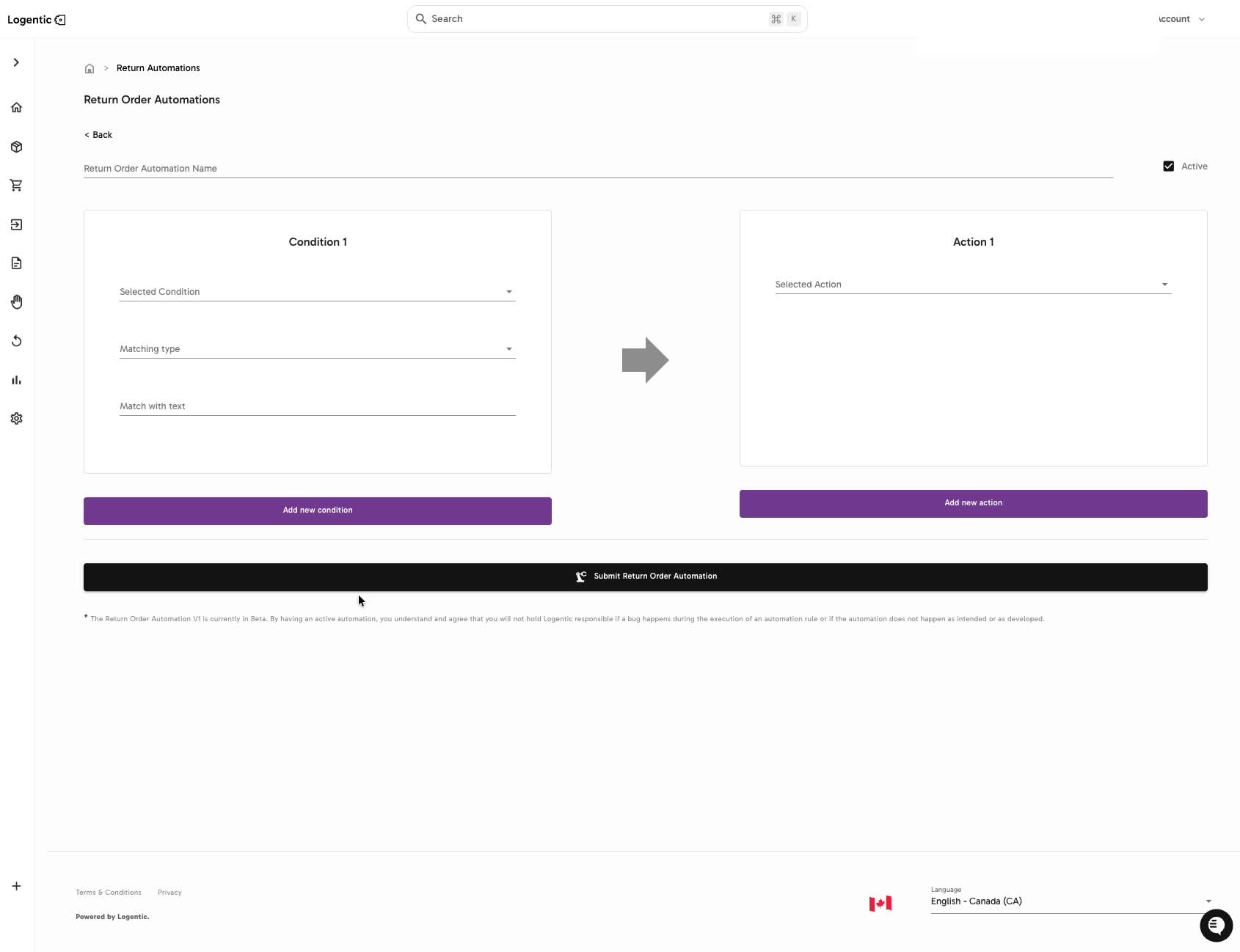
Return Automations
Return conditions you can use:
- Product tag
- Order tag
- Return reasons
Matching types you can use:
- Starts with
- Does not start with
- Contains
- Does not contain
- Equal
- Not Equal
Return actions you can apply:
- Approve return
- Decline return
- Add prepaid label
- Remove prepaid label
- Fail product inspection
- Refund Order
- Gift Order
Screenshots
Communication Automations: Events, recipients, English/French message fields, and active status.
Order Automations: Trigger, condition, matching type, action, pass/fail path, and active status.
Return Automations: Condition, matching type, action, and active status.
Example automation rules for brands
These are draft patterns to adapt to your account. Before activating one, confirm the exact event, condition values, recipients, actions, and policy with your team.
Communication Automations: 25 examples
Communication Automations use an operational event, recipients, bilingual message content, and an Active status.
| Goal | Event | Recipients | Message or output |
|---|---|---|---|
| Order received confirmation | Order Placed | To order recipient | bilingual email confirming the order was received |
| Order received SMS | Order Placed | To order recipient or selected phone recipients | short bilingual SMS confirming the order was received |
| New order team alert | Order Placed | selected email recipients | alert your team that a new order needs normal processing |
| Order hold customer update | Order Hold | To order recipient | explain that the order is being reviewed and that your team will follow up |
| Order hold operations alert | Order Hold | selected email recipients | ask the team that clears held orders to review the order |
| Order hold SMS for urgent review | Order Hold | selected phone recipients | short message telling the right team that a held order needs attention |
| Delivery problem operations alert | Delivery Problem Created | selected email recipients | alert your operations or service team that a delivery issue was created |
| Delivery problem customer update | Delivery Problem Created | To order recipient | acknowledge that the delivery issue is being reviewed |
| Delivery problem SMS alert | Delivery Problem Created | selected phone recipients | notify the right teammate to check the delivery issue quickly |
| Return created acknowledgement | Return Created | To order recipient | confirm that the return request was received |
| Return created review alert | Return Created | selected email recipients | ask the team responsible for returns to review the new return |
| Return created next steps | Return Created | To order recipient | explain what the customer should expect next, without promising approval or refund timing |
| Return processed customer update | Return Processed | To order recipient | tell the customer that the return was processed in Logentic |
| Return processed team closeout | Return Processed | selected email recipients | notify the team that the return workflow reached the processed state |
| Return processed SMS notice | Return Processed | selected phone recipients | short status message for the customer or team, depending on your policy |
| Stock depleted buyer alert | Stock Depleted | selected email recipients | tell the buyer that the product needs review |
| Stock depleted warehouse alert | Stock Depleted | selected email or phone recipients | tell the warehouse lead that no stock is left for the item |
| Stock depleted customer-service alert | Stock Depleted | selected email recipients | prepare the service team for possible customer questions |
| Stock below minimum replenishment alert | Stock Below Minimum | selected email recipients | tell purchasing to review replenishment before the product is fully out of stock |
| Stock below minimum warehouse SMS | Stock Below Minimum | selected phone recipients | notify the warehouse lead that stock is approaching the minimum |
| Stock below minimum marketing alert | Stock Below Minimum | selected email recipients | let the team pause or review promotions before stock pressure becomes worse |
| Receiving order placed buyer confirmation | Receiving Order Placed | selected email recipients | confirm that a receiving order was created |
| Receiving order placed warehouse preparation | Receiving Order Placed | selected email recipients | tell the receiving team to prepare for inbound inventory |
| Receiving order arrived warehouse alert | Receiving Order Arrived | selected email or phone recipients | tell the receiving team that inbound inventory has arrived |
| Receiving order arrived operations update | Receiving Order Arrived | selected email recipients | tell operations or purchasing that the receiving order arrived and should be reviewed |
Order Automations: 25 examples
These draft patterns show how brands commonly combine carrier, hold, tagging, instructions, packaging, FBS, split, back-order, scheduling, signature, customs, cancellation, and priority actions. Open Selected Action in your account when you need to choose the exact action available for your setup.
| Goal | Trigger | Conditions | Actions |
|---|---|---|---|
| Route PO Box orders through Canada Post | Order Created | Tag equals PO Box | Select shipping carrier, then choose Canada Post |
| Route orders by province or state | Order Created | Country equals the target country and Province or State equals the target region | Select shipping carrier and Set shipping integration when your team uses a specific integration for that region |
| Route postal-code zones to the right carrier | Order Created | Country equals Canada and Postal code starts with the prefix your team uses | Select shipping carrier |
| Handle international duty-paid orders | Order Created | Country is Not Equal to the domestic country your team uses and Tag contains duties paid | Pay customs duty, Set Instructions, and Select shipping carrier |
| Hold international orders for review | Order Created | Country is Not Equal to the domestic country and Tag does not contain approved international | Put on hold and Set Tag(s) |
| Prioritize VIP orders | Order Created | Tag contains VIP | Prioritize order, Set Tag(s), and optionally Signature Required if that matches your policy |
| Protect high-value orders | Order Created | Total price equals the approved high-value threshold or Tag contains high value | Signature Required, Prioritize order, and Set Instructions |
| Choose packaging for fragile orders | Order Created | Tag contains fragile or Specific SKU quantity matches the fragile product rule | Choose packing box, Set Instructions, and optionally Signature Required |
| Choose packaging for heavy orders | Order Created | Weight equals the weight rule your team uses | Choose packing box, Select shipping carrier, and Set Instructions |
| Standardize packaging for multi-item orders | Order Created | Total items and Total unique SKUs match the repeatable order profile | Choose packing box |
| Add a campaign insert or sample | Order Created | Tag contains the campaign tag | Add SKU with quantity and Set Tag(s) |
| Remove an insert for opted-out orders | Order Created | Tag contains no insert | Remove SKU quantity, if present |
| Add a gift insert from an instruction note | Order Created | Instruction note contains gift | Add SKU with quantity, Set Instructions, and Set Tag(s) |
| Hold orders with special instructions | Order Created | Instruction note contains a review keyword | Put on hold, Set Instructions, and Set Tag(s) |
| Use a Logentic FBS fulfillment path | Order Created | Warehouse equals the FBS warehouse or Tag contains FBS | Fulfill by Logentic (FBS) and Set Tag(s) |
| Send marketplace orders to an external ship flow | Order Created | Ecommerce source equals the marketplace source | Ship externally and Set Tag(s) |
| Split a bundle before fulfillment | Order Created | Bundle equals the bundle your team needs to separate | Split bundle from order and Set Instructions |
| Split a restricted SKU from the order | Order Created | Specific SKU quantity matches the restricted SKU rule or Tag contains restricted item | Split SKU from order, Set Tag(s), and Set Instructions |
| Back-order orders that cannot be fulfilled yet | Order problematic | Tag contains back order or Specific SKU quantity matches the affected SKU rule | Automatically back order and Set Tag(s) |
| Hold preorders until launch | Order Created | Tag contains preorder or Creation date matches the preorder window | Put on Hold Until, Set shipping date, and Set Tag(s) |
| Schedule pickup for pickup-ready orders | Order Ready for Pickup | Warehouse equals the pickup warehouse or City equals the pickup city | Set Scheduled Pickup and Set Instructions |
| Escalate aging unreviewed orders | Hours since order creation | Tag does not contain reviewed | Prioritize order, Set Tag(s), and optionally Put on hold |
| Cancel orders after an approved cancel tag | Tags modified | Tag contains cancel approved | Cancel order only when your cancellation policy allows it |
| Apply a carrier rule through Manual Rerun | Manual Rerun | Warehouse equals the target warehouse and Tag contains the routing tag | Select shipping carrier and Set shipping integration |
| Prepare packed orders for special handling | Order packed | Tag contains special handling | Signature Required, Set Instructions, and Prioritize order when the order needs extra attention before shipment |
Return Automations: 25 examples
Return Automation examples can use multiple conditions and multiple actions where your account supports them. Validate the policy before activating rules that approve returns, decline returns, add labels, refund orders, or create gift-order outcomes.
| Goal | Conditions | Actions |
|---|---|---|
| Approve simple size returns | Return reasons equals the approved size reason | Approve return |
| Approve size returns with a prepaid label | Return reasons contains size and Product tag contains eligible | Approve return and Add prepaid label |
| Decline final-sale products | Product tag contains final sale | Decline return |
| Decline non-returnable products | Product tag contains non-returnable | Decline return |
| Approve defective-item returns | Return reasons contains defective | Approve return and Add prepaid label |
| Flag damaged items for inspection failure | Return reasons contains damaged and Product tag contains fragile | Fail product inspection |
| Approve wrong-item returns | Return reasons contains wrong item | Approve return and Add prepaid label |
| Remove prepaid label for buyer-remorse returns | Return reasons contains changed mind | Approve return and Remove prepaid label if your policy requires the customer to provide shipping |
| Approve VIP returns | Order tag contains VIP and Return reasons matches an eligible reason | Approve return |
| Add prepaid labels for VIP returns | Order tag contains VIP and Return reasons matches an eligible reason | Approve return and Add prepaid label |
| Decline clearance returns | Product tag contains clearance | Decline return |
| Approve warranty-tagged defective returns | Product tag contains warranty and Return reasons contains defective | Approve return and Add prepaid label |
| Fail inspection for opened restricted products | Product tag contains opened or restricted | Fail product inspection |
| Approve exchange-style returns | Return reasons contains exchange | Approve return and use Gift Order only if that action matches your approved exchange workflow |
| Create a gift-order outcome for approved exchanges | Order tag contains exchange approved and Return reasons contains exchange | Gift Order |
| Refund approved low-risk returns | Return reasons equals the approved reason and Product tag contains refund eligible | Approve return and Refund Order only after your refund policy is approved |
| Remove prepaid labels from ineligible return reasons | Return reasons contains a reason your policy does not cover for shipping | Remove prepaid label |
| Approve apparel returns for fit reasons | Product tag contains apparel and Return reasons contains fit or size | Approve return |
| Decline used-item returns | Product tag contains used or final sale | Decline return |
| Fail inspection for damaged-after-use reasons | Return reasons contains used damaged or customer damage | Fail product inspection |
| Approve duplicate-order returns | Return reasons contains duplicate | Approve return and Add prepaid label when your policy covers it |
| Approve wrong-address return workflows | Order tag contains address issue and Return reasons matches your address-return reason | Approve return |
| Decline returns missing an eligible reason | Return reasons does not contain an approved reason keyword | Decline return only if your policy allows this |
| Add prepaid labels for product-quality issues | Return reasons contains quality issue and Product tag contains eligible | Approve return and Add prepaid label |
| Combine approval, label, and refund for a narrow policy case | Order tag, Product tag, and Return reasons all match an approved policy case | Approve return, Add prepaid label, and Refund Order only if your team has validated that full workflow |
What good looks like
The automation has one clear business goal, the correct trigger or event, the right condition logic, the right action, and the correct Active status.
Common issues and next actions
| If this happens | What to do next |
|---|---|
| The option you need is not available. | Do not approximate with a risky rule. Contact us with the outcome you want and the missing trigger, condition, or action. |
| You are not sure whether the rule is safe. | Leave Active unchecked and ask the right owner on your team to approve the rule before using it on live orders or returns. |
| The automation ran unexpectedly. | Pause or deactivate the automation if possible, then contact us with an example order, return, or event. |
Contact us when
The needed option is missing, an automation affects live orders or returns unexpectedly, execution timing matters, the first matching record behaves differently than expected, or you are not sure the rule matches your policy.
Contact options
- Email Logentic Support: best for detailed requests, screenshots, or follow-up context.
- Open in-app chat: fastest when you are already signed in and need help in context.
- Call Logentic: call (855) 529-0009 for an urgent launch, warehouse, or fulfillment blocker.
- Request Slack support access: ask us to add your team to a shared Logentic support channel.
Send us this information
- Automation type: communication, order, or return.
- Automation name.
- Event or trigger selected.
- Conditions, matching types, and match values.
- Actions selected.
- Whether Active was checked.
- Example order ID, return ID, or event if one is involved.
- Expected result.
- Actual result shown in Logentic.
Related workflow
- Choose the customer or operational outcome.
- Pick the right automation type.
- Build the draft rule with Active unchecked.
- Review the first matching record before relying on the automation.