How do I create or update a communication automation?
Last updated: May 18, 2026
Quick answer
Use this article to create or update automated emails and notifications from Communication Automations.
Common use cases
- Admin: Create a customer or team notification for a repeatable operational event.
- Customer service lead: Review the message content that is sent when a delivery or order event occurs.
- Operations manager: Confirm whether a notification rule is active before relying on it for daily operations.
When to use this
- You need to find existing communication automations.
- You need to create a new automation.
- You need to update the event, recipients, English message, French message, or active status.
When not to use this
- You need to prove whether a specific email or SMS was delivered.
- You need a new event that does not appear in the event selector.
- You need to troubleshoot a message that sent to the wrong recipient.
At a glance
| What you are doing | What you need | Good result | Contact us if |
|---|---|---|---|
| Use this article to create or update automated emails and notifications from Communication Automations. | Confirm you have access to Communication Automations. Know which operational event should trigger the message. | The automation has the intended event, recipients, English and French message content, and active status. | An event is missing, recipients cannot be added, message fields do not save, an active automation does not send, or a message sends unexpectedly. |
Before you start
- Confirm you have access to Communication Automations.
- Know which operational event should trigger the message.
- Know the email recipients, phone recipients, English copy, and French copy before activating the automation.
Steps
- Go to Settings in the left navigation.
- Open Communication Automations.
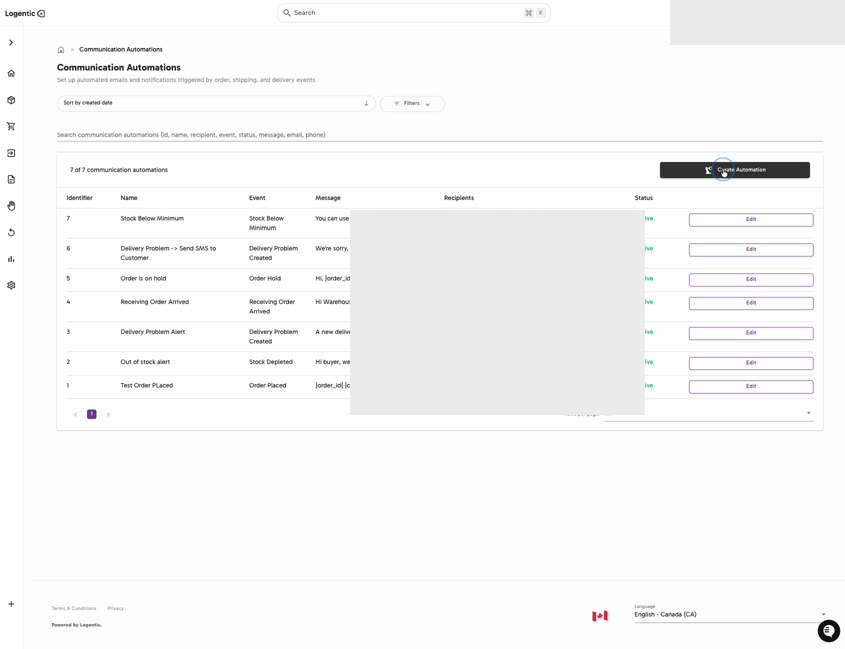
- Review the existing automation list, including Name, Event, Status, and Edit.
- Select Edit to update an existing automation, or select Create Automation to create a new one.
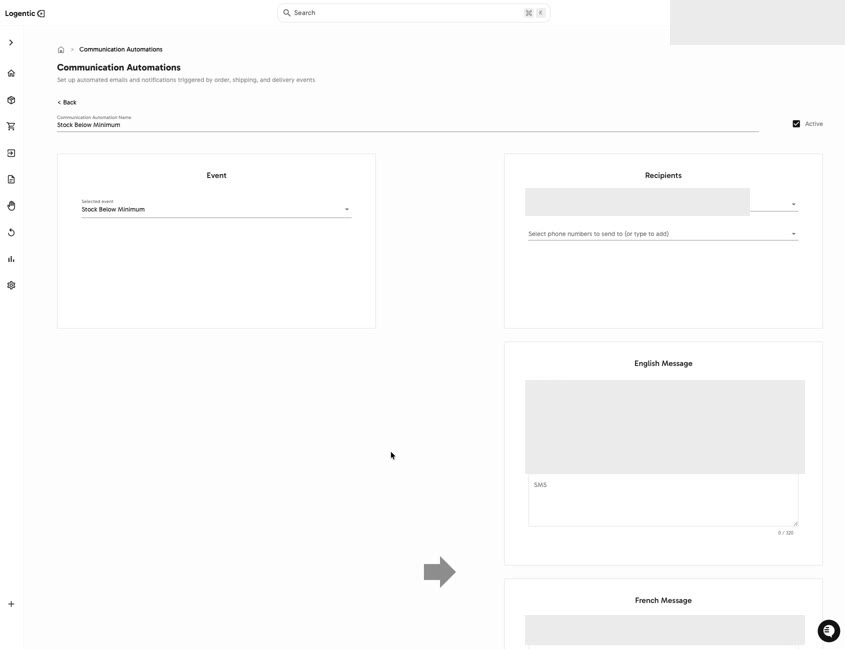
- Enter or review the Communication Automation Name.
- Choose the Selected event.
- Add recipients in Select emails to send to or Select phone numbers to send to.
- Fill the English Message fields.
- Fill the French Message fields.
- Keep Active checked only if the automation is ready to send.
- Review the event, recipients, message content, and active status before saving.
Screenshots
Steps 1-4: Open Communication Automations, review rules, and choose Edit or Create Automation.
Steps 5-11: Choose the event, recipients, English message, French message, and active status.
What good looks like
The automation has the intended event, recipients, English and French message content, and active status.
Automation options and examples
For the automation option map and starter examples, see What automation options can I use in Logentic?
Common issues and next actions
| If this happens | What to do next |
|---|---|
| The event you need is not available. | Do not choose a different event unless it truly matches the workflow. Contact us with the event you need. |
| The recipient list is incomplete. | Confirm the email or phone value before activating the automation. |
| You are not sure whether the message should send live. | Leave Active unchecked until your team approves the rule. |
Contact us when
An event is missing, recipients cannot be added, message fields do not save, an active automation does not send, or a message sends unexpectedly.
Contact options
- Email Logentic Support: best for detailed requests, screenshots, or follow-up context.
- Open in-app chat: fastest when you are already signed in and need help in context.
- Call Logentic: call (855) 529-0009 for an urgent launch, warehouse, or fulfillment blocker.
- Request Slack support access: ask us to add your team to a shared Logentic support channel.
Send us this information
- Automation name.
- Event selected.
- Recipient type used: email, phone, or order recipient.
- Whether Active was checked.
- Screenshot with emails, phone numbers, and message text masked if needed.
- Expected result.
- Actual result shown in Logentic.
Related workflow
- Decide the event and message your team needs.
- Create or edit the communication automation.
- Watch the first live event and contact us if the message does not behave as expected.