How do I open and review a warehouse layout?
Last updated: May 18, 2026
Quick answer
Use this article to open the warehouse layout grid from a warehouse record.
Common use cases
- Warehouse lead: Review the layout grid before installing location labels.
- Operations manager: Confirm the width and height context before asking Logentic to validate a layout.
- Admin: Find the layout builder from the warehouse detail page during setup.
When to use this
- You need to open Manage Warehouse Layout.
- You need to review the layout grid, width, height, start point, or end point.
- You need to collect layout context before contacting Logentic.
When not to use this
- You need to redesign the physical warehouse workflow.
- You need to move inventory between locations.
- You need to confirm how layout changes affect picking routes, labels, or inventory.
At a glance
| What you are doing | What you need | Good result | Contact us if |
|---|---|---|---|
| Use this article to open the warehouse layout grid from a warehouse record. | Confirm the warehouse record exists. Confirm you are reviewing the correct warehouse. | You can see the warehouse grid and understand the visible layout controls before making or escalating any layout change. | You need help designing the physical layout, the layout cannot be submitted, the grid does not match the warehouse, or you need to understand how layout changes affect labels, inventory, or picking. |
Before you start
- Confirm the warehouse record exists.
- Confirm you are reviewing the correct warehouse.
- Align internally on the intended physical layout before saving changes.
Steps
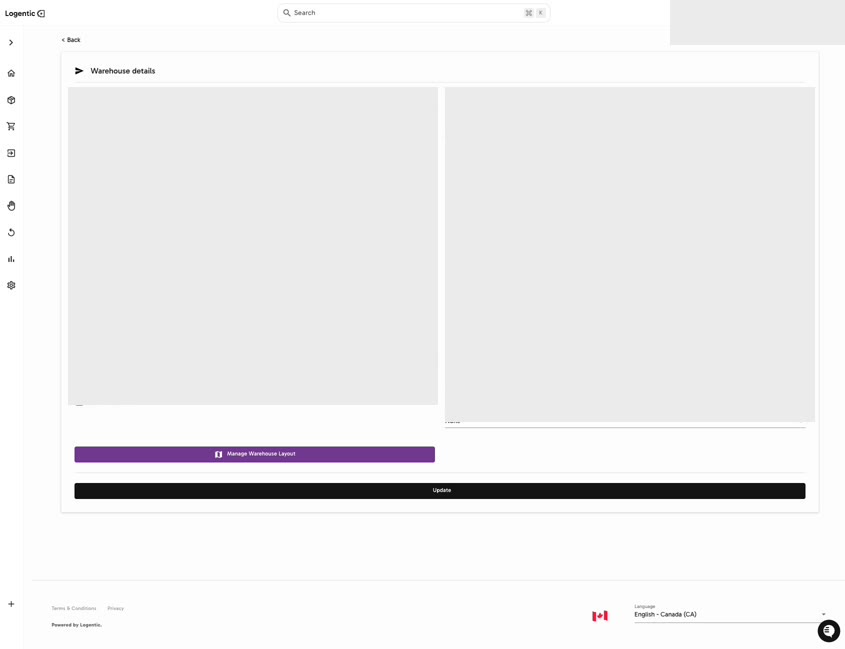
- Go to Settings in the left navigation.
- Open Warehouses.
- Select Details for the warehouse you want to review.
- Select Manage Warehouse Layout.
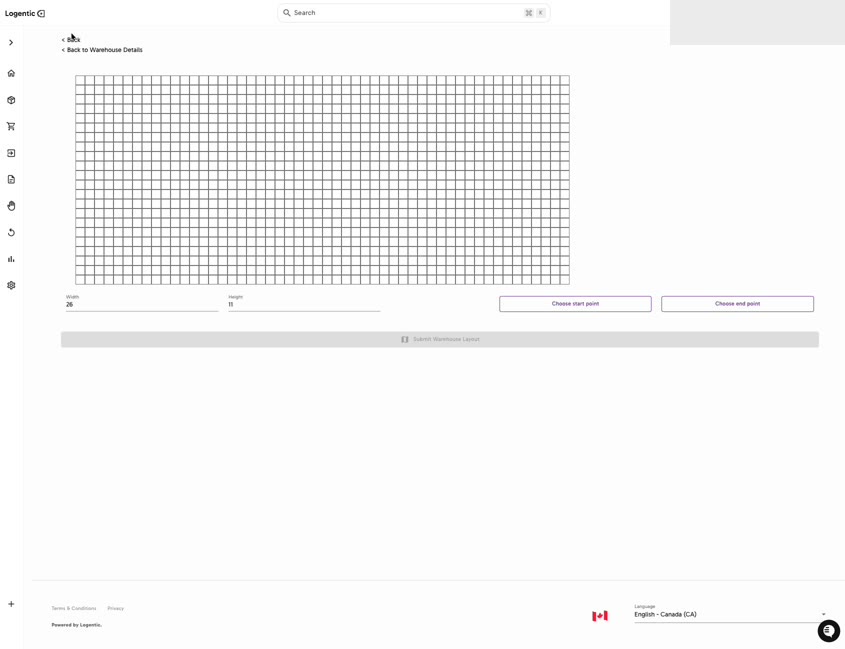
- Review the warehouse grid.
- Review Width and Height.
- Use Choose start point only if you are ready to define the layout path.
- Use Choose end point only if you are ready to define the layout path.
- Select Submit Warehouse Layout only after your team has confirmed the layout.
Screenshots
Steps 1-4: Open the warehouse details page and select Manage Warehouse Layout.
Steps 5-9: Review the layout grid, dimensions, start point, end point, and submit control.
What good looks like
You can see the warehouse grid and understand the visible layout controls before making or escalating any layout change.
Common issues and next actions
| If this happens | What to do next |
|---|---|
| You are not sure what width, height, start point, or end point should be. | Do not submit the layout yet. Confirm the physical layout with your operations team or contact Logentic. |
| The layout cannot be submitted. | Confirm that required layout selections are complete. Contact us if the button remains unavailable. |
| You need location labels or bin naming rules. | Contact us with your physical layout plan. |
Contact us when
You need help designing the physical layout, the layout cannot be submitted, the grid does not match the warehouse, or you need to understand how layout changes affect labels, inventory, or picking.
Contact options
- Email Logentic Support: best for detailed requests, screenshots, or follow-up context.
- Open in-app chat: fastest when you are already signed in and need help in context.
- Call Logentic: call (855) 529-0009 for an urgent launch, warehouse, or fulfillment blocker.
- Request Slack support access: ask us to add your team to a shared Logentic support channel.
Send us this information
- Warehouse name.
- Screenshot of the layout grid.
- Width and height values.
- Start point and end point you intended to use.
- Expected layout behavior.
- Actual result shown in Logentic.
Related workflow
- Confirm the warehouse record.
- Review or configure the layout grid.
- Validate labels, locations, and picking implications before live use.