How do I create a packaging type?
Last updated: May 23, 2026
Quick answer
Create packaging types in Inventory > Packaging so packers can choose the right box during packing and Logentic has better dimensions and weights for cartonization and carrier-rate requests.
Common use cases
- Operations manager: Add standard cartons before the first live shipping day.
- Warehouse lead: Make sure packers can choose the same packaging names the team uses on the floor.
- Shipping lead: Improve carrier-rate accuracy by keeping carton dimensions and weights up to date.
When to use this
- You need to add a new box, mailer, pallet, or packaging option.
- A package option is missing during packing.
- You are preparing cartonization and shipping-rate setup before go-live.
When not to use this
- A label failed after the carrier was selected.
- You need a carrier billing, refund, or delivery-guarantee decision.
- You need exact details about how Logentic chooses one package over another.
At a glance
| What you are doing | What you need | Good result | Contact us if |
|---|---|---|---|
| Add a packaging type with dimensions and weight. | Admin access, the correct warehouse context, packaging name, dimensions in inches, package weight in kg, and carriable weight in kg if your team uses it. | The new packaging type appears in the table as Active and can be used by your team during packing. | The package does not save, the package is missing during packing, or rates still look wrong after the package is set up. |
Important: Packaging dimensions and weights can affect packing choices and carrier-rate requests. Confirm the measurements with your warehouse team before relying on a new packaging type for live orders.
Before you start
- Confirm you are in the correct workspace and warehouse context.
- Gather the packaging name your packers will recognize.
- Measure width, length, and height in inches.
- Weigh the empty package in kilograms.
- Confirm the carriable weight your team wants to use. If you are unsure, contact Logentic before live fulfillment.
Steps
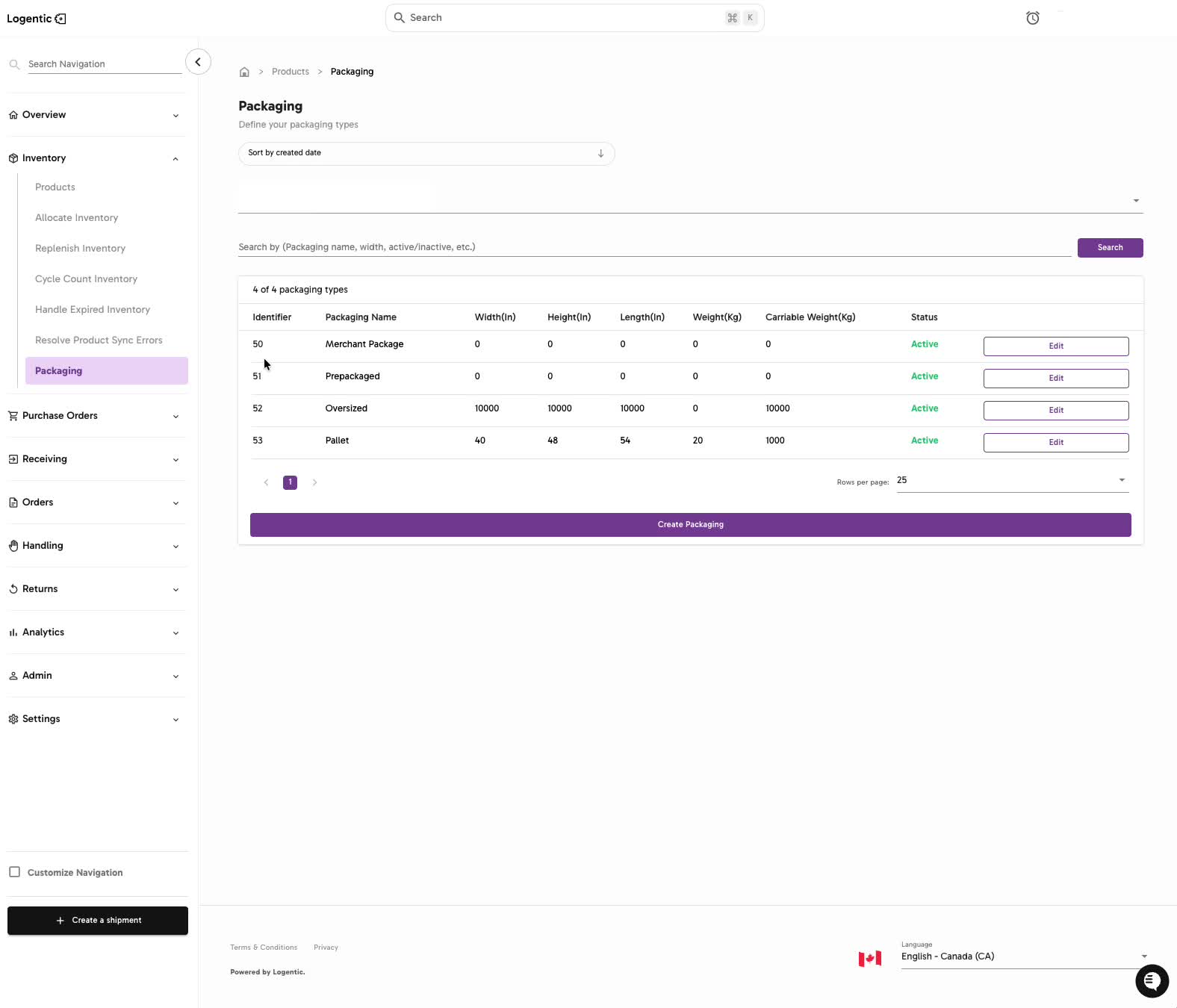
- Go to Inventory in the left navigation.
- Select Packaging.
- Select the correct context in Select a warehouse.
- Search for the package first to confirm it does not already exist.
- Review the current table columns:
- Packaging Name
- Width(In)
- Height(In)
- Length(In)
- Weight(Kg)
- Carriable Weight(Kg)
- Status
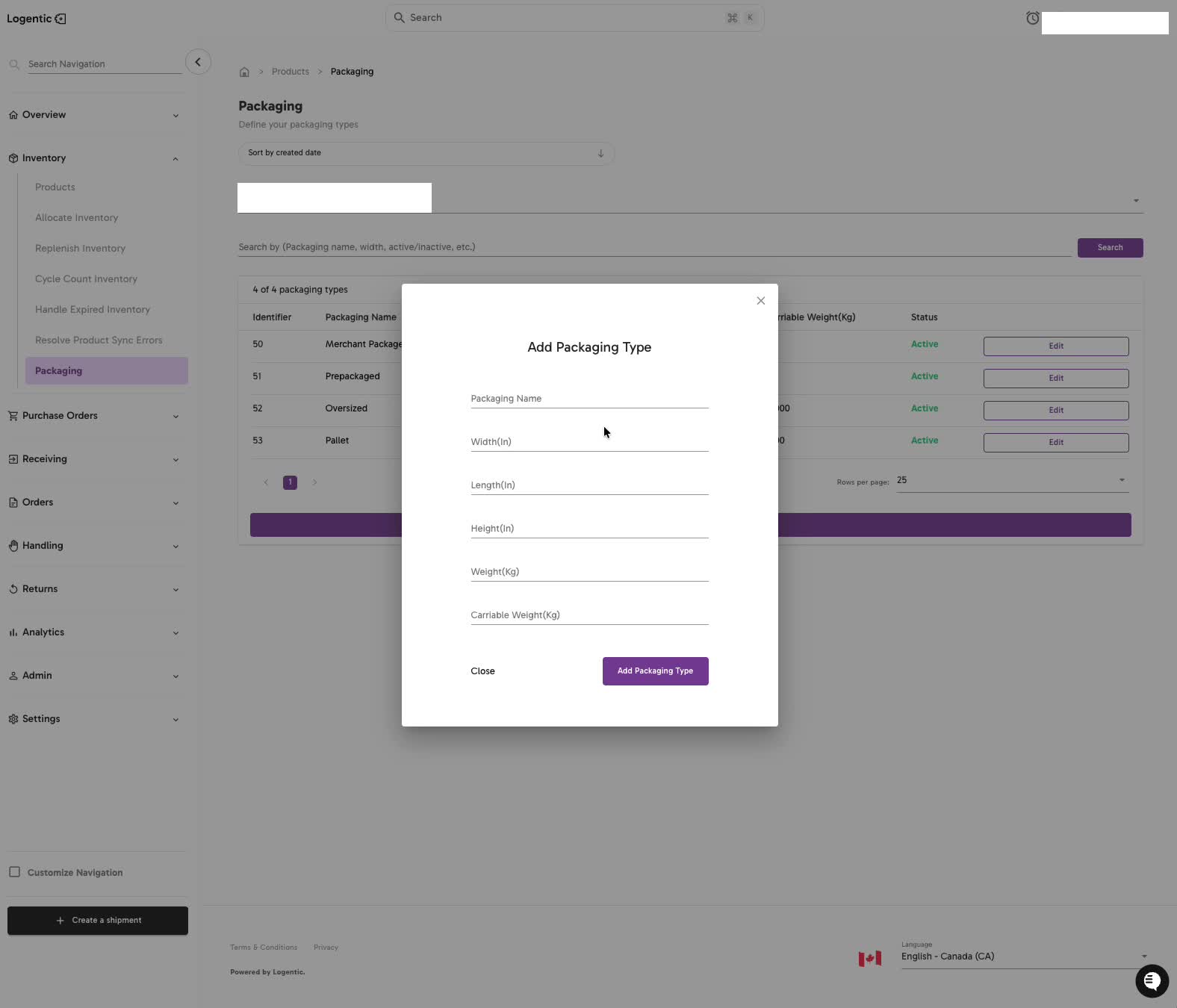
- Select Create Packaging.
- In Add Packaging Type, enter the Packaging Name.
- Enter Width(In), Length(In), and Height(In).
- Enter Weight(Kg) for the empty package.
- Enter Carriable Weight(Kg) if your team uses a max-weight value for that package.
- Select Add Packaging Type.
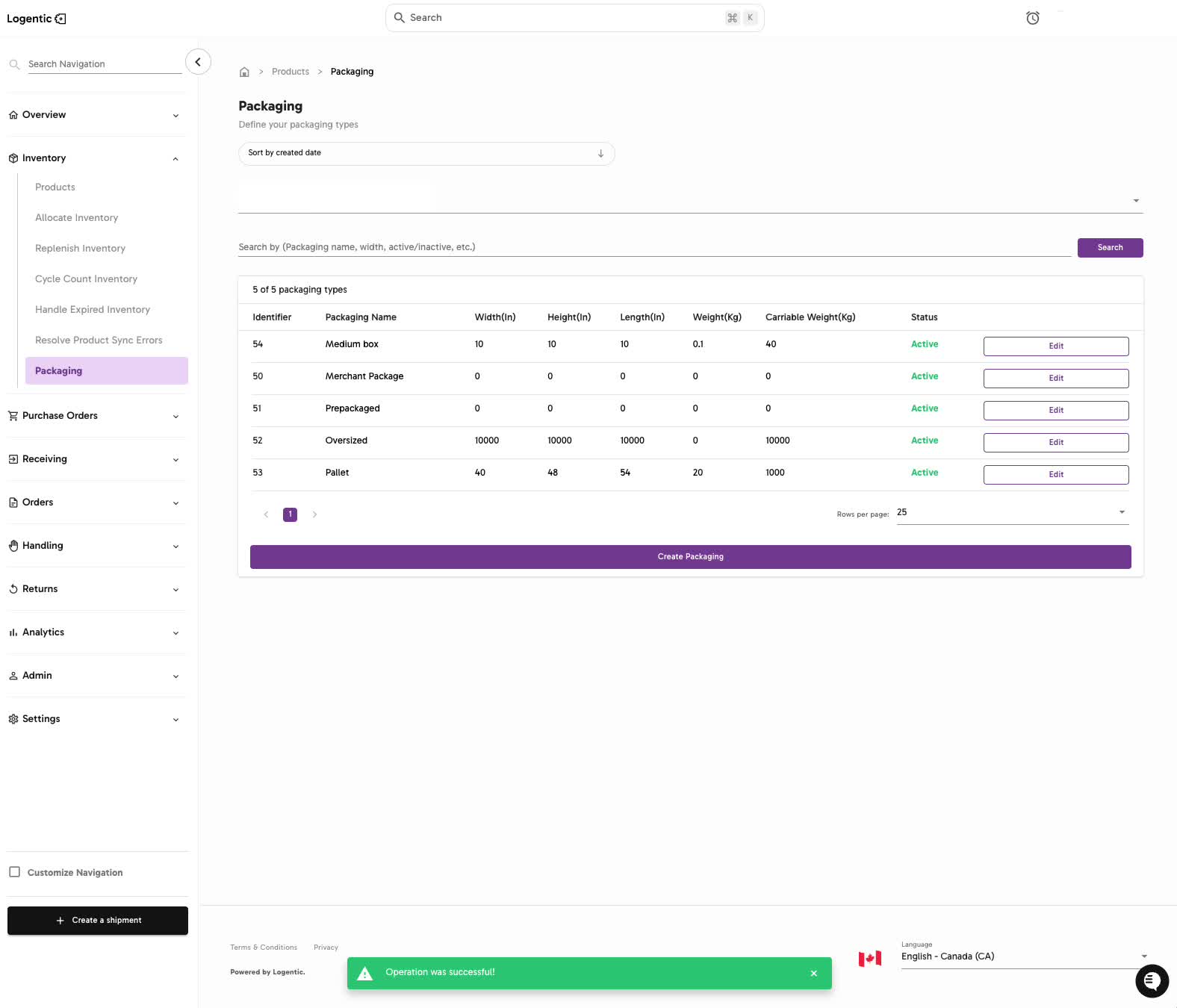
- Confirm the success message appears.
- Confirm the new packaging type appears in the table as Active.
Screenshots
Steps 1-5: Open Packaging, choose the correct context, search first, and review existing packaging types.
Steps 6-10: Select Create Packaging and enter the package name, dimensions, package weight, and carriable weight.
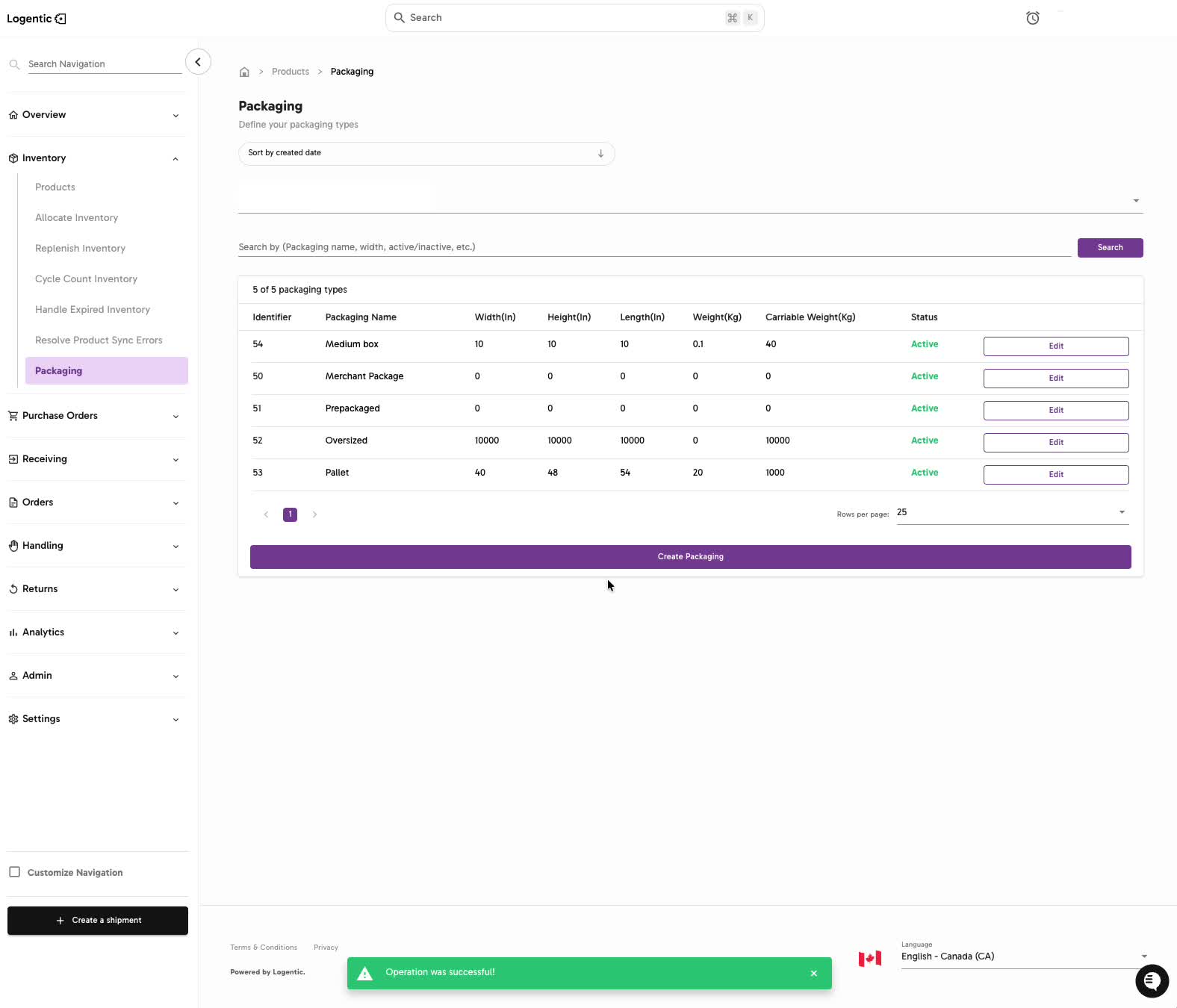
Steps 11-13: Save the packaging type and confirm the success message and Active status.
What good looks like
The new packaging type appears in the Packaging table with the expected dimensions, weight, carriable weight, and Active status.
Common issues and next actions
| If this happens | What to do next |
|---|---|
| The package already exists. | Use the existing package if the dimensions are correct, or use Edit if your team needs to update the saved values. |
| The package does not save. | Check that required fields are filled and use numbers only for dimensions and weights. If it still fails, contact us with a screenshot. |
| The package is missing during packing. | Confirm the package is Active in Inventory > Packaging and that you are packing in the expected warehouse context. |
| Carrier rates still look wrong. | Review the package dimensions and weight, then contact us with the order, package selected, and rate panel screenshot. |
| You are not sure what to enter for carriable weight. | Pause before using the package for live orders and confirm the value with your warehouse lead or Logentic. |
Contact us when
The packaging type does not save, the package is missing during packing, the saved values look wrong, or rates still look wrong after you update the package.
Contact options
- Email Logentic Support: best for detailed requests, screenshots, or follow-up context.
- Open in-app chat: fastest when you are already signed in and need help in context.
- Call Logentic: call (855) 529-0009 for an urgent launch, warehouse, or fulfillment blocker.
- Request Slack support access: ask us to add your team to a shared Logentic support channel.
Send us this information
- Packaging name.
- Warehouse or workspace context.
- Width, length, height, weight, and carriable weight entered.
- Screenshot of the Packaging table or Add Packaging Type modal.
- Whether the issue happens while creating the package, editing it, packing an order, or selecting a carrier rate.
- Expected result.
- Actual result shown in Logentic.
Related workflow
- Create the packaging type.
- Use the packaging type during packing.
- Choose or submit the carrier rate with the correct package information.