How do I review Shopify, API credentials, and webhooks?
Last updated: May 18, 2026
Quick answer
Use this article to review Manage Integrations, Shopify sync settings, API Credentials, and Webhooks.
Common use cases
- Admin: Confirm whether Shopify appears authorized and connected before asking for help.
- Operations manager: Find the manual sync buttons when products, orders, or failed records need attention.
- Technical contact: Locate API Credentials and Webhooks without sending secret values through support chat.
When to use this
- You need to find Shopify integration settings.
- You need to check whether webhooks or restrict-by-tag settings are visible.
- You need to locate API credential or webhook sections before escalating.
When not to use this
- You need to rotate, reveal, or share API keys.
- You need Logentic to confirm exact Shopify sync timing.
- You need a live investigation of failed orders, failed items, inventory mismatches, or webhook delivery.
At a glance
| What you are doing | What you need | Good result | Contact us if |
|---|---|---|---|
| Use this article to review Manage Integrations, Shopify sync settings, API Credentials, and Webhooks. | Use an admin account with access to Settings. Never paste API keys, passwords, or secrets into support chat. | You can identify the Shopify integration card, see the current status badges, locate the sync controls, and find API Credentials and Webhooks without exposing any secret values. | The integration is not authorized, not connected, failed sync counts remain after retry, Shopify data is missing or stale, API credentials need rotation, or webhook behavior needs investigation. |
Before you start
- Use an admin account with access to Settings.
- Never paste API keys, passwords, or secrets into support chat.
- Know which store, order, product, SKU, or webhook issue you are checking.
Steps
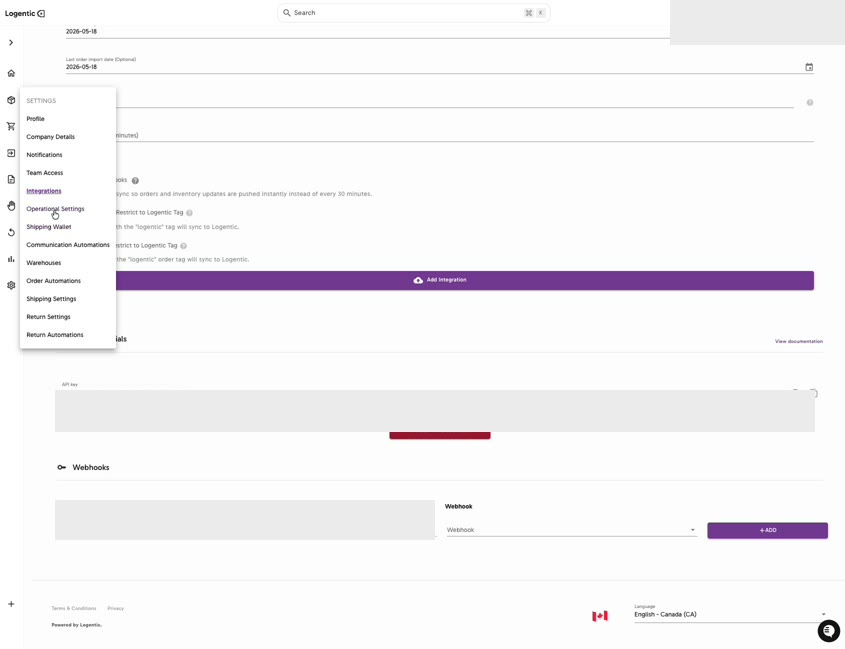
- Go to Settings in the left navigation.
- Open Integrations.
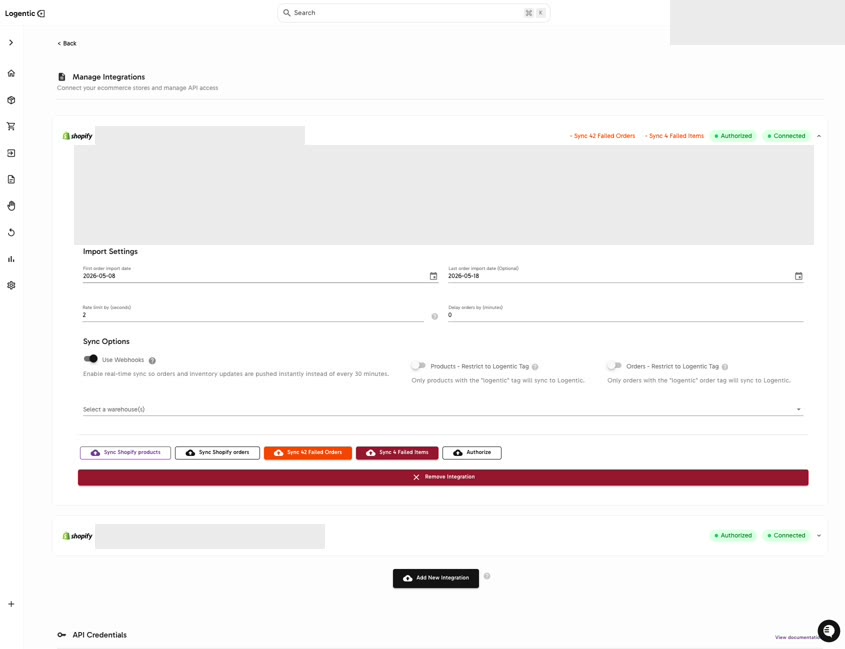
- In Manage Integrations, review the Shopify integration card.
- Check the visible status badges such as Authorized or Connected.
- Review Import Settings for the first import date, last order import date, rate limit, and delay orders fields.
- Review Sync Options for Use Webhooks, Products - Restrict to Logentic Tag, and Orders - Restrict to Logentic Tag.
- Use the manual sync buttons only when you intentionally want to retry the visible sync action:
- Sync Shopify products
- Sync Shopify orders
- Sync Failed Orders
- Sync Failed Items
- Scroll to API Credentials when you need to confirm where the API key section lives.
- Scroll to Webhooks when you need to confirm where webhook URL path and webhook type are configured.
- Contact us instead of sharing secret values if anything needs to be rotated, reauthorized, or investigated.
Screenshots
Steps 1-7: Open Manage Integrations, review Shopify status, import settings, sync options, and manual sync buttons.
Steps 8-10: Review API Credentials and Webhooks without exposing secret values.
What good looks like
You can identify the Shopify integration card, see the current status badges, locate the sync controls, and find API Credentials and Webhooks without exposing any secret values.
Common issues and next actions
| If this happens | What to do next |
|---|---|
| A sync button does not fix the issue. | Collect the order, product, SKU, failed item, or failed order context and contact us. |
| You need to rotate or reveal credentials. | Do not send secrets in chat. Contact us and ask for a credential rotation or secure handoff. |
| Webhooks are enabled but data still looks stale. | Contact us with the affected order, SKU, or product. Do not assume webhook timing from the settings page alone. |
Contact us when
The integration is not authorized, not connected, failed sync counts remain after retry, Shopify data is missing or stale, API credentials need rotation, or webhook behavior needs investigation.
Contact options
- Email Logentic Support: best for detailed requests, screenshots, or follow-up context.
- Open in-app chat: fastest when you are already signed in and need help in context.
- Call Logentic: call (855) 529-0009 for an urgent launch, warehouse, or fulfillment blocker.
- Request Slack support access: ask us to add your team to a shared Logentic support channel.
Send us this information
- Shopify store or integration name.
- Affected order ID, product ID, SKU, or variant if relevant.
- Which sync button you used, if any.
- Visible status badges.
- Whether Use Webhooks is enabled.
- Screenshot with credentials and secrets masked.
- Expected result.
- Actual result shown in Logentic or Shopify.
Related workflow
- Review the integration status and settings.
- Retry the intended sync action only if appropriate.
- Escalate with identifiers and masked screenshots if the issue remains.