How do I manage team access and warehouse roles?
Last updated: May 18, 2026
Quick answer
Use this article to review team access, warehouse assignments, and role rows from Team Access.
Common use cases
- Admin: Give a teammate the warehouse and role context they need to work in Logentic.
- Operations manager: Confirm that users are assigned to the right warehouses before a shift starts.
- Warehouse lead: Check whether a missing screen may be related to the user's role or warehouse assignment.
When to use this
- You need to review users in Team Access.
- You need to assign a warehouse to a user.
- You need to add or remove a role row.
When not to use this
- A user cannot log in at all.
- You need the full permission matrix for a role.
- You need to investigate access to the wrong customer account or workspace.
At a glance
| What you are doing | What you need | Good result | Contact us if |
|---|---|---|---|
| Use this article to review team access, warehouse assignments, and role rows from Team Access. | Confirm you are using an admin account that can open Settings. Know the user you need to update. | The user row shows the intended warehouse context and role rows, with no extra roles that should not apply. | A user cannot log in, the required role or warehouse is missing, a user sees the wrong workspace or warehouse, or permissions do not match the role you assigned. |
Before you start
- Confirm you are using an admin account that can open Settings.
- Know the user you need to update.
- Know the warehouse and role that user should have.
Steps
- Go to Settings in the left navigation.
- Open Team Access.
- Find the user row you need to review.
- Use Select a warehouse(s) to choose the warehouse context for that user.
- Use Role to choose the role for that warehouse context.
- Select Add Role when the user needs another role row.
- Use the X beside a role row only when you intend to remove that role.
- Review the final warehouse and role rows before leaving the page.
Screenshots
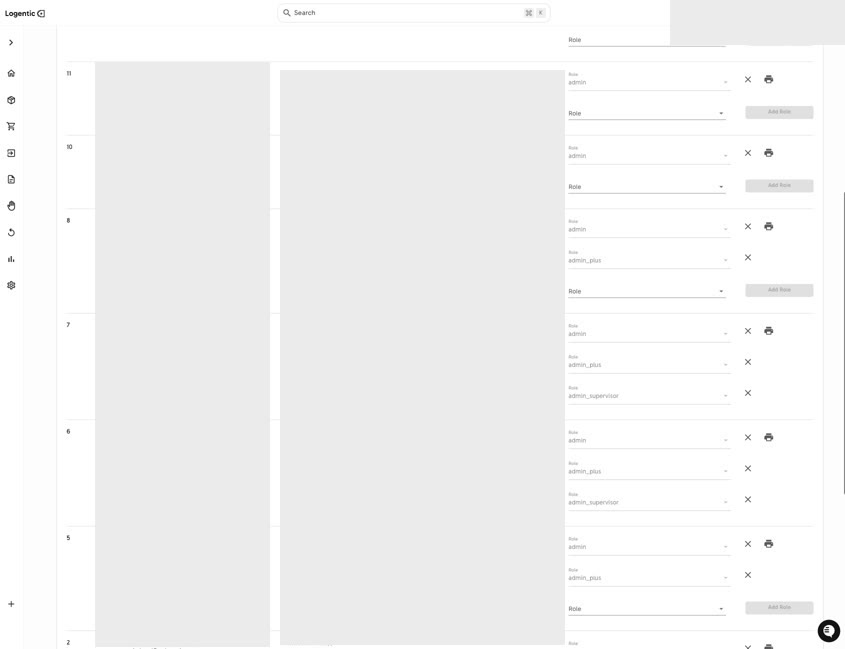
Steps 1-8: Open Team Access, review user rows, choose warehouses and roles, and add or remove role rows.
What good looks like
The user row shows the intended warehouse context and role rows, with no extra roles that should not apply.
Common issues and next actions
| If this happens | What to do next |
|---|---|
| The user still cannot see the expected screen. | Ask the user to refresh and confirm they are in the correct workspace. Contact us if the screen is still missing. |
| The warehouse is not available in the selector. | Confirm the warehouse exists and is active. Contact us if the warehouse is missing for the admin user too. |
| You are not sure which role to choose. | Contact us before assigning a broader role than the user needs. |
Contact us when
A user cannot log in, the required role or warehouse is missing, a user sees the wrong workspace or warehouse, or permissions do not match the role you assigned.
Contact options
- Email Logentic Support: best for detailed requests, screenshots, or follow-up context.
- Open in-app chat: fastest when you are already signed in and need help in context.
- Call Logentic: call (855) 529-0009 for an urgent launch, warehouse, or fulfillment blocker.
- Request Slack support access: ask us to add your team to a shared Logentic support channel.
Send us this information
- User email.
- Workspace and warehouse involved.
- Role selected.
- Screen or action the user expected to access.
- Screenshot of the Team Access row with private details masked if needed.
- Expected result.
- Actual result shown in Logentic.
Related workflow
- Add or confirm the warehouse.
- Assign the user to the right warehouse and role.
- Ask the user to refresh and verify the expected workflow.