How do I add or update a warehouse?
Last updated: May 18, 2026
Quick answer
Use this article to find warehouse records and review warehouse details from Warehouses.
Common use cases
- Admin: Confirm that a warehouse record exists before assigning users or shipping settings.
- Operations manager: Review whether a warehouse is active and marked for fulfillment.
- Warehouse lead: Check the warehouse details before asking Logentic to investigate routing or setup issues.
When to use this
- You need to open the Warehouses page.
- You need to search, filter, or open warehouse details.
- You need to review active status, fulfillment status, address fields, or integration defaults.
When not to use this
- You need to design the warehouse layout.
- You need to move inventory between locations.
- You need to confirm downstream shipping, routing, tax, or integration behavior.
At a glance
| What you are doing | What you need | Good result | Contact us if |
|---|---|---|---|
| Use this article to find warehouse records and review warehouse details from Warehouses. | Use an admin account with access to Settings. Know which warehouse you need to review or update. | The warehouse row and detail page match the warehouse your team expects, and you only save changes after confirming the operational impact. | A warehouse is missing, details do not save, active or fulfillment status conflicts with operations, or warehouse settings appear to affect orders, receiving, shipping, or integrations unexpectedly. |
Before you start
- Use an admin account with access to Settings.
- Know which warehouse you need to review or update.
- Confirm changes with your operations team before updating live warehouse settings.
Steps
- Go to Settings in the left navigation.
- Open Warehouses.
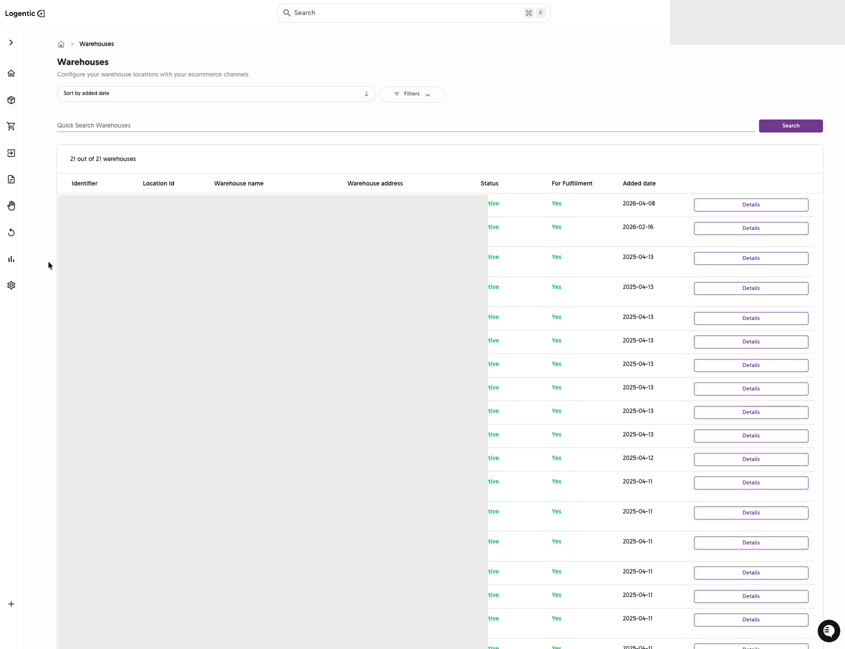
- Use Quick Search Warehouse when you need to find a specific warehouse.
- Use Filters when you need to narrow the warehouse list.
- Review the visible columns, including Warehouse name, Status, For Fulfillment, and Added date.
- Select Details on the warehouse row you want to review.
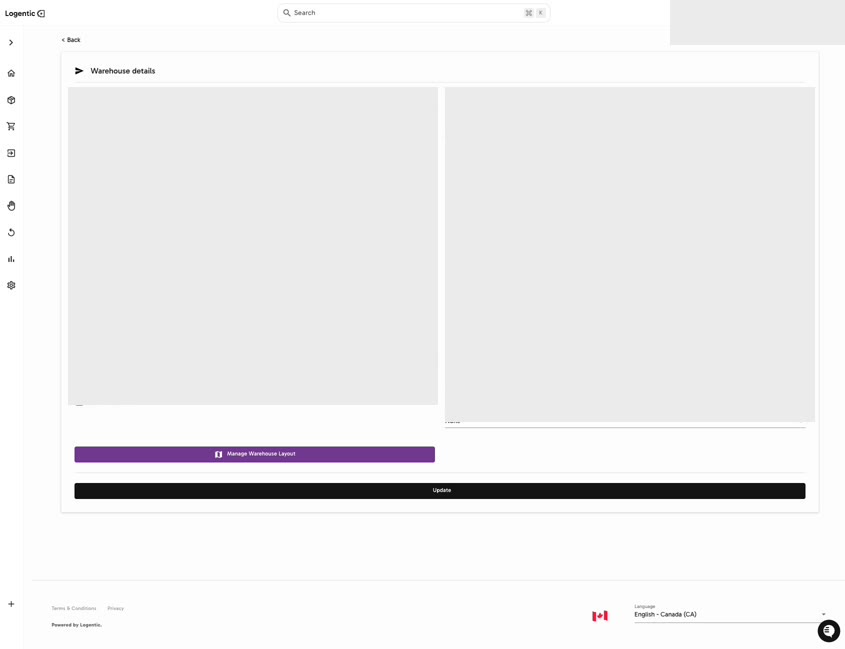
- Review Warehouse details.
- Confirm whether Warehouse active and For Fulfillment are checked.
- Review default integration fields and special driver fields if they apply to your workflow.
- Select Update only after confirming the warehouse settings are correct.
Screenshots
Steps 1-6: Open Warehouses, search or filter, and select Details.
Steps 7-10: Review Warehouse details, active/fulfillment settings, layout button, default integration fields, and Update.
What good looks like
The warehouse row and detail page match the warehouse your team expects, and you only save changes after confirming the operational impact.
Common issues and next actions
| If this happens | What to do next |
|---|---|
| The warehouse is missing from the list. | Clear filters and search by a simpler name. Contact us if the warehouse still does not appear. |
| The warehouse status or fulfillment setting looks wrong. | Do not change it blindly if live orders, receiving, routing, or shipping could be affected. Contact us with the warehouse name. |
| A default integration field is unclear. | Contact us before saving the setting. |
Contact us when
A warehouse is missing, details do not save, active or fulfillment status conflicts with operations, or warehouse settings appear to affect orders, receiving, shipping, or integrations unexpectedly.
Contact options
- Email Logentic Support: best for detailed requests, screenshots, or follow-up context.
- Open in-app chat: fastest when you are already signed in and need help in context.
- Call Logentic: call (855) 529-0009 for an urgent launch, warehouse, or fulfillment blocker.
- Request Slack support access: ask us to add your team to a shared Logentic support channel.
Send us this information
- Warehouse name.
- Screenshot with address/contact values masked if needed.
- Field you changed or expected to change.
- Whether Warehouse active and For Fulfillment are checked.
- Expected result.
- Actual result shown in Logentic.
Related workflow
- Create or confirm the warehouse record.
- Manage the warehouse layout when needed.
- Assign users, shipping settings, and integration context after the warehouse is confirmed.