How do I configure shipping carrier services?
Last updated: May 18, 2026
Quick answer
Use this article to review shipping integration settings and selected carrier services from Shipping Settings.
Common use cases
- Admin: Confirm the warehouse and shipping integration before enabling carrier services.
- Operations manager: Review which carrier cards are selected for a warehouse.
- Shipping lead: Gather the right context before asking Logentic why a carrier, rate, or label is unavailable.
When to use this
- You need to open Shipping Settings.
- You need to review the shipping integration for a warehouse.
- You need to select or review carrier service cards.
When not to use this
- You need a rate, delivery date, pickup, refund, or label-billing guarantee.
- You need to rotate or reveal carrier API credentials.
- An external shipping integration appears to charge the wrong account.
At a glance
| What you are doing | What you need | Good result | Contact us if |
|---|---|---|---|
| Use this article to review shipping integration settings and selected carrier services from Shipping Settings. | Use an admin account with access to Settings. Know which warehouse you are configuring. | The correct warehouse is selected, the expected shipping integration is visible, and the carrier services selected match your team's approved shipping setup. | Carrier services are missing, credentials need rotation, Sync Shipping Service fails, rates or labels do not match expectations, a shipping integration appears to charge the wrong account, or carrier availability affects live shipping. |
Before you start
- Use an admin account with access to Settings.
- Know which warehouse you are configuring.
- Know which shipping integration and carrier services should be available.
- Never paste carrier API keys or secrets into support chat.
Steps
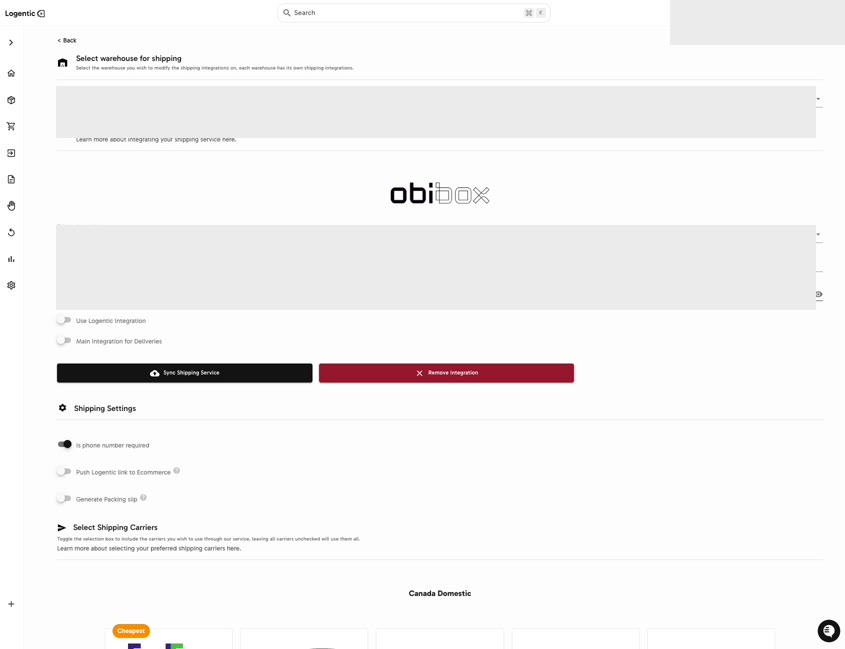
- Go to Settings in the left navigation.
- Open Shipping Settings.
- Select the warehouse in Select a warehouse.
- Review Integrate shipping service.
- Review the selected shipping integration.
- Confirm whether options such as Use Logentic Integration, Main integration for Deliveries, Is phone number required, Push Logentic link to Ecommerce, or Generate Packing slip should be enabled for your workflow.
- Select Sync Shipping Service only when you are ready to sync the configured service.
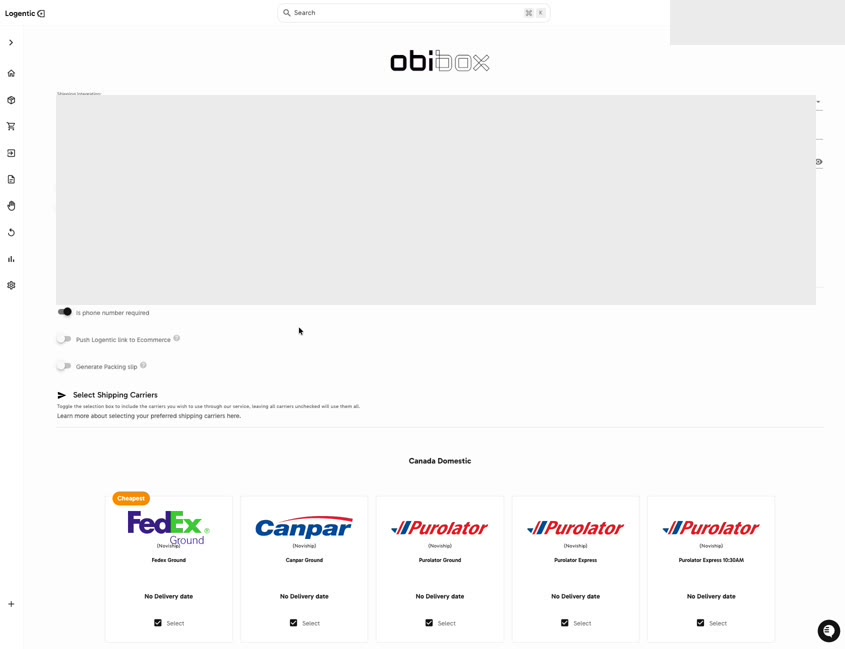
- Open Select Shipping Carriers.
- Review the carrier service cards.
- Select or clear carrier services according to your team's approved setup.
- Contact us before saving or syncing if you are unsure which integration, account, or carrier services should be used.
Screenshots
Steps 1-7: Open Shipping Settings, choose a warehouse, review the integration, and use Sync Shipping Service only when ready.
Steps 8-11: Review Select Shipping Carriers and selected carrier cards.
What good looks like
The correct warehouse is selected, the expected shipping integration is visible, and the carrier services selected match your team's approved shipping setup.
Common issues and next actions
| If this happens | What to do next |
|---|---|
| A carrier is not available. | Confirm the warehouse and integration first. Contact us if the carrier service should be available but is missing. |
| A rate, label, pickup, or delivery date looks wrong. | Do not treat the carrier settings page as a guarantee. Contact us with a shipment or order example. |
| You are unsure which account is being charged. | Contact us before changing integration settings or syncing the service. |
Contact us when
Carrier services are missing, credentials need rotation, Sync Shipping Service fails, rates or labels do not match expectations, a shipping integration appears to charge the wrong account, or carrier availability affects live shipping.
Contact options
- Email Logentic Support: best for detailed requests, screenshots, or follow-up context.
- Open in-app chat: fastest when you are already signed in and need help in context.
- Call Logentic: call (855) 529-0009 for an urgent launch, warehouse, or fulfillment blocker.
- Request Slack support access: ask us to add your team to a shared Logentic support channel.
Send us this information
- Warehouse selected.
- Shipping integration selected.
- Carrier service names involved.
- Screenshot with credentials and private values masked.
- Example order or shipment ID if there is a shipping issue.
- Expected result.
- Actual result shown in Logentic.
Related workflow
- Confirm the warehouse.
- Review the shipping integration and selected carrier services.
- Test shipping on a safe order before relying on the setup for live fulfillment.