How do I use Manage inventory from the Product Dashboard?
Last updated: May 18, 2026
Quick answer
Use this article to choose the right Manage inventory action from Product Dashboard.
Common use cases
- Operations manager: Choose whether the next task is adding an item, creating a receiving, managing bundles, or updating packaging instructions.
- Warehouse lead: Open receiving or bundle tools from the product inventory context.
- Inventory coordinator: Prepare product attributes before a product is used in receiving, fulfillment, or packaging workflows.
When to use this
- You are on Product Dashboard and need an inventory-management action.
- You need to add an item or review item fields.
- You need to open receiving, bundle, or packaging instruction tools.
When not to use this
- You need to correct a live inventory count.
- A bundle, receiving, or packaging workflow failed after you saved changes.
- You need exact rules for how bundle stock or packaging instructions affect orders.
At a glance
| What you are doing | What you need | Good result | Contact us if |
|---|---|---|---|
| Use this article to choose the right Manage inventory action from Product Dashboard. | Confirm you are in the correct workspace and warehouse context. Confirm whether you are creating new product data, receiving inventory, managing bundles, or managing packaging instructions. | You choose the correct inventory action for the job and avoid changing product, receiving, bundle, or packaging data when you are not sure of the operational impact. | You are unsure which inventory action to use, a save fails, a saved change affects fulfillment, or bundle, receiving, packaging, or item behavior does not match expectation. |
Before you start
- Confirm you are in the correct workspace and warehouse context.
- Confirm whether you are creating new product data, receiving inventory, managing bundles, or managing packaging instructions.
- Avoid changing item details unless you know the operational impact.
Steps
- Go to Inventory.
- Open Products.
- Confirm you are on Product Dashboard.
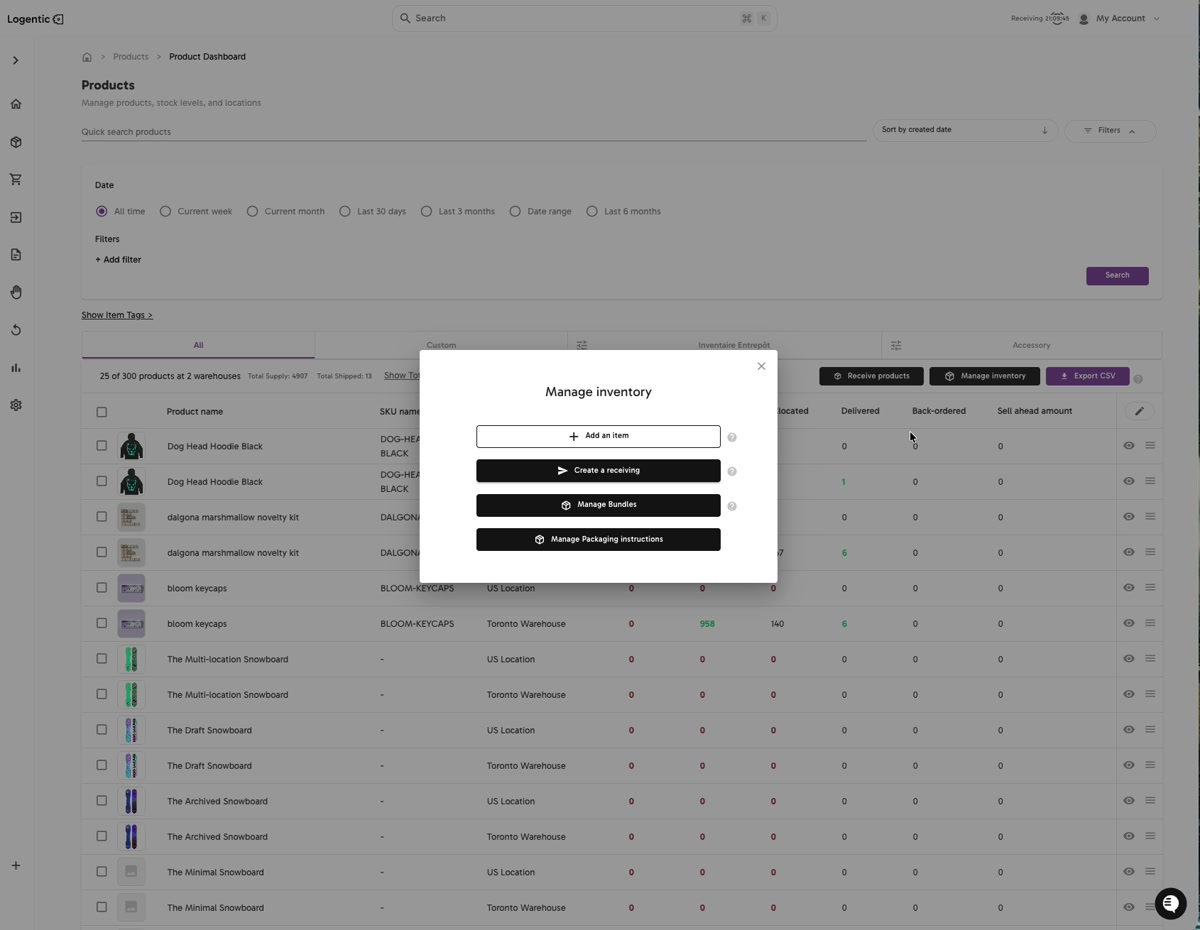
- Select Manage inventory.
- In Manage inventory, choose the action that matches your job:
- Add an item to create or complete item information.
- Create a receiving to start a receiving workflow.
- Manage Bundles to open Bundle Manager.
- Manage Packaging instructions to manage packaging-related setup.
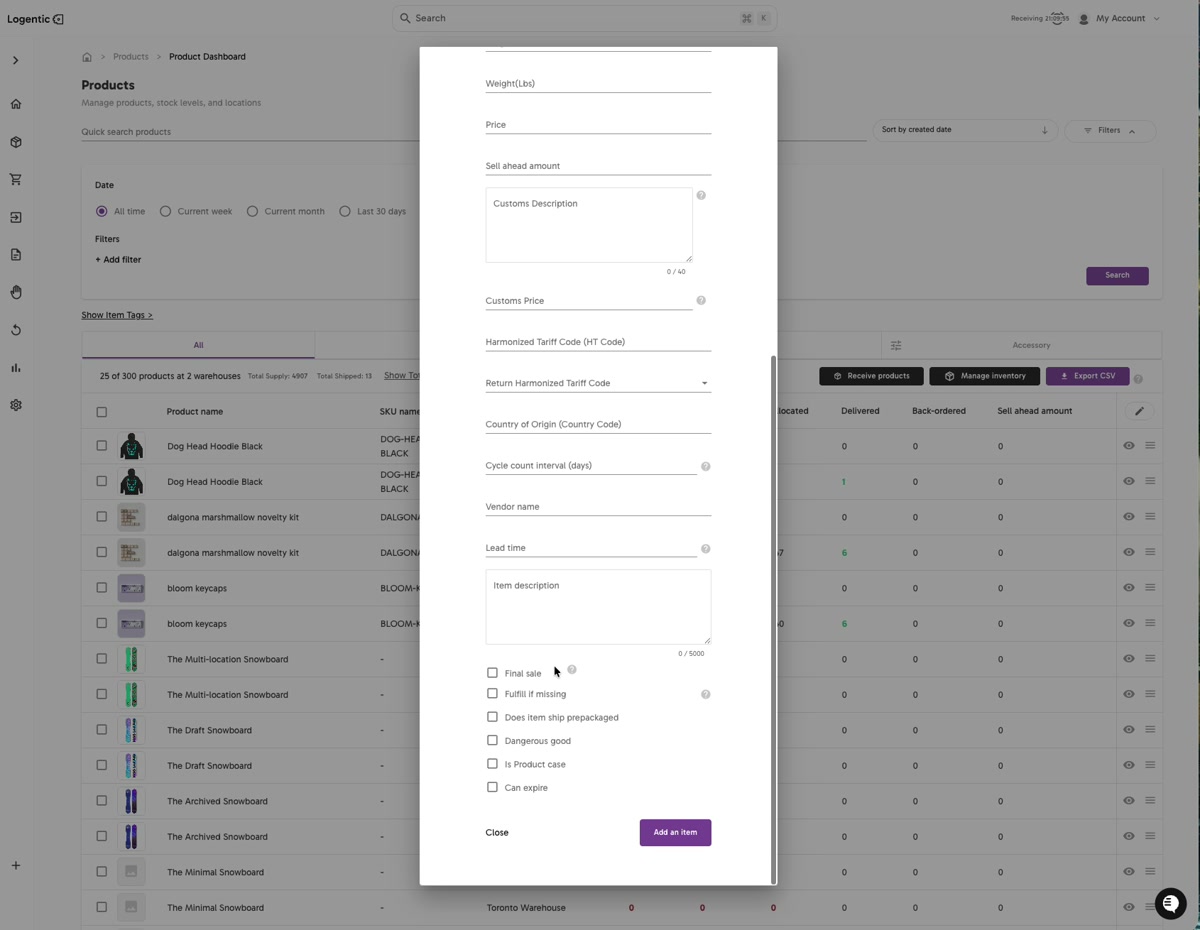
- If you choose Add an item, review the item fields shown in the form before saving.
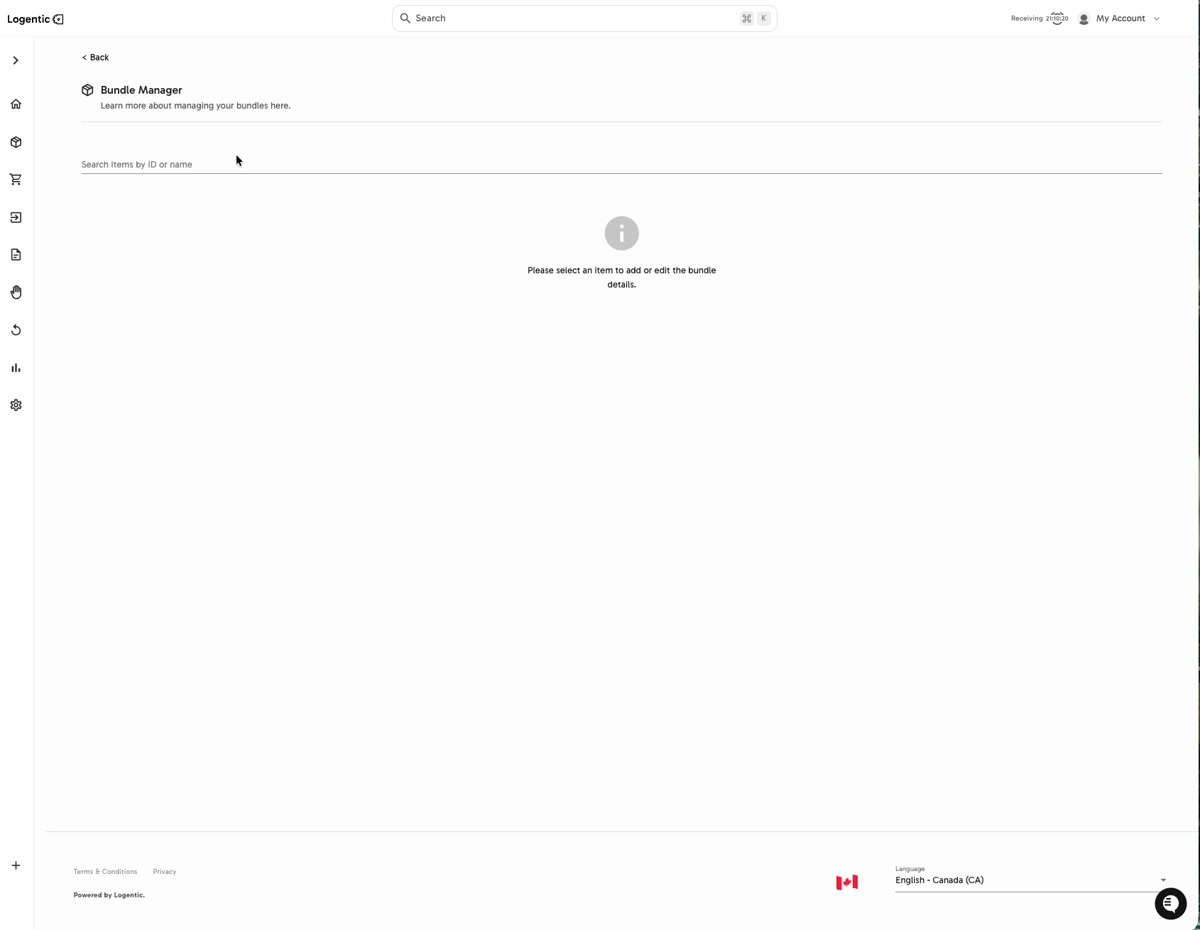
- If you choose Manage Bundles, use Search Items by ID or name to select the item you want to add or edit.
- Contact us before saving if you are unsure how the change will affect receiving, fulfillment, bundles, packaging, or Shopify.
Screenshots
Steps 4-5: Open Manage inventory and choose the action that matches your job.
Step 6: If you choose Add an item, review item details before saving.
Step 7: If you choose Manage Bundles, search for the item before adding or editing bundle details.
What good looks like
You choose the correct inventory action for the job and avoid changing product, receiving, bundle, or packaging data when you are not sure of the operational impact.
Common issues and next actions
| If this happens | What to do next |
|---|---|
| You are not sure which action to choose. | Use Create a receiving when the job is about receiving inventory. Use Manage Bundles when the job is about bundle details. Use Add an item only when you need to create or complete item information. |
| The add-item form asks for fields you do not know. | Pause before saving. Gather the product, customs, vendor, cycle count, packaging, and fulfillment details your team owns. |
| Bundle Manager is empty. | Use Search Items by ID or name to select an item before adding or editing bundle details. |
| A change affected fulfillment or inventory unexpectedly. | Stop making additional changes and contact us with the item, SKU, and workflow affected. |
Contact us when
You are unsure which inventory action to use, a save fails, a saved change affects fulfillment, or bundle, receiving, packaging, or item behavior does not match expectation.
Contact options
- Email Logentic Support: best for detailed requests, screenshots, or follow-up context.
- Open in-app chat: fastest when you are already signed in and need help in context.
- Call Logentic: call (855) 529-0009 for an urgent launch, warehouse, or fulfillment blocker.
- Request Slack support access: ask us to add your team to a shared Logentic support channel.
Send us this information
- Screenshot of the Manage inventory modal or the form you are using.
- Action selected.
- Product name and SKU.
- Warehouse and merchant context if relevant.
- Fields changed.
- Expected result.
- Actual result.
- Whether any orders, receiving tasks, bundles, or packaging instructions were affected.
Related workflow
- Open Product Dashboard.
- Select Manage inventory.
- Choose the action that matches the job.
- Complete the workflow only when the product and operational details are confirmed.
- Contact us before repeating changes that affect live operations.