How do I review back orders?
Last updated: May 18, 2026
Quick answer
Use this article to review orders that are blocked by full or partial back-order state.
Common use cases
- Warehouse lead: See which orders cannot move forward because items are unavailable.
- Fulfillment coordinator: Distinguish Partial Back-Order from Full Back-Order before taking action.
- Operations manager: Search or filter the back-order list before inventory follow-up.
When to use this
- You need to review back-ordered orders.
- You need to see which items are back-ordered.
- You need to resolve a back-order row after your team has completed the operational follow-up.
When not to use this
- You need to receive new inventory.
- You need to adjust stock counts.
- You need to confirm Shopify inventory timing or order sync timing.
At a glance
| What you are doing | What you need | Good result | Contact us if |
|---|---|---|---|
| Use this article to review orders that are blocked by full or partial back-order state. | Confirm you are in the correct workspace and warehouse. Know the order ID, merchant, recipient, or status you want to find. | The back-order list shows the affected orders, the row makes the full or partial back-order state visible, and the order is only resolved when the operational follow-up is complete. | An order should not be back-ordered, the affected items look wrong, Resolve does not work, or the order disappears unexpectedly. |
Before you start
- Confirm you are in the correct workspace and warehouse.
- Know the order ID, merchant, recipient, or status you want to find.
- Confirm your team has checked inventory before resolving a back order.
Steps
- Go to Orders in the left navigation.
- Open Back Orders.
- Use Sort by created date if you need a different order.
- Use Filters if you need to narrow the list.
- Use Search by (ID, Merchant, Recipient) when you know a specific order, merchant, or recipient.
- Use Choose merchant to resolve when you need to focus on one merchant.
- Use Choose a Status to review all, partial, or full back-order rows.
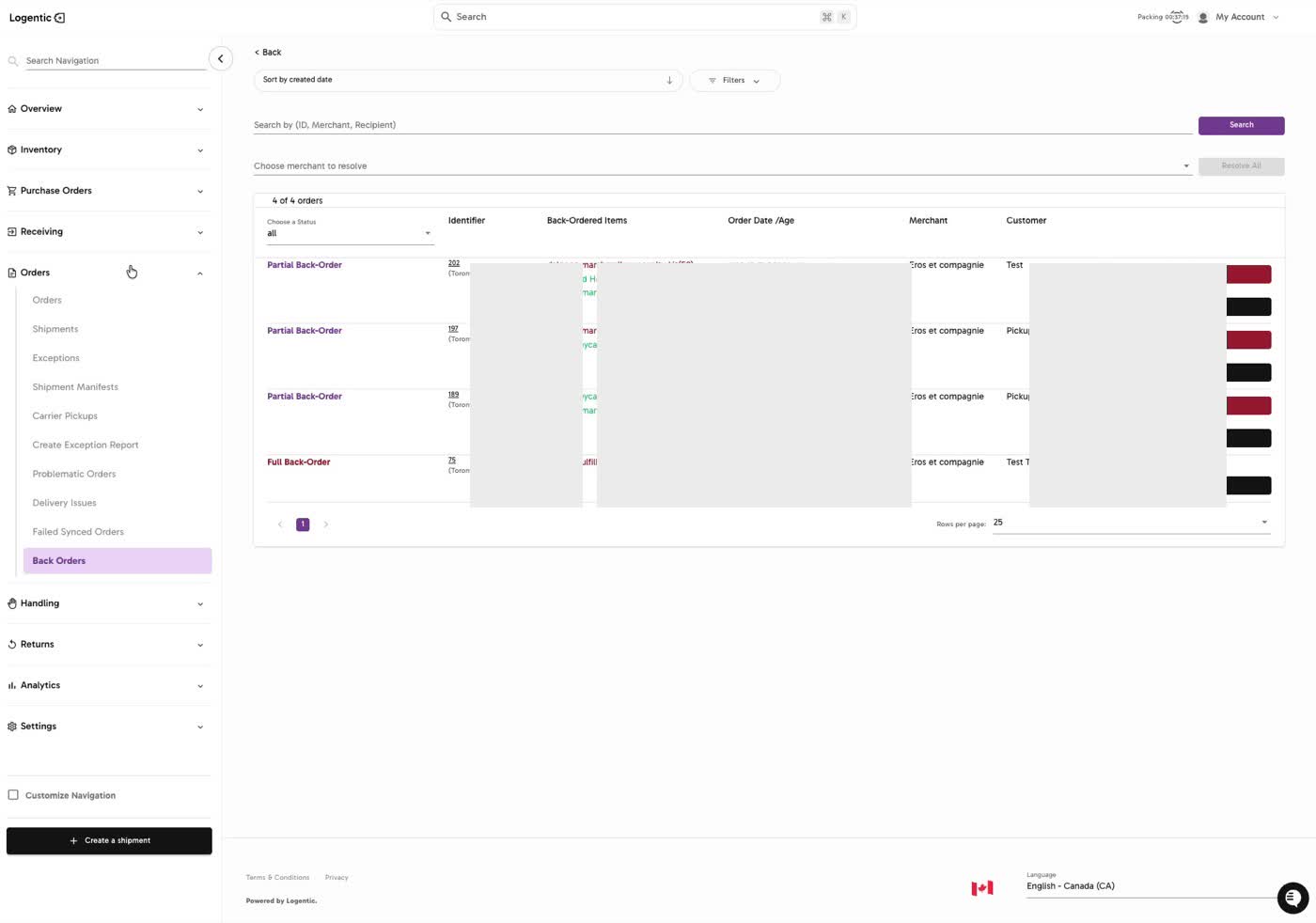
- Review the back-order row:
- Partial Back-Order or Full Back-Order
- order identifier
- back-ordered items
- order date and age
- merchant
- customer
- Use BackOrder to identify the blocked state.
- Select Resolve only when the back-order follow-up is complete and the order is ready to clear.
Screenshots
Steps 1-10: Open Back Orders, search or filter the list, review partial and full back orders, and use Resolve when appropriate.
What good looks like
The back-order list shows the affected orders, the row makes the full or partial back-order state visible, and the order is only resolved when the operational follow-up is complete.
Common issues and next actions
| If this happens | What to do next |
|---|---|
| An order is still back-ordered after inventory arrived. | Confirm the inventory was received into the correct warehouse and that the order is looking at the expected stock. |
| The affected item list looks wrong. | Open the order and compare SKU, quantity, warehouse, and allocation context. |
| Resolve does not clear the row. | Refresh the list, check whether the order still has unavailable items, and contact us if the state does not change. |
Contact us when
An order should not be back-ordered, the affected items look wrong, Resolve does not work, or the order disappears unexpectedly.
Contact options
- Email Logentic Support: best for detailed requests, screenshots, or follow-up context.
- Open in-app chat: fastest when you are already signed in and need help in context.
- Call Logentic: call (855) 529-0009 for an urgent launch, warehouse, or fulfillment blocker.
- Request Slack support access: ask us to add your team to a shared Logentic support channel.
Send us this information
- Order identifier.
- Warehouse and merchant.
- Screenshot of the Back Orders row.
- Expected stock or order state.
- Actual back-order state shown in Logentic.
- Inventory action already completed, if any.
- Time and timezone.
Related workflow
- Find the order in Back Orders.
- Review the blocked items and back-order state.
- Complete inventory or operational follow-up.
- Resolve the row only when the order is ready to move forward.