How do I receive a purchase order?
Last updated: May 18, 2026
Quick answer
Use this article to receive a purchase order when the inventory has arrived at the warehouse.
Common use cases
- Receiver: Validate the receiving lane and record the units received.
- Warehouse lead: Make sure the received quantity matches the PO before completing receiving.
- Operations manager: Understand what information support needs if receiving is blocked or counts do not match.
When to use this
- A purchase order is ready to be received.
- You need to scan or enter items into a storage container.
- You need to complete receiving after matching the expected quantity.
When not to use this
- You still need to create or send the purchase order.
- You need to put inventory away after receiving.
- You need to confirm when inventory updates in Shopify or another integration.
At a glance
| What you are doing | What you need | Good result | Contact us if |
|---|---|---|---|
| Use this article to receive a purchase order when the inventory has arrived at the warehouse. | Open the correct receiving order or purchase order receiving view. Confirm the warehouse and merchant are correct. | The receiving lane is valid, the storage container and location are correct, the received quantity matches the physical quantity received, progress is complete for the expected receiving work, and Logentic shows a success state. | The page buffers, the lane is rejected, the item scan is rejected, the container cannot be selected, the received count is wrong, or Complete receiving remains unavailable after the physical receiving work is done. |
Before you start
- Open the correct receiving order or purchase order receiving view.
- Confirm the warehouse and merchant are correct.
- Have the receiving lane, product code or UPC, and physical quantity available.
- Have the Bill of Lading or receiving documents ready if your process requires them.
Steps
- Open the receiving order for the purchase order.
- Review the order, warehouse, merchant, product, and expected quantity.
- Select Start activity or confirm the receiving activity is active when the page asks you to start.
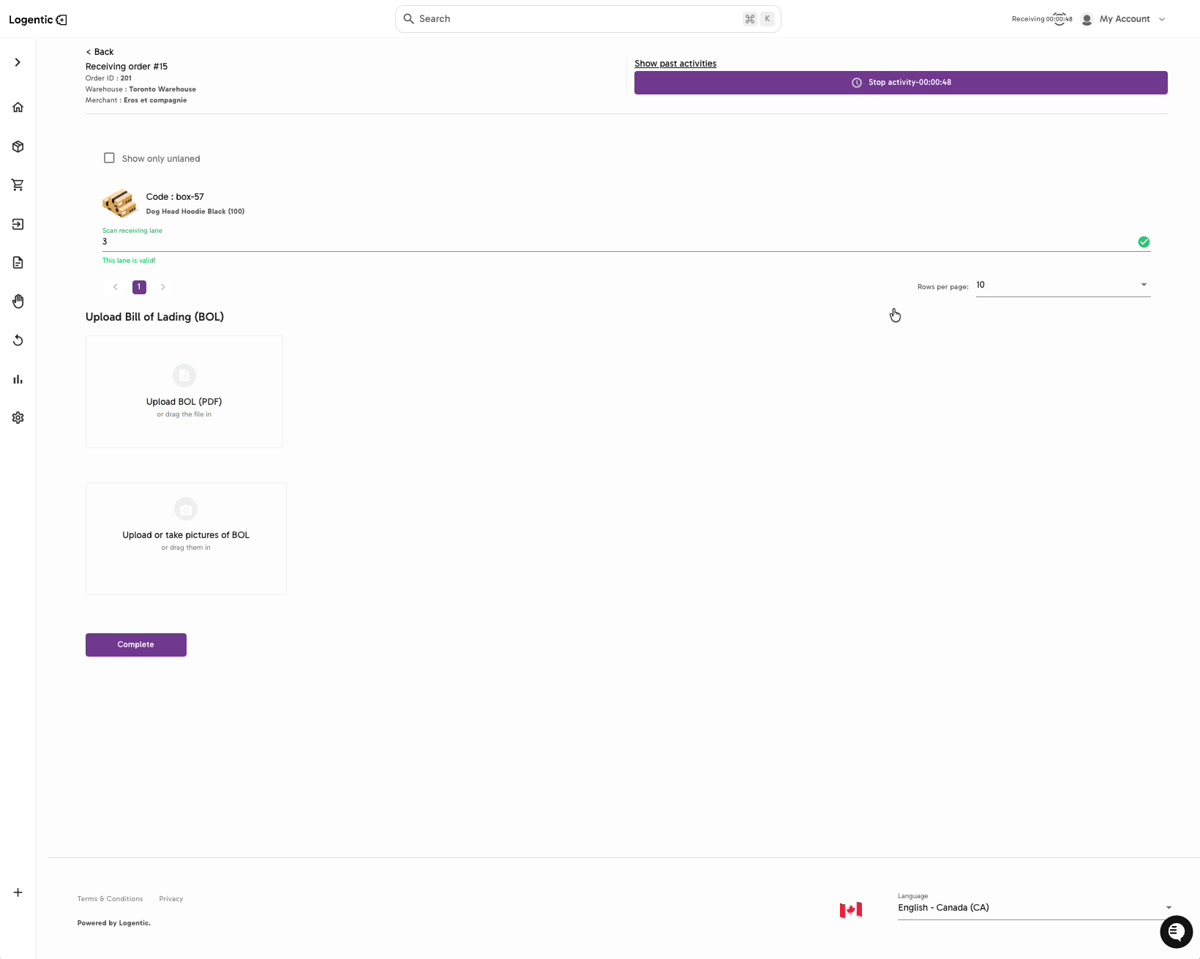
- Scan or enter the receiving lane in Scan receiving lane.
- Confirm the lane shows This lane is valid!.
- Upload the Bill of Lading or receiving pictures if your receiving process requires them.
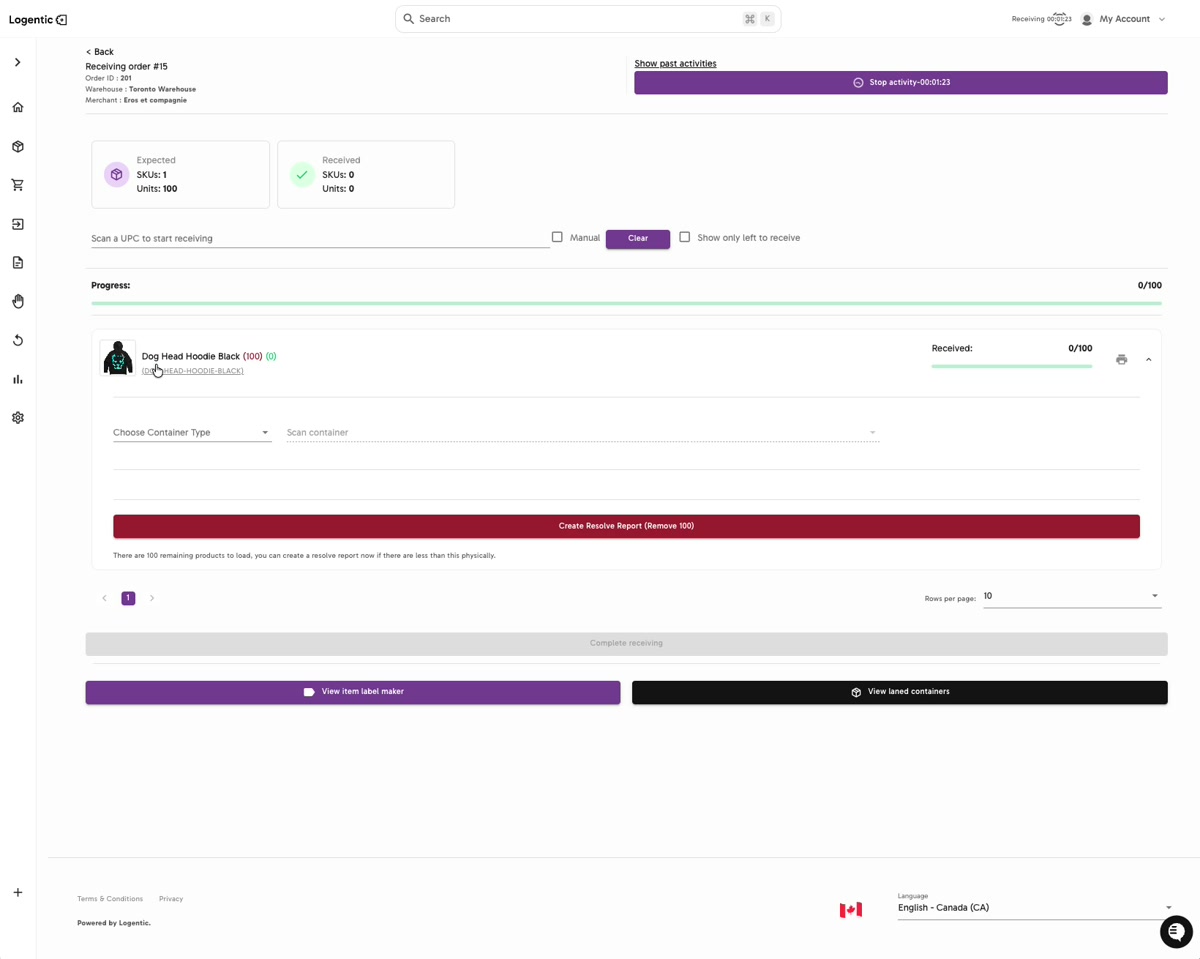
- Review the receiving count summary:
- Expected SKUs and units
- Received SKUs and units
- Product row and quantity still left to receive
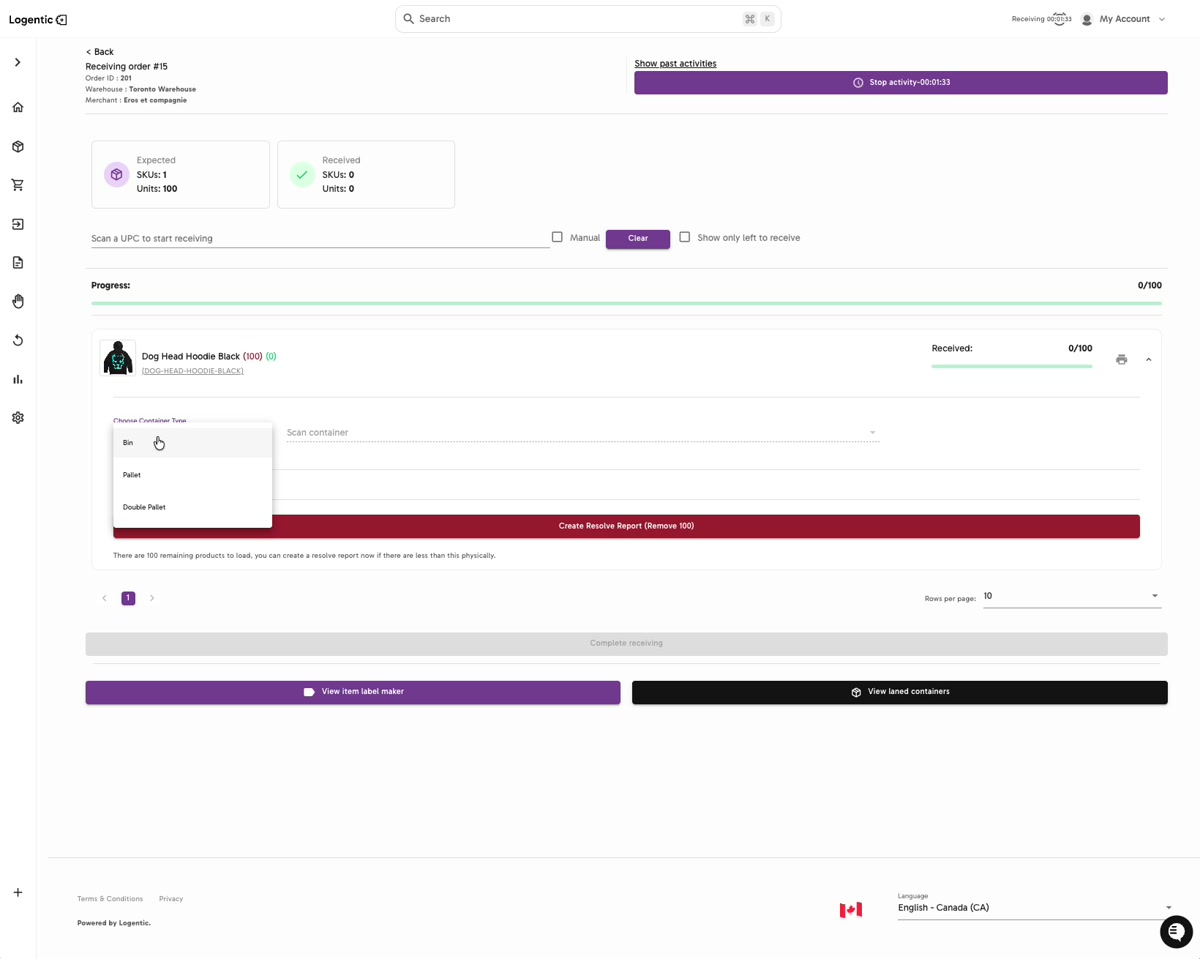
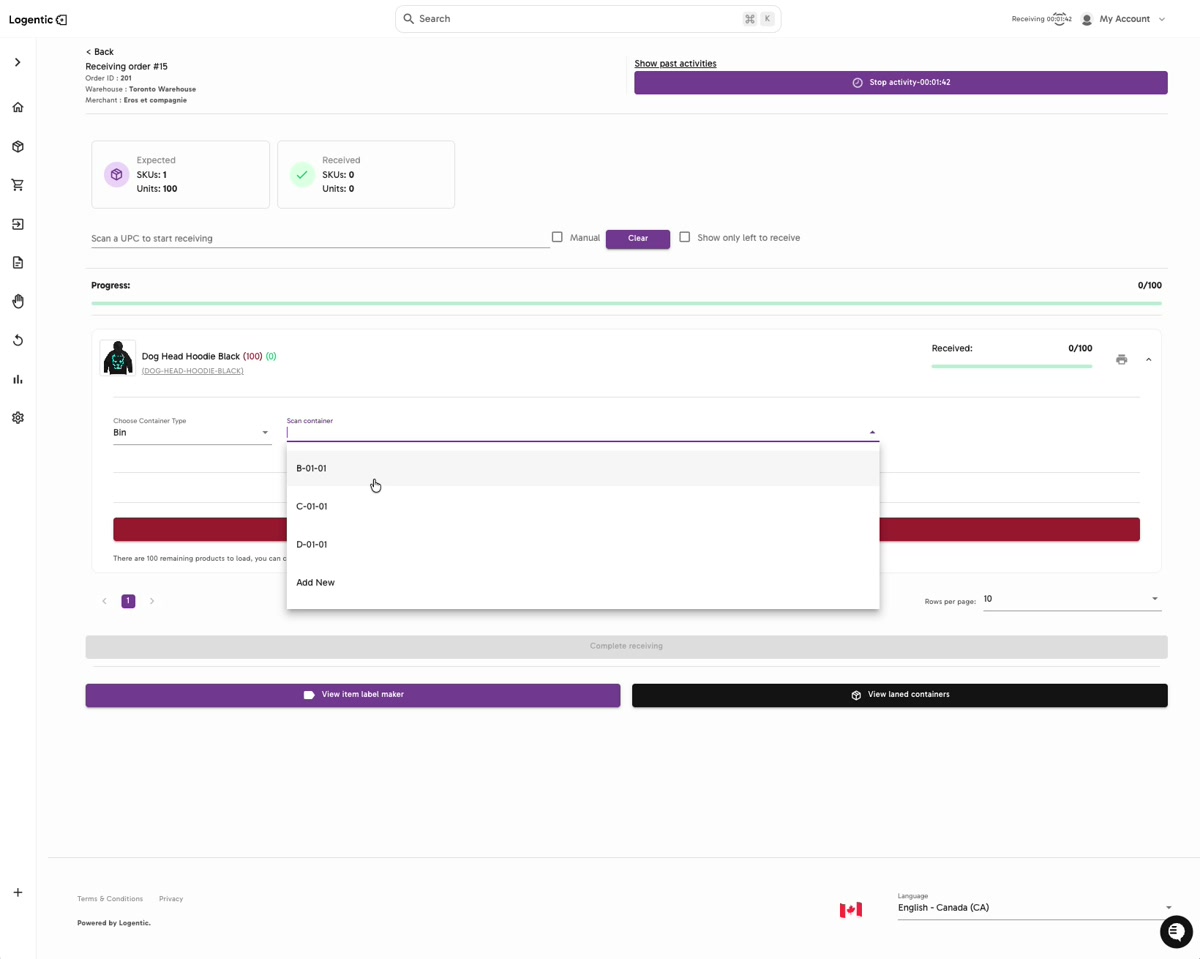
- Choose the correct Container Type, such as Bin, Pallet, or Double Pallet.
- Choose or scan the storage container in Scan container.
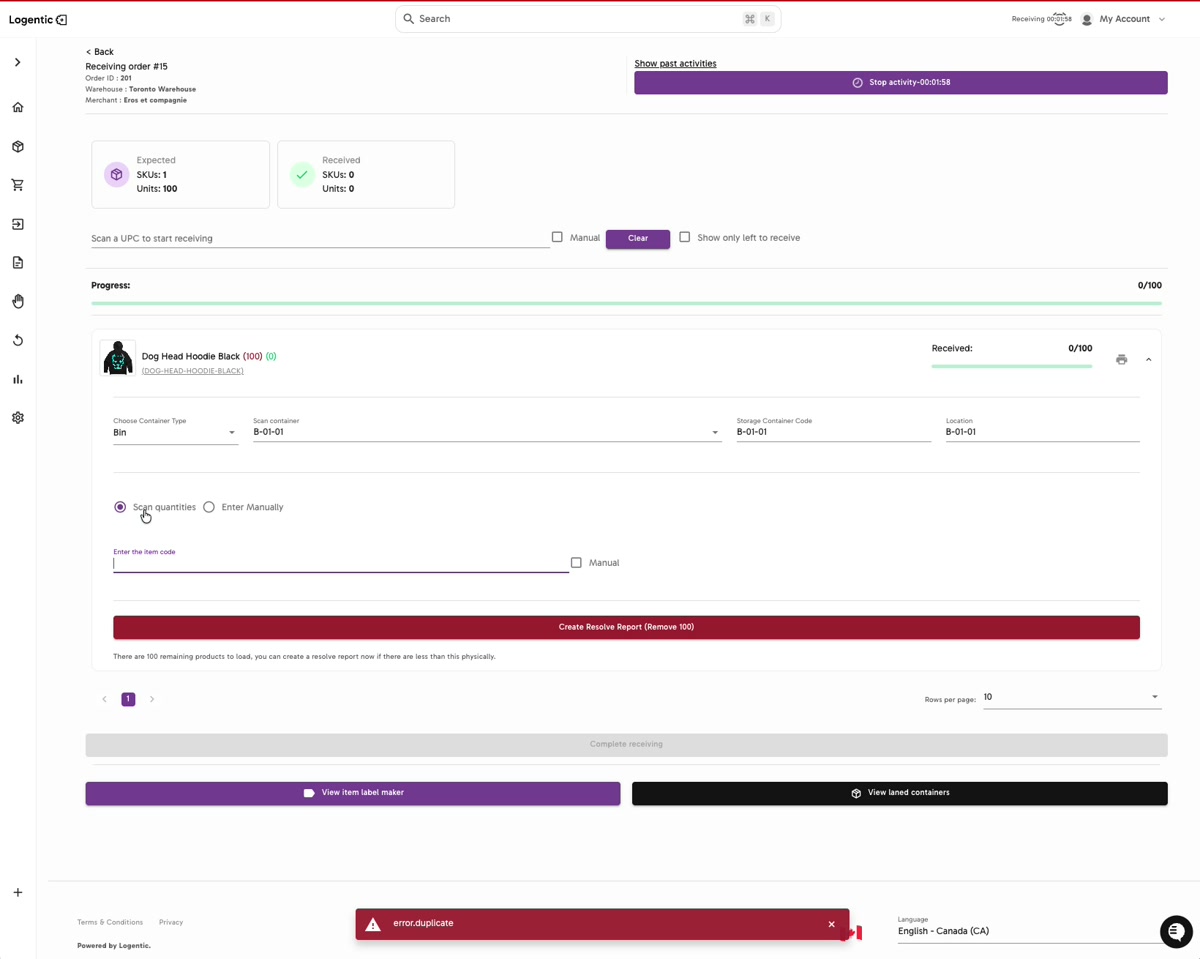
- Confirm the Storage Container Code and Location are correct.
- Choose how you want to record quantities:
- Use Scan quantities when scanning each item.
- Use Enter Manually when you are entering the quantity manually.
- Scan or enter the item code, or select Manual if your workflow uses manual entry.
- If you are entering manually, enter the received quantity in Enter Quantity.
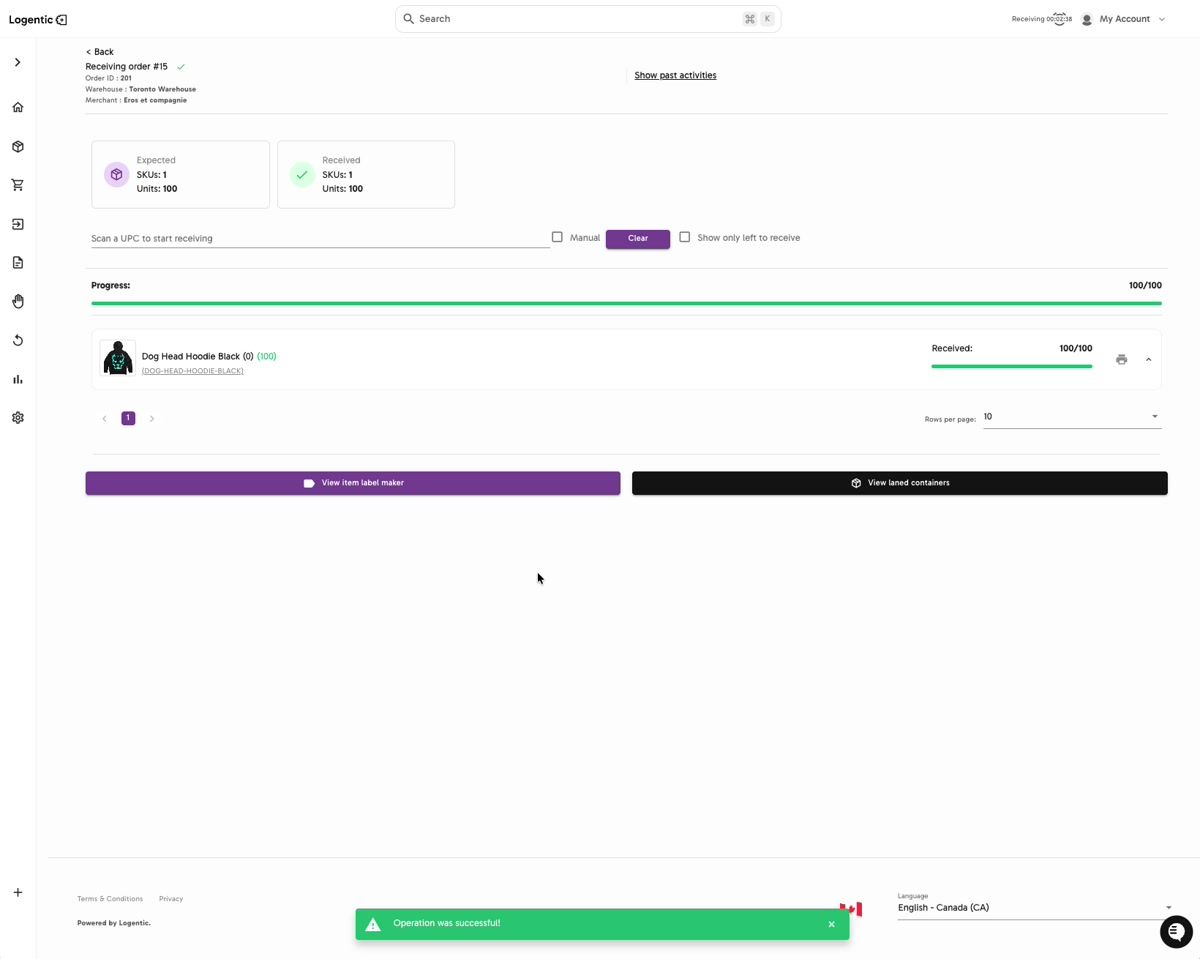
- Review the progress and received counts.
- If fewer units physically arrived than expected, review the visible resolve-report option before completing.
- Select Complete receiving when the expected receiving work is finished and the button is available.
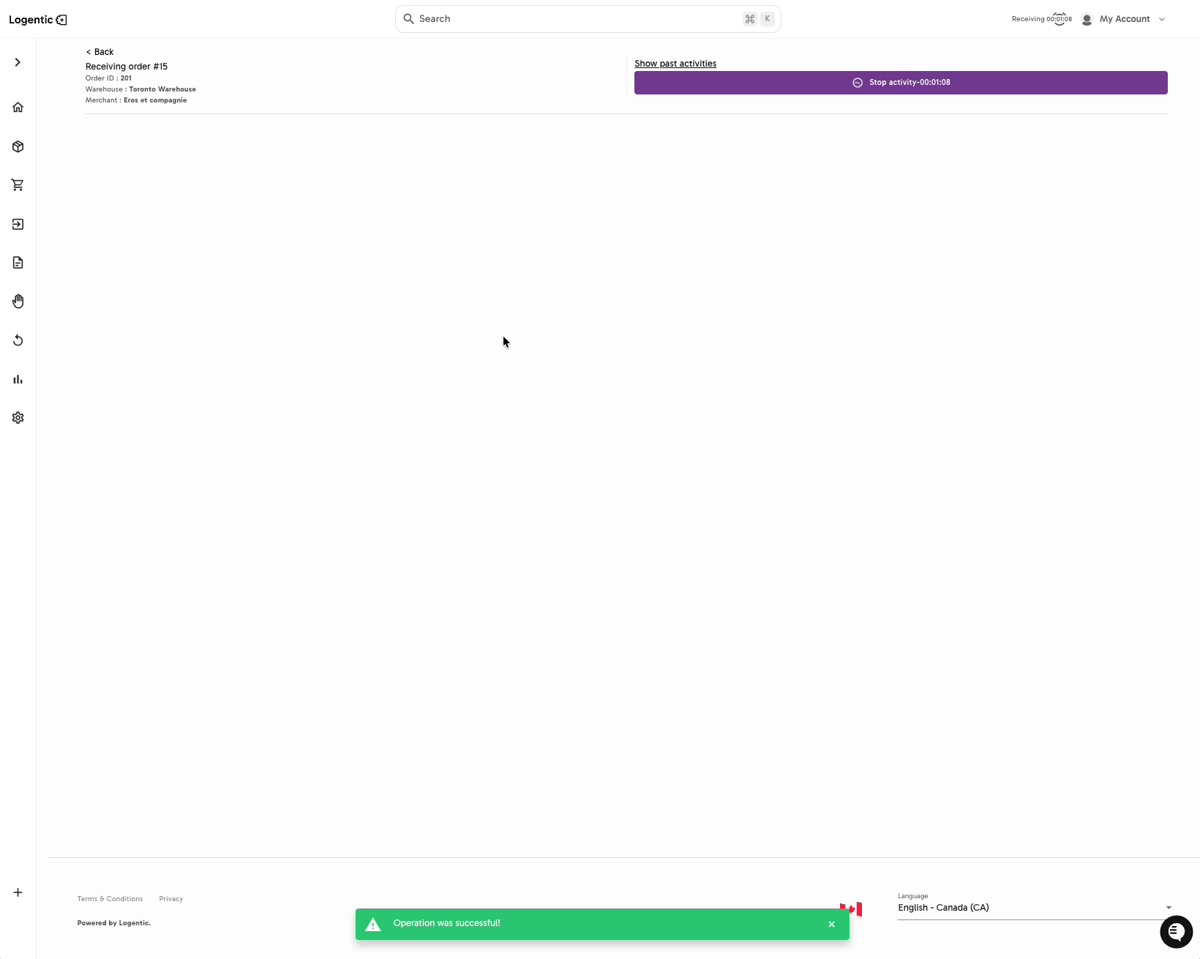
- Confirm the success state and review that received units match what you physically received.
Screenshots
Steps 1-5: Open the receiving order, review expected product quantities, scan the receiving lane, and confirm the lane is valid.
Steps 7-9: Review expected and received counts, choose a container type, then choose or scan a storage container.
Steps 10-13: Confirm the selected storage container and enter or scan the received quantity.
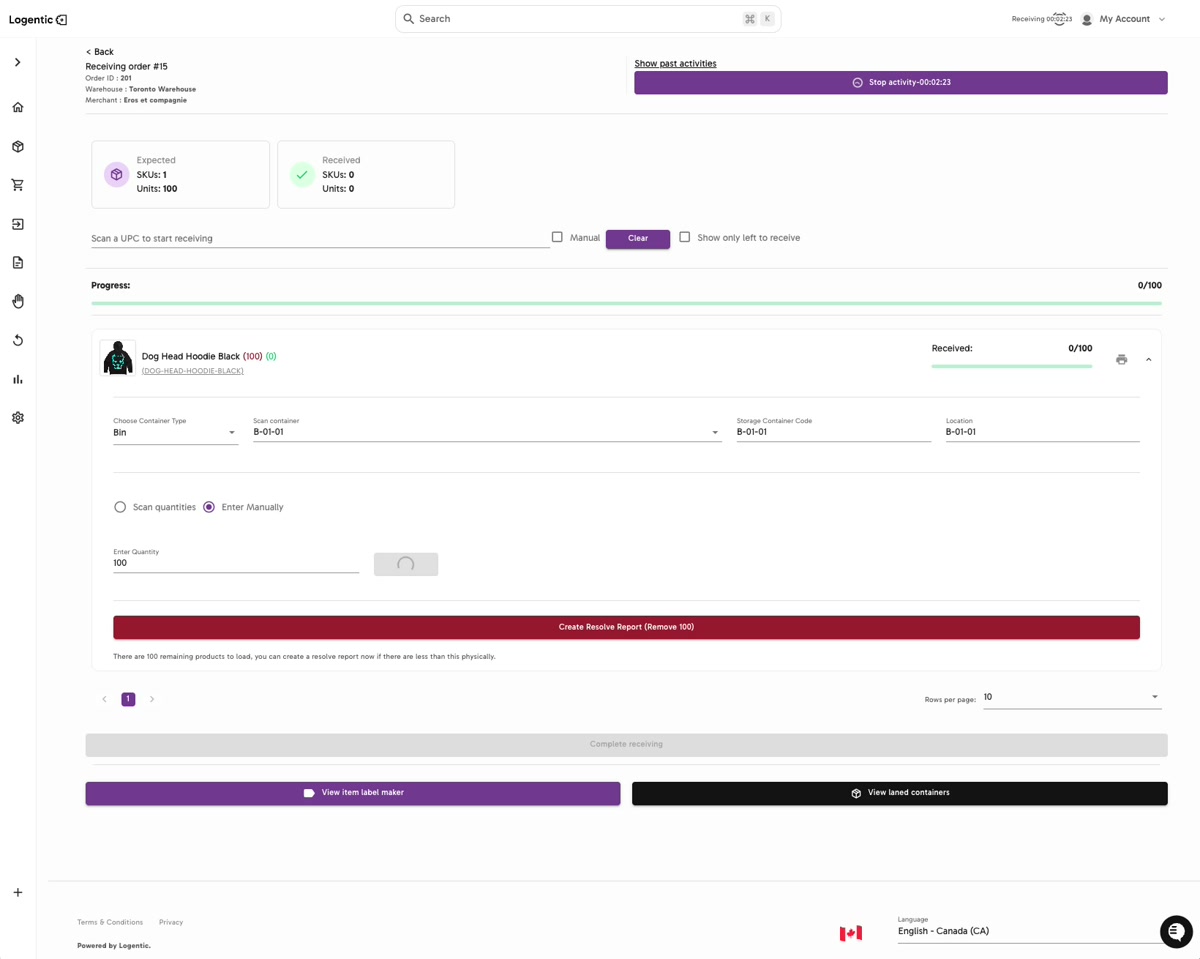
Steps 14-17: Confirm progress reaches the received quantity and that Logentic shows the success state.
What good looks like
The receiving lane is valid, the storage container and location are correct, the received quantity matches the physical quantity received, progress is complete for the expected receiving work, and Logentic shows a success state.
Common issues and next actions
| If this happens | What to do next |
|---|---|
| The receiving lane is not valid. | Check the lane code and scan again. Contact us if you are using the correct lane and Logentic still rejects it. |
You see error.duplicate. | Stop and confirm the item, container, and quantity you are trying to receive. Contact us if the message appears when you are receiving the correct item into the correct container. |
| Complete receiving is not available. | Review the expected and received counts, product row, container selection, and any unresolved quantity left to receive. |
| Fewer units arrived than expected. | Do not force the expected quantity. Use the visible resolve-report option if it applies to your process, and contact us if you are unsure how to handle the discrepancy. |
Contact us when
The page buffers, the lane is rejected, the item scan is rejected, the container cannot be selected, the received count is wrong, or Complete receiving remains unavailable after the physical receiving work is done.
Contact options
- Email Logentic Support: best for detailed requests, screenshots, or follow-up context.
- Open in-app chat: fastest when you are already signed in and need help in context.
- Call Logentic: call (855) 529-0009 for an urgent launch, warehouse, or fulfillment blocker.
- Request Slack support access: ask us to add your team to a shared Logentic support channel.
Send us this information
- Purchase order or receiving order identifier.
- Warehouse and merchant.
- Product name, SKU, UPC, or item code.
- Receiving lane.
- Container type and storage container code.
- Expected quantity.
- Physical quantity received.
- Screenshot of the receiving page or error.
- Time and timezone.
Related workflow
- Review or send the purchase order.
- Open the receiving order when inventory arrives.
- Receive units into the correct lane and storage container.
- Complete receiving.
- Continue with putaway or downstream inventory checks if your workflow requires them.