How do I create an order automation?
Last updated: May 18, 2026
Quick answer
Use this article to create an order automation rule from Order Automations.
Common use cases
- Admin: Create a rule that reacts to an order trigger and applies a reviewed action.
- Operations manager: Review whether an automation is active before relying on it for live orders.
- Fulfillment lead: Check the condition/action structure before asking Logentic why an order was held, routed, or changed.
When to use this
- You need to find existing order automations.
- You need to create a simple order automation.
- You need to understand the builder structure: trigger, condition, pass/fail path, and action.
When not to use this
- You are unsure whether the automation should affect live orders.
- You need to reprocess automation rules against existing orders.
- You need to guarantee shipping, fulfillment, billing, or customer-message outcomes.
At a glance
| What you are doing | What you need | Good result | Contact us if |
|---|---|---|---|
| Use this article to create an order automation rule from Order Automations. | Confirm your account has access to Order Automations. Know the trigger, condition, and action you want to use. | The automation has the intended trigger, condition, action, pass/fail path, and active status before it is submitted. | The needed trigger, condition, or action is missing; the automation cannot be submitted; a live order is affected unexpectedly; rule order/priority matters; or you are unsure whether the automation is safe. |
Before you start
- Confirm your account has access to Order Automations.
- Know the trigger, condition, and action you want to use.
- Confirm with your team whether the automation should be active.
- Test carefully before relying on an automation for live orders.
Steps
- Go to Settings in the left navigation.
- Open Order Automations.
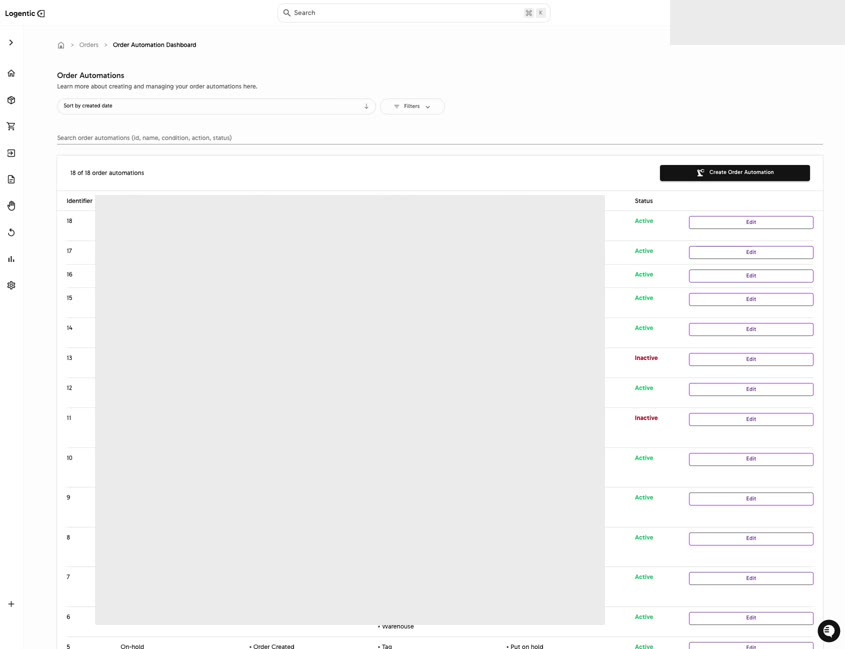
- Review existing automations, including Triggers, Conditions, Actions, Status, and Edit.
- Select Create Order Automation.
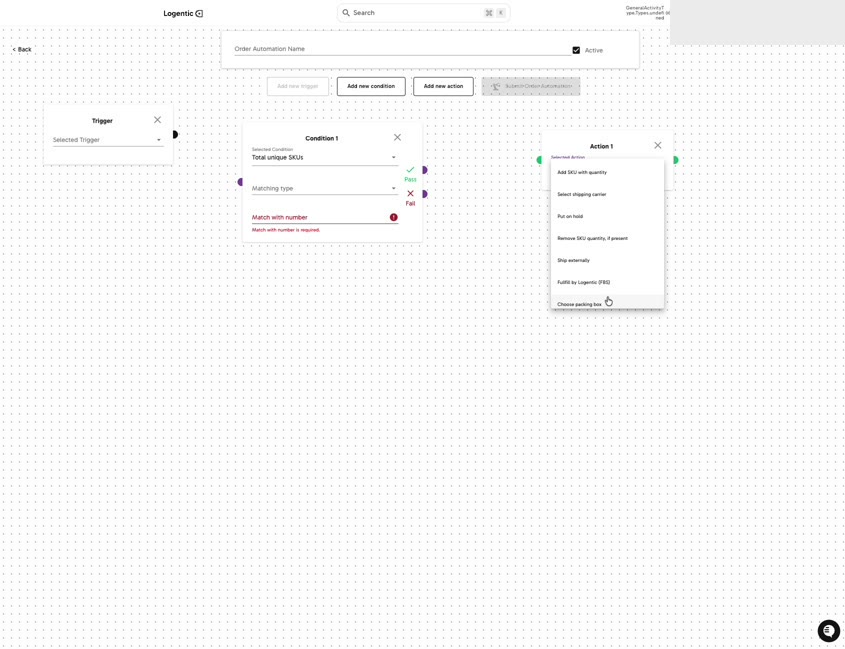
- Enter the Order Automation Name.
- Keep Active checked only if the automation is ready for live use.
- In Trigger, choose the Selected Trigger.
- Select Add new condition when the rule needs a condition.
- In the condition card, choose Selected Condition.
- Choose the Matching type.
- Enter the required match value, such as text or number, when the selected condition requires it.
- Select Add new action when the rule needs an action.
- In the action card, choose Selected Action.
- Fill any action-specific fields, such as shipping provider, shipping carrier, SKU quantity, hold action, external shipping, fulfillment method, or packing box.
- Review the pass/fail path between cards before submitting.
- Select Submit Order Automation only after the trigger, conditions, actions, and active status are correct.
Screenshots
Steps 1-4: Open Order Automations, review existing rules, and select Create Order Automation.
Steps 5-16: Build the automation with trigger, condition, action, active status, and submit control.
What good looks like
The automation has the intended trigger, condition, action, pass/fail path, and active status before it is submitted.
Automation options and examples
For the automation option map and starter examples, see What automation options can I use in Logentic?
Common issues and next actions
| If this happens | What to do next |
|---|---|
| The condition or action you need is not available. | Do not approximate with a different rule if it could affect live orders. Contact us with the rule you are trying to create. |
| The automation should not run yet. | Leave Active unchecked until the rule is reviewed. |
| An automation ran differently than expected. | Pause or deactivate the automation if possible, then contact us with an example order. |
Contact us when
The needed trigger, condition, or action is missing; the automation cannot be submitted; a live order is affected unexpectedly; rule order/priority matters; or you are unsure whether the automation is safe.
Contact options
- Email Logentic Support: best for detailed requests, screenshots, or follow-up context.
- Open in-app chat: fastest when you are already signed in and need help in context.
- Call Logentic: call (855) 529-0009 for an urgent launch, warehouse, or fulfillment blocker.
- Request Slack support access: ask us to add your team to a shared Logentic support channel.
Send us this information
- Automation name.
- Trigger selected.
- Condition, matching type, and match value.
- Action selected.
- Whether Active was checked.
- Example order ID if one is involved.
- Expected result.
- Actual result shown in Logentic.
Related workflow
- Decide the operational rule your team wants.
- Create the trigger, condition, and action structure.
- Validate the first affected orders and escalate unexpected behavior immediately.