How do I review products that need replenishment?
Last updated: May 18, 2026
Quick answer
Use this article to review which products may need replenishment from storage into pickable locations.
Common use cases
- Warehouse lead: Check which products could slow down fulfillment because pick locations need stock.
- Shift supervisor: Prioritize replenishment work before assigning pickers.
- Operations manager: Review bin, pallet, and location signals before investigating a stock issue.
When to use this
- You want to see products that may need stock replenished.
- You need to decide whether to replenish one product or multiple visible products.
- You want to export or search the replenishment list before assigning work.
When not to use this
- You already have a replenishment task and need to complete it.
- You need to manually adjust product inventory.
- You need to explain the exact replenishment formula or stock threshold.
At a glance
| What you are doing | What you need | Good result | Contact us if |
|---|---|---|---|
| Use this article to review which products may need replenishment from storage into pickable locations. | Confirm you are in the correct workspace and warehouse context. Know the SKU, product name, or product group you want to review. | The replenishment table shows the product, storage signals, and a To replenish value. You can start replenishment from the row or export the visible data when you need to review it elsewhere. | Expected products are missing, replenishment quantities look wrong, or replenishment is blocking active fulfillment. |
Before you start
- Confirm you are in the correct workspace and warehouse context.
- Know the SKU, product name, or product group you want to review.
- Make sure you have permission to view inventory and replenishment pages.
Steps
- Go to Inventory.
- Open Replenish Inventory.
- Stay on Product Replenishment Dashboard.
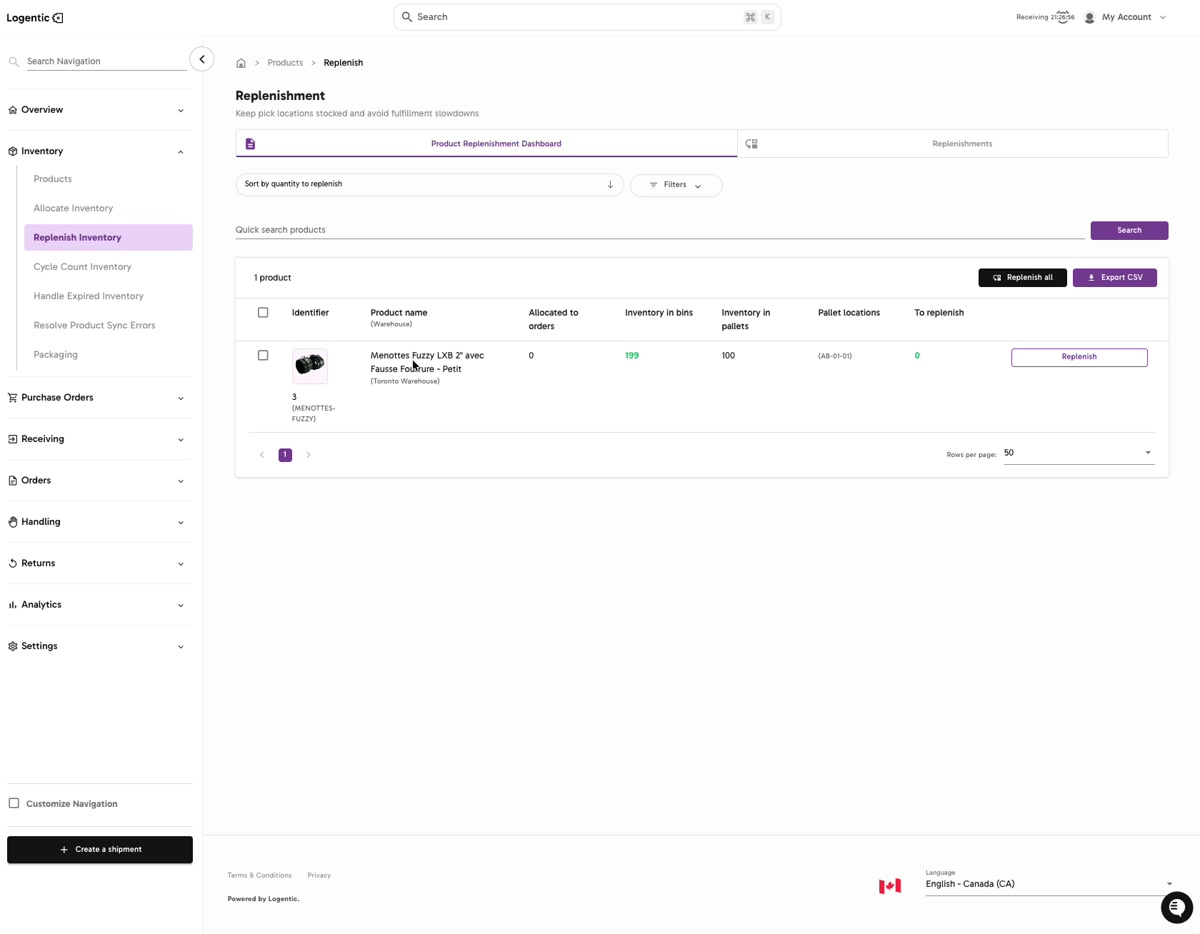
- Use Sort by quantity to replenish when you want the highest replenishment need first.
- Select Filters if you need to narrow the list.
- Use Quick search products and select Search when you know the product name or identifier.
- Review each product row:
- Allocated to orders
- Inventory in bins
- Inventory in pallets
- Pallet locations
- To replenish
- Use the row-level Replenish action when you want to start replenishment for one product.
- Use Replenish all only when you intend to create or start replenishment work for all visible replenishment needs.
- Use Export CSV when you need the visible replenishment data outside Logentic.
Screenshots
Steps 3-10: Review the Product Replenishment Dashboard, product quantities, location columns, and replenishment actions.
What good looks like
The replenishment table shows the product, storage signals, and a To replenish value. You can start replenishment from the row or export the visible data when you need to review it elsewhere.
Common issues and next actions
| If this happens | What to do next |
|---|---|
| No products appear. | Clear search terms and filters, then select Search again. If you still see no products, there may be no visible replenishment needs for the current context. |
| The product is visible but shows 0 to replenish. | Review the bin, pallet, and pallet-location columns before creating work. A product can have inventory visible without needing replenishment. |
| The quantity looks wrong. | Check the product in Product Dashboard and compare the physical location. Contact us if the dashboard, product view, and warehouse reality do not match. |
Contact us when
Expected products are missing, replenishment quantities look wrong, or replenishment is blocking active fulfillment.
Contact options
- Email Logentic Support: best for detailed requests, screenshots, or follow-up context.
- Open in-app chat: fastest when you are already signed in and need help in context.
- Call Logentic: call (855) 529-0009 for an urgent launch, warehouse, or fulfillment blocker.
- Request Slack support access: ask us to add your team to a shared Logentic support channel.
Send us this information
- Screenshot of the Replenishment page.
- Product name, SKU, or identifier.
- Warehouse and merchant.
- Expected quantity or expected replenishment need.
- Actual value shown in To replenish.
- Filters, search terms, or sort option used.
- Time and timezone.
Related workflow
- Review products that need replenishment.
- Start replenishment for one product or the visible list.
- Complete the replenishment task.
- Confirm the product is available in the expected pick location.