How do I complete a product replenishment?
Last updated: May 18, 2026
Quick answer
Use this article to open a replenishment task, complete the on-screen movement, and close the task in Logentic.
Common use cases
- Warehouse operator: Complete a replenishment task after being assigned to move stock.
- Warehouse lead: Assign a replenishment task and confirm it can be completed.
- Shift supervisor: Clear replenishment work before releasing more picking work.
When to use this
- A product has already been selected for replenishment.
- You are on the Replenishments tab and need to complete one task.
- You need to confirm that Logentic recorded the task as completed.
When not to use this
- You only want to find products that need replenishment.
- You need to change product stock manually.
- The task refers to the wrong product, warehouse, bin, or pallet location.
At a glance
| What you are doing | What you need | Good result | Contact us if |
|---|---|---|---|
| Use this article to open a replenishment task, complete the on-screen movement, and close the task in Logentic. | Confirm you are in the correct warehouse and merchant context. Make sure the physical product and storage location match the task. | Logentic shows a completed replenishment state, and the replenishment task no longer requires action for the product and bin shown. | The task cannot be opened, cannot be assigned, fails to complete, or shows stock/location details that do not match the warehouse. |
Before you start
- Confirm you are in the correct warehouse and merchant context.
- Make sure the physical product and storage location match the task.
- Assign the task to the right associate when your workflow requires an associate.
Steps
- Go to Inventory.
- Open Replenish Inventory.
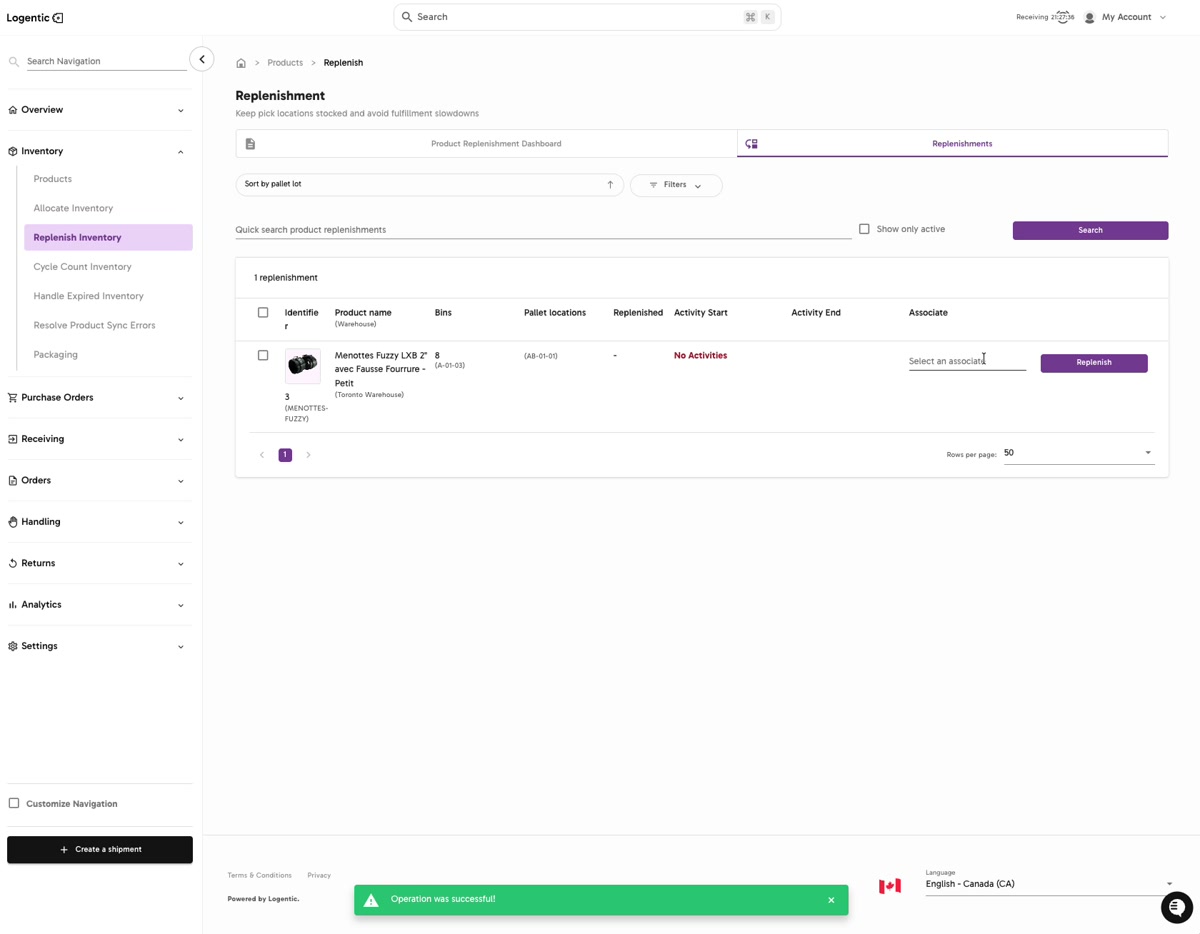
- Select the Replenishments tab.
- Use Sort by pallet lot, Filters, Quick search product replenishments, or Show only active to find the task.
- Select or confirm the associate for the task.
- Select Replenish on the task row.
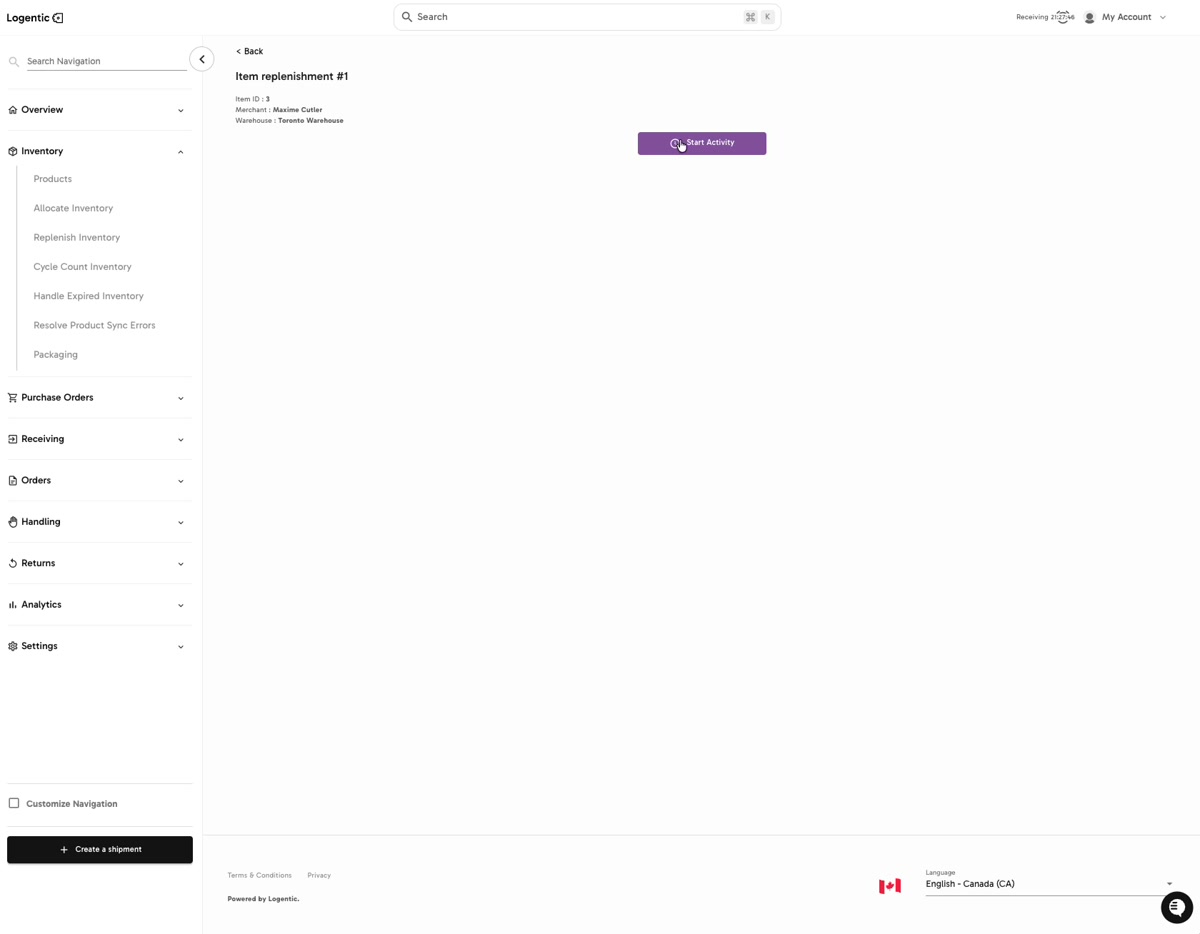
- On Item replenishment #, select Start Activity.
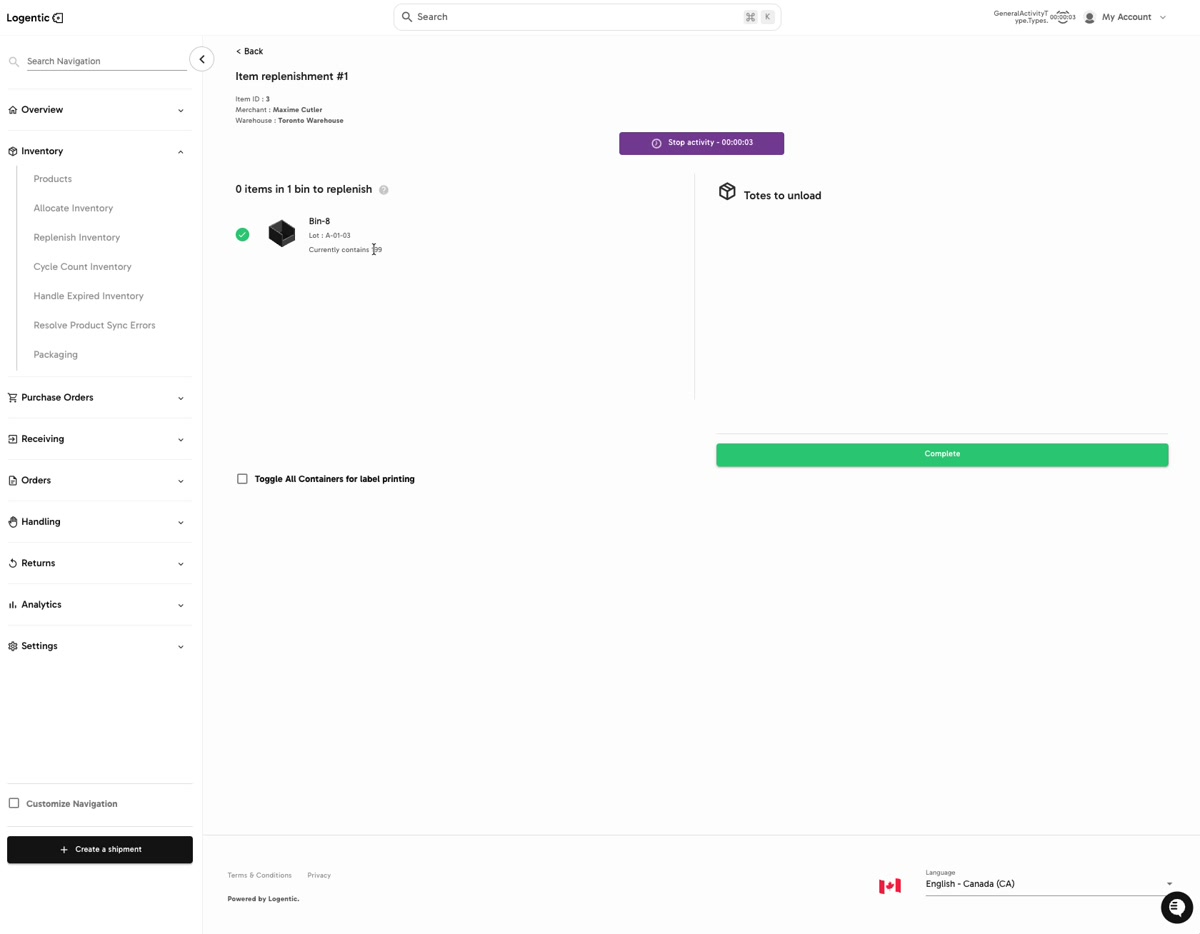
- Review the bin, lot, and item information shown on the task.
- Follow the on-screen movement prompts for the product and containers.
- Select Toggle All Containers for label printing only if you need labels for the containers shown.
- Select Complete after the physical replenishment work is done.
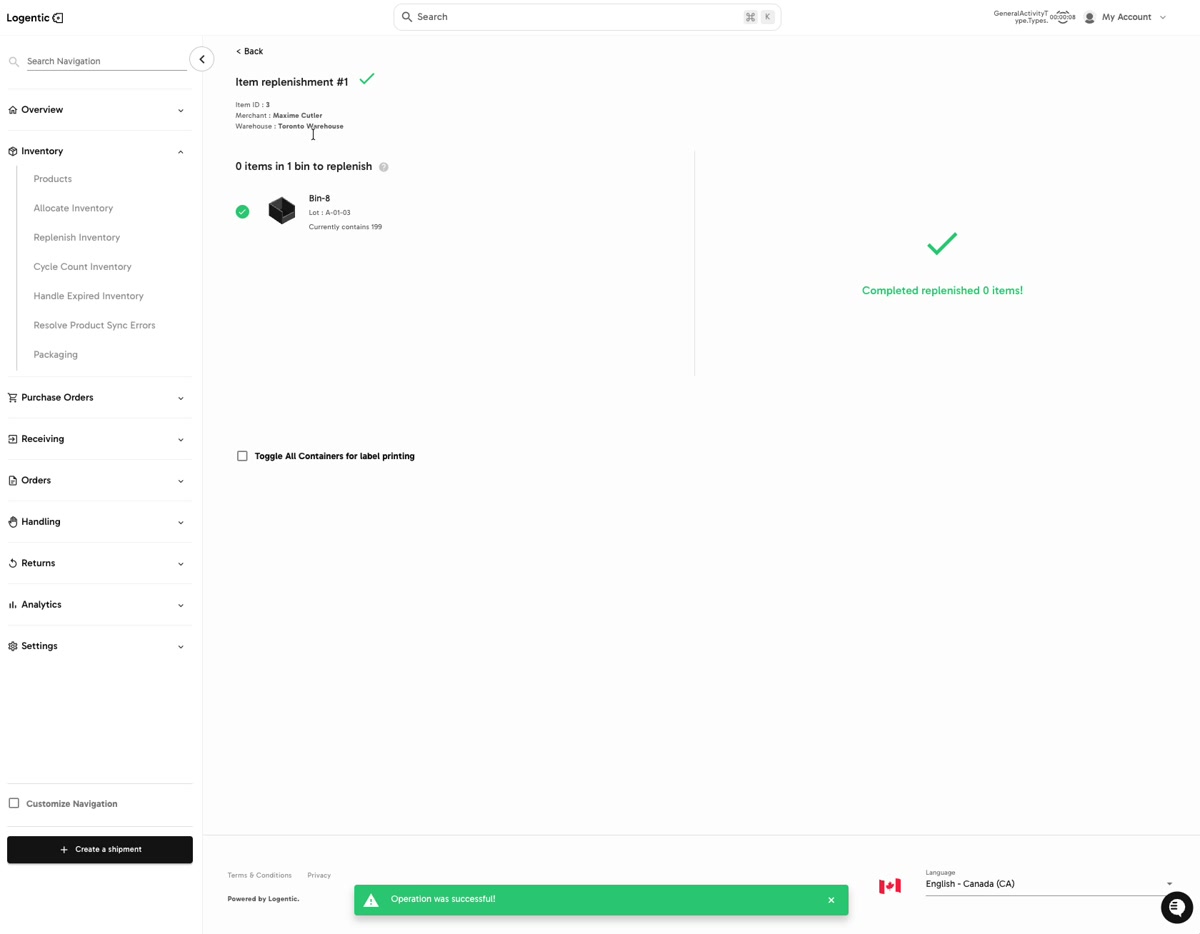
- Confirm that Logentic shows the replenishment as completed.
Screenshots
Steps 3-6: Use the Replenishments tab, assign the task if needed, then select Replenish.
Step 7: Select Start Activity from the item replenishment page.
Steps 8-11: Review the bin and item details, then select Complete after the movement is done.
Step 12: Confirm the completed replenishment success state.
What good looks like
Logentic shows a completed replenishment state, and the replenishment task no longer requires action for the product and bin shown.
Common issues and next actions
| If this happens | What to do next |
|---|---|
| The task has no activity. | Confirm the task is the correct row and that you selected the right associate. If the task should be active but shows no activity, refresh the page and search again. |
| The physical stock does not match the task. | Do not complete the task blindly. Check the product, bin, lot, and warehouse before moving stock. |
| The task will not complete. | Confirm the on-screen movement prompts are finished and that the task is still assigned to the correct associate. |
Contact us when
The task cannot be opened, cannot be assigned, fails to complete, or shows stock/location details that do not match the warehouse.
Contact options
- Email Logentic Support: best for detailed requests, screenshots, or follow-up context.
- Open in-app chat: fastest when you are already signed in and need help in context.
- Call Logentic: call (855) 529-0009 for an urgent launch, warehouse, or fulfillment blocker.
- Request Slack support access: ask us to add your team to a shared Logentic support channel.
Send us this information
- Screenshot of the replenishment row or item replenishment page.
- Product name, SKU, or identifier.
- Bin, lot, pallet, or container code shown.
- Warehouse and merchant.
- Associate assigned to the task.
- Expected result and actual result.
- Time and timezone.
Related workflow
- Review products that need replenishment.
- Open the replenishment task.
- Complete the movement and close the task.
- Confirm the product is available where your team expects to pick it.