How do I customize Product Dashboard columns?
Last updated: May 18, 2026
Quick answer
Use this article to adjust which columns are visible in the Product Dashboard table.
Common use cases
- Warehouse lead: Show the stock columns needed for daily warehouse review.
- Operations manager: Make the table easier to scan before checking inventory exceptions.
- Fulfillment coordinator: Save a product table layout that supports repeated product lookups.
When to use this
- You need different columns visible in Product Dashboard.
- You want to change the table layout before reviewing products.
- You accidentally hid or moved a column and need to save the corrected view.
When not to use this
- You need to change product data.
- You need to change the CSV export schema.
- A required column is missing from your workspace or role.
At a glance
| What you are doing | What you need | Good result | Contact us if |
|---|---|---|---|
| Use this article to adjust which columns are visible in the Product Dashboard table. | Confirm which product fields you need to see. Open the saved tab or filtered view you want to adjust. | The table shows the product fields you need, in a layout that supports the product review or export task you are doing. | A required column is unavailable, the layout does not save, or an export differs from the visible table in a way that affects your work. |
Before you start
- Confirm which product fields you need to see.
- Open the saved tab or filtered view you want to adjust.
- Make sure you are changing the table layout, not the product data itself.
Steps
- Go to Inventory.
- Open Products.
- Confirm you are on Product Dashboard.
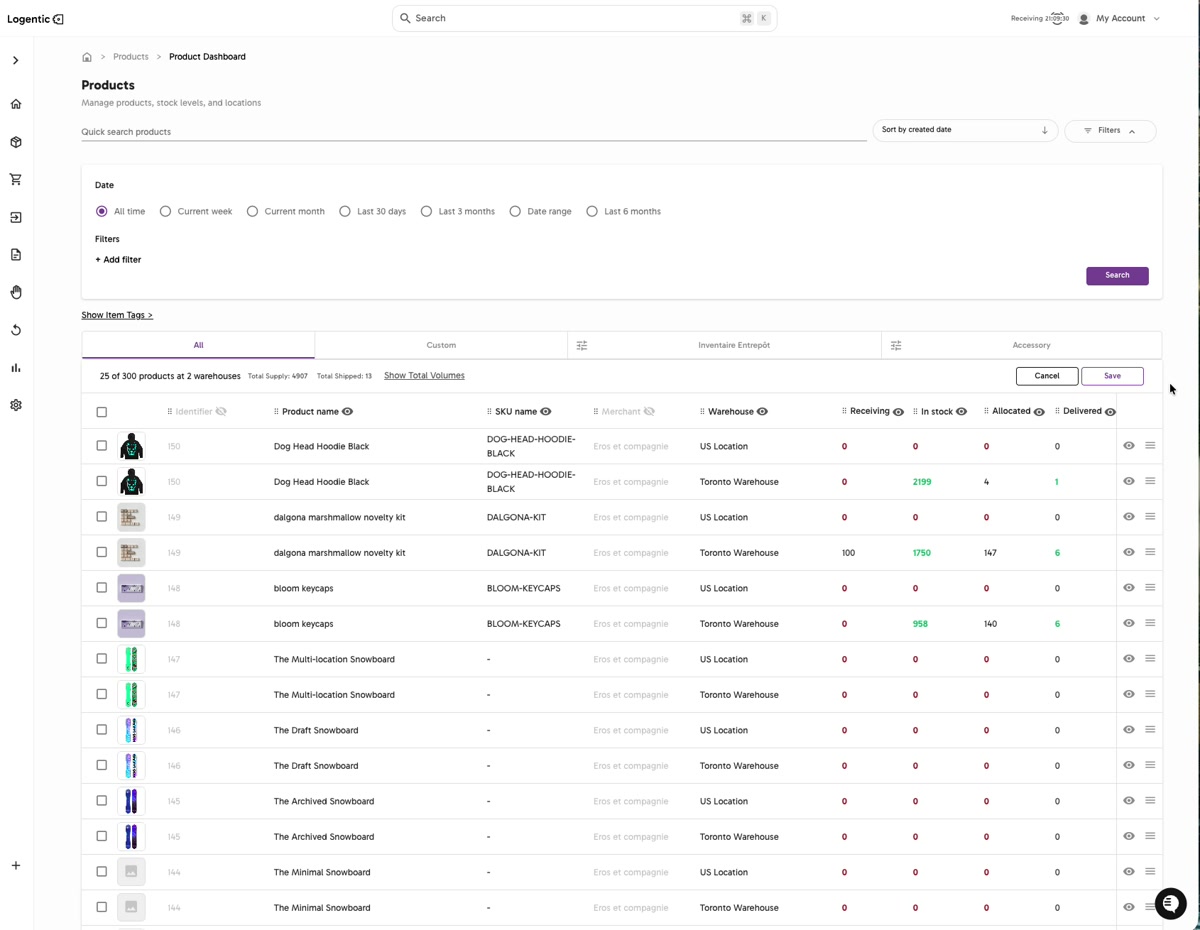
- Select the edit control on the right side of the product table.
- Review the visible column headers.
- Adjust the table columns or order using the column controls shown on the table.
- Select Save to keep the layout.
- Select Cancel if you do not want to keep the changes.
- Review the table again to confirm the right columns are visible.
Screenshots
Steps 4-8: Open column edit mode, adjust the visible product table columns, then choose Save or Cancel.
What good looks like
The table shows the product fields you need, in a layout that supports the product review or export task you are doing.
Common issues and next actions
| If this happens | What to do next |
|---|---|
| A column is hard to find. | Use the edit control again and review the available column headers. |
| The layout did not save. | Try saving again and refresh the page. Contact us if the saved layout does not persist. |
| The export does not match the visible layout. | Send us the export and a screenshot of the visible columns. Export behavior may not always match personal column preferences. |
Contact us when
A required column is unavailable, the layout does not save, or an export differs from the visible table in a way that affects your work.
Contact options
- Email Logentic Support: best for detailed requests, screenshots, or follow-up context.
- Open in-app chat: fastest when you are already signed in and need help in context.
- Call Logentic: call (855) 529-0009 for an urgent launch, warehouse, or fulfillment blocker.
- Request Slack support access: ask us to add your team to a shared Logentic support channel.
Send us this information
- Screenshot of the product table in edit mode.
- Columns you expected to see.
- Columns currently visible.
- Saved tab or filter used.
- Whether the issue happens after refreshing.
- Export file if the problem is export-related.
Related workflow
- Open Product Dashboard.
- Search or filter to the product view you need.
- Customize the table columns.
- Save and review the updated layout.