How do I manage products linked to a supplier?
Last updated: May 18, 2026
Quick answer
Use this article to review or add products that are linked to a supplier.
Common use cases
- Buyer: Link products to the supplier before creating purchase orders.
- Operations manager: Check whether a supplier is connected to the products your team expects to reorder.
- Warehouse lead: Confirm product-supplier context before reporting that a product cannot be added to a purchase order.
When to use this
- You need to see which products are already linked to a supplier.
- You need to add products to a supplier manually.
- You need to use the supplier product template or CSV upload area.
When not to use this
- You need to create a new supplier profile.
- You need to create or send a purchase order.
- You need to confirm the exact CSV template schema or supplier pricing rule.
At a glance
| What you are doing | What you need | Good result | Contact us if |
|---|---|---|---|
| Use this article to review or add products that are linked to a supplier. | Confirm the supplier already exists in Suppliers. Know the product name or identifier you want to link. | The product appears in the supplier's linked product list, and Logentic shows a success state after saving. | A product cannot be found, supplier-product changes do not save, the CSV upload fails, or the linked product appears under the wrong supplier. |
Before you start
- Confirm the supplier already exists in Suppliers.
- Know the product name or identifier you want to link.
- Have cost, lead-time, or supplier-specific product details ready if your team tracks them.
Steps
- Go to Purchase Orders.
- Open Suppliers.
- Find the supplier and select Details.
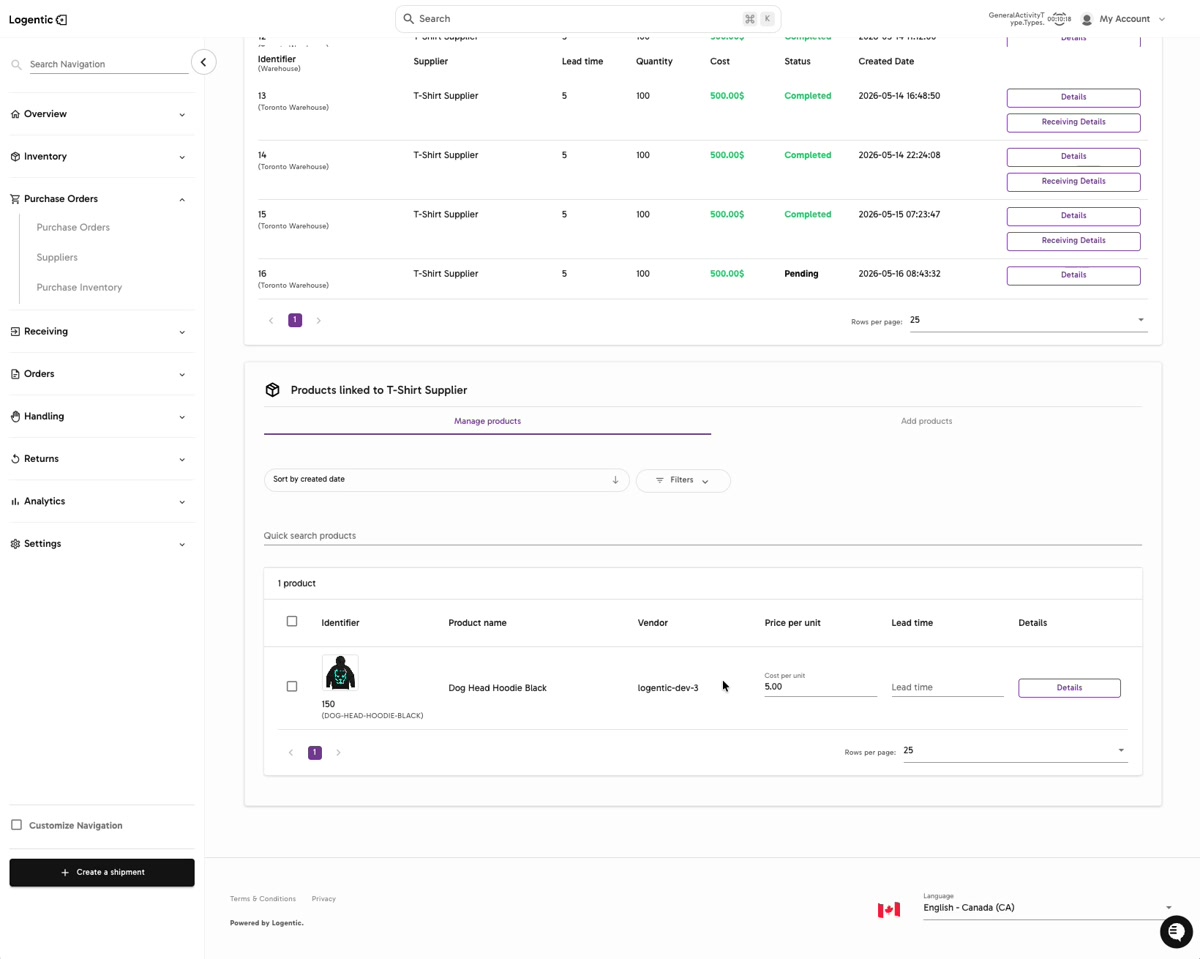
- Review Products linked to [Supplier].
- Use Manage products to review products already linked to the supplier.
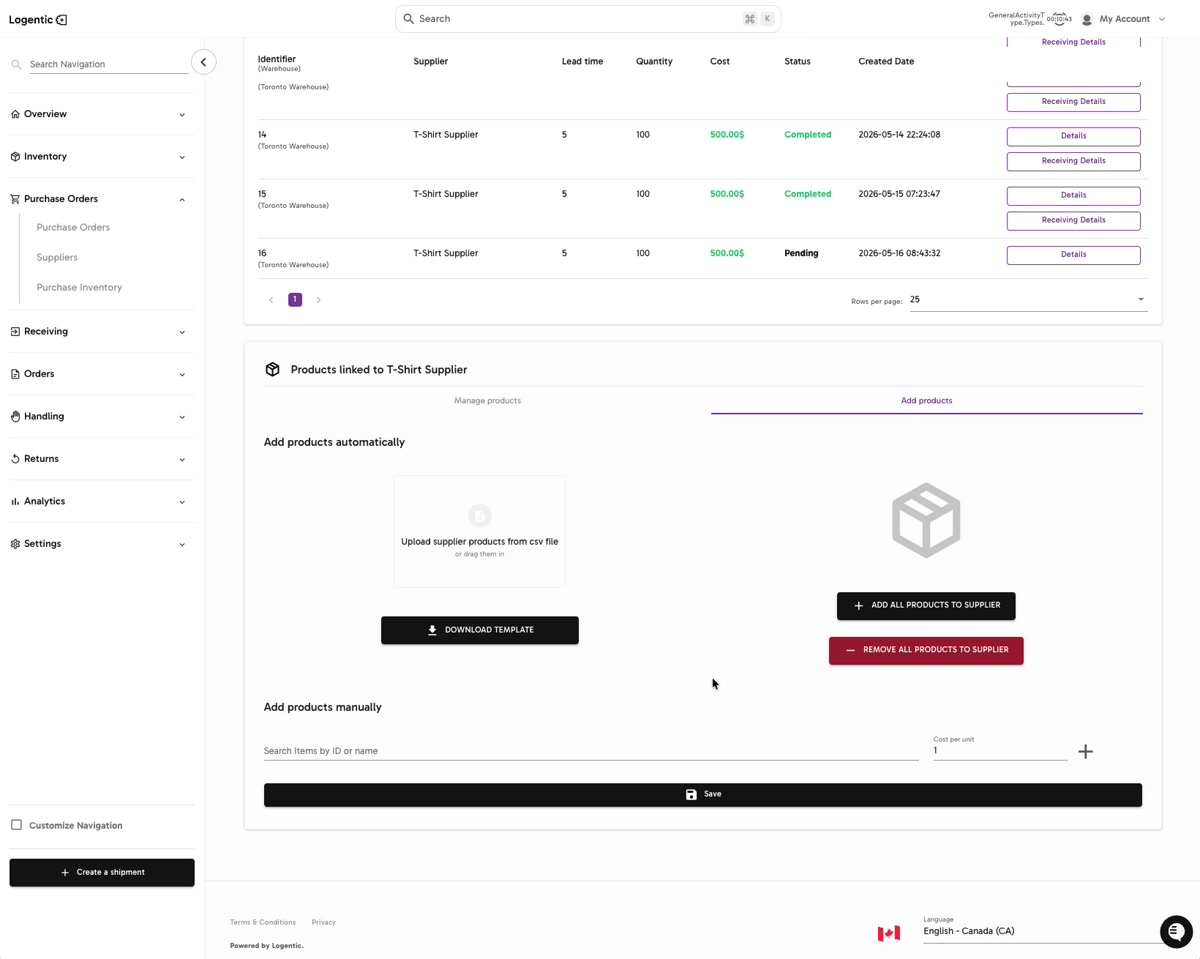
- Open Add products when you need to link more products.
- To add products from a file, use Download Template, prepare the supplier product CSV, upload it, then use the visible add action.
- To add products manually, use Add products manually.
- Search for the product by item ID or name.
- Enter the required supplier product details, such as Cost per unit, when applicable.
- Use the plus action to add the product to the supplier list.
- Select Save.
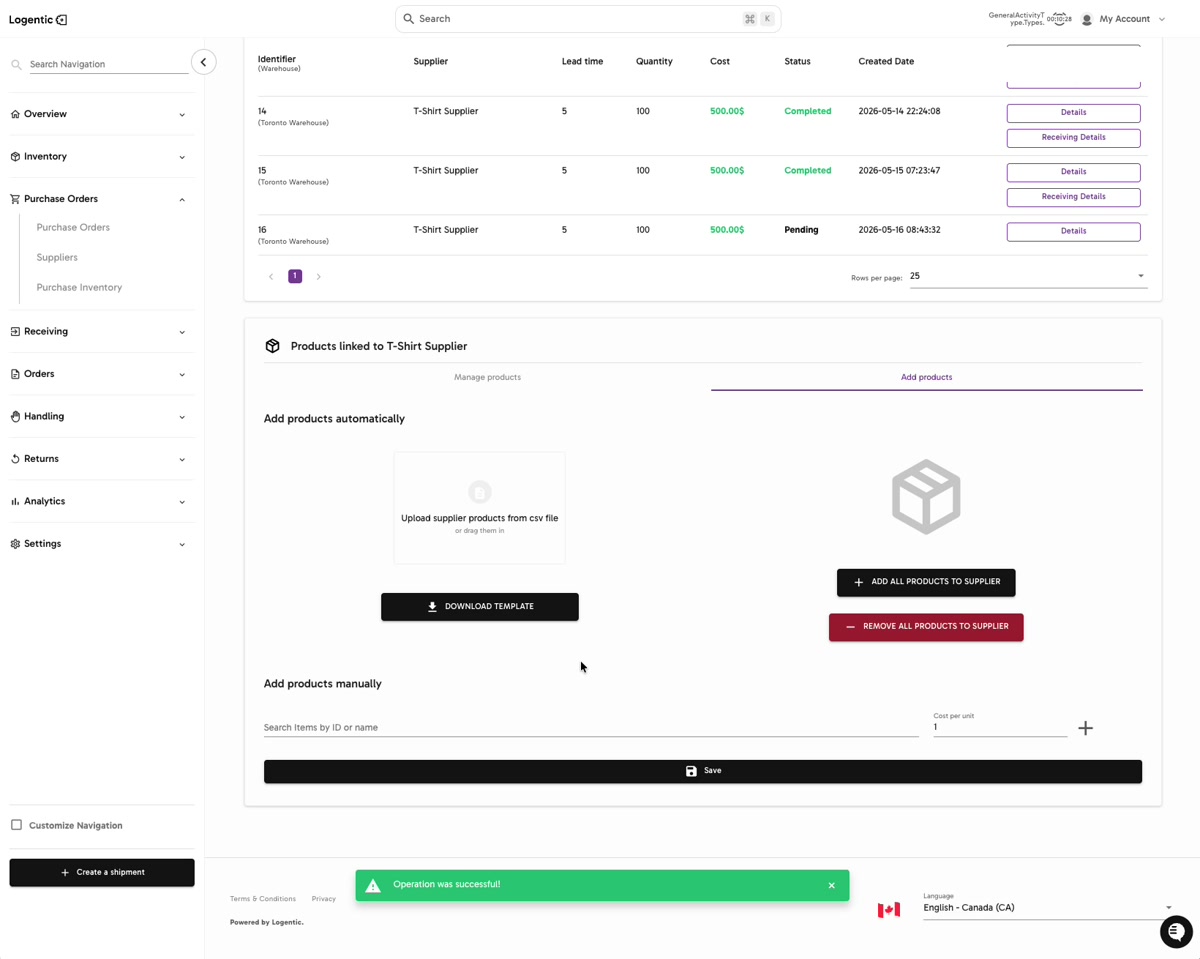
- Confirm that Logentic shows the success state and that the product appears under the supplier.
Screenshots
Steps 4-5: Review products already linked to the supplier from Manage products.
Steps 6-12: Use Add products, the template/upload area, or manual product search before selecting Save.
Step 13: Confirm that Logentic shows the success state after saving supplier-product changes.
What good looks like
The product appears in the supplier's linked product list, and Logentic shows a success state after saving.
Common issues and next actions
| If this happens | What to do next |
|---|---|
| The product does not appear in search. | Check the product name, SKU, or item ID. Also confirm the product exists in the workspace and warehouse context you are using. |
| The CSV upload does not work. | Use Download Template again and confirm the file matches the template before retrying. Contact us if the file still fails. |
| The supplier details look wrong. | Review the supplier profile and the linked product row before creating or sending a purchase order. |
Contact us when
A product cannot be found, supplier-product changes do not save, the CSV upload fails, or the linked product appears under the wrong supplier.
Contact options
- Email Logentic Support: best for detailed requests, screenshots, or follow-up context.
- Open in-app chat: fastest when you are already signed in and need help in context.
- Call Logentic: call (855) 529-0009 for an urgent launch, warehouse, or fulfillment blocker.
- Request Slack support access: ask us to add your team to a shared Logentic support channel.
Send us this information
- Supplier name and identifier.
- Product name, SKU, or item ID.
- Screenshot of the supplier product page.
- Whether you used CSV upload or manual add.
- CSV file name if upload failed.
- Expected linked product result.
- Actual result shown in Logentic.
- Time and timezone.
Related workflow
- Confirm the supplier exists.
- Link products to the supplier.
- Review purchase inventory suggestions.
- Create or review a purchase order.
- Send the purchase order to the supplier.