How do I adjust Purchase Inventory forecast settings?
Last updated: May 18, 2026
Quick answer
Use this article to adjust the visible forecast inputs on Purchase Inventory before reviewing suggested purchase quantities.
Common use cases
- Buyer: Adjust forecast inputs before deciding whether suggested quantities make sense.
- Operations manager: Review the assumptions used on the purchasing dashboard before planning reorders.
- Warehouse lead: Confirm whether purchasing suggestions were reviewed with the right lead time and buffer stock.
When to use this
- You need to change visible forecast inputs on Purchase Inventory.
- You want to review suggested quantities after changing forecast settings.
- You need to confirm which forecast fields are available on the dashboard.
When not to use this
- You need the exact formula behind suggested quantities.
- You need to fix an inventory or supplier-data mismatch.
- You are ready to create or send the purchase order.
At a glance
| What you are doing | What you need | Good result | Contact us if |
|---|---|---|---|
| Use this article to adjust the visible forecast inputs on Purchase Inventory before reviewing suggested purchase quantities. | Confirm you are on Purchase Inventory. Know the forecast inputs your team wants to use. | The forecast settings show the values your team intends to use, and the Purchase Inventory list is ready for review before product selection or PO creation. | Forecast values do not save, suggested quantities appear wrong after applying settings, or your team needs help understanding a purchasing calculation. |
Before you start
- Confirm you are on Purchase Inventory.
- Know the forecast inputs your team wants to use.
- Keep a note of the current values if you may need to revert them.
Steps
- Go to Purchase Orders.
- Open Purchase Inventory.
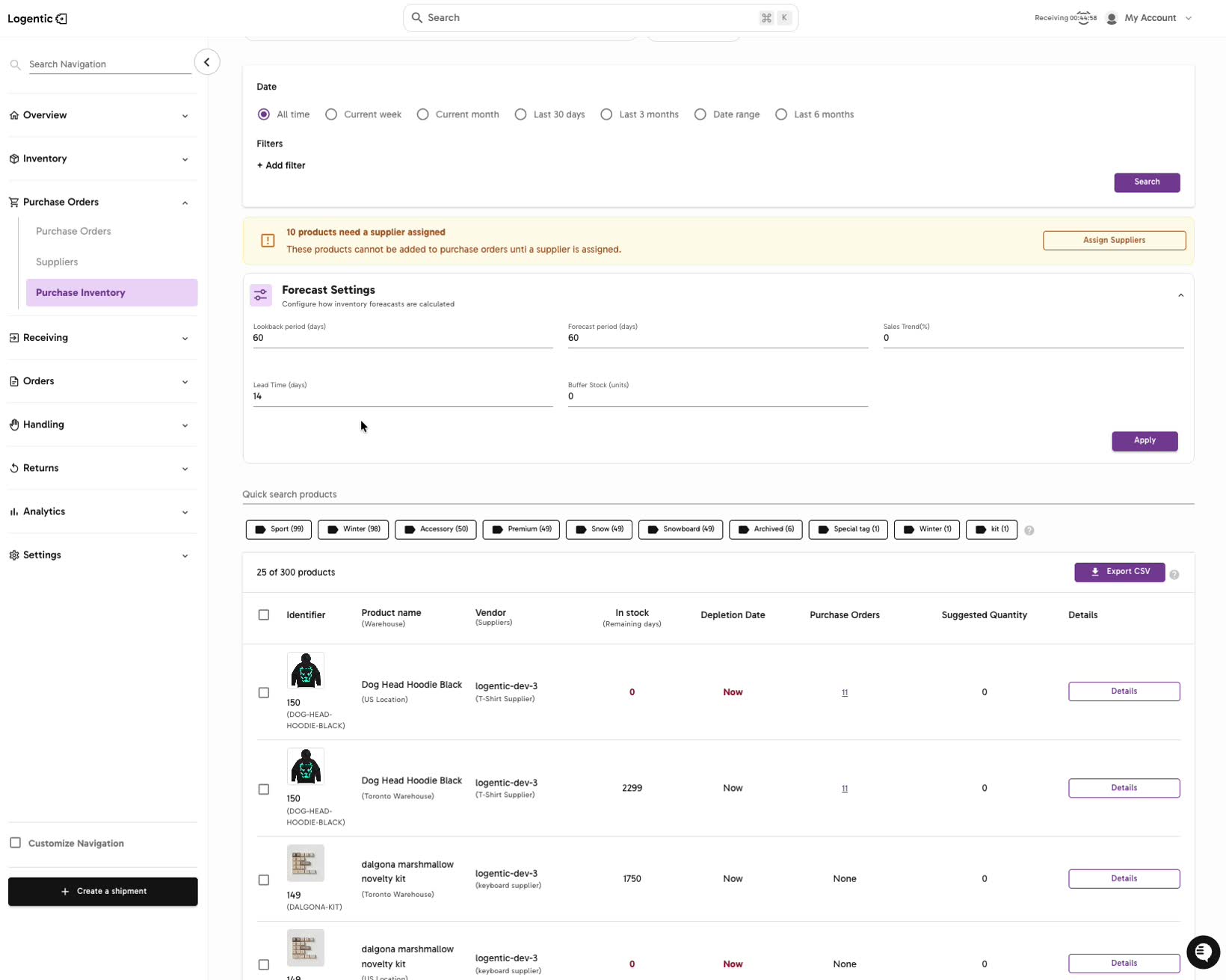
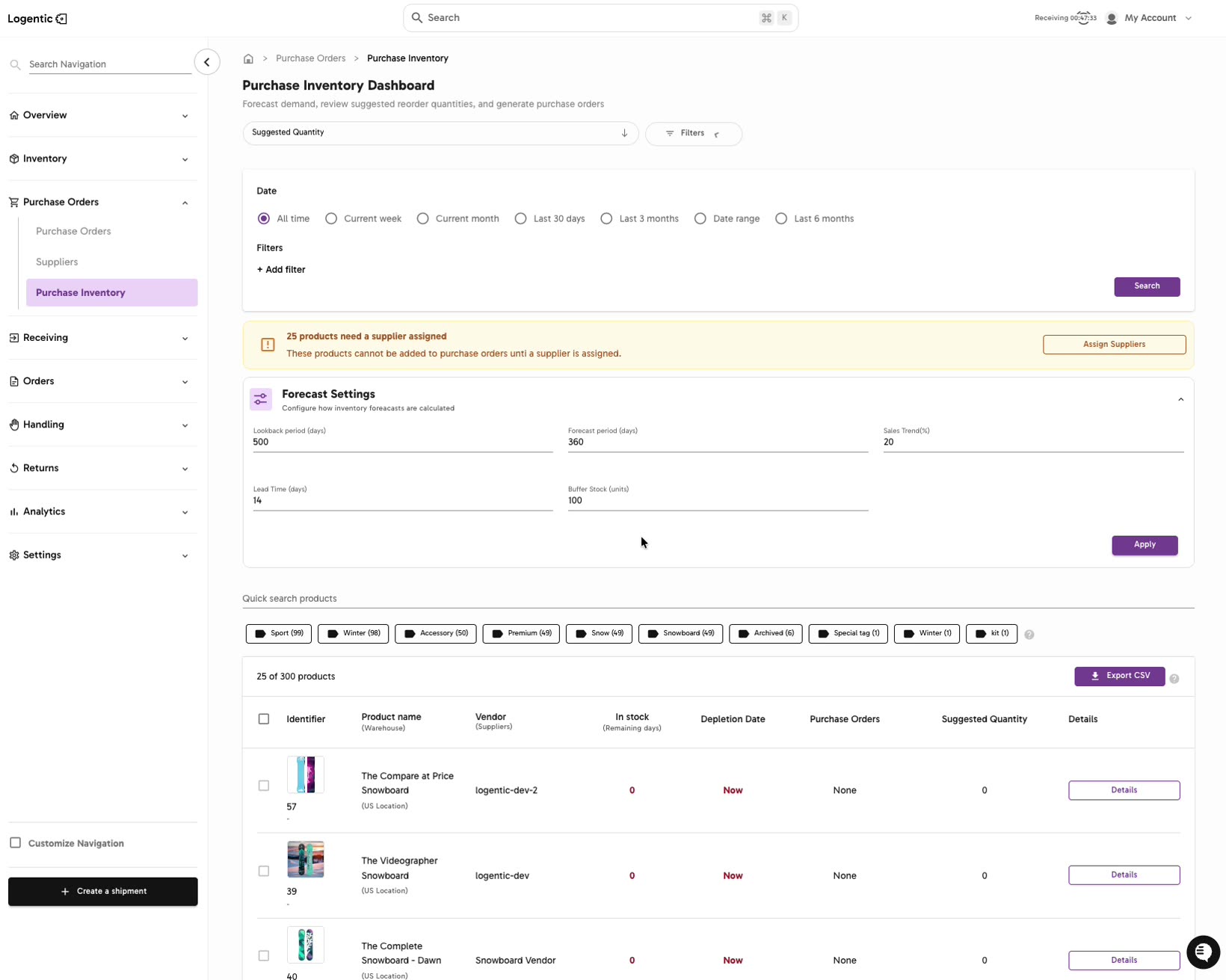
- Expand Forecast Settings.
- Review the visible forecast fields:
- Lookback period (days)
- Forecast period (days)
- Sales Trend(%)
- Lead Time (days)
- Buffer Stock (units)
- Enter the values your team wants to use.
- Select Apply.
- Review the supplier-warning banner again if it changes.
- Review the product rows, especially In stock, Depletion Date, and Suggested Quantity.
- Use sorting, filters, search, or product tags to review the affected products.
- Create a purchase order only after the visible product list and purchasing signals make sense.
Screenshots
Steps 3-6: Open Forecast Settings, review the visible fields, enter the values, and select Apply.
What good looks like
The forecast settings show the values your team intends to use, and the Purchase Inventory list is ready for review before product selection or PO creation.
Common issues and next actions
| If this happens | What to do next |
|---|---|
| Suggested quantities still look wrong. | Check the product row, supplier assignment, stock context, and related purchase orders. Contact us if the visible settings and product data do not explain the result. |
| Values do not save or the page does not update. | Refresh carefully, reopen Forecast Settings, and confirm whether the values are still present before changing them again. |
| A product cannot be added to a purchase order. | Review the supplier-warning banner. Products may need a supplier assigned before they can be added to a purchase order. |
Contact us when
Forecast values do not save, suggested quantities appear wrong after applying settings, or your team needs help understanding a purchasing calculation.
Contact options
- Email Logentic Support: best for detailed requests, screenshots, or follow-up context.
- Open in-app chat: fastest when you are already signed in and need help in context.
- Call Logentic: call (855) 529-0009 for an urgent launch, warehouse, or fulfillment blocker.
- Request Slack support access: ask us to add your team to a shared Logentic support channel.
Send us this information
- Screenshot of Forecast Settings.
- Values entered for each field.
- Product name, SKU, or identifier.
- Expected suggested quantity.
- Actual suggested quantity.
- Warehouse and supplier, if relevant.
- Time and timezone.
Related workflow
- Adjust forecast settings.
- Filter and sort Purchase Inventory.
- Review suggested quantities.
- Select products and create the purchase order.