How do I save a product filter?
Last updated: May 18, 2026
Quick answer
Use this article to save a product filter so you can reopen the same product view later.
Common use cases
- Warehouse lead: Save a recurring product group, such as accessories, for quick review.
- Operations manager: Create a repeat view for a product category that needs regular stock checks.
- Fulfillment coordinator: Reopen a filtered product list before exporting or investigating inventory.
When to use this
- You already applied a filter on Product Dashboard.
- You want to reuse that filtered product view.
- You need a saved product tab for a recurring inventory review.
When not to use this
- You need to make a saved filter available to every user or role.
- You need to change product tags or product data.
- The saved filter shows the wrong products after you confirm the filter values.
At a glance
| What you are doing | What you need | Good result | Contact us if |
|---|---|---|---|
| Use this article to save a product filter so you can reopen the same product view later. | Build the filter you want to save. Confirm the filtered table shows the correct products. | The saved filter appears as a reusable tab or view on Product Dashboard, and selecting it shows the same filtered product group. | A saved filter disappears, shows the wrong product group, or blocks users from seeing products needed for active warehouse work. |
Before you start
- Build the filter you want to save.
- Confirm the filtered table shows the correct products.
- Choose a clear name that your team will recognize.
Steps
- Go to Inventory.
- Open Products.
- Select Filters.
- Select Add filter.
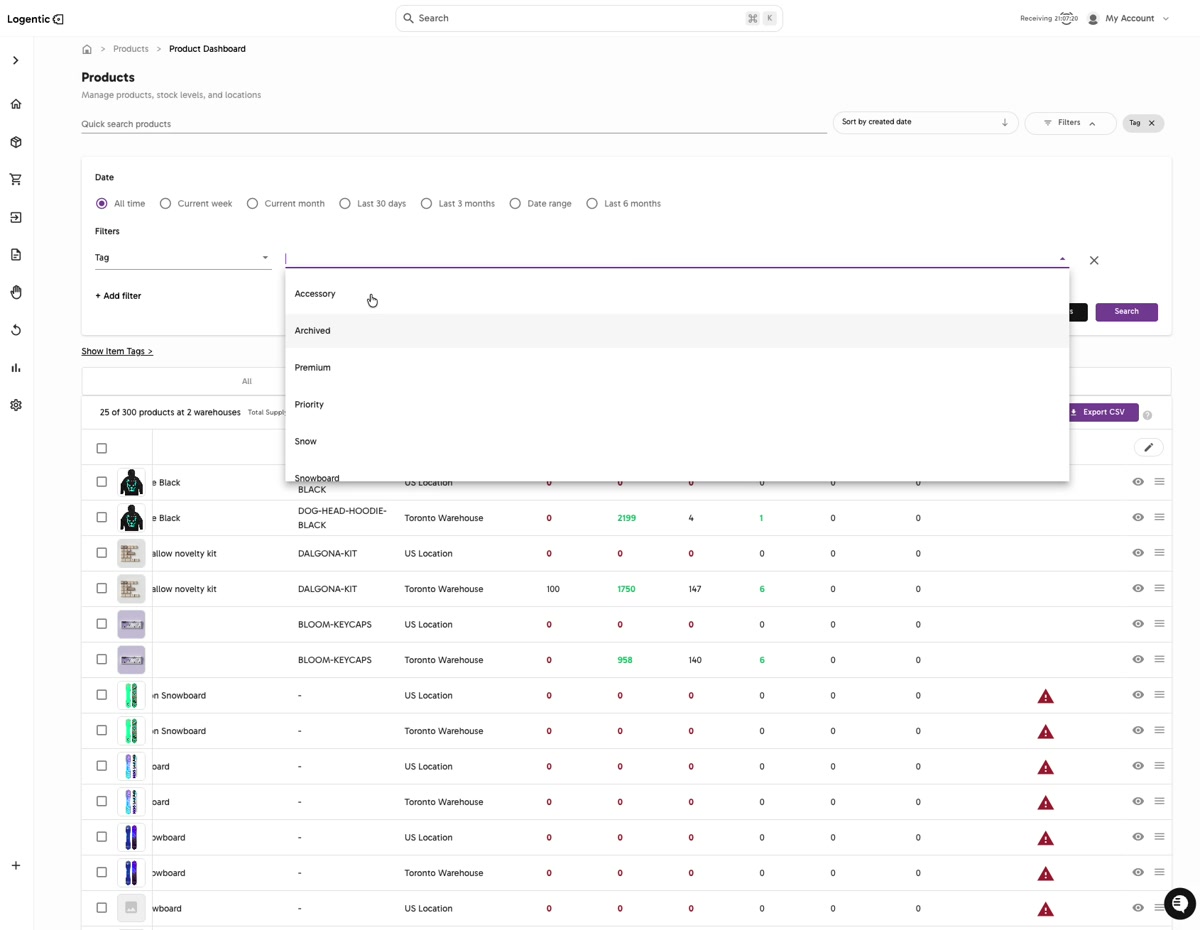
- Choose the filter type, such as Tag.
- Choose the filter value, such as Accessory.
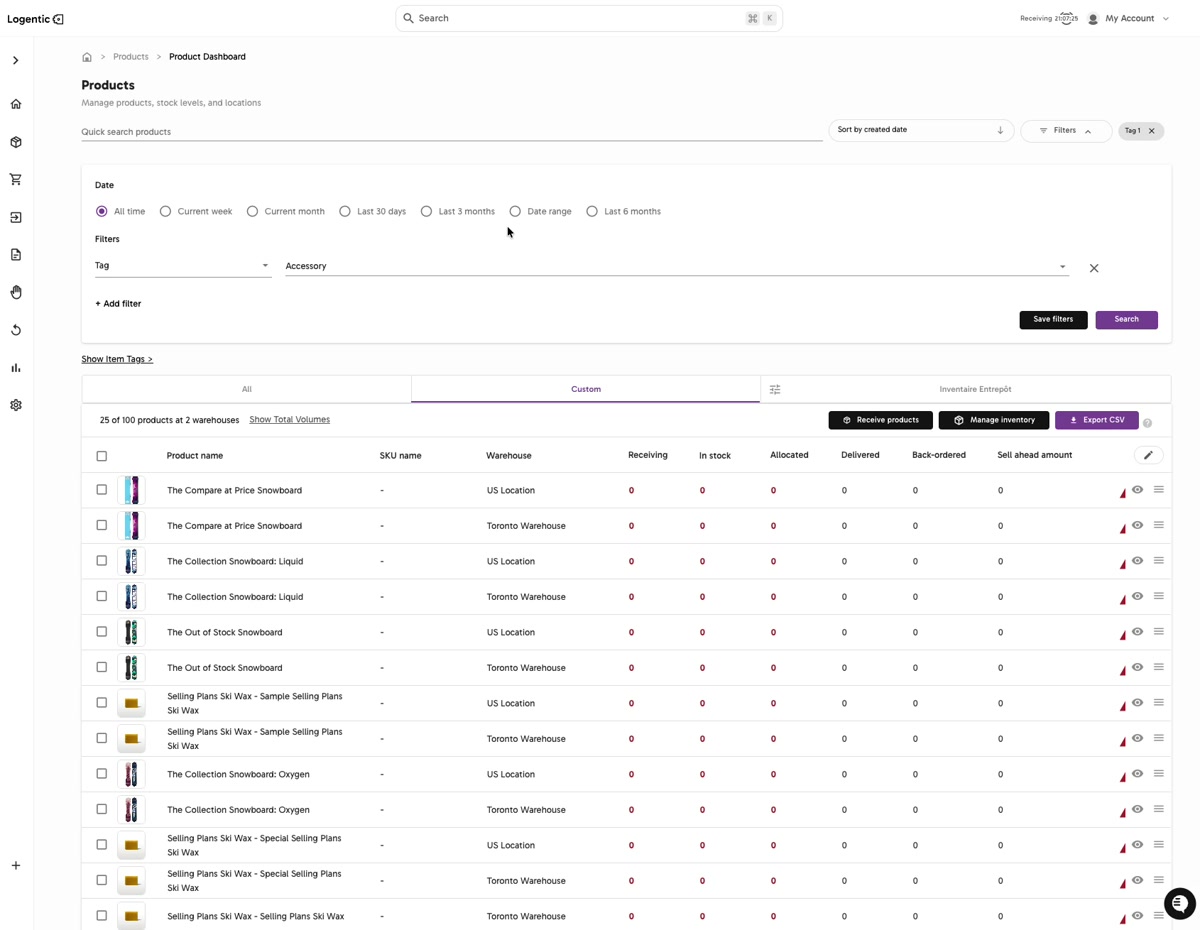
- Select Search.
- Confirm the product table shows the right results.
- Select Save filters or the visible save-filter action for that filtered view.
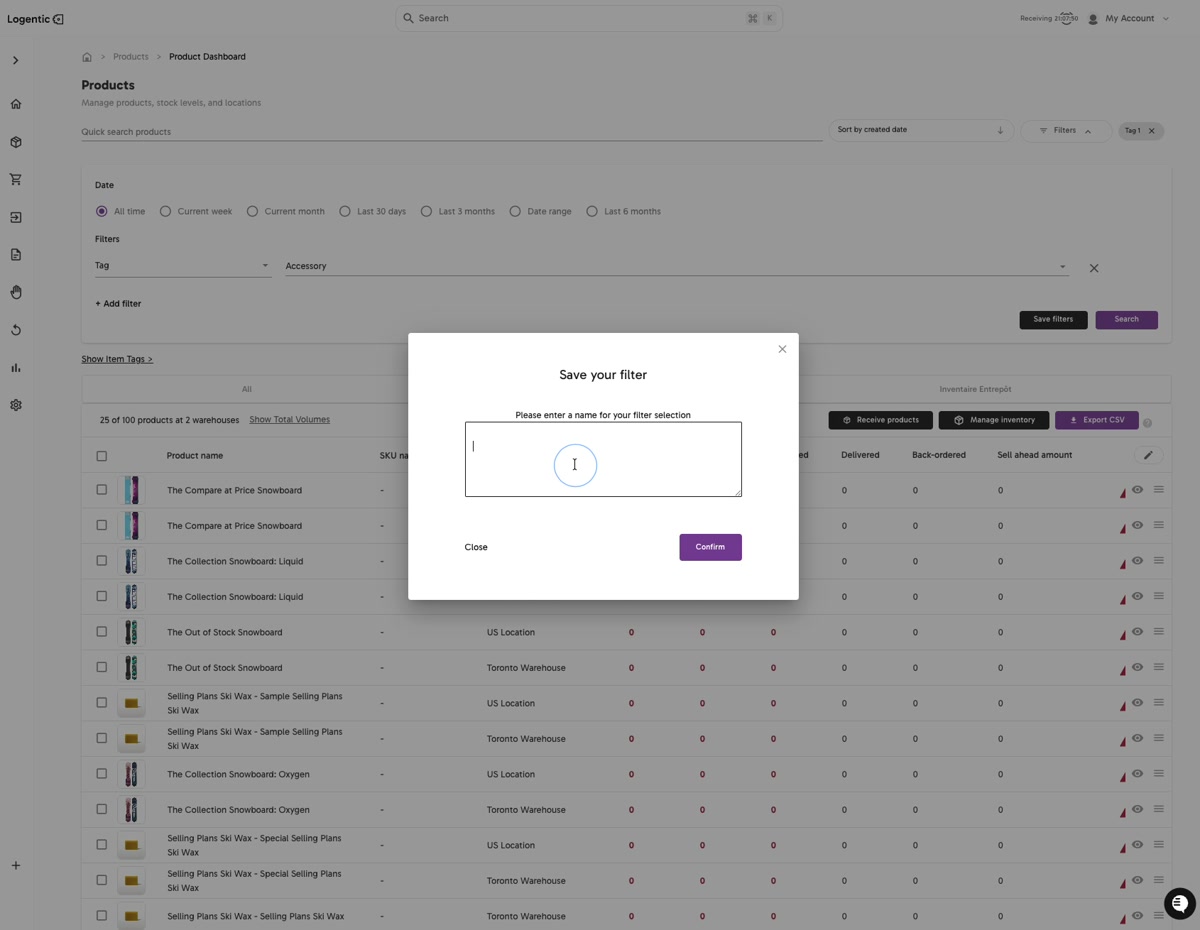
- In Save your filter, enter a clear name for the filter selection.
- Select Confirm.
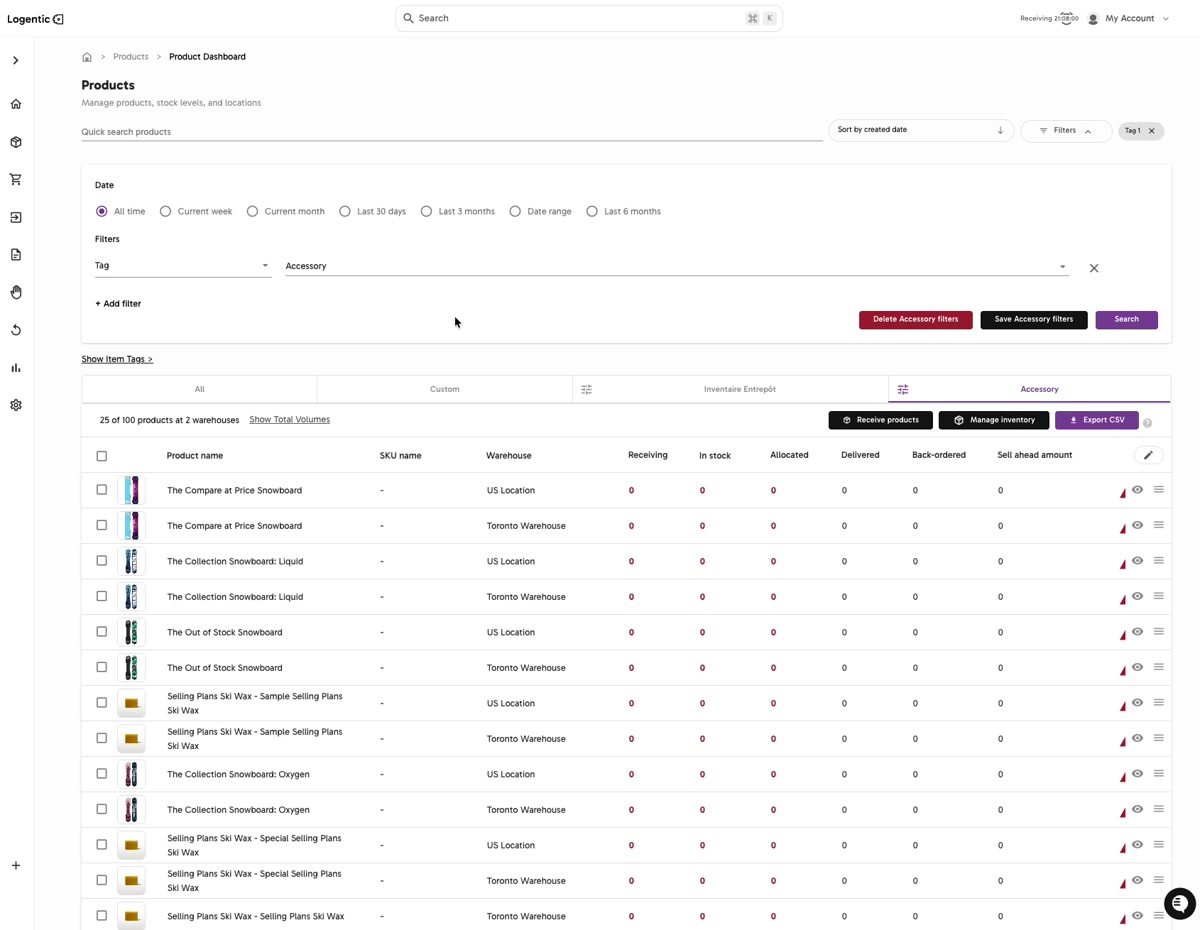
- Use the saved tab to return to that filtered view later.
- Use the remove-filter action if you no longer need the saved view.
Screenshots
Steps 3-6: Add a product filter, choose Tag, and select a value such as Accessory.
Steps 7-9: Select Search, confirm the filtered result, then select Save filters.
Steps 10-11: Name the filter in Save your filter, then select Confirm.
Steps 12-13: Use the saved filter tab later, or remove it when the view is no longer needed.
What good looks like
The saved filter appears as a reusable tab or view on Product Dashboard, and selecting it shows the same filtered product group.
Common issues and next actions
| If this happens | What to do next |
|---|---|
| The save button is not visible. | Confirm that a filter is applied and that you have selected Search. Some save actions appear only after filters are active. |
| The saved filter shows no products. | Open the filter, confirm the values, and check whether the products still have the tag or attribute you saved. |
| The saved filter name is unclear. | Create a practical name based on the job, product group, or warehouse context so your team can recognize it later. |
Contact us when
A saved filter disappears, shows the wrong product group, or blocks users from seeing products needed for active warehouse work.
Contact options
- Email Logentic Support: best for detailed requests, screenshots, or follow-up context.
- Open in-app chat: fastest when you are already signed in and need help in context.
- Call Logentic: call (855) 529-0009 for an urgent launch, warehouse, or fulfillment blocker.
- Request Slack support access: ask us to add your team to a shared Logentic support channel.
Send us this information
- Screenshot of the saved filter or save-filter modal.
- Filter name.
- Filter type and value.
- Expected product group.
- Actual product group shown.
- User role if the issue is visibility-related.
- Time and timezone when the issue appeared.
Related workflow
- Search and filter products.
- Confirm the filtered table is correct.
- Save the filter.
- Reopen the saved filter when you need that product group again.