How do I filter and sort Purchase Inventory?
Last updated: May 18, 2026
Quick answer
Use this article to find the right products in Purchase Inventory before reviewing or creating purchase orders.
Common use cases
- Buyer: Find products from a specific vendor, warehouse, tag, or product group before creating a purchase order.
- Operations manager: Sort the list by purchasing signals such as remaining days or suggested quantity.
- Warehouse lead: Export or share the visible purchase inventory list when stock needs to be reviewed outside Logentic.
When to use this
- You need to find products in Purchase Inventory.
- You need to sort products by a purchasing signal.
- You need to export the currently visible purchase inventory list.
When not to use this
- You need to change forecast inputs.
- You need to create or send the purchase order.
- The product is missing because it does not have a supplier assigned.
At a glance
| What you are doing | What you need | Good result | Contact us if |
|---|---|---|---|
| Use this article to find the right products in Purchase Inventory before reviewing or creating purchase orders. | Confirm you are in the correct workspace and warehouse context. Know the product name, SKU, identifier, vendor, warehouse, or tag you want to find. | The product table shows only the rows that match your sort, date range, search term, tags, and filters. You can then review the rows, select products for a purchase order, or export the visible list. | Expected products remain missing after filters are cleared, a filter option is unavailable, or Export CSV does not match the visible table. |
Before you start
- Confirm you are in the correct workspace and warehouse context.
- Know the product name, SKU, identifier, vendor, warehouse, or tag you want to find.
- Clear filters if you are not sure which filters are already active.
Steps
- Go to Purchase Orders.
- Open Purchase Inventory.
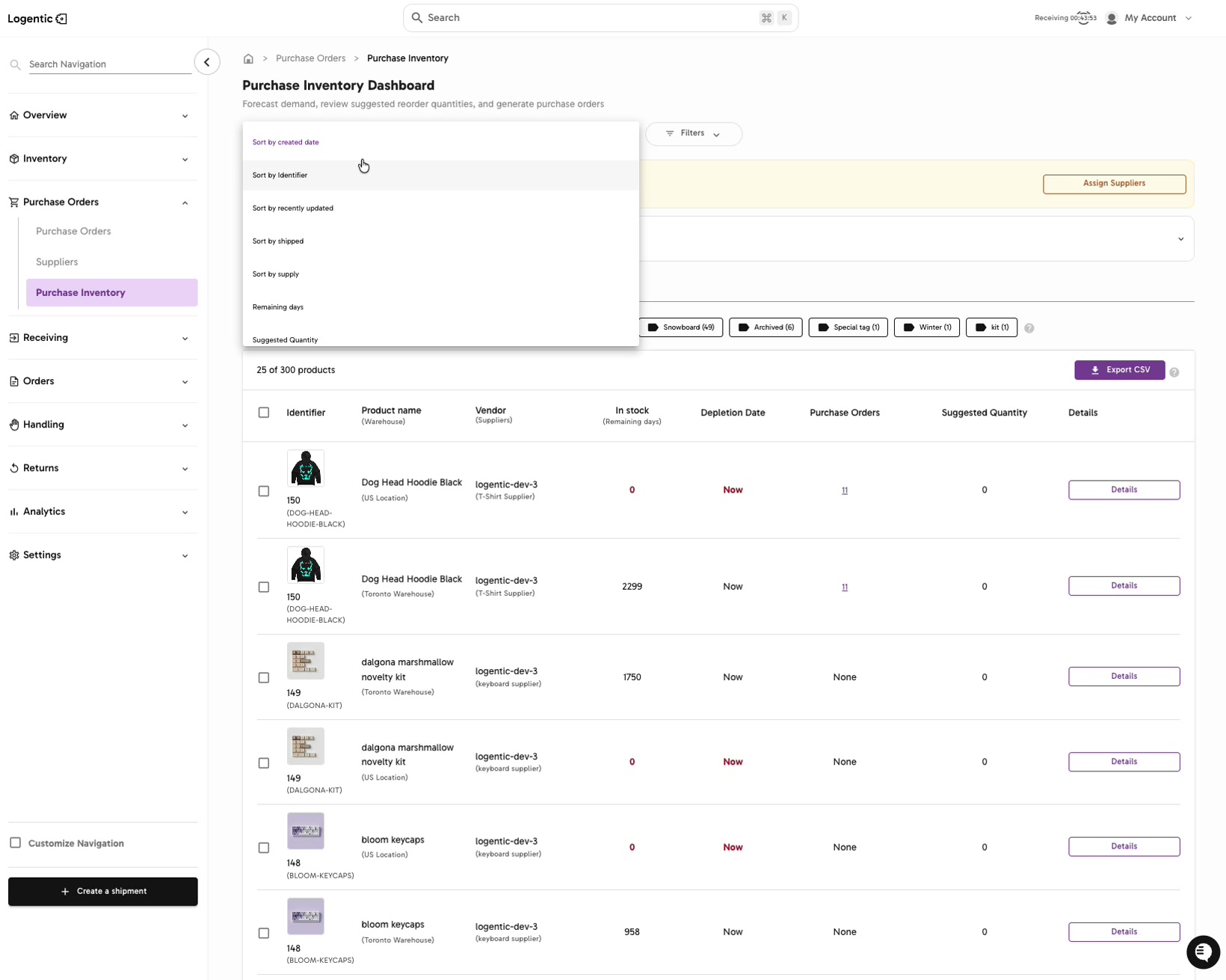
- Use the sort menu when you want to change the order of the list.
- Choose the sort option that matches the job, such as:
- Sort by created date
- Sort by identifier
- Sort by recently updated
- Sort by shipped
- Sort by supply
- Remaining days
- Suggested Quantity
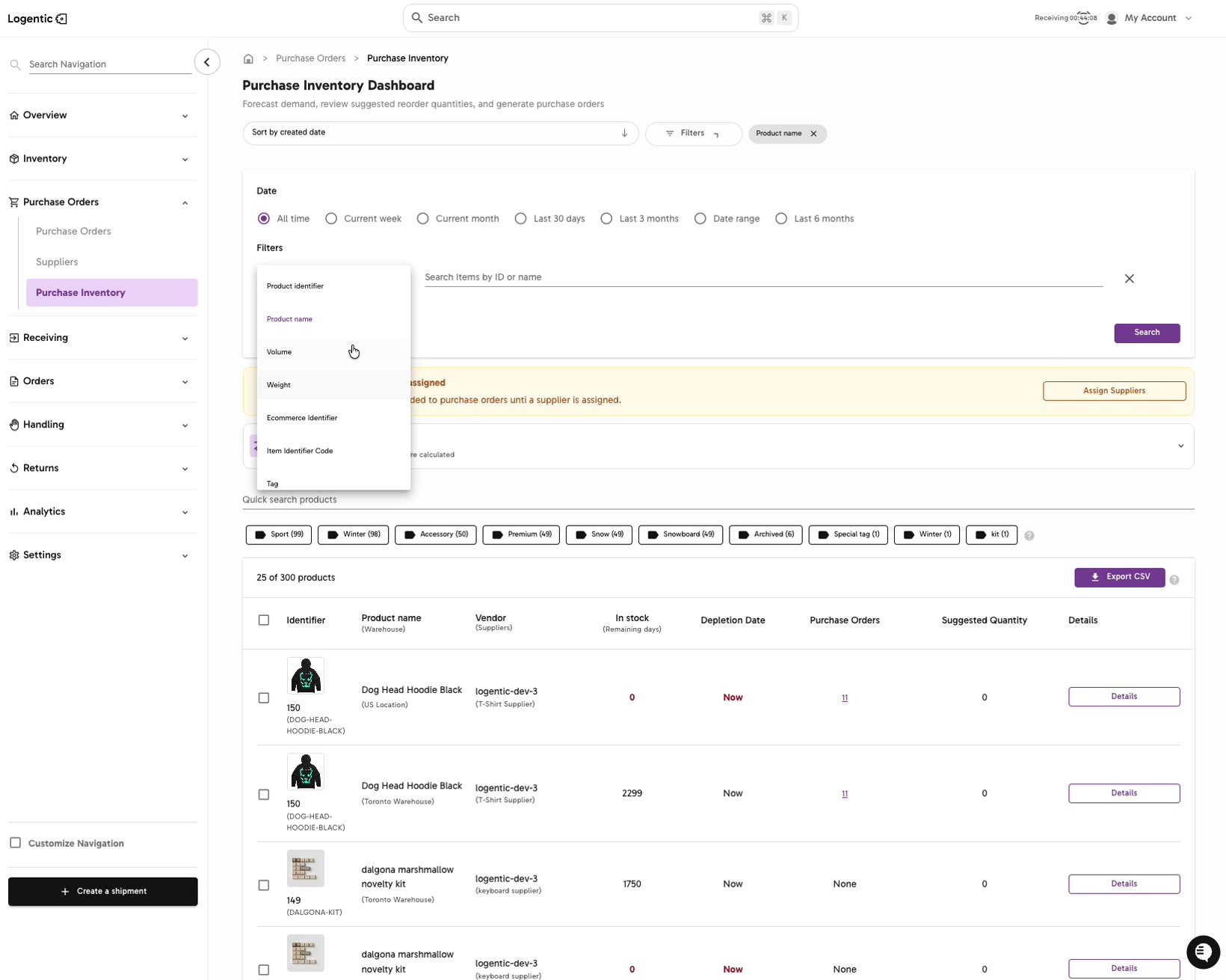
- Select Filters.
- Select Add filter.
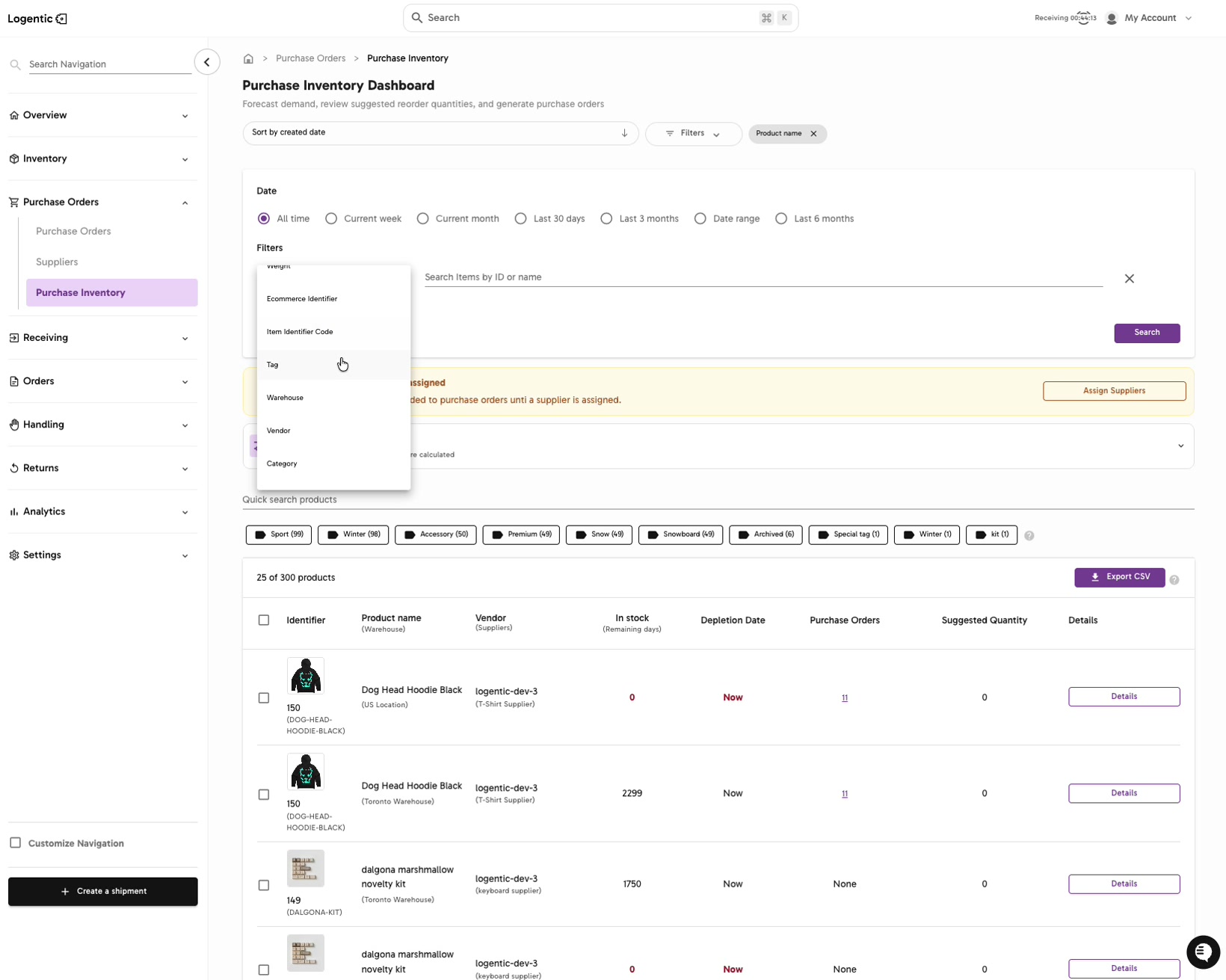
- Choose the field you want to filter by, such as:
- Product identifier
- Product name
- Volume
- Weight
- Ecommerce Identifier
- Item Identifier Code
- Tag
- Warehouse
- Vendor
- Category
- Enter the search value in Search Items by ID or name when the filter asks for a product or item.
- Use date options such as All time, Current week, Current month, Last 30 days, Last 3 months, Date range, or Last 6 months when you need time-based filtering.
- Select Search.
- Use product tag chips when you want to narrow the list by a visible product group.
- Review the filtered rows before selecting products for a purchase order.
- Select Export CSV when you need the visible filtered list outside Logentic.
Screenshots
Steps 3-4: Use the sort menu to order Purchase Inventory by the purchasing signal you need.
Steps 5-8: Add a filter such as Product name, then search by item ID or name.
Step 7: Choose the filter field that matches the product information you have.
What good looks like
The product table shows only the rows that match your sort, date range, search term, tags, and filters. You can then review the rows, select products for a purchase order, or export the visible list.
Common issues and next actions
| If this happens | What to do next |
|---|---|
| The product is not visible. | Clear filters, expand the date range, remove tag chips, and search again by product name, SKU, or identifier. |
| A filter option is missing. | Use a field that matches the information available in your workspace. Contact us if a filter you rely on is no longer visible. |
| The export does not match what you expected. | Check the active filters, search term, date range, sort option, and tag chips before exporting again. |
Contact us when
Expected products remain missing after filters are cleared, a filter option is unavailable, or Export CSV does not match the visible table.
Contact options
- Email Logentic Support: best for detailed requests, screenshots, or follow-up context.
- Open in-app chat: fastest when you are already signed in and need help in context.
- Call Logentic: call (855) 529-0009 for an urgent launch, warehouse, or fulfillment blocker.
- Request Slack support access: ask us to add your team to a shared Logentic support channel.
Send us this information
- Screenshot of Purchase Inventory with filters visible.
- Product name, SKU, or identifier.
- Active filters, date range, sort option, and tag chips.
- Expected product or row count.
- Actual result shown in Logentic.
- Time and timezone.
Related workflow
- Filter and sort Purchase Inventory.
- Review purchase inventory suggestions.
- Select products for a purchase order.
- Create the purchase order.