How do I ship identical batch orders together?
Last updated: May 18, 2026
Quick answer
Use this article to start the Ship together workflow for identical order batches.
Common use cases
- Fulfillment coordinator: Find identical order groups that can be processed together.
- Packer: Choose the packaging type for a grouped set of identical orders.
- Operations manager: Review the number of orders and ordered items before batching repetitive fulfillment work.
When to use this
- You are working in Batch Orders.
- The order group is visible as an identical batch.
- You need to choose packaging before confirming the batch workflow.
When not to use this
- You need to generate picking routes instead of shipping identical batches.
- The orders are not identical.
- You need help with carrier rates, label billing, or printer setup.
At a glance
| What you are doing | What you need | Good result | Contact us if |
|---|---|---|---|
| Use this article to start the Ship together workflow for identical order batches. | Confirm the merchant and warehouse context. Review the order count and ordered item shown in the batch row. | The correct identical-order batch is selected, the product and quantity match what you expect, and the correct packaging type is chosen before confirming. | The expected batch group is missing, Ship together is unavailable, packaging options are missing, or Confirm Packaging remains blocked after selecting packaging. |
Before you start
- Confirm the merchant and warehouse context.
- Review the order count and ordered item shown in the batch row.
- Know which packaging type should be used for the product.
Steps
- Go to Handling in the left navigation.
- Open Batch Orders.
- Select the Batch orders tab.
- Choose the merchant you want to review.
- Use the sort menu, filters, and Search if you need to narrow the batch list.
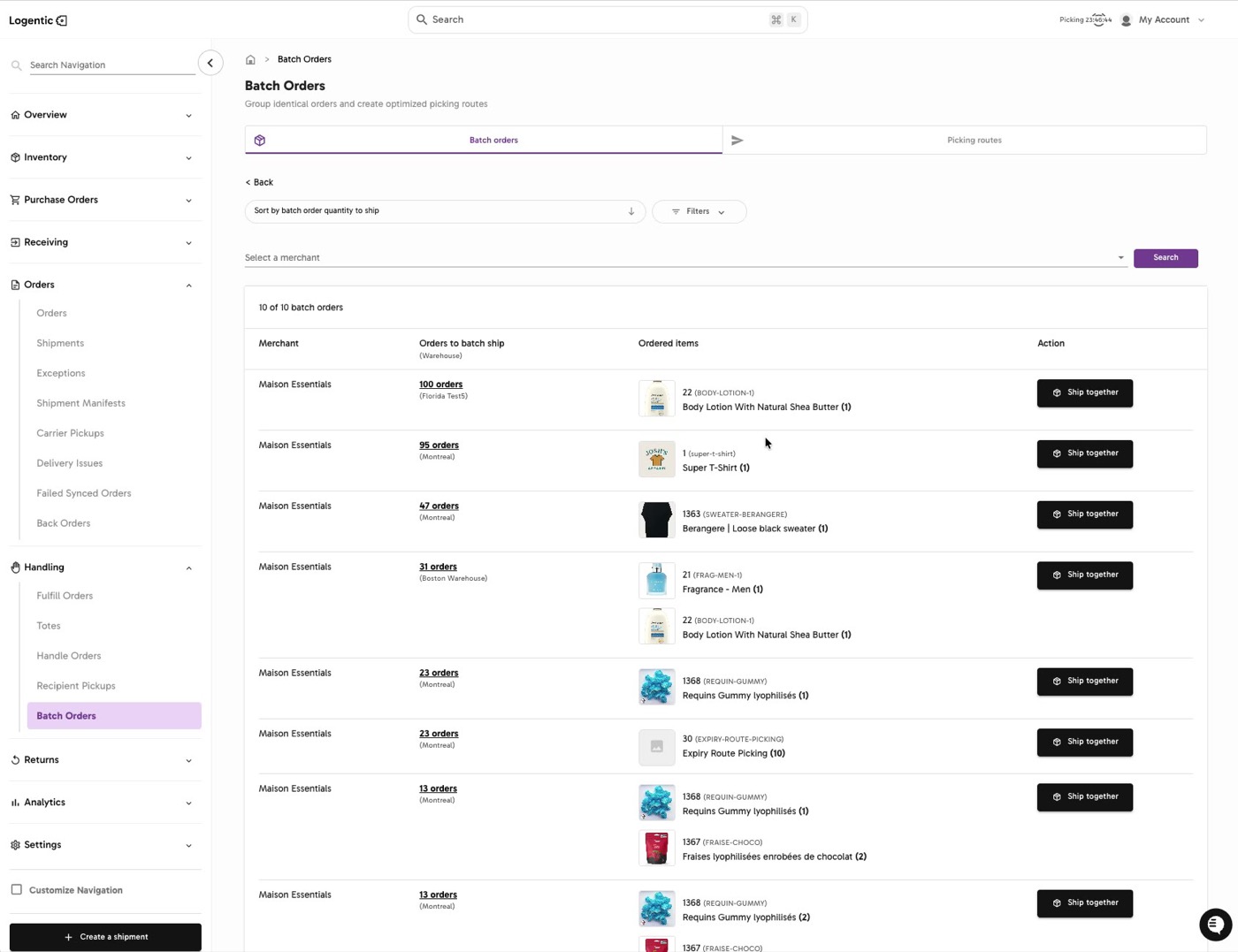
- Review each batch row:
- Merchant
- Orders to batch ship
- Ordered items
- Action
- Select Ship together for the batch you want to process.
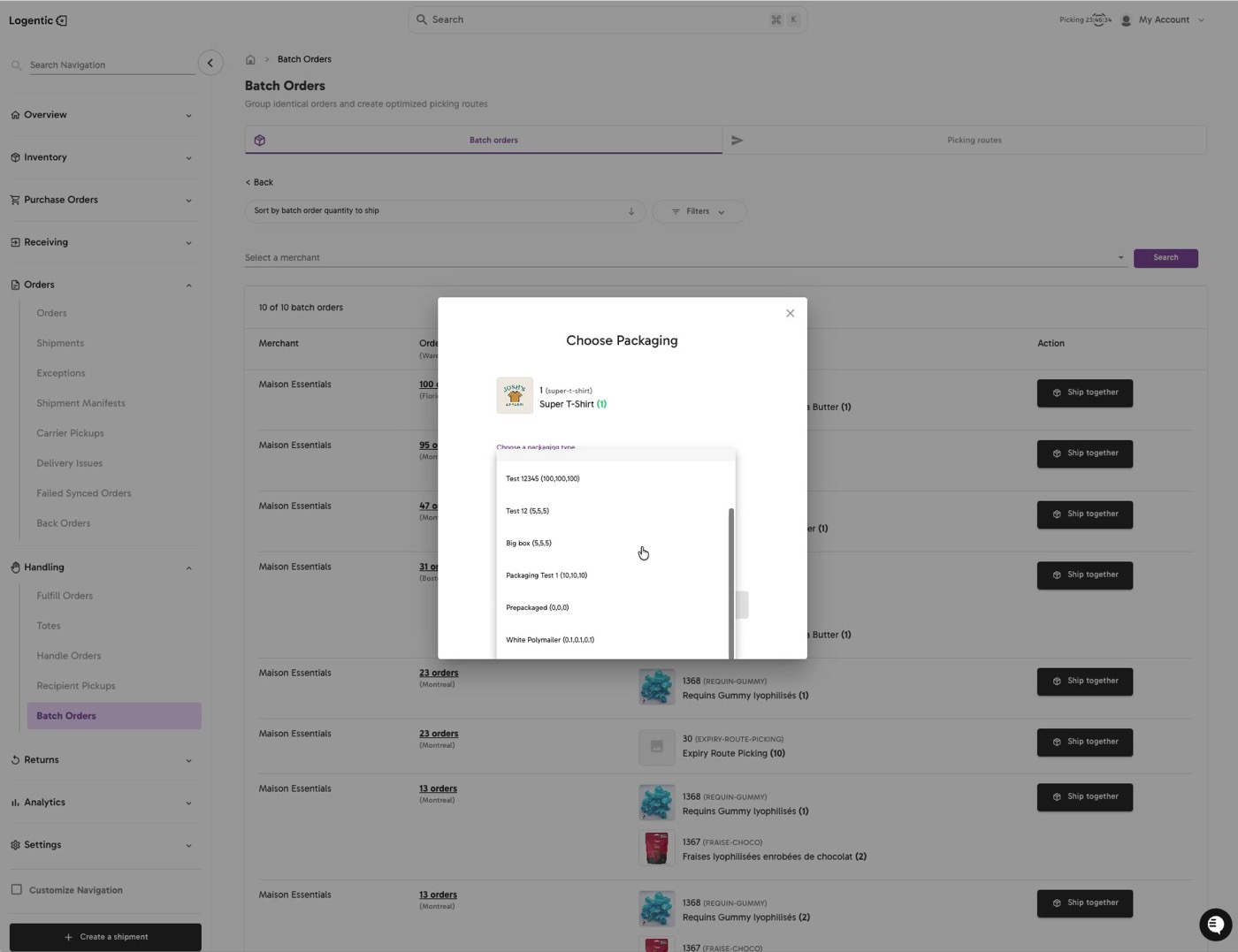
- In Choose Packaging, review the product and quantity.
- Select Choose a packaging type.
- Choose the packaging option that matches the product and fulfillment workflow.
- Select Confirm Packaging when the correct packaging is selected and the action is available.
Screenshots
Steps 1-6: Open Batch Orders, choose the merchant, and review identical-order groups.
Steps 7-11: Select Ship together, review Choose Packaging, and choose the packaging type.
What good looks like
The correct identical-order batch is selected, the product and quantity match what you expect, and the correct packaging type is chosen before confirming.
Common issues and next actions
| If this happens | What to do next |
|---|---|
| The batch group is missing. | Confirm the merchant, warehouse, filters, and search terms. The orders may not be grouped if they are not identical. |
| No packaging option is available. | Try another batch only if that is the correct operational choice. Contact us if the expected packaging exists in your setup but is not available in Choose Packaging. |
| Confirm Packaging is unavailable. | Choose a packaging type first. Contact us if the packaging is selected but Confirm Packaging stays blocked. |
Contact us when
The expected batch group is missing, Ship together is unavailable, packaging options are missing, or Confirm Packaging remains blocked after selecting packaging.
Contact options
- Email Logentic Support: best for detailed requests, screenshots, or follow-up context.
- Open in-app chat: fastest when you are already signed in and need help in context.
- Call Logentic: call (855) 529-0009 for an urgent launch, warehouse, or fulfillment blocker.
- Request Slack support access: ask us to add your team to a shared Logentic support channel.
Send us this information
- Screenshot of the Batch Orders row or Choose Packaging modal.
- Merchant and warehouse.
- Ordered item and product identifier if available.
- Order count shown in the batch.
- Packaging option expected.
- Actual result shown in Logentic.
- Time and timezone.
Related workflow
- Review identical order groups in Batch Orders.
- Start Ship together.
- Choose packaging.
- Continue the fulfillment workflow for the batch.