How do I create and print totes?
Last updated: May 18, 2026
Quick answer
Use this article to create tote QR codes and print tote labels from Tote Manager.
Common use cases
- Warehouse lead: Create a batch of totes before assigning pick/pack work.
- Picker: Print tote labels so totes can be scanned during fulfillment.
- Operations manager: Review which totes are connected to orders, handling orders, statuses, associates, and warehouses.
When to use this
- You need to create new tote labels.
- You need to print existing tote QR codes.
- You need to review tote details before using the tote in a pick/pack workflow.
When not to use this
- You are already inside Pick/Pack and only need to scan the tote.
- You need printer-driver setup or scanner hardware setup.
- You are unsure whether a tote should be released or deleted.
At a glance
| What you are doing | What you need | Good result | Contact us if |
|---|---|---|---|
| Use this article to create tote QR codes and print tote labels from Tote Manager. | Confirm the warehouse where the totes should be created. Decide which label size your team is using. | The new totes appear in Tote Manager with QR codes, tote codes, warehouse context, and PRINT actions. | Generated totes cannot be created, created totes do not appear, PRINT does not open, the QR code is unreadable, or a tote appears tied to the wrong order. |
Before you start
- Confirm the warehouse where the totes should be created.
- Decide which label size your team is using.
- Know the tote naming pattern and starting number you want to use.
Steps
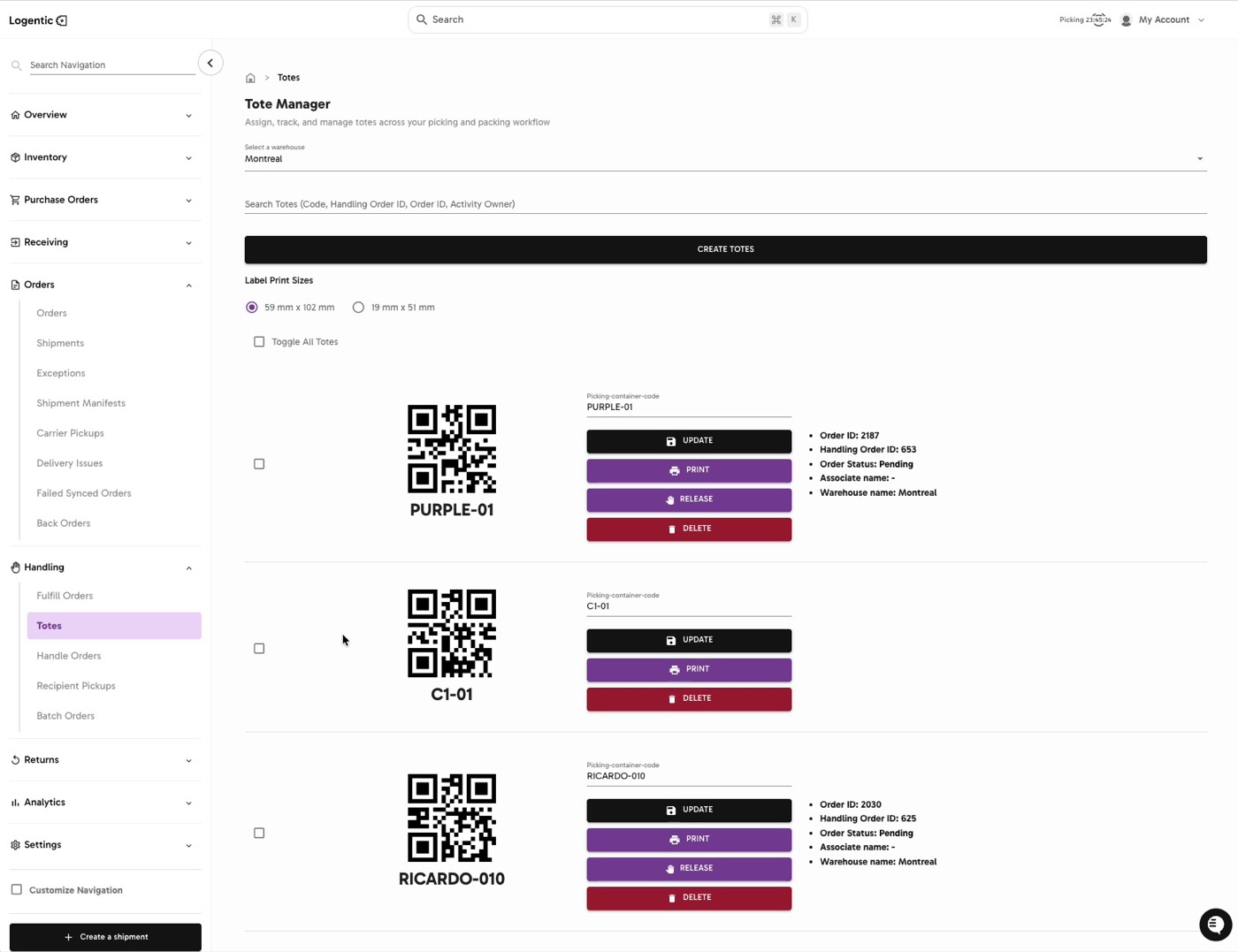
- Go to Handling in the left navigation.
- Open Totes.
- Select the warehouse.
- Use Search Totes (Code, Handling Order ID, Order ID, Activity Owner) if you are looking for an existing tote.
- Choose the label print size:
- 59 mm x 102 mm
- 19 mm x 51 mm
- To print an existing tote, find the tote and select PRINT.
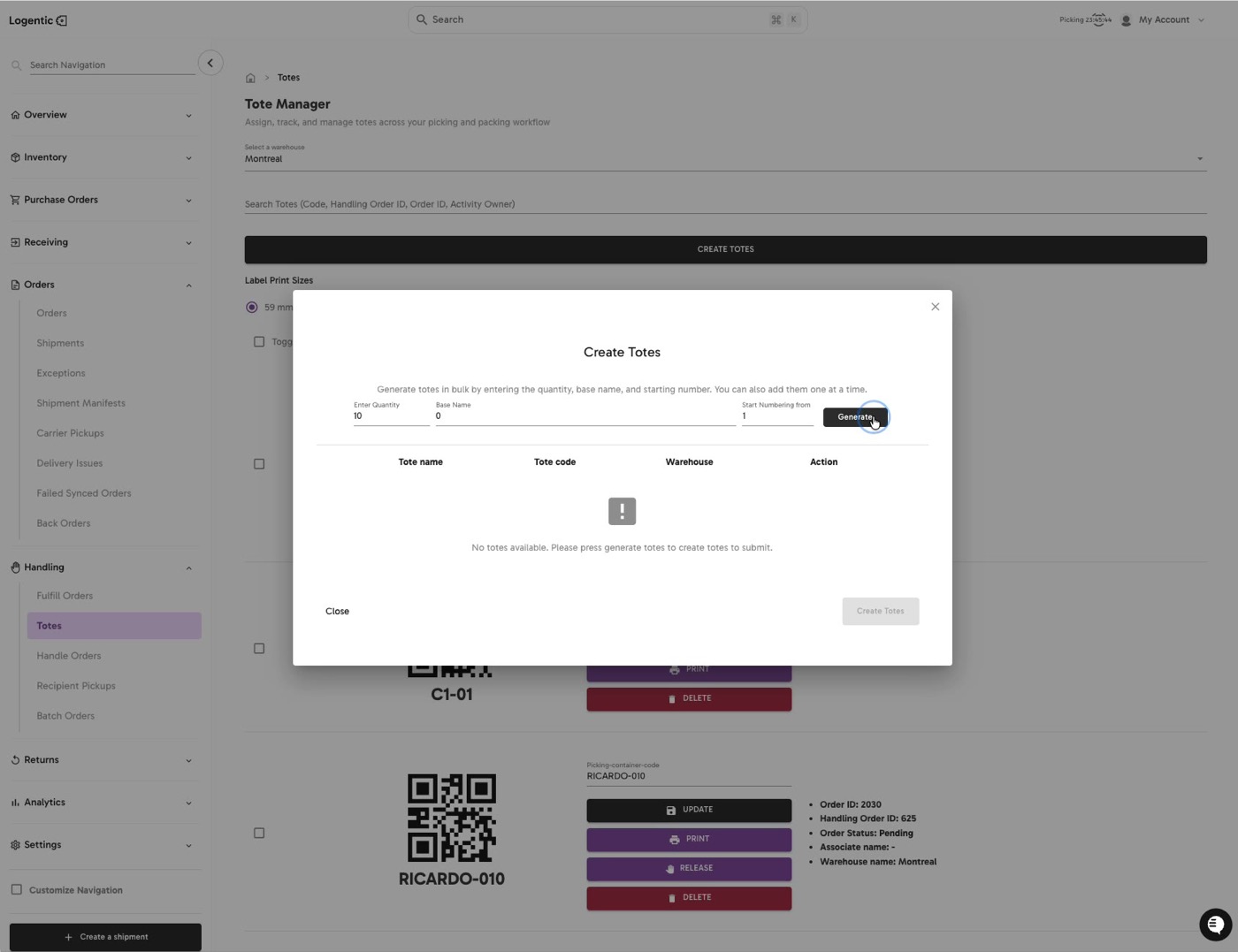
- To create new totes, select CREATE TOTES.
- In Create Totes, enter:
- Enter Quantity
- Base Name
- Start Numbering from
- Select Generate.
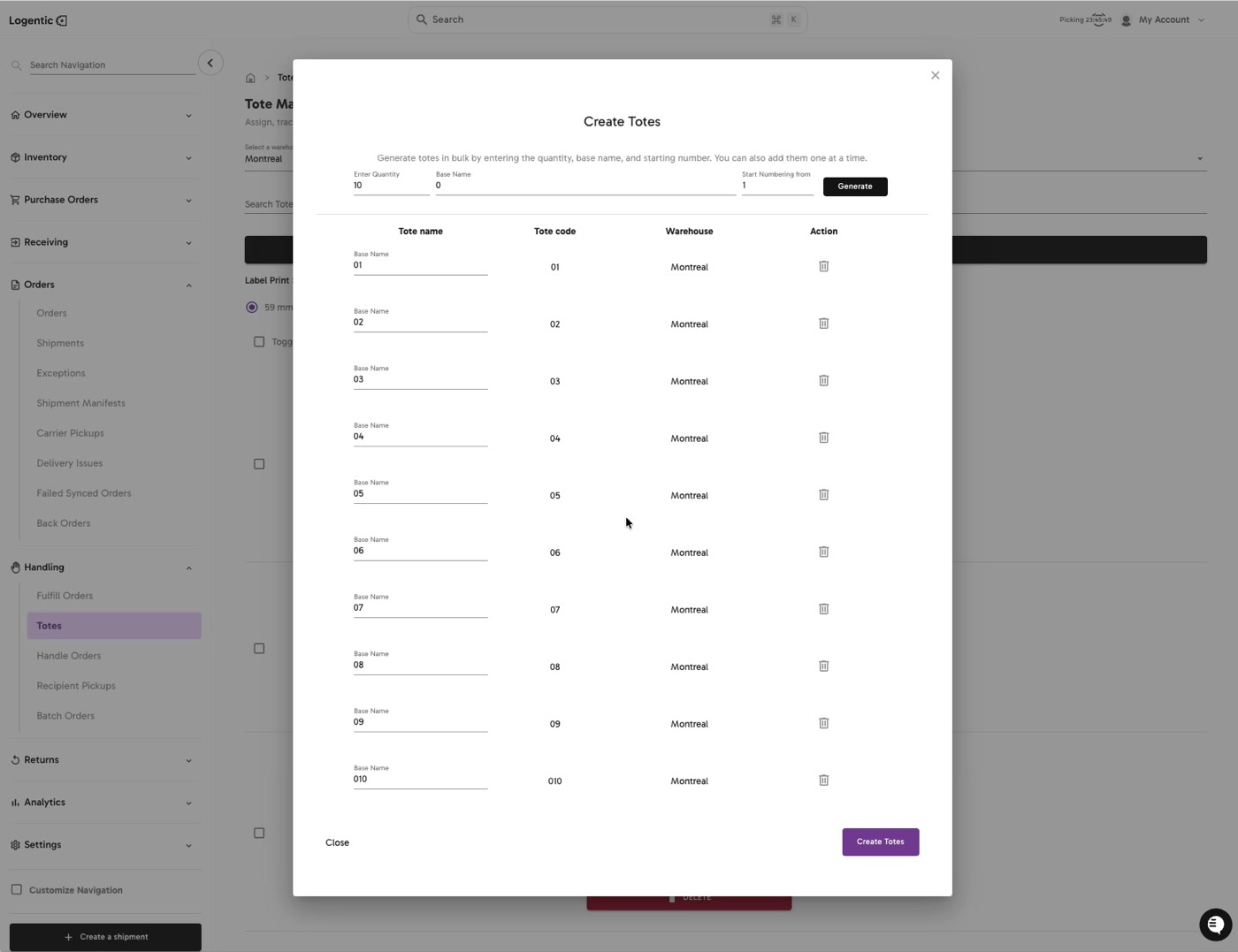
- Review the generated rows:
- Tote name
- Tote code
- Warehouse
- Delete any generated row you do not want to create.
- Select Create Totes.
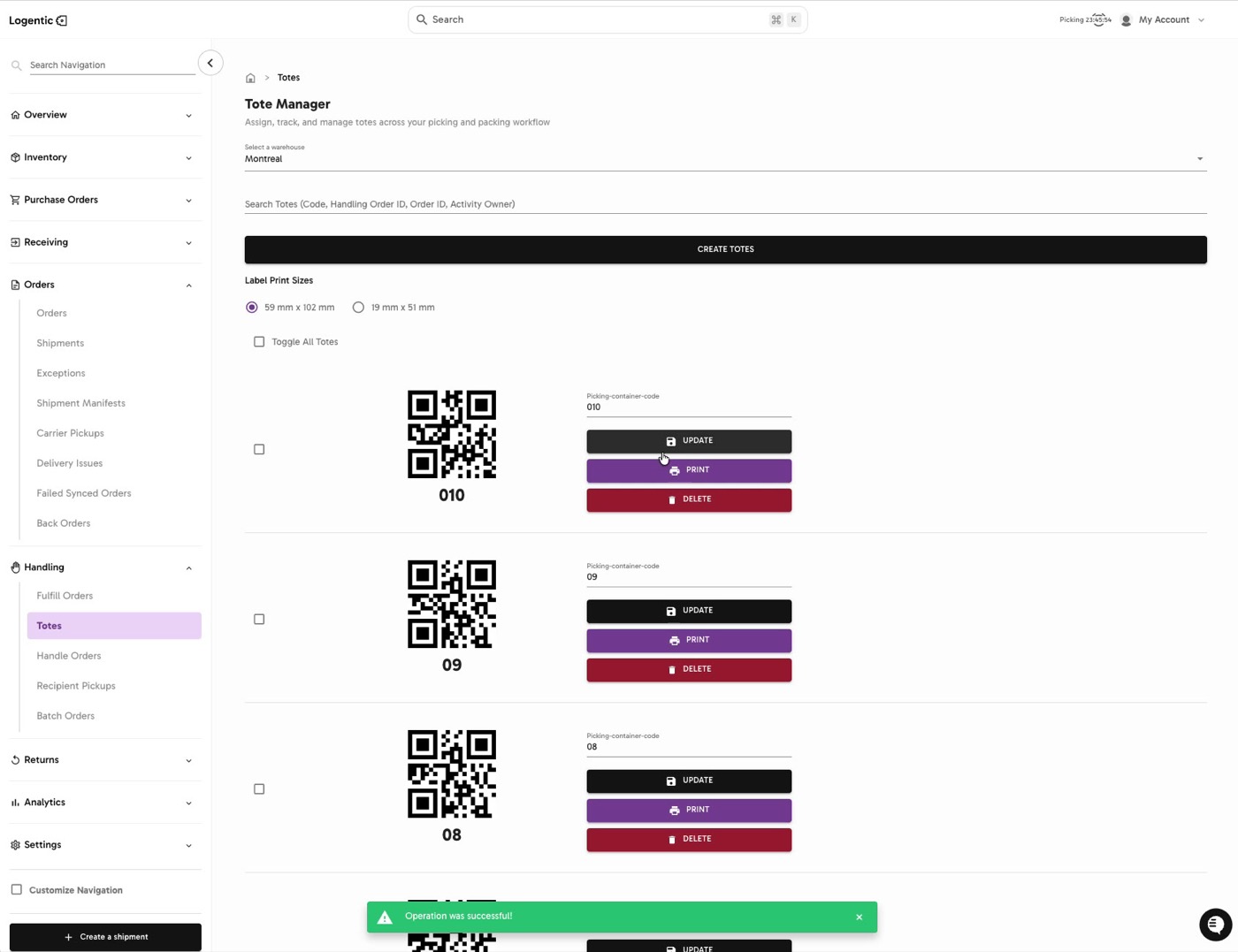
- Confirm the new totes appear in Tote Manager with QR codes.
- Select PRINT for the tote labels you need.
Screenshots
Steps 1-6: Open Tote Manager, select the warehouse, choose the label size, search if needed, and print an existing tote.
Steps 7-9: Open Create Totes, enter quantity, base name, and starting number, then select Generate.
Steps 10-12: Review generated tote rows and select Create Totes.
Steps 13-14: Confirm the created totes are visible, then print the labels you need.
What good looks like
The new totes appear in Tote Manager with QR codes, tote codes, warehouse context, and PRINT actions.
Common issues and next actions
| If this happens | What to do next |
|---|---|
| Create Totes is unavailable. | Enter the required quantity, base name, and starting number, then select Generate before creating the totes. |
| The tote name or code is wrong. | Edit or delete the generated row before selecting Create Totes. |
| The print action does not open or the label does not print. | Confirm your printer is available in the browser or operating system. Contact us if PRINT does not open from Logentic. |
| A tote is already tied to an order. | Review the visible order, handling order, order status, associate, and warehouse before changing the tote. |
Contact us when
Generated totes cannot be created, created totes do not appear, PRINT does not open, the QR code is unreadable, or a tote appears tied to the wrong order.
Contact options
- Email Logentic Support: best for detailed requests, screenshots, or follow-up context.
- Open in-app chat: fastest when you are already signed in and need help in context.
- Call Logentic: call (855) 529-0009 for an urgent launch, warehouse, or fulfillment blocker.
- Request Slack support access: ask us to add your team to a shared Logentic support channel.
Send us this information
- Screenshot of Tote Manager or Create Totes.
- Warehouse.
- Tote code or tote name.
- Label print size selected.
- Quantity, base name, and starting number used.
- Expected result.
- Actual result shown in Logentic.
- Time and timezone.
Related workflow
- Create or print tote labels.
- Use the tote during Pick/Pack.
- Scan or confirm the tote when prompted.