How do I review the shipping wallet and payment reports?
Last updated: May 18, 2026
Quick answer
Use this article to review Shipping Wallet, wallet controls, and Payment Reports.
Common use cases
- Finance user: Find payment report filters before reconciling shipping charges.
- Operations manager: Check wallet status before a shipping workflow is blocked.
- Admin: Locate saved payment method and automatic reload settings without changing billing behavior blindly.
When to use this
- You need to open Shipping Wallet.
- You need to switch between Wallet Manager and Payment Reports.
- You need to filter, download, or export payment report data.
When not to use this
- You need a refund, credit, charge reversal, or billing-policy decision.
- A downloaded report does not match your filters or selected rows.
- You use an external shipping integration and need to confirm which account is charged.
At a glance
| What you are doing | What you need | Good result | Contact us if |
|---|---|---|---|
| Use this article to review Shipping Wallet, wallet controls, and Payment Reports. | Use an admin or finance account with access to Shipping Wallet. Know the date range you want to review. | You can see the wallet screen, review payment report filters, and generate the report format you need without exposing card, balance, or payment-item details in support chat. | The wallet does not load, a card or deposit action fails, auto reload looks wrong, charges do not match expected shipments, a report download is incorrect, or an external shipping integration appears to charge the wrong account. |
Before you start
- Use an admin or finance account with access to Shipping Wallet.
- Know the date range you want to review.
- Know the charge, order, shipment, carrier, or payment item you are investigating if there is a mismatch.
Steps
- Go to Settings in the left navigation.
- Open Shipping Wallet.
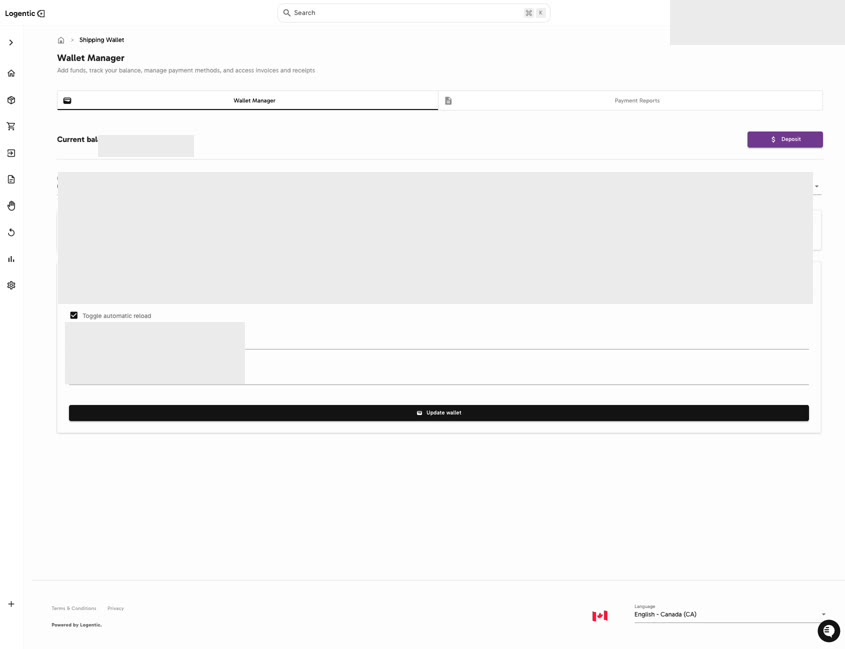
- In Wallet Manager, review the visible wallet balance and saved payment method area.
- Review Toggle automatic reload only if you are responsible for wallet payment settings.
- Select Update wallet only after confirming the payment settings are correct.
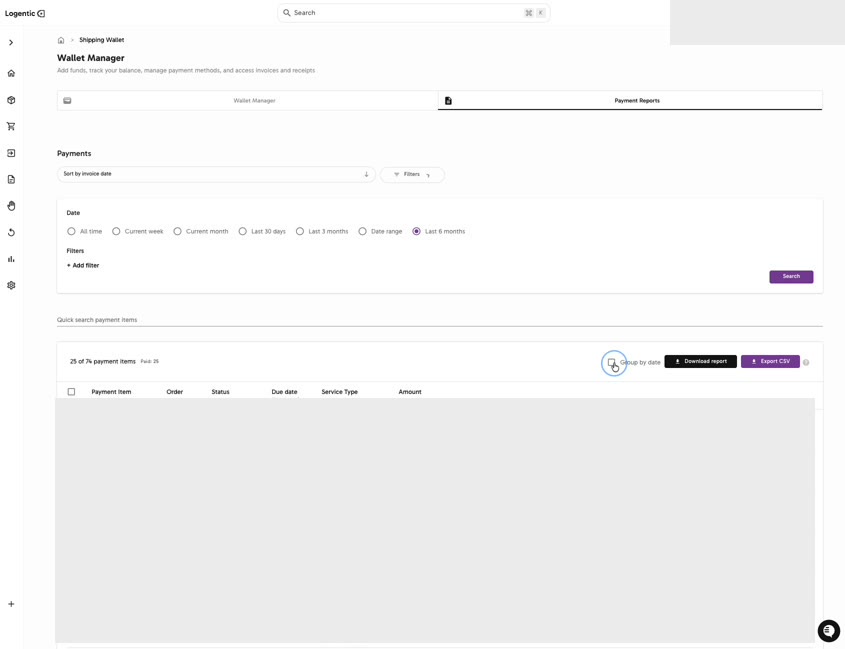
- Select the Payment Reports tab.
- Choose a sort option such as Sort by invoice date.
- Select a date range such as All time, Current week, Current month, Last 30 days, Last 3 months, Date range, or Last 6 months.
- Use Add filter when you need to narrow payment report rows.
- Select Search.
- Use Download report or Export CSV when you need a report file.
- Review the downloaded or exported report before using it for reconciliation.
Screenshots
Steps 1-5: Open Shipping Wallet, review wallet status, payment method area, automatic reload, and Update wallet.
Steps 6-12: Open Payment Reports, filter by date, search, and use Download report or Export CSV.
What good looks like
You can see the wallet screen, review payment report filters, and generate the report format you need without exposing card, balance, or payment-item details in support chat.
Common issues and next actions
| If this happens | What to do next |
|---|---|
| The report does not match your filters or selected rows. | Do not rely on the report for reconciliation yet. Contact us with the filters and file output. |
| A charge appears under the wrong shipping integration. | Contact us with the shipment and carrier context. Do not assume charge ownership from the wallet screen alone. |
| You need to update card or reload settings. | Only update payment settings if you are authorized to manage billing. Contact us if you are unsure. |
Contact us when
The wallet does not load, a card or deposit action fails, auto reload looks wrong, charges do not match expected shipments, a report download is incorrect, or an external shipping integration appears to charge the wrong account.
Contact options
- Email Logentic Support: best for detailed requests, screenshots, or follow-up context.
- Open in-app chat: fastest when you are already signed in and need help in context.
- Call Logentic: call (855) 529-0009 for an urgent launch, warehouse, or fulfillment blocker.
- Request Slack support access: ask us to add your team to a shared Logentic support channel.
Send us this information
- Screenshot with card, balance, and payment values masked.
- Date range and filters used.
- Payment item, order, shipment, carrier, or invoice reference if available.
- Whether you used Download report or Export CSV.
- Expected result.
- Actual result shown in Logentic or in the downloaded file.
Related workflow
- Review wallet status before shipping work.
- Filter and export payment reports.
- Escalate billing, report, or external integration mismatches with exact context.