How do I add or update a payment method for the Shipping Wallet?
Last updated: May 19, 2026
Quick answer
Go to Settings > Shipping Wallet, review the Wallet Manager area, and use Update wallet only if you are authorized to manage payment settings for your account.
Important: Never send full card numbers, CVV codes, bank details, or private payment credentials in support chat. If a payment update fails, send a screenshot with sensitive values hidden.
Common use cases
- Admin: Add the payment method used to fund shipping activity.
- Finance user: Update the saved card when the old card expires or needs to be replaced.
- Operations manager: Confirm where payment settings live before shipping volume increases.
When to use this
- You need to find where the Shipping Wallet payment method is managed.
- You need to update a saved payment method.
- You need to review automatic reload settings before changing them.
When not to use this
- You need a refund, credit, charge reversal, or billing-policy decision.
- You are not authorized to manage payment settings.
- You need to confirm which external carrier or integration account is charged.
At a glance
| What you are doing | What you need | Good result | Contact us if |
|---|---|---|---|
| Add or update the Shipping Wallet payment method. | An admin or finance account with Shipping Wallet access, plus authorization to manage payment settings. | You can open Wallet Manager, identify the saved payment method area, and use Update wallet only after confirming the settings are correct. | The wallet does not load, the payment method cannot be saved, automatic reload looks wrong, or you are unsure who owns billing. |
Before you start
- Use an admin or finance account with access to Shipping Wallet.
- Confirm you are allowed to manage billing or payment settings for the account.
- Have the payment method ready, but do not paste sensitive card details into support chat.
- Confirm whether Toggle automatic reload should stay on or off before making changes.
Steps
- Go to Settings in the left navigation.
- Open Shipping Wallet.
- Stay in the Wallet Manager view.
- Review the visible wallet balance and saved payment method area.
- Review Toggle automatic reload before changing payment settings.
- Add or update the payment method in the wallet payment area.
- Select Update wallet only after confirming the payment method and reload settings are correct.
- If the update succeeds, return to your shipping workflow or review Payment Reports if you need to reconcile wallet activity.
Screenshots
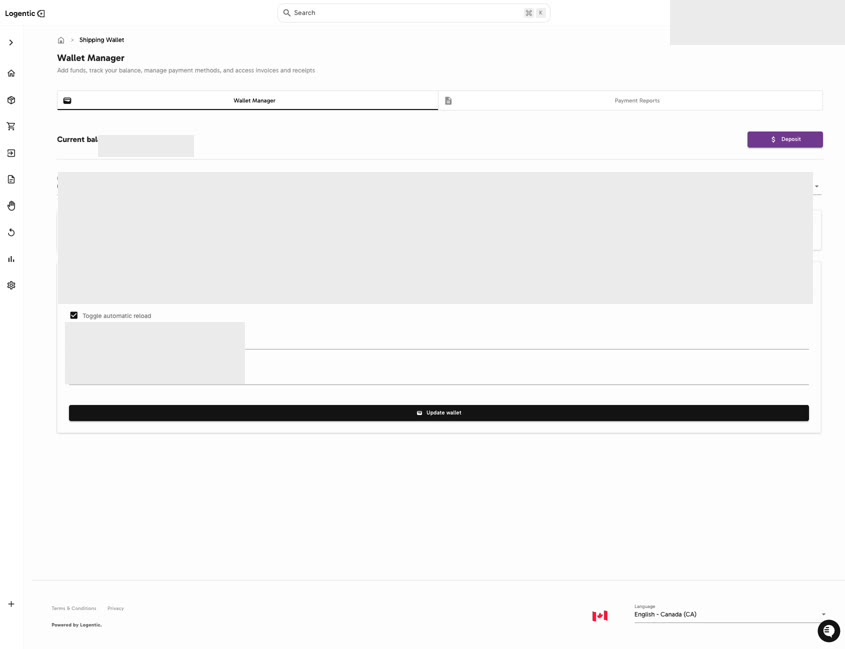
Steps 1-7: Open Shipping Wallet, review Wallet Manager, check the saved payment method area and reload setting, then use Update wallet.
What good looks like
You can open Shipping Wallet, see the Wallet Manager area, identify the saved payment method area, and update the wallet without sharing sensitive payment data in support chat.
Common issues and next actions
| If this happens | What to do next |
|---|---|
| You do not see Shipping Wallet. | Confirm you are using an admin or finance account. Contact us if you should have access but the page is missing. |
| Update wallet does not save. | Do not retry repeatedly with sensitive details in chat. Contact us with a screenshot that hides card, balance, and payment values. |
| Automatic reload looks wrong. | Do not change it unless you own payment settings. Confirm the intended reload behavior with your finance or admin owner. |
| You see a charge you do not recognize. | Use the Payment Reports article to gather the date range and related payment row, then contact us. |
Contact us when
The wallet does not load, the payment method cannot be saved, automatic reload looks wrong, you are unsure who owns billing, or a wallet/payment charge does not match your expectations.
Contact options
- Email Logentic Support: best for detailed requests, screenshots, or follow-up context.
- Open in-app chat: fastest when you are already signed in and need help in context.
- Call Logentic: call (855) 529-0009 for an urgent launch, warehouse, or fulfillment blocker.
- Request Slack support access: ask us to add your team to a shared Logentic support channel.
Send us this information
- Screenshot with card, balance, and payment values hidden.
- Whether you were adding a new payment method or updating an existing one.
- Whether Toggle automatic reload was on or off.
- What you expected to happen.
- What actually happened, including any visible error message.
- Whether shipping work is blocked.
Related workflow
- Add or update the payment method in Shipping Wallet.
- Review wallet status before shipping work.
- Use Payment Reports when you need to reconcile wallet activity.
- Contact support if payment updates, wallet balance, or reports do not match expectations.