How do I monitor real-time picking and packing performance?
Last updated: May 19, 2026
Quick answer
Use this article to check current picking and packing activity across the warehouse.
Common use cases
- Warehouse lead: Check whether the team is on pace before a carrier cutoff or shift handoff.
- Operations manager: Filter activity by warehouse, merchant, associate, view, or shift to understand where work is moving or slowing down.
- Shift supervisor: Compare associates and time blocks before reallocating work during the day.
When to use this
- You need to see current picking or packing performance.
- You want to filter activity by warehouse, associate, merchant, display option, view option, or shift.
- You need to confirm whether the dashboard is empty because of filters or because activity is missing.
When not to use this
- You need the formula behind the hourly objective or productivity numbers.
- You are using performance data for billing, payroll, SLA, or a customer dispute.
- You need to fix a picking route, order blocker, label error, or inventory issue. Use the workflow-specific article for that job.
At a glance
| What you are doing | What you need | Good result | Contact us if |
|---|---|---|---|
| Use this article to check current picking and packing activity across the warehouse. | Know which warehouse you want to review. Know whether you need all activity or activity for a specific associate, merchant, display option, data view, or shift. | The page shows the current shipping workload, pace against the hourly objective, and filtered activity by associate and time block. The filters at the top explain exactly which work is included in the numbers. | The warehouse is actively picking or packing but the dashboard stays empty, an associate is missing, the hourly objective is wrong, or the numbers are being used for SLA, billing, or labor decisions. |
Before you start
- Know which warehouse you want to review.
- Know whether you need all activity or activity for a specific associate, merchant, display option, data view, or shift.
- Use this dashboard for operational monitoring. Contact us about formula, SLA, labor, or billing disputes.
Steps
- From Overview, go to the Real-time Performance Dashboard section.
- Select See more to open Real-time Performance.
- Review the summary cards:
- Orders left to ship
- Hourly shipping objective
- The time-of-day activity line
- The shipped/on-hold/problematic order gauge
- Select a warehouse.
- Select one or more associates when you want to focus on a picker or packer.
- Select one or more merchants when you want to filter a multi-merchant workspace.
- Choose Display by option:
- Order
- Product
- Choose the View option, such as Picking data, based on the activity you want to review.
- Choose the Shift option, such as Single Shift or Double Shift.
- Select Search.
- Review the performance table by associate and time block.
Screenshots
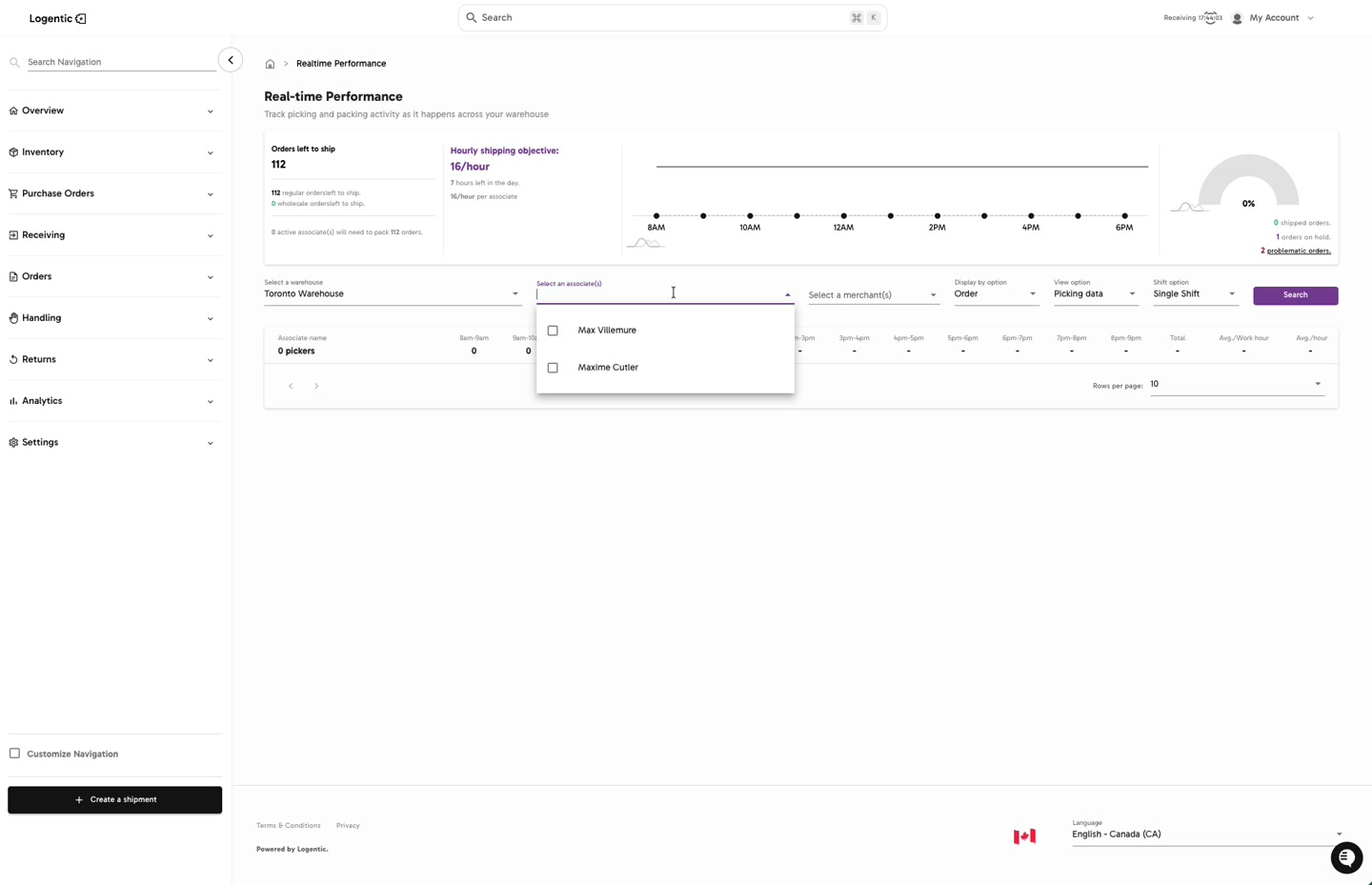
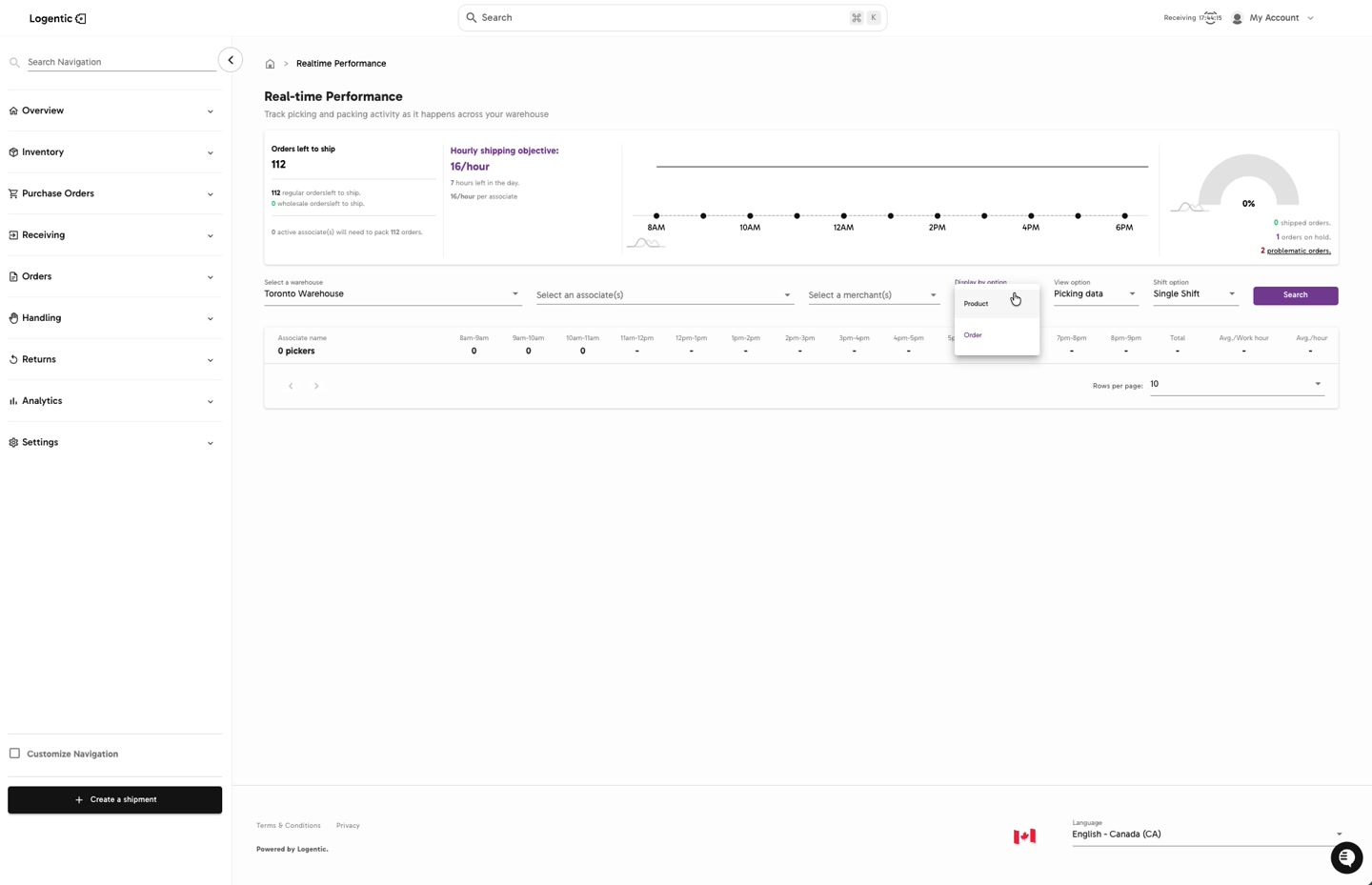
What good looks like
The page shows the current shipping workload, pace against the hourly objective, and filtered activity by associate and time block. The filters at the top explain exactly which work is included in the numbers.
Common issues and next actions
| If this happens | What to do next |
|---|---|
The page shows 0 pickers or no rows. | Check the warehouse, associate, merchant, display option, view option, and shift filters. There may be no activity for the selected context. |
| The objective looks wrong. | Do not adjust the number from the article. Send us the warehouse, shift, screenshot, and expected objective. |
| The dashboard shows orders on hold or problematic orders. | Open the related order views to inspect blockers. Contact us if active fulfillment is blocked. |
| An associate is missing. | Clear the associate filter, confirm the warehouse and shift, then search again. Contact us if the associate is actively working but still does not appear. |
| The dashboard changes after switching Display by option. | This is expected. Order and Product views answer different questions, so confirm which view matches the decision you are trying to make. |
Contact us when
The warehouse is actively picking or packing but the dashboard stays empty, an associate is missing, the hourly objective is wrong, or the numbers are being used for SLA, billing, or labor decisions.
Contact options
- Email Logentic Support: best for detailed requests, screenshots, or follow-up context.
- Open in-app chat: fastest when you are already signed in and need help in context.
- Call Logentic: call (855) 529-0009 for an urgent launch, warehouse, or fulfillment blocker.
- Request Slack support access: ask us to add your team to a shared Logentic support channel.
Send us this information
- Screenshot of the full Real-time Performance page, including filters.
- Warehouse selected.
- Associate filter, if any.
- Merchant filter, if any.
- Display by option, View option, and Shift option selected.
- Expected activity or objective.
- Example order, product, route, or associate that should appear.
- Time and timezone when you checked the dashboard.
Related workflow
- Start from Overview and open Real-time Performance.
- Set filters for the warehouse, associates, merchants, display option, view option, and shift.
- Select Search.
- Review the summary cards and associate/time-block table.
- Open the related order or picking workflow if on-hold, problematic, or missing activity needs action.