How do I read the WMS overview dashboard?
Last updated: May 19, 2026
Quick answer
Use this article to understand what the WMS overview dashboard is showing before you decide what needs attention today.
Common use cases
- Warehouse lead: Start the day by checking whether orders, exceptions, and fulfillment pace need attention.
- Operations manager: Compare high-level warehouse health before opening detailed order, receiving, return, or performance views.
- Fulfillment coordinator: Identify whether late, back-order, or on-hold counts need order review before work is assigned.
When to use this
- You want to know what the main Overview cards mean.
- You need to decide which warehouse workflow to inspect next.
- You are looking at late orders, back orders, on-hold orders, or real-time performance from the dashboard.
When not to use this
- You need the exact formula behind a dashboard metric.
- You are validating billing, SLA performance, labor performance, or a customer dispute.
- A dashboard number conflicts with the order list, an export, Shopify, or the physical warehouse count. In that case, compare the source views and escalate.
At a glance
| What you are doing | What you need | Good result | Contact us if |
|---|---|---|---|
| Use this article to understand what the WMS overview dashboard is showing before you decide what needs attention today. | Confirm you are in the right Logentic workspace. Confirm you are looking at the right warehouse or account context. | You can tell which operational area needs attention before opening a detailed workflow: | Dashboard numbers conflict with the order list, an export, a customer-facing SLA, billing, or the physical warehouse reality. |
Before you start
- Confirm you are in the right Logentic workspace.
- Confirm you are looking at the right warehouse or account context.
- Use the dashboard as an operations snapshot, not as the final source for billing, SLA, or dispute decisions.
Steps
- Go to Overview from the left navigation.
- Review the top cards for today's order activity:
- Orders placed today
- Revenue generated today
- Orders shipped today
- Review the exception cards:
- Late orders
- Back Orders
- On hold
- Review the Operations Performance Dashboard for operational health metrics such as on-time fulfillment, receiving, return, delivery, successful delivery rate, orders without problems, and warehouse utilization.
- Use See more under the operations dashboard when you need the detailed view that supports those metrics.
- Review the Real-time Performance Dashboard preview for current shipping workload, hourly objective, activity pace, shipped orders, orders on hold, and problematic orders.
- Use See more under the real-time dashboard to open the detailed real-time performance page.
Screenshots
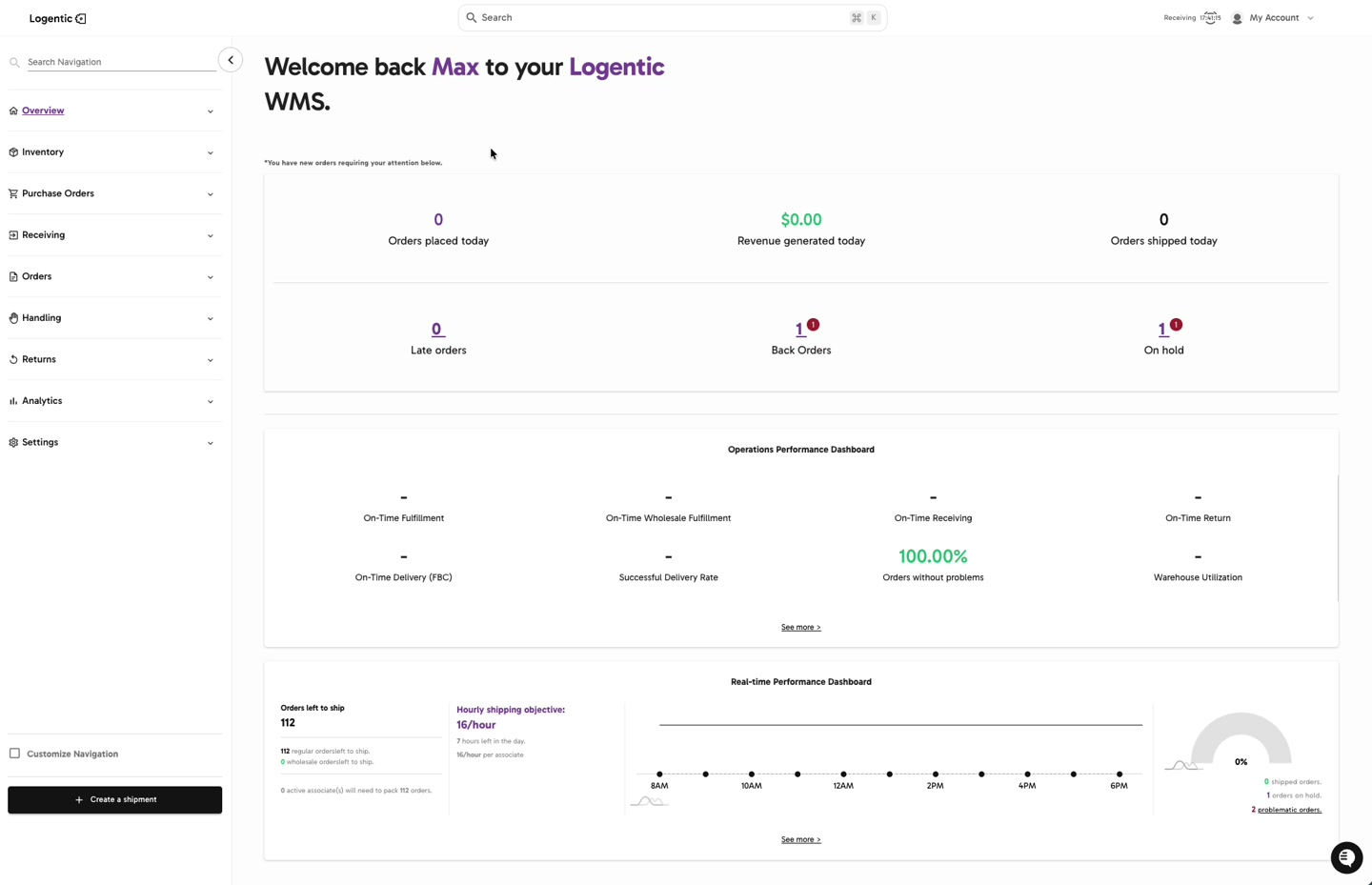
What good looks like
You can tell which operational area needs attention before opening a detailed workflow:
- New order volume
- Late orders
- Back orders
- Orders on hold
- Receiving, return, delivery, and fulfillment performance
- Real-time picking and packing pace
Common issues and next actions
| If this happens | What to do next |
|---|---|
| A number looks wrong. | Check that you are in the right workspace and warehouse context. Compare the number against the matching order view or export before treating it as a dashboard issue. |
| A metric shows a dash. | That metric may not have data for the selected context, or it may not be enabled for that workflow. Do not assume it is a failure unless you expected activity there. |
| Back orders or on-hold orders are not zero. | Use the order views to inspect the affected orders. Contact us if the orders are blocking fulfillment or the dashboard count does not match the order list. |
| The dashboard does not match the warehouse floor. | Take a screenshot, capture the warehouse or account context, and compare against the order list or product stock view. The dashboard may be summarizing a different filter, time window, or status set. |
Contact us when
Dashboard numbers conflict with the order list, an export, a customer-facing SLA, billing, or the physical warehouse reality.
Contact options
- Email Logentic Support: best for detailed requests, screenshots, or follow-up context.
- Open in-app chat: fastest when you are already signed in and need help in context.
- Call Logentic: call (855) 529-0009 for an urgent launch, warehouse, or fulfillment blocker.
- Request Slack support access: ask us to add your team to a shared Logentic support channel.
Send us this information
- Screenshot of the dashboard.
- Workspace, warehouse, and account or merchant context.
- The exact card or metric that looks wrong.
- The expected number and where that expectation comes from, such as an order export, Shopify, a carrier file, or a physical count.
- Time and timezone when you checked the dashboard.
- Whether the same issue appears after refreshing the page.
Related workflow
- Start in Overview to identify the area that needs attention.
- Open the relevant order, inventory, receiving, return, or performance view.
- Export or screenshot the source view if the dashboard does not match.
- Send us the context above when the mismatch affects fulfillment, reporting, SLA, billing, or customer communication.