How do I review operational performance?
Last updated: May 18, 2026
Quick answer
Use this article to review picking and packing performance for a selected date range, warehouse, merchant, associate, or order view.
Common use cases
- Warehouse lead: Check how many picking and packing events were completed during a day, week, or custom date range.
- Operations manager: Compare performance by associate or order context before reviewing staffing or workflow blockers.
- Shift supervisor: Export a performance snapshot before a handoff or end-of-day review.
When to use this
- You want to review the Operational Dashboard in Overview.
- You need to filter performance by date, warehouse, or merchant.
- You need to export the visible performance table as a CSV.
When not to use this
- You need the exact formula behind a performance metric.
- You are using the data for billing, payroll, SLA, or a customer dispute.
- You need to fix a missing picker, blocked order, label error, or inventory problem. Use the workflow-specific article for that issue.
At a glance
| What you are doing | What you need | Good result | Contact us if |
|---|---|---|---|
| Use this article to review picking and packing performance for a selected date range, warehouse, merchant, associate, or order view. | Confirm you are in the right workspace. Know which warehouse and merchant you want to review. | The dashboard shows the selected date, warehouse, merchant context, summary counts, and a table that matches the view you selected. If you export, the CSV should reflect the filtered performance context you reviewed. | The dashboard conflicts with source order data, the export does not match the visible table, or the numbers are being used for SLA, billing, payroll, or a customer dispute. |
Before you start
- Confirm you are in the right workspace.
- Know which warehouse and merchant you want to review.
- Decide whether you need the Associates view or the Orders view.
Steps
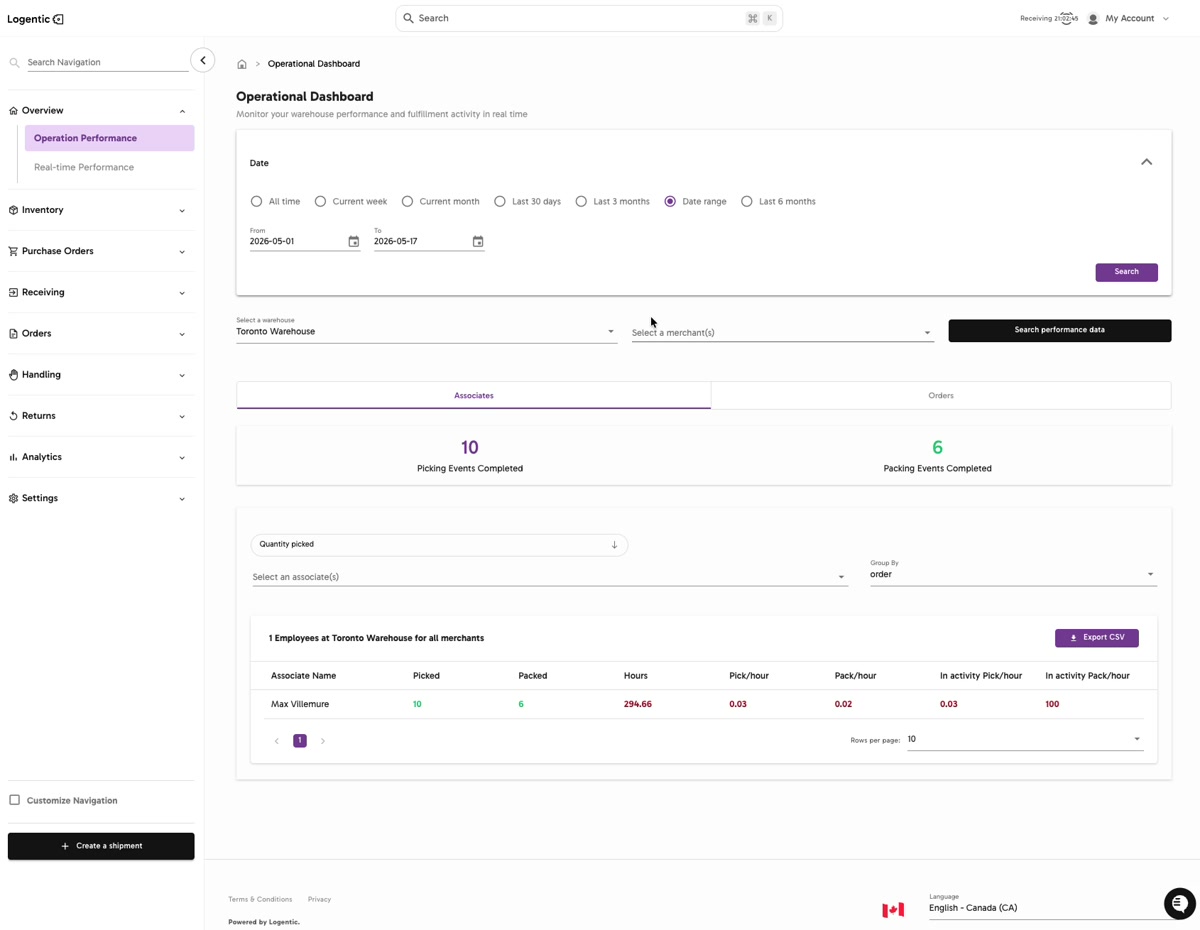
- Go to Overview from the left navigation.
- Select Operation Performance.
- Choose the date option you need:
- All time
- Current week
- Current month
- Last 30 days
- Last 3 months
- Date range
- Last 6 months
- If you choose Date range, enter the From and To dates.
- Select Search to apply the date selection.
- Select a warehouse.
- Select one or more merchants if you need a merchant-specific view.
- Select Search performance data.
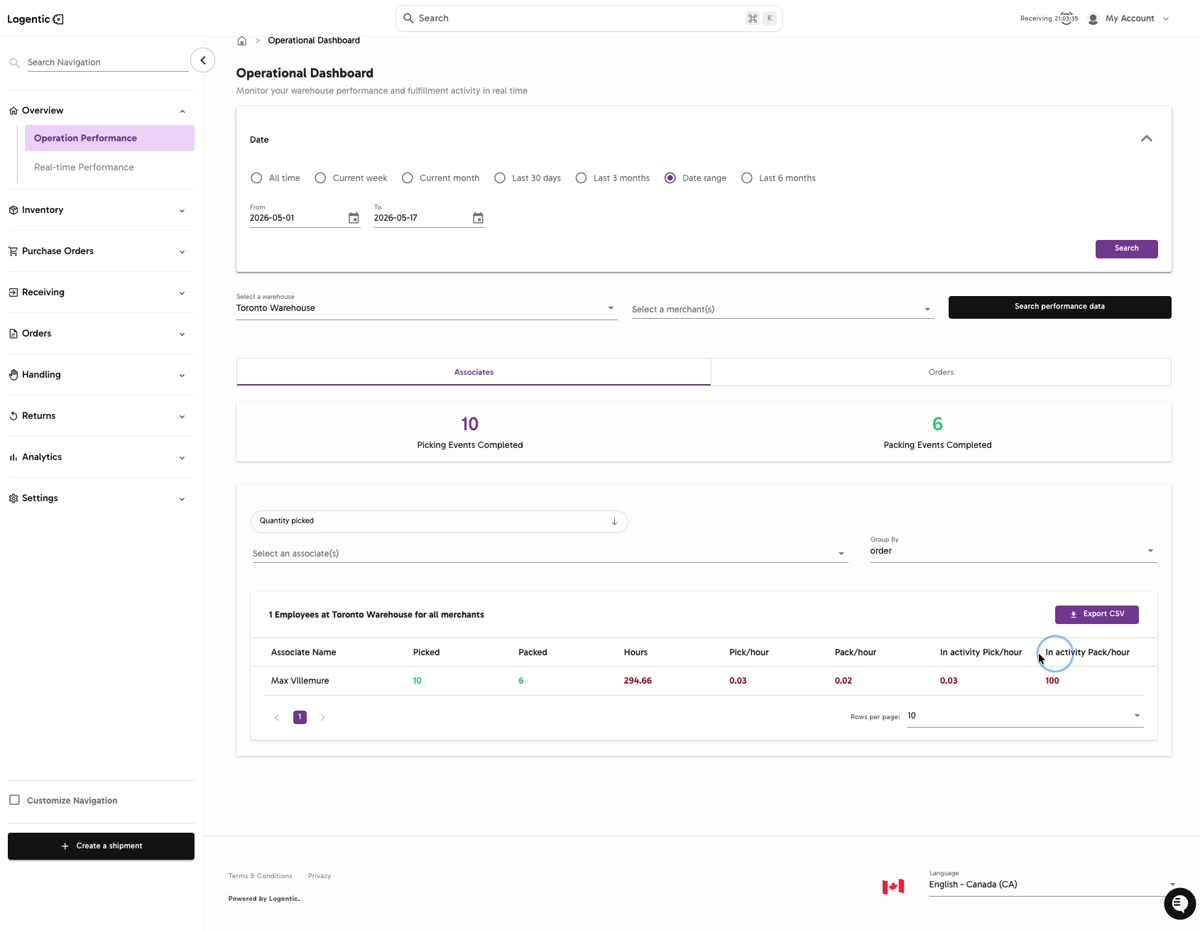
- Choose Associates or Orders depending on how you want to review the data.
- Review the summary cards for Picking Events Completed and Packing Events Completed.
- Use the metric dropdown and Group By control when you need to change the table view.
- Select Export CSV when you need the visible performance table outside Logentic.
Screenshots
Steps 2-8: Open Operation Performance, set the date range, choose the warehouse and merchant context, then select Search performance data.
Steps 9-12: Review the selected table view, summary cards, metric controls, and Export CSV action.
What good looks like
The dashboard shows the selected date, warehouse, merchant context, summary counts, and a table that matches the view you selected. If you export, the CSV should reflect the filtered performance context you reviewed.
Common issues and next actions
| If this happens | What to do next |
|---|---|
| The table is empty. | Check the date range, warehouse, merchant, Associates or Orders tab, and metric selection. There may be no activity for the selected context. |
| The numbers look wrong. | Compare the dashboard with the related order or activity view before treating it as an error. Contact us if the mismatch affects operations, reporting, SLA, billing, or customer communication. |
| The export is missing data. | Recheck the filters and selected tab before exporting again. If the table shows the data but the CSV does not, send us the file and a screenshot of the dashboard filters. |
Contact us when
The dashboard conflicts with source order data, the export does not match the visible table, or the numbers are being used for SLA, billing, payroll, or a customer dispute.
Contact options
- Email Logentic Support: best for detailed requests, screenshots, or follow-up context.
- Open in-app chat: fastest when you are already signed in and need help in context.
- Call Logentic: call (855) 529-0009 for an urgent launch, warehouse, or fulfillment blocker.
- Request Slack support access: ask us to add your team to a shared Logentic support channel.
Send us this information
- Screenshot of the full Operational Dashboard, including filters.
- Workspace, warehouse, and merchant selected.
- Date option or exact date range.
- Whether you used Associates or Orders.
- Metric dropdown and Group By selection.
- Expected result.
- Actual result.
- CSV export file if the issue is export-related.
- Time and timezone when you checked the dashboard.
Related workflow
- Start from Overview.
- Open Operation Performance.
- Set date, warehouse, merchant, and table view filters.
- Review the visible dashboard.
- Export or contact us only when the filtered data does not match the decision you need to make.