How do I scan a tote during Pick/Pack?
Last updated: May 18, 2026
Quick answer
Use this article when Pick/Pack asks you to scan a tote before continuing.
Common use cases
- Picker: Scan the tote that will hold the picked products.
- Packer: Confirm the tote attached to the current handling activity before packaging.
- Warehouse lead: Troubleshoot when a tote code does not attach to the activity.
When to use this
- You are in Pick/Pack.
- The screen shows Scan Tote.
- You have the physical tote or tote code ready.
When not to use this
- You need to create or configure totes.
- You need to troubleshoot scanner hardware.
- You need help with license plate or storage-container setup.
At a glance
| What you are doing | What you need | Good result | Contact us if |
|---|---|---|---|
| Use this article when Pick/Pack asks you to scan a tote before continuing. | Confirm you are on the correct order. Confirm you have the right tote for the activity. | The tote is attached to the handling activity, the products remain visible in the Pick/Pack flow, and the operator can continue packaging and completing the order. | The tote code is rejected, the wrong tote appears, Manual is unavailable when your team expects it, or the tote does not appear as used for the activity. |
Before you start
- Confirm you are on the correct order.
- Confirm you have the right tote for the activity.
- Make sure the tote code is readable.
Steps
- Open the order in Pick/Pack.
- Start the activity when required.
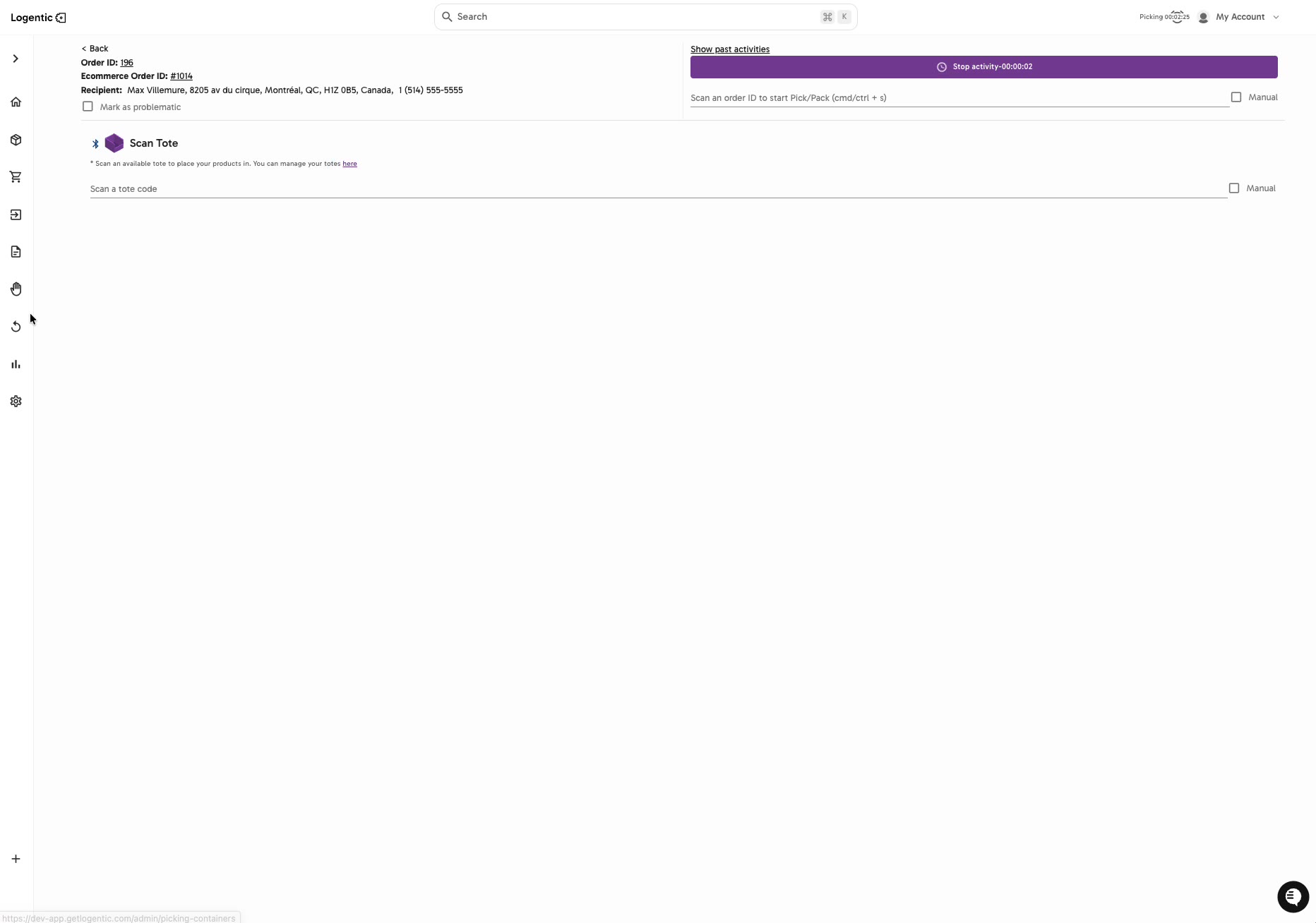
- When Scan Tote appears, scan the tote code.
- If your workflow allows manual entry, select Manual and enter the tote code.
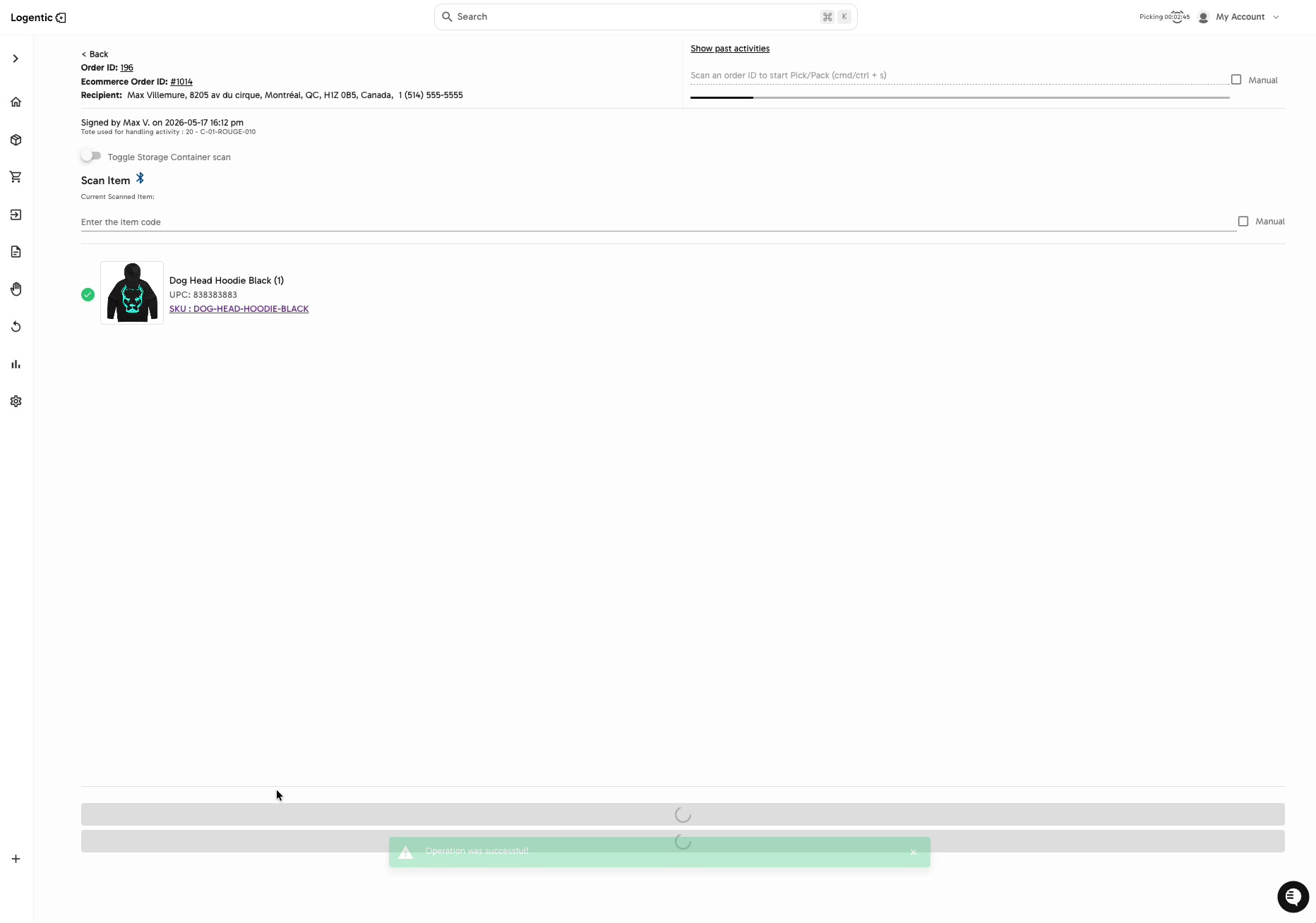
- Confirm the screen shows the tote attached to the handling activity.
- Continue scanning or confirming products.
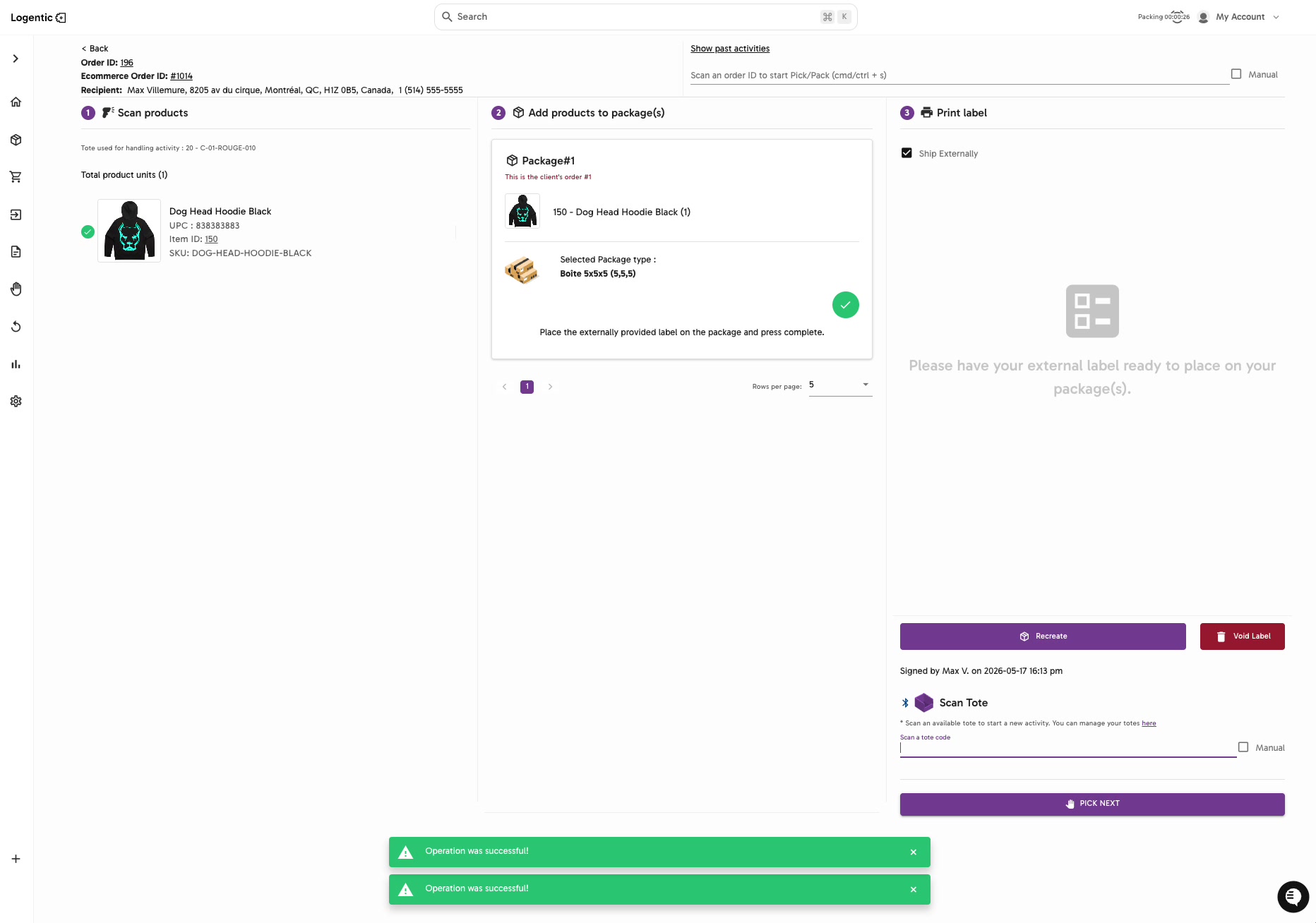
- Add the products to the package.
- Complete the package and label workflow for the order.
Screenshots
Steps 3-4: Use Scan Tote to scan or manually enter the tote code.
Steps 5-7: Confirm the tote appears as used for the handling activity, then continue packaging.
Step 8: After the package is complete, continue to the next Pick/Pack job.
What good looks like
The tote is attached to the handling activity, the products remain visible in the Pick/Pack flow, and the operator can continue packaging and completing the order.
Common issues and next actions
| If this happens | What to do next |
|---|---|
| The tote code is not accepted. | Confirm the code was scanned or typed correctly. Try manual entry if your workflow allows it. |
| The wrong tote appears. | Stop before packaging and confirm the tote with your warehouse lead. |
| The tote prompt keeps appearing. | Take a screenshot and contact us so we can review the order and handling activity. |
Contact us when
The tote code is rejected, the wrong tote appears, Manual is unavailable when your team expects it, or the tote does not appear as used for the activity.
Contact options
- Email Logentic Support: best for detailed requests, screenshots, or follow-up context.
- Open in-app chat: fastest when you are already signed in and need help in context.
- Call Logentic: call (855) 529-0009 for an urgent launch, warehouse, or fulfillment blocker.
- Request Slack support access: ask us to add your team to a shared Logentic support channel.
Send us this information
- Order ID or ecommerce order ID.
- Tote code.
- Screenshot of the Scan Tote screen.
- Screenshot after scanning the tote.
- Whether you scanned or used Manual.
- Expected result.
- Actual result shown in Logentic.
- Time and timezone.
Related workflow
- Start Pick/Pack.
- Scan the tote when prompted.
- Continue scanning products.
- Package and complete the order.