How do I sort Fulfill Orders?
Last updated: May 18, 2026
Quick answer
Use this article to reorder Fulfill Orders by the visible sort options.
Common use cases
- Warehouse lead: Sort by priority, SLA, or fulfill by date before assigning work.
- Fulfillment coordinator: Sort by Order Identifier or status when checking a specific queue.
- Operations manager: Sort by order date or age before reviewing old or at-risk work.
When to use this
- You are already in Fulfill Orders.
- You need to decide which orders to review or work first.
- The sort option you need is available in the sort menu.
When not to use this
- You need to change the priority, SLA, or status of an order.
- You need to define the exact SLA or priority calculation.
- The order is missing after filters are cleared.
At a glance
| What you are doing | What you need | Good result | Contact us if |
|---|---|---|---|
| Use this article to reorder Fulfill Orders by the visible sort options. | Confirm you are in the correct warehouse. Choose the Fulfill Orders tab you want to sort, such as All, Pick (DTC), Pack (DTC), or Pick (Routes). | The visible Fulfill Orders list reorders according to the sort option you selected. | A sort option is missing, the list does not reorder, or the visible order sequence conflicts with the selected sort. |
Before you start
- Confirm you are in the correct warehouse.
- Choose the Fulfill Orders tab you want to sort, such as All, Pick (DTC), Pack (DTC), or Pick (Routes).
- Clear or confirm active filters so you know which list you are sorting.
Steps
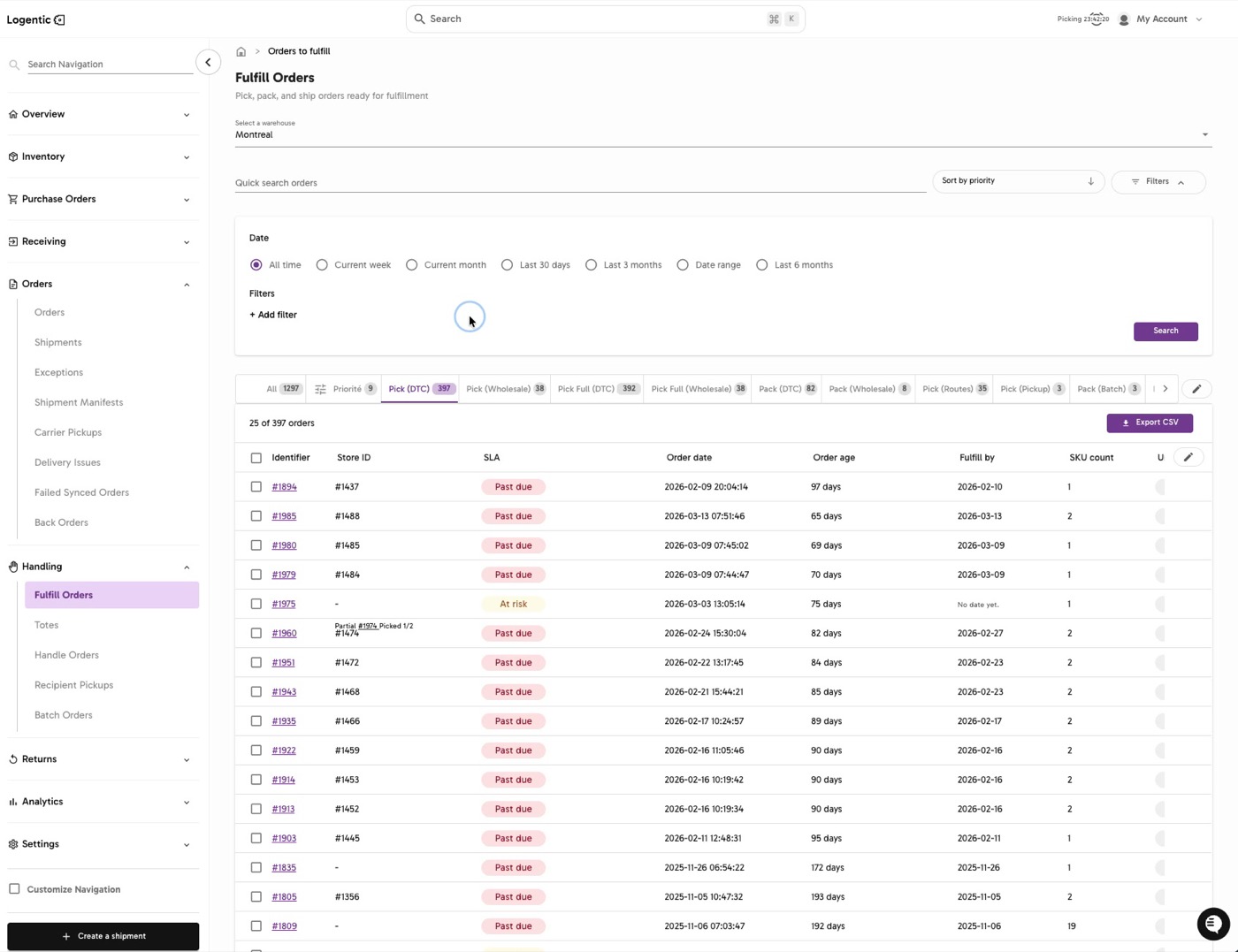
- Go to Handling in the left navigation.
- Open Fulfill Orders.
- Select the warehouse and workflow tab you want to review.
- Confirm any active filters or search terms.
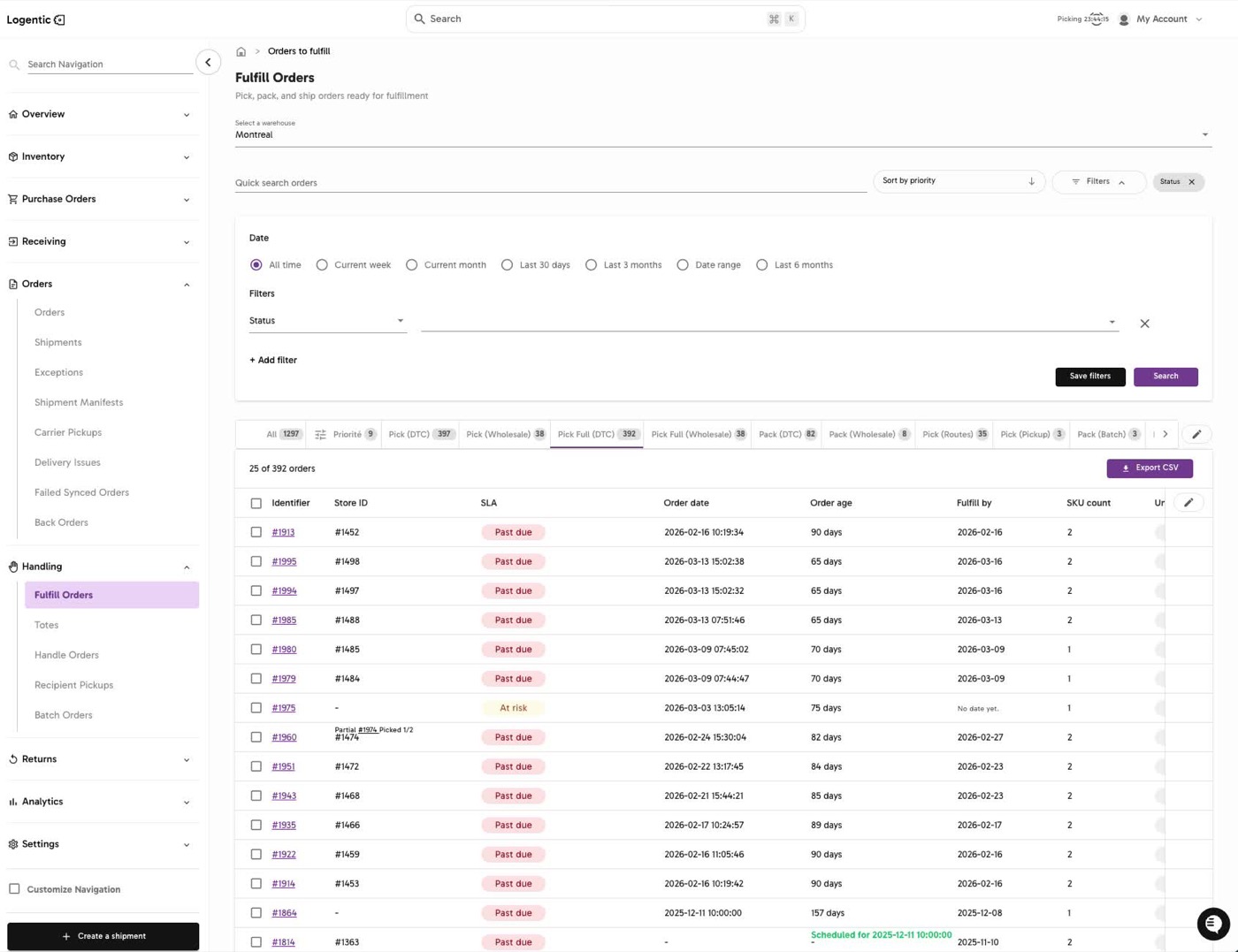
- Open the sort menu.
- Choose the sort option that matches your goal:
- Sort by created date
- Sort by status
- Sort by Order Identifier
- Sort by fulfill by date
- Sort by SLA
- Sort by order date / age
- Sort by priority
- Review the reordered list.
- Use Export CSV if you need to export the currently visible sorted list.
Screenshots
Steps 1-4: Open Fulfill Orders, choose the warehouse, confirm filters, and choose the workflow tab.
Steps 5-7: Open the sort menu and choose the sort option that matches your goal.
What good looks like
The visible Fulfill Orders list reorders according to the sort option you selected.
Common issues and next actions
| If this happens | What to do next |
|---|---|
| The wrong orders are showing. | Check active filters, the date scope, the warehouse, and the workflow tab before changing the sort again. |
| The sort option is not available. | Confirm you are on Fulfill Orders and not another dashboard. Contact us if the option is missing from the sort menu. |
| The list did not reorder. | Refresh the page and try the sort again. Contact us if the selected sort still does not change the visible list. |
Contact us when
A sort option is missing, the list does not reorder, or the visible order sequence conflicts with the selected sort.
Contact options
- Email Logentic Support: best for detailed requests, screenshots, or follow-up context.
- Open in-app chat: fastest when you are already signed in and need help in context.
- Call Logentic: call (855) 529-0009 for an urgent launch, warehouse, or fulfillment blocker.
- Request Slack support access: ask us to add your team to a shared Logentic support channel.
Send us this information
- Screenshot of the sort menu and the visible list.
- Warehouse and workflow tab.
- Active filters or search term.
- Sort option selected.
- Expected order sequence.
- Actual order sequence shown in Logentic.
- Time and timezone.
Related workflow
- Choose the Fulfill Orders tab and filters.
- Sort the visible queue.
- Pick, pack, route, or export the sorted work.