How do I create a cycle count?
Last updated: May 18, 2026
Quick answer
Use this article to create a cycle count for a specific product and storage container.
Common use cases
- Warehouse lead: Assign a focused inventory count to verify a product's physical quantity.
- Operations manager: Investigate a stock discrepancy without launching a full warehouse count.
- Inventory associate: Start a count for a product and container that needs verification.
When to use this
- You need to count a specific product in a specific storage container.
- You want to assign the count to an associate.
- You need a cycle-count row that someone can open and count.
When not to use this
- You need to complete an already-created cycle count.
- You need to validate or approve a completed count.
- You need to update inventory through a manual adjustment instead of a count.
At a glance
| What you are doing | What you need | Good result | Contact us if |
|---|---|---|---|
| Use this article to create a cycle count for a specific product and storage container. | Know the product you want to count. Know the warehouse and storage container involved. | A new cycle-count row appears with the product, container, original quantity, assigned associate, and a Count action. | You cannot find the product, cannot select the correct container, cannot submit the count, or the created row shows the wrong product or quantity. |
Before you start
- Know the product you want to count.
- Know the warehouse and storage container involved.
- Choose the associate who should complete the count.
Steps
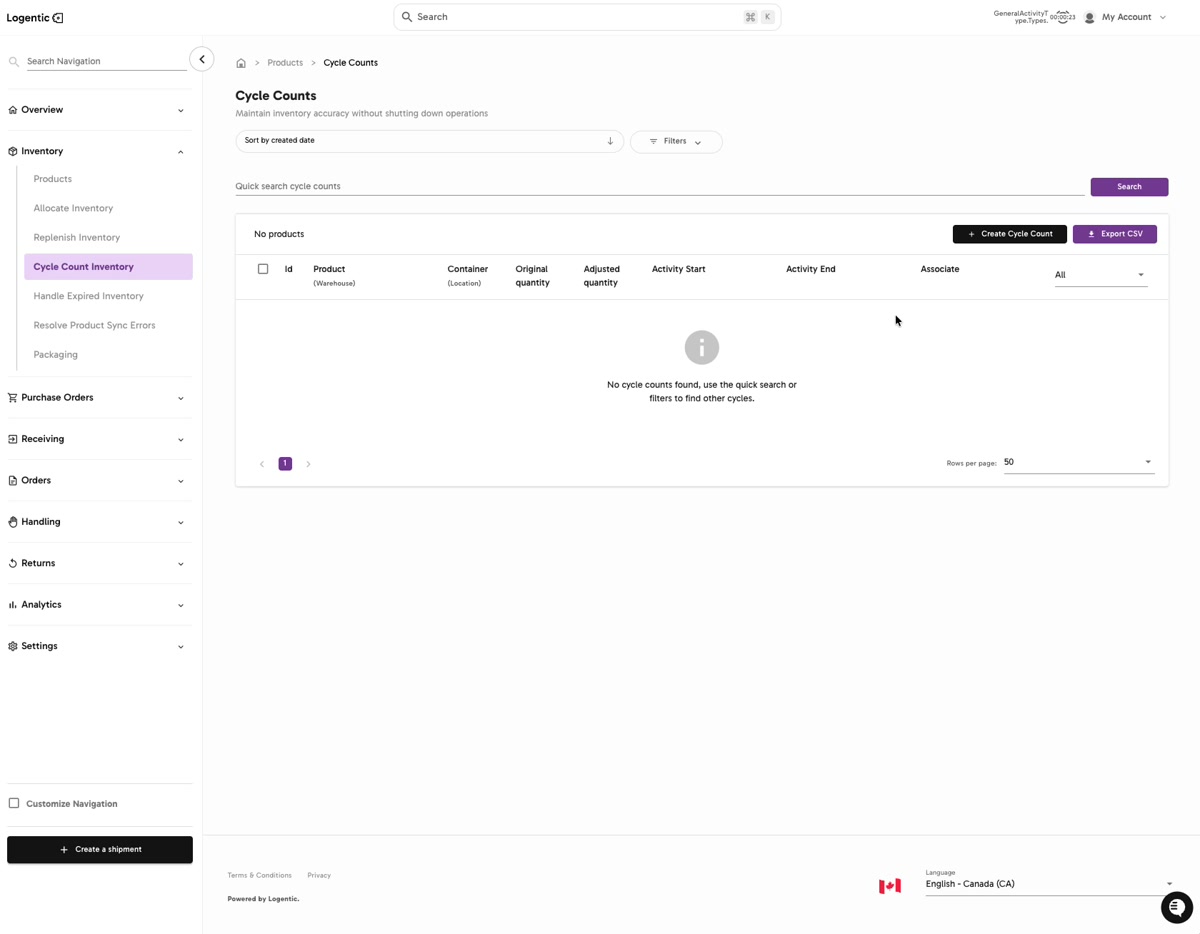
- Go to Inventory.
- Open Cycle Count Inventory.
- Use Sort by created date, Filters, or Quick search cycle counts if you need to confirm the count does not already exist.
- Select Create Cycle Count.
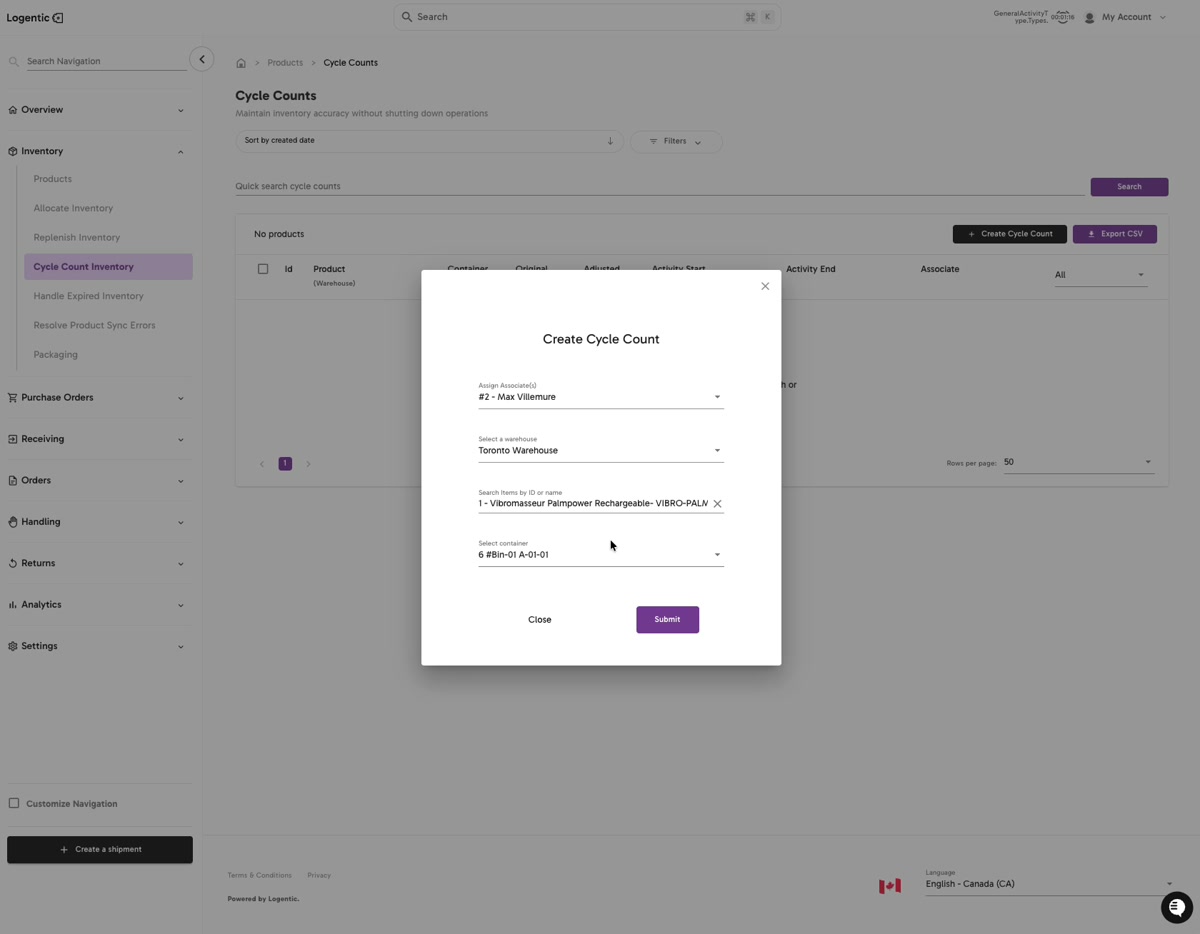
- In Create Cycle Count, select Assign Associate(s).
- Select the warehouse.
- Use Search items by ID or name to find and select the product.
- Use Select container to choose the storage container.
- Select Submit.
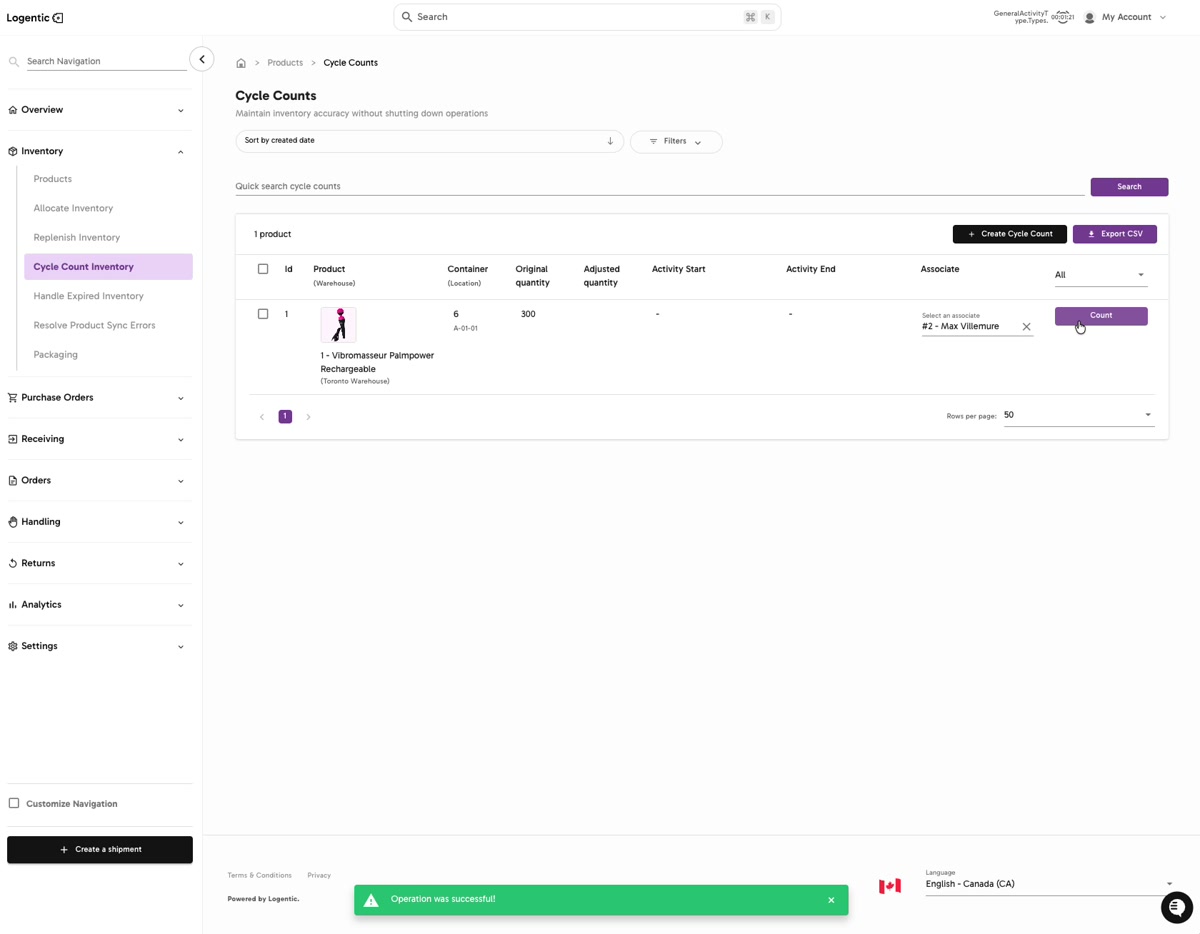
- Confirm the new row appears in Cycle Counts.
Screenshots
Steps 1-4: Open Cycle Count Inventory and select Create Cycle Count.
Steps 5-9: Fill out Assign Associate(s), warehouse, product, and container, then select Submit.
Step 10: Confirm the new count appears in the table with a Count action.
What good looks like
A new cycle-count row appears with the product, container, original quantity, assigned associate, and a Count action.
Common issues and next actions
| If this happens | What to do next |
|---|---|
| Submit is disabled. | Confirm that the associate, warehouse, product, and container fields are all selected. |
| The product does not appear in search. | Check the product name or identifier, then confirm you are in the correct warehouse and merchant context. |
| The container is not available. | Confirm that the selected product is associated with the storage container you want to count. |
Contact us when
You cannot find the product, cannot select the correct container, cannot submit the count, or the created row shows the wrong product or quantity.
Contact options
- Email Logentic Support: best for detailed requests, screenshots, or follow-up context.
- Open in-app chat: fastest when you are already signed in and need help in context.
- Call Logentic: call (855) 529-0009 for an urgent launch, warehouse, or fulfillment blocker.
- Request Slack support access: ask us to add your team to a shared Logentic support channel.
Send us this information
- Screenshot of the Create Cycle Count modal or created row.
- Product name, SKU, or identifier.
- Warehouse.
- Storage container code.
- Associate selected.
- Expected quantity if known.
- Actual result shown.
- Time and timezone.
Related workflow
- Identify the product or location that needs a count.
- Create the cycle count.
- Open the count and complete the scan/count workflow.
- Validate or investigate the result according to your team's process.