How do I complete a cycle count?
Last updated: May 18, 2026
Quick answer
Use this article to open an existing cycle count, scan the correct storage container, and complete the count.
Common use cases
- Inventory associate: Complete an assigned cycle count at the correct storage container.
- Warehouse lead: Confirm a count was completed and identify scan errors.
- Operations manager: Review whether a product count has been captured before investigating a variance.
When to use this
- A cycle count already exists in Cycle Count Inventory.
- You need to count or confirm a product in a storage container.
- You see a scan mismatch and need to know what to do next.
When not to use this
- You need to create the cycle count first.
- You need to approve, validate, or reconcile a completed count.
- You are not physically at the product or container being counted.
At a glance
| What you are doing | What you need | Good result | Contact us if |
|---|---|---|---|
| Use this article to open an existing cycle count, scan the correct storage container, and complete the count. | Confirm you are working on the correct cycle-count row. Have access to the product and storage container shown in the count. | The correct storage container is accepted, Logentic shows the completed cycle-count success message, and the Cycle Counts table shows activity details for the row. | The correct container scan is rejected, the count completes with the wrong quantity, the count cannot be completed, or you are not sure whether the completed row should be validated. |
Before you start
- Confirm you are working on the correct cycle-count row.
- Have access to the product and storage container shown in the count.
- Use the correct scanner or manual entry process for your warehouse.
Steps
- Go to Inventory.
- Open Cycle Count Inventory.
- Find the cycle-count row.
- Select Count.
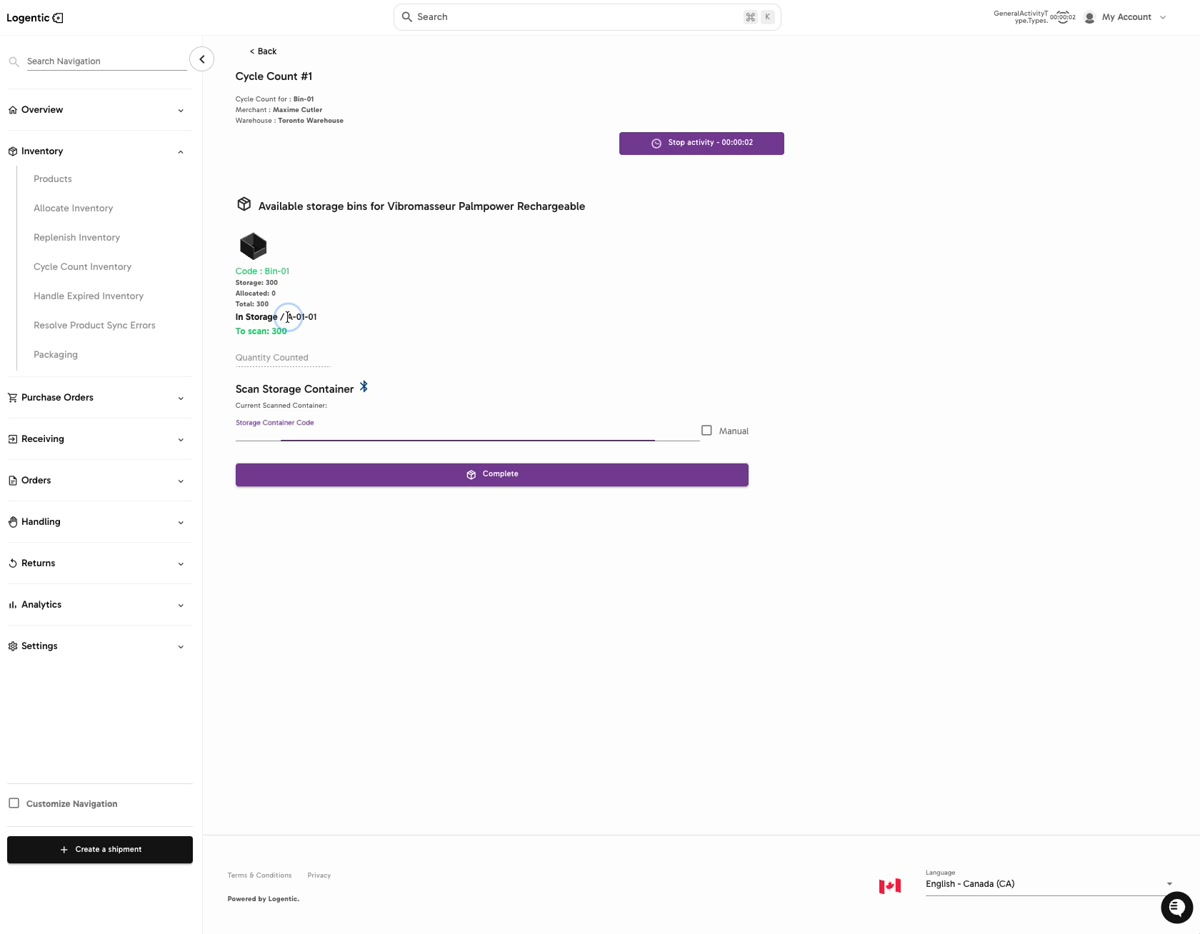
- Review the Cycle Count # page to confirm the product, warehouse, and container.
- Review the available storage bin details, including the code, storage quantity, allocated quantity, total, and To scan value.
- Scan the storage container in Scan Storage Container.
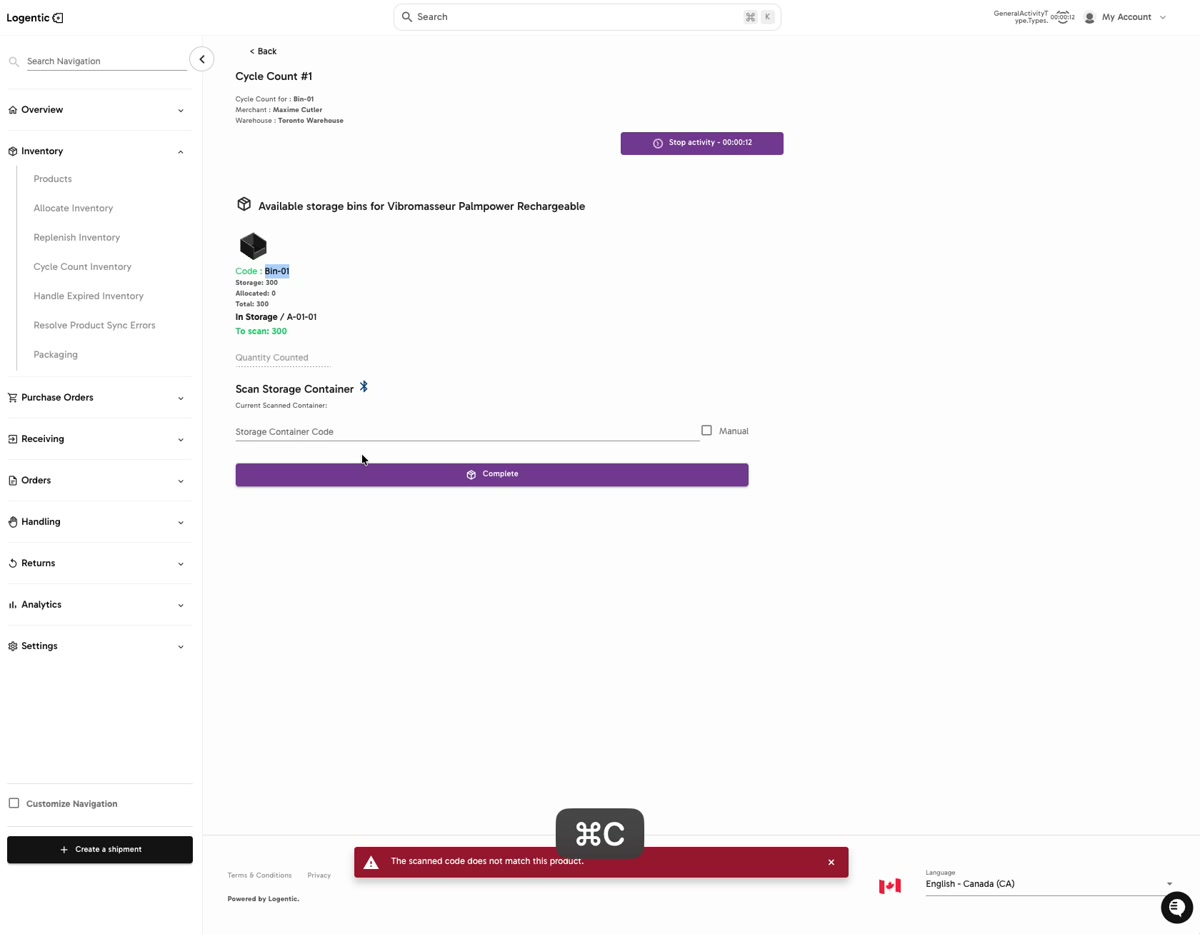
- If the red error says The scanned code does not match this product, stop and scan the correct container for the product shown.
- Enter or confirm Quantity Counted when your workflow requires a counted quantity.
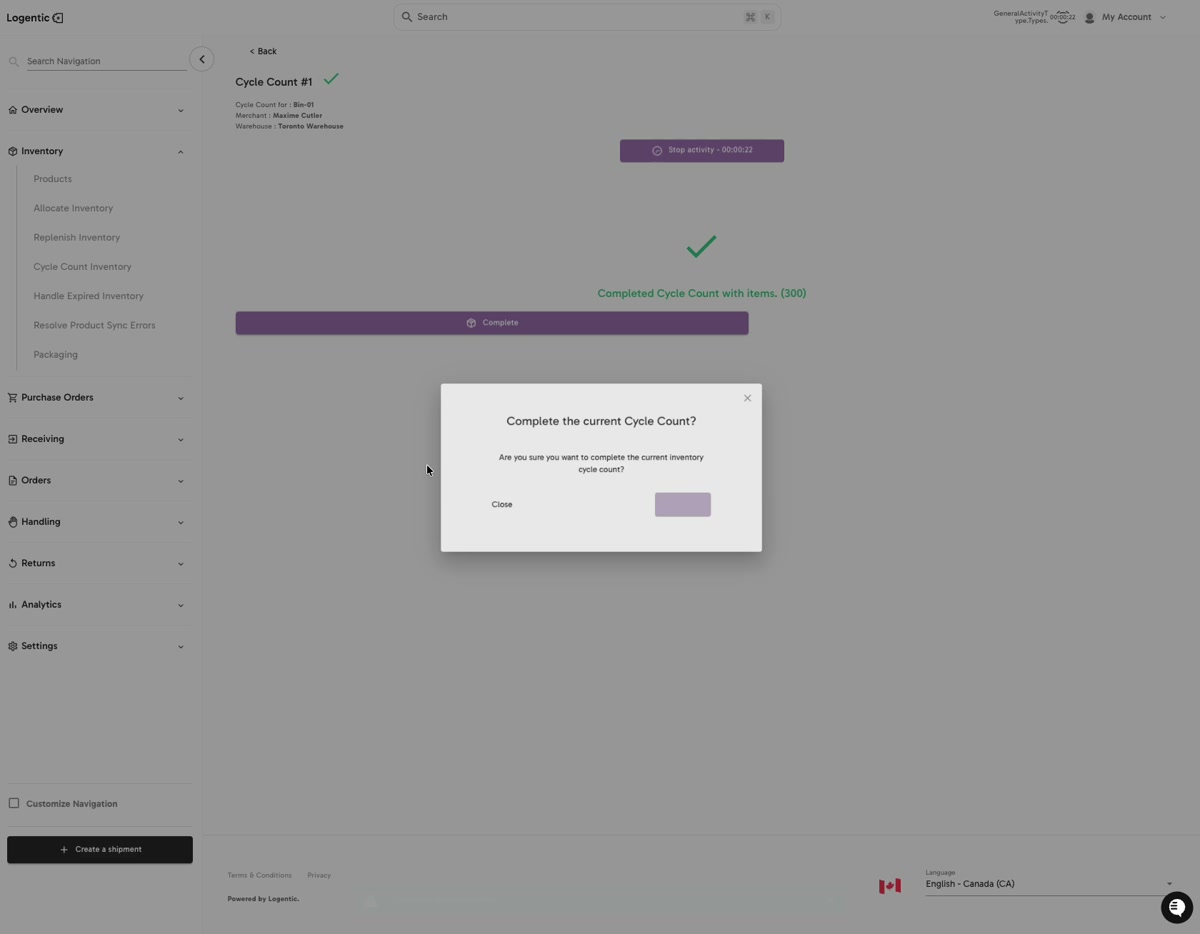
- Select Complete.
- In the confirmation window, confirm that you want to complete the current cycle count.
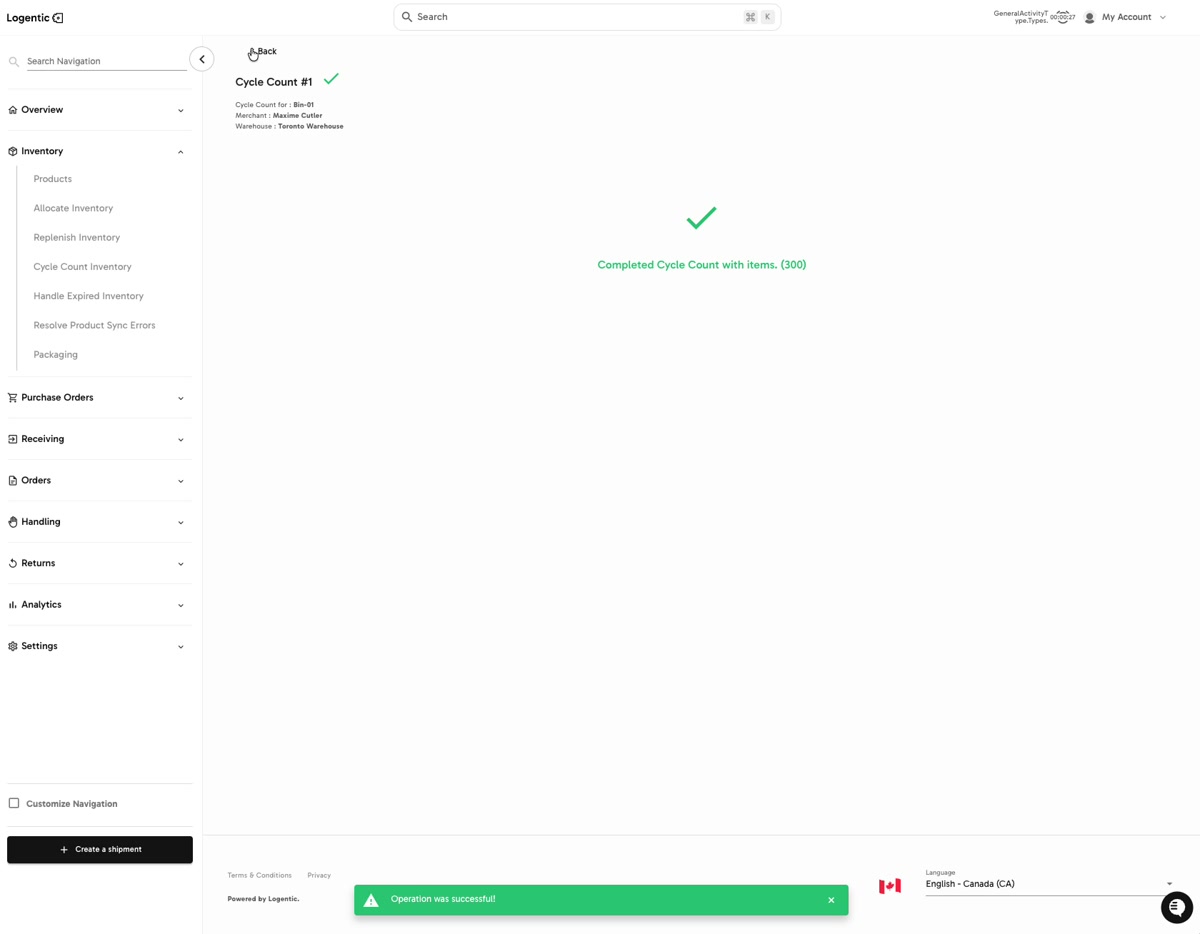
- Confirm Logentic shows the completed cycle-count success message.
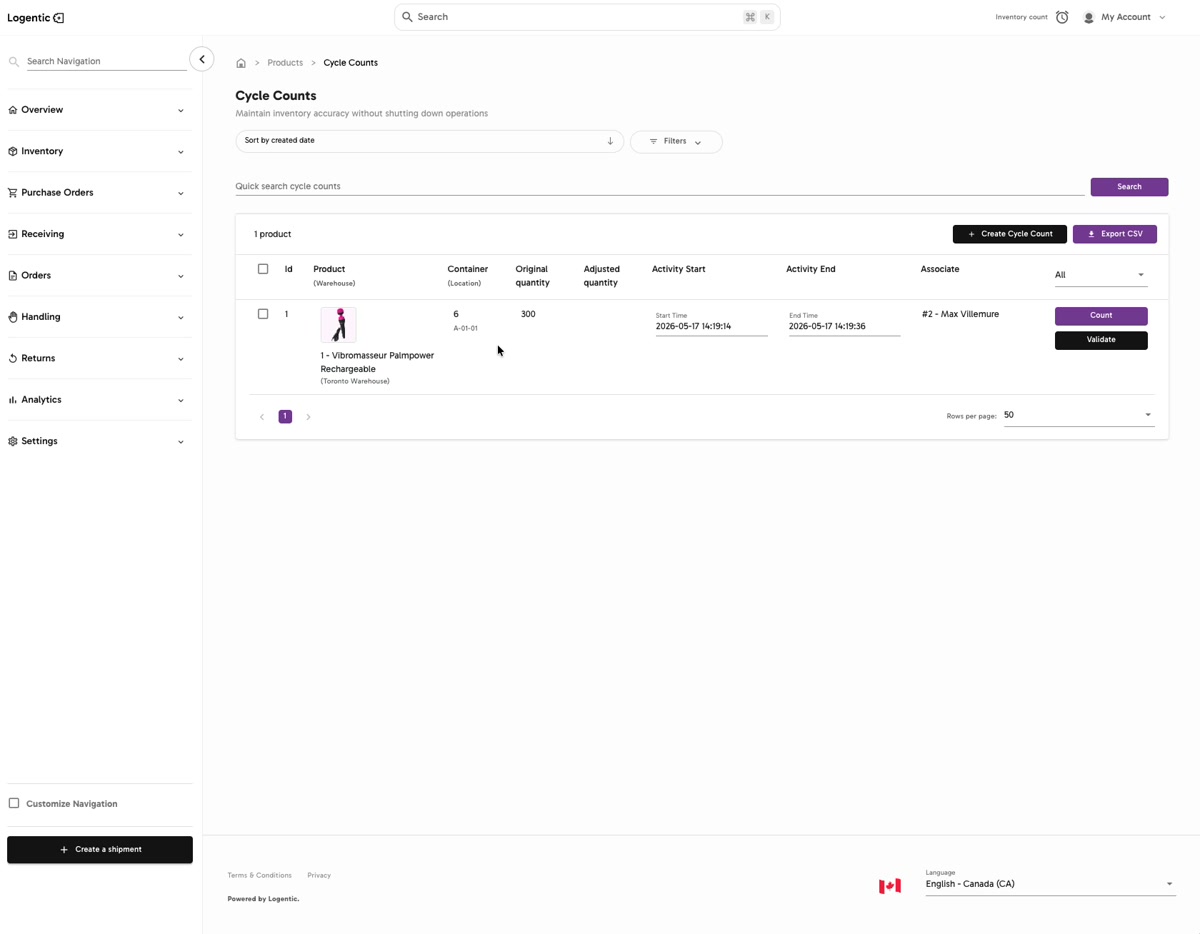
- Return to Cycle Counts and confirm the row shows completed activity details.
Screenshots
Steps 5-7: Review the product and storage bin details, then scan the storage container.
Step 8: If the scanned code is wrong, Logentic shows a mismatch error.
Steps 10-11: Select Complete, then confirm the current cycle count.
Step 12: Confirm the completed cycle-count success message.
Step 13: Return to Cycle Counts and confirm the completed activity details are visible.
What good looks like
The correct storage container is accepted, Logentic shows the completed cycle-count success message, and the Cycle Counts table shows activity details for the row.
Common issues and next actions
| If this happens | What to do next |
|---|---|
| The scanned code does not match this product. | Check that you are scanning the storage container for the product shown on the cycle-count page. Do not complete the count against the wrong container. |
| The count cannot be completed. | Confirm the required scan or manual entry is finished, then review whether Quantity Counted is required for your workflow. |
| The completed row needs validation. | Follow your team's validation process. If you are not sure who should validate the count, contact your warehouse lead or Logentic. |
Contact us when
The correct container scan is rejected, the count completes with the wrong quantity, the count cannot be completed, or you are not sure whether the completed row should be validated.
Contact options
- Email Logentic Support: best for detailed requests, screenshots, or follow-up context.
- Open in-app chat: fastest when you are already signed in and need help in context.
- Call Logentic: call (855) 529-0009 for an urgent launch, warehouse, or fulfillment blocker.
- Request Slack support access: ask us to add your team to a shared Logentic support channel.
Send us this information
- Screenshot of the cycle-count detail page or error.
- Cycle count ID if visible.
- Product name, SKU, or identifier.
- Storage container code scanned.
- Expected quantity and counted quantity.
- Warehouse and merchant.
- Whether you used scanner input or manual entry.
- Time and timezone.
Related workflow
- Create the cycle count.
- Open the count from Cycle Count Inventory.
- Scan the correct storage container and complete the count.
- Validate or investigate the result according to your team's process.