How do I review and update order details?
Last updated: May 18, 2026
Quick answer
Use this article to review an order's details before saving changes, picking, packing, completing, or investigating a shipping blocker.
Common use cases
- Fulfillment coordinator: Confirm recipient, destination, warehouse, source, and status before working the order.
- Warehouse lead: Review shipment details, product quantities, and fulfillment actions before picking or packing.
- Operations manager: Check order risks or carrier quote issues before escalating.
When to use this
- You need to review an existing order.
- You need to check recipient, destination, source, warehouse, status, tags, or instructions.
- You need to understand whether a fulfillment action or shipping blocker needs attention.
When not to use this
- You need to create a new order or transfer order.
- You need to troubleshoot an order that has not synced into Logentic.
- You need a guarantee that a carrier quote, label, or shipment will be accepted.
At a glance
| What you are doing | What you need | Good result | Contact us if |
|---|---|---|---|
| Use this article to review an order's details before saving changes, picking, packing, completing, or investigating a shipping blocker. | Find the order in Order Dashboard. Confirm you are looking at the correct order identifier or store order ID. | The order details match the expected recipient, destination, warehouse, source, status, products, quantities, and handling instructions before your team continues to pick, pack, complete, or escalate the order. | Recipient or destination data conflicts with the source system, a carrier quote fails, an order risk is unclear, or expected actions such as Save, Pick, Pick/Pack, or Complete Order are unavailable. |
Before you start
- Find the order in Order Dashboard.
- Confirm you are looking at the correct order identifier or store order ID.
- Avoid changing fields unless your team owns that order update.
Steps
- Go to Orders.
- Open Orders.
- Find the order you need.
- Open the order from the order link or row action.
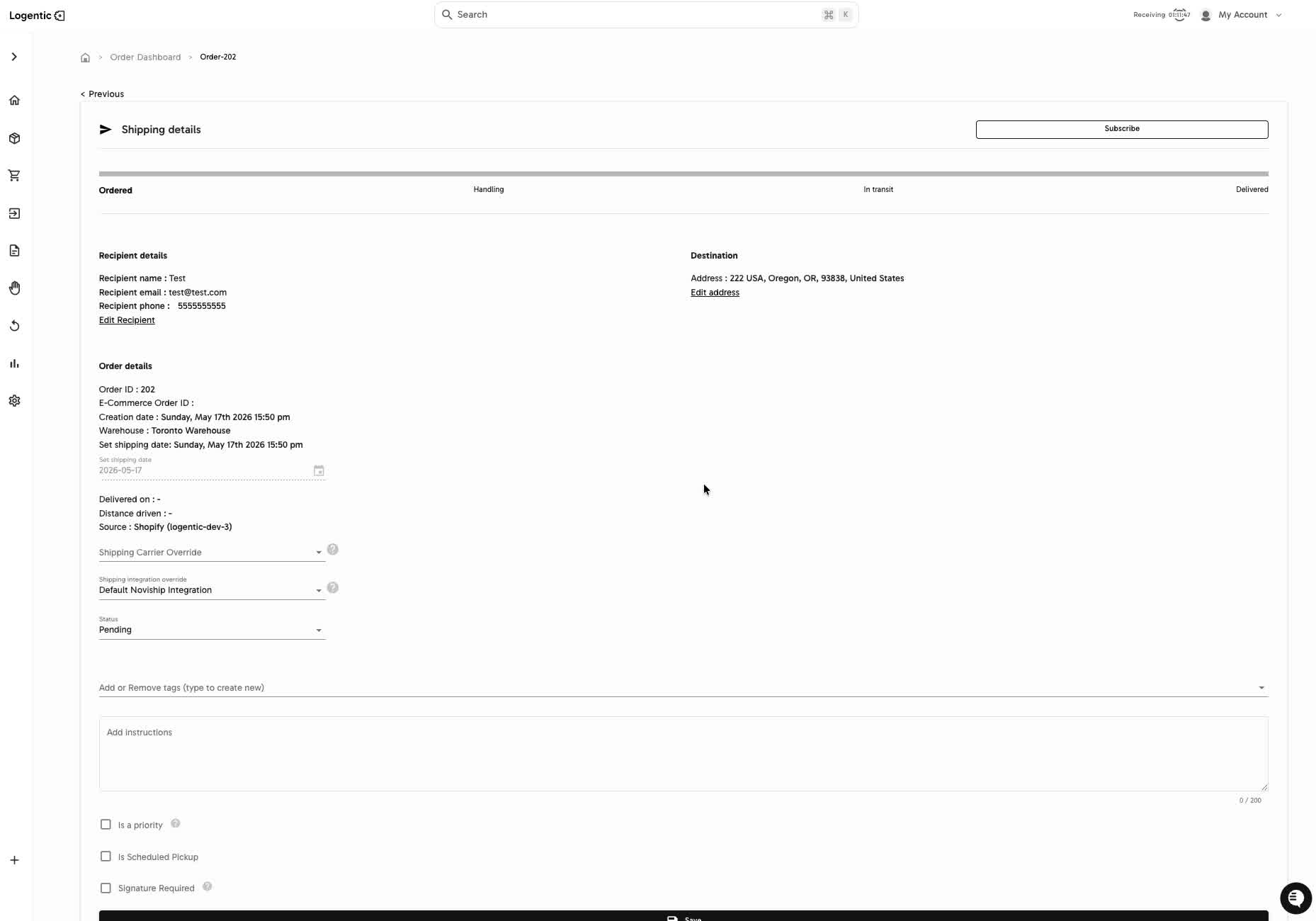
- Review Shipping details to understand the visible fulfillment progress, such as Ordered, Handling, In transit, and Delivered.
- Review Recipient details and Destination.
- Use Edit Recipient or Edit address only when your team needs to correct that information.
- Review Order details, including:
- Order ID
- E-Commerce Order ID
- Creation date
- Warehouse
- Set shipping date
- Source
- Status
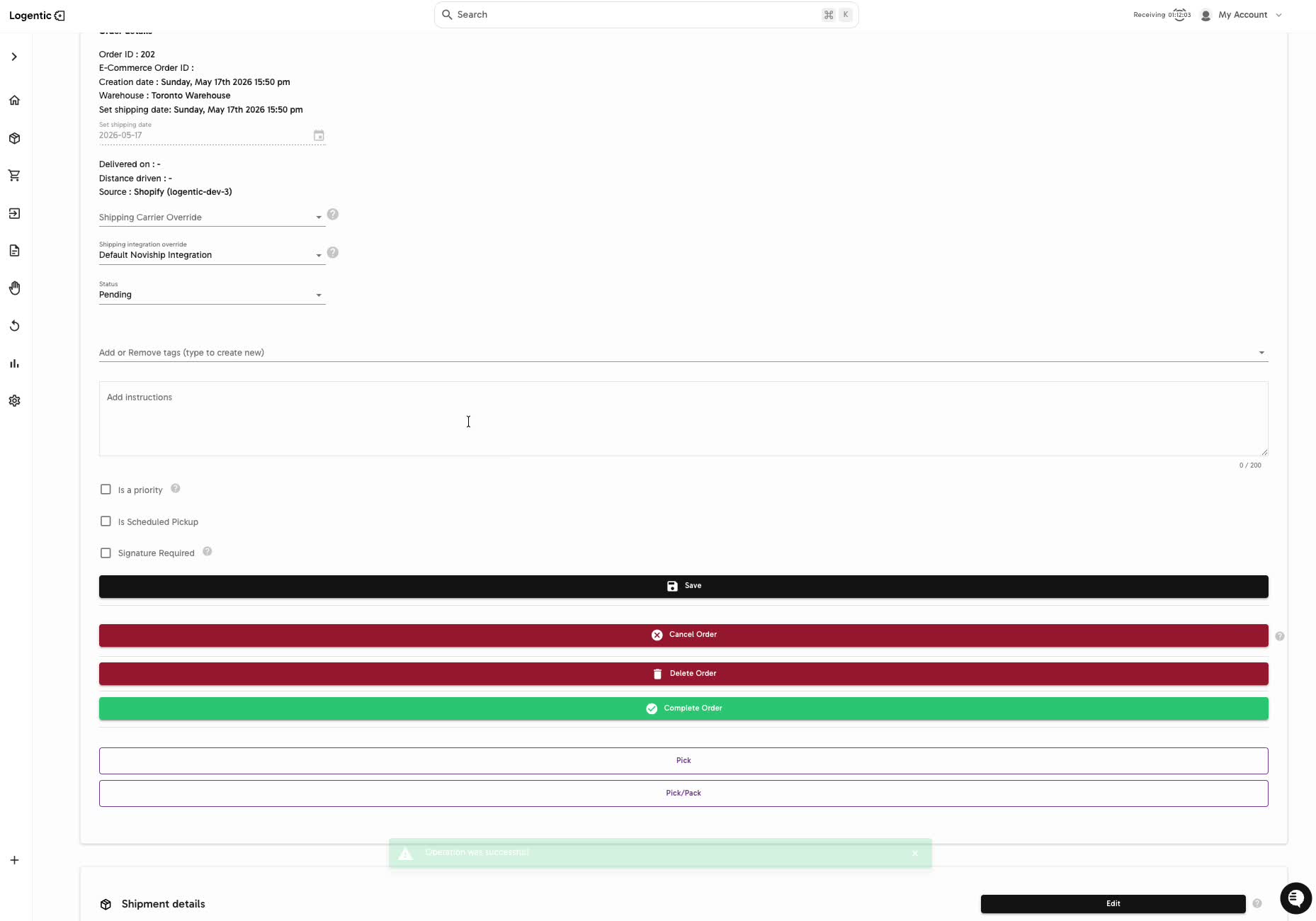
- Review or update customer-visible fields such as Add or Remove tags, Add instructions, Is a priority, Is Scheduled Pickup, and Signature Required.
- Select Save when you make a change.
- Use order actions carefully, such as Cancel Order, Delete Order, Complete Order, Pick, or Pick/Pack.
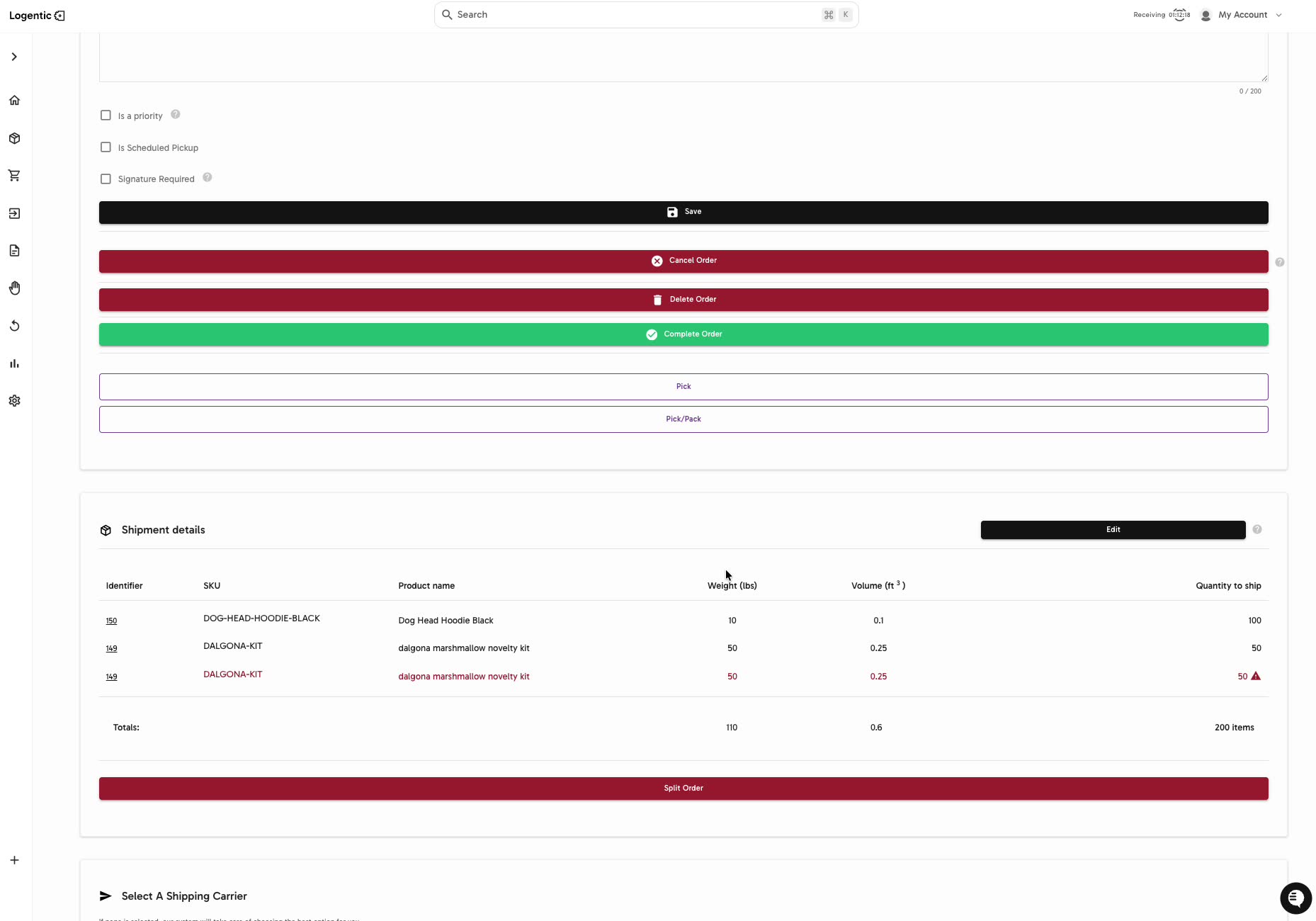
- Review Shipment details for products, SKU, weight, volume, and quantity to ship.
- Review Select A Shipping Carrier and Order risks for visible blockers.
Screenshots
Steps 5-8: Review shipping progress, recipient details, destination, and order details.
Steps 9-11: Update tags, instructions, priority options, scheduled pickup, signature requirement, and order actions.
Steps 12-13: Review shipment details, product quantities, carrier area, and order risks.
What good looks like
The order details match the expected recipient, destination, warehouse, source, status, products, quantities, and handling instructions before your team continues to pick, pack, complete, or escalate the order.
Common issues and next actions
| If this happens | What to do next |
|---|---|
| Recipient or destination is wrong. | Use the visible edit action only if your team owns that correction. Contact us if the source system and Logentic disagree. |
| A fulfillment action is unavailable or risky. | Review the order status, shipment details, product quantities, and order risks before continuing. |
| A carrier or quote issue appears. | Do not guess the fix. Capture the order, carrier area, product weights/volumes, destination, and error message so Logentic can investigate. |
Contact us when
Recipient or destination data conflicts with the source system, a carrier quote fails, an order risk is unclear, or expected actions such as Save, Pick, Pick/Pack, or Complete Order are unavailable.
Contact options
- Email Logentic Support: best for detailed requests, screenshots, or follow-up context.
- Open in-app chat: fastest when you are already signed in and need help in context.
- Call Logentic: call (855) 529-0009 for an urgent launch, warehouse, or fulfillment blocker.
- Request Slack support access: ask us to add your team to a shared Logentic support channel.
Send us this information
- Order identifier or store order ID.
- Warehouse and source.
- Screenshot of the order detail page.
- Screenshot of any carrier or order-risk message.
- Expected status or action.
- Actual result shown in Logentic.
- Time and timezone.
Related workflow
- Find the order in Order Dashboard.
- Review order details and shipment context.
- Save valid changes or continue to pick, pack, complete, or escalate the order.