How do I create a transfer order?
Last updated: May 18, 2026
Quick answer
Use this article to create a Transfer Order from Orders when stock needs to move from one warehouse to another.
Common use cases
- Operations manager: Create a transfer order from the origin warehouse to the destination warehouse.
- Warehouse lead: Add the products and quantities that need to move.
- Fulfillment coordinator: Confirm the new transfer appears in Order Dashboard before the warehouse team works on it.
When to use this
- You need to create a transfer order between warehouses.
- You know the origin warehouse and destination warehouse.
- You know which products and quantities need to be transferred.
When not to use this
- You need to create a customer delivery order.
- You need to create a wholesale order.
- You need to generate a shipping label or carrier rate.
At a glance
| What you are doing | What you need | Good result | Contact us if |
|---|---|---|---|
| Use this article to create a Transfer Order from Orders when stock needs to move from one warehouse to another. | Confirm the origin warehouse and destination warehouse. Know the products, SKUs, and quantities to transfer. | The transfer order is created successfully, appears in Order Dashboard, and the visible row shows the expected warehouse, products, unit count, status, priority, and Transfer order type. | A required warehouse or product is unavailable, CREATE ORDER is blocked, the operation does not succeed, or the created row is missing or wrong. |
Before you start
- Confirm the origin warehouse and destination warehouse.
- Know the products, SKUs, and quantities to transfer.
- Have the recipient/contact details your team uses for transfer orders.
Steps
- Go to Orders.
- Open Orders.
- Select Create order.
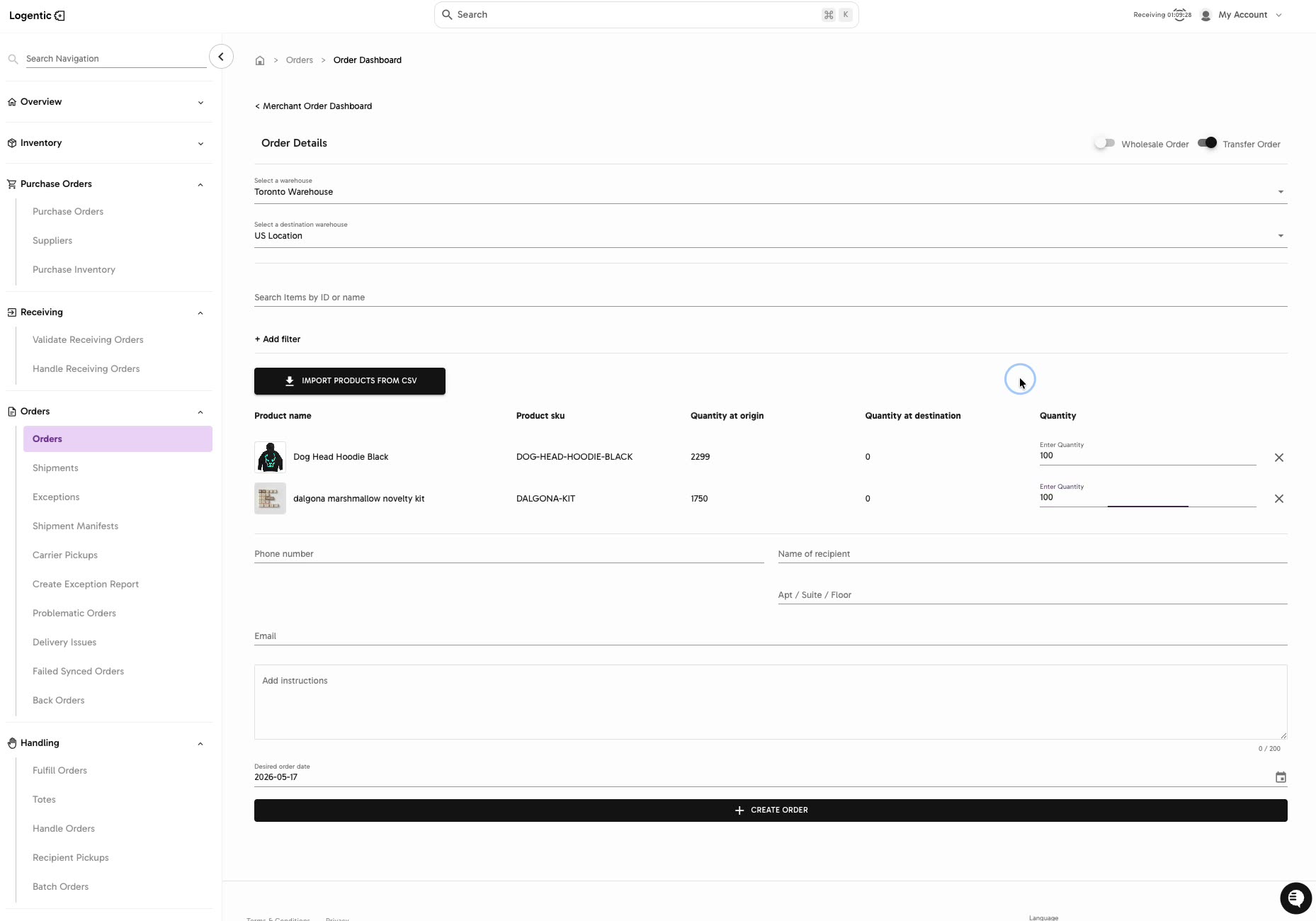
- Turn on Transfer Order.
- In Select a warehouse, choose the origin warehouse.
- In Select a destination warehouse, choose the destination warehouse.
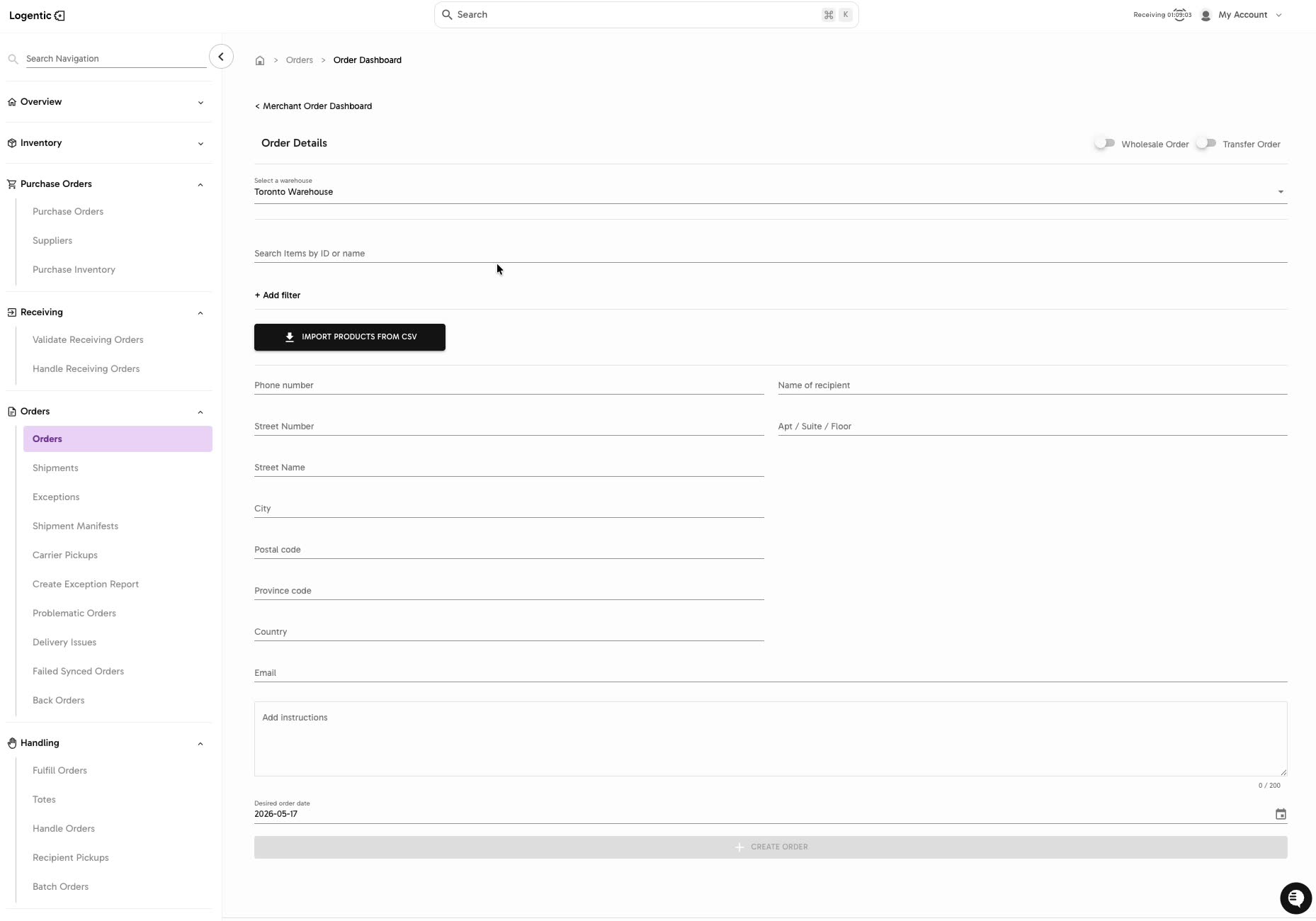
- Add products by searching in Search Items by ID or name, using Add filter, or selecting IMPORT PRODUCTS FROM CSV if your workflow uses a CSV.
- Review the product rows:
- Product name
- Product sku
- Quantity at origin
- Quantity at destination
- Quantity
- Enter the transfer quantity for each product.
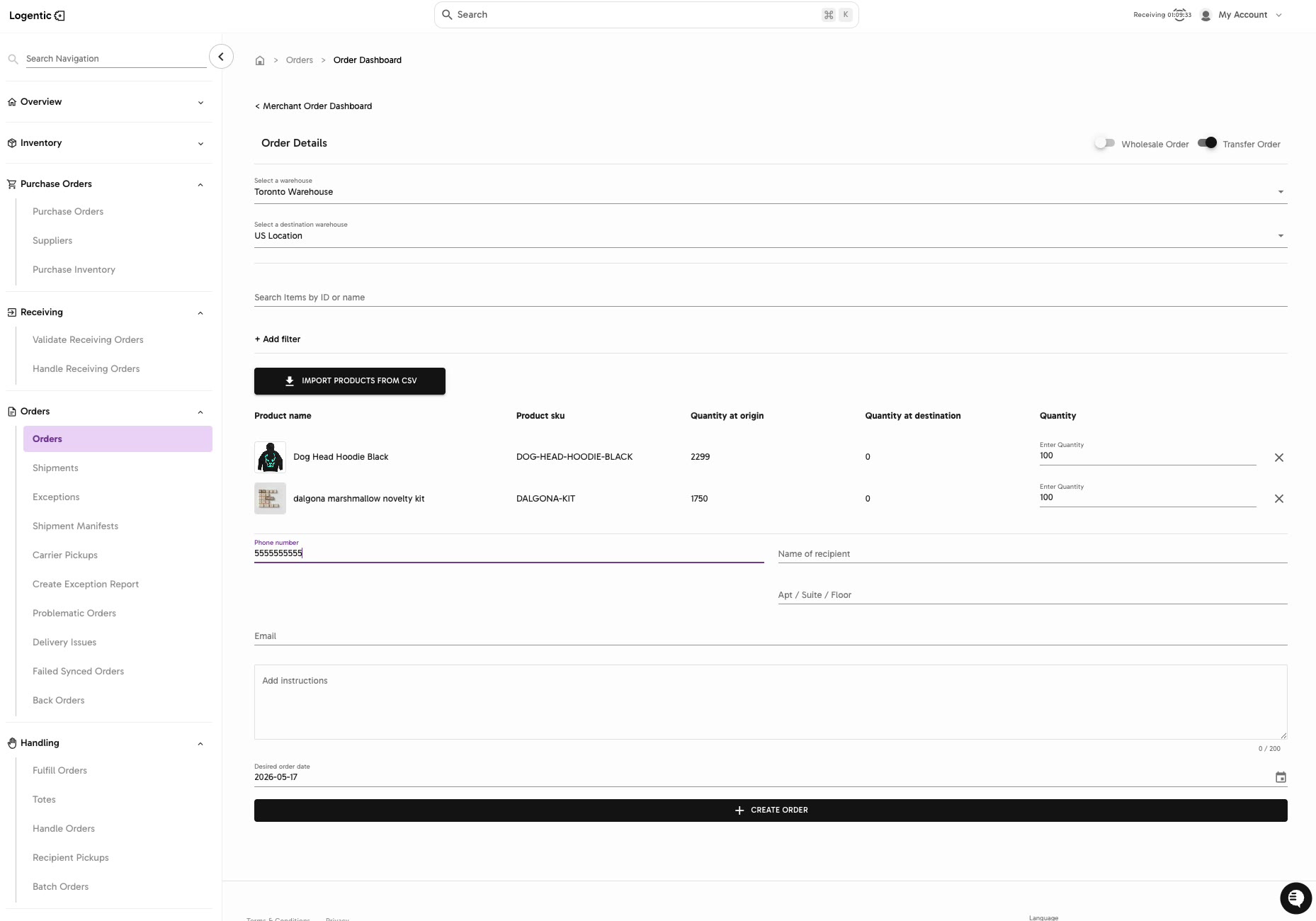
- Add the required contact fields, such as Phone number, Name of recipient, and Email.
- Add instructions when the transfer needs handling notes.
- Set Desired order date.
- Select CREATE ORDER.
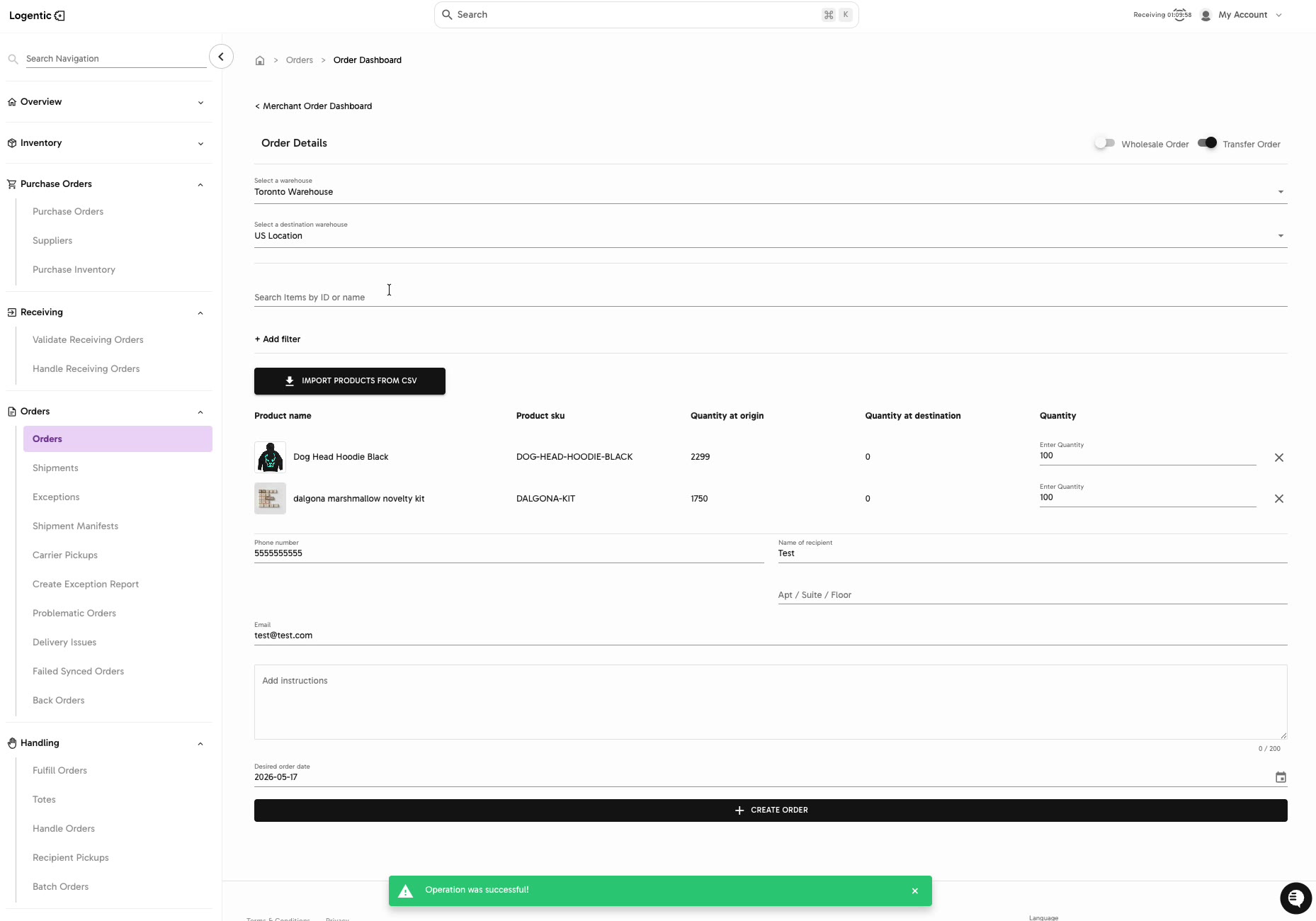
- Confirm the success message appears.
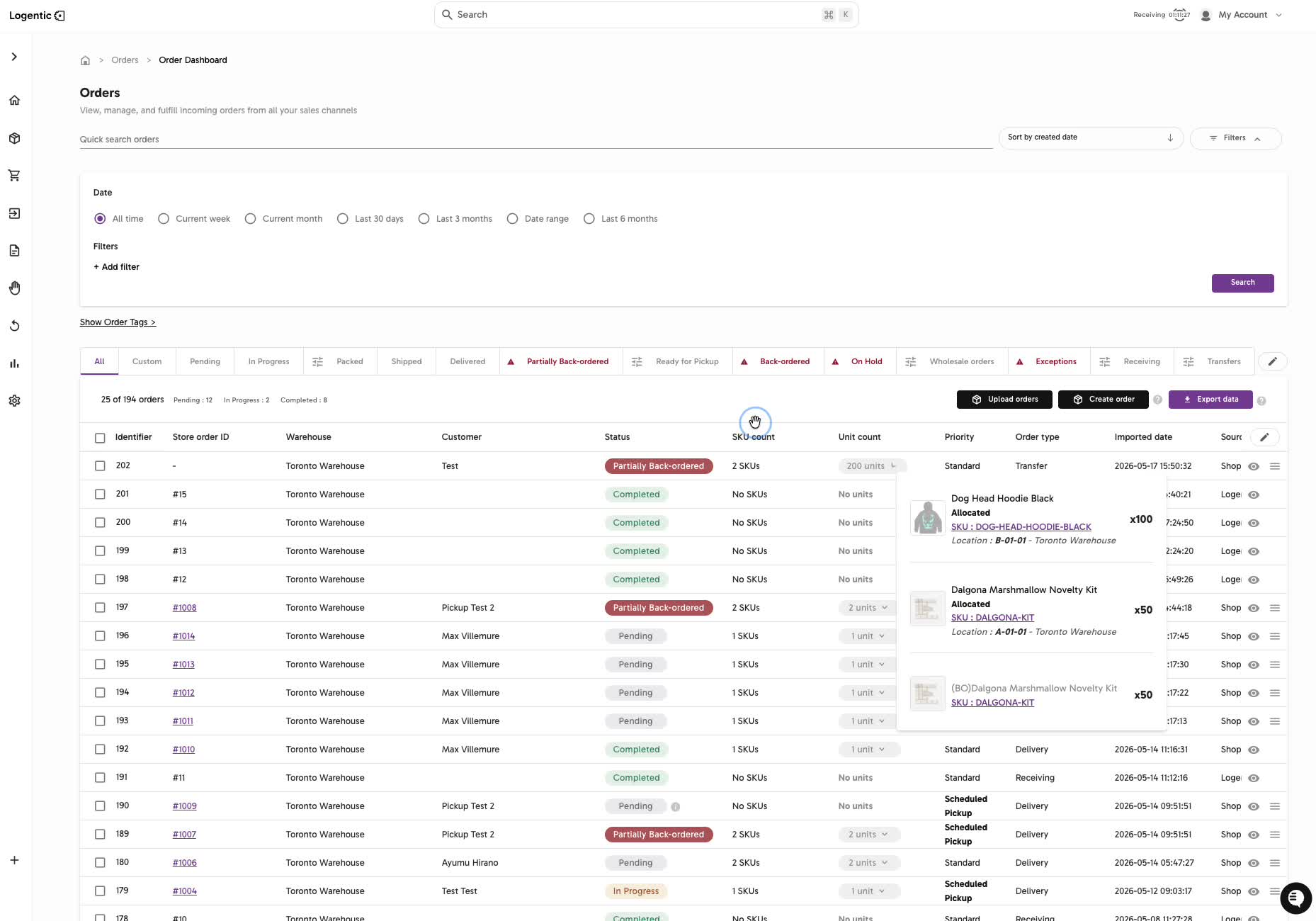
- Return to Order Dashboard and confirm the new row appears with Order type set to Transfer.
Screenshots
Steps 3 and 7: Start from Create order and add products by search, filter, or CSV import.
Steps 4-9: Turn on Transfer Order, choose the origin and destination warehouses, and enter product quantities.
Steps 10-13: Add contact details, optional instructions, desired order date, and select CREATE ORDER.
Step 14: Confirm the operation succeeds.
Step 15: Confirm the created order appears in Order Dashboard as a Transfer order.
What good looks like
The transfer order is created successfully, appears in Order Dashboard, and the visible row shows the expected warehouse, products, unit count, status, priority, and Transfer order type.
Common issues and next actions
| If this happens | What to do next |
|---|---|
| A product is not available. | Check the origin warehouse, clear filters, and search by product name, SKU, or identifier. |
| The quantity looks wrong. | Compare Quantity at origin, Quantity at destination, and the transfer Quantity before creating the order. |
| The created row has an unexpected status. | Open the order and review the product quantities and shipment details. Contact us if the status conflicts with the transfer your team intended to create. |
Contact us when
A required warehouse or product is unavailable, CREATE ORDER is blocked, the operation does not succeed, or the created row is missing or wrong.
Contact options
- Email Logentic Support: best for detailed requests, screenshots, or follow-up context.
- Open in-app chat: fastest when you are already signed in and need help in context.
- Call Logentic: call (855) 529-0009 for an urgent launch, warehouse, or fulfillment blocker.
- Request Slack support access: ask us to add your team to a shared Logentic support channel.
Send us this information
- Origin warehouse and destination warehouse.
- Product name, SKU, or identifier.
- Expected quantities.
- Screenshot of the transfer order form.
- Screenshot of the created order row.
- Expected result.
- Actual result shown in Logentic.
- Time and timezone.
Related workflow
- Find the products and quantities that need to move.
- Create the transfer order.
- Review the created order from Order Dashboard.
- Continue with the warehouse workflow your team uses for transfer fulfillment.