How do I review product inventory in the Product Dashboard?
Last updated: May 18, 2026
Quick answer
Use this article to review product inventory, stock columns, and warehouse rows from the Product Dashboard.
Common use cases
- Warehouse lead: Check whether a product has stock in the right warehouse before assigning work.
- Operations manager: Review stock states such as receiving, in stock, allocated, delivered, back-ordered, and sell ahead amount.
- Fulfillment coordinator: Capture a product row or export when a stock question needs to be investigated.
When to use this
- You need to find a product or SKU in Logentic.
- You need to compare product stock by warehouse.
- You need to review the product table before exporting or contacting Logentic.
When not to use this
- You need to change inventory counts.
- Shopify, physical stock, receiving, or orders disagree with Logentic.
- You need a formal stock audit or billing-grade inventory report.
At a glance
| What you are doing | What you need | Good result | Contact us if |
|---|---|---|---|
| Use this article to review product inventory, stock columns, and warehouse rows from the Product Dashboard. | Confirm the product name or SKU you want to review. Confirm the warehouse context you care about. | You can identify the correct product, SKU, and warehouse row, then read the visible stock columns before deciding whether to search, filter, export, receive products, manage inventory, or contact Logentic. | Product counts disagree with Shopify, receiving, orders, a physical count, or customer-facing sellable inventory. |
Before you start
- Confirm the product name or SKU you want to review.
- Confirm the warehouse context you care about.
- Remember that the same product can appear on separate rows when it exists in multiple warehouses.
Steps
- Go to Inventory from the left navigation.
- Open Products.
- Confirm you are on Product Dashboard.
- Use Quick search products when you know the product name or SKU.
- Review the saved tabs, such as All, Custom, or other saved product views.
- Review the product summary line, including product count, warehouse count, Total Supply, and Total Shipped.
- Review the product table columns:
- Product name
- SKU name
- Warehouse
- Receiving
- In stock
- Allocated
- Delivered
- Back-ordered
- Sell ahead amount
- Use Show Total Volumes if you need the volume view for the products shown.
- Use the row detail controls when you need to inspect a specific product row.
- Select Export CSV when you need the visible product data outside Logentic.
Screenshots
Steps 1-7: Open Product Dashboard and review product, SKU, warehouse, and stock columns.
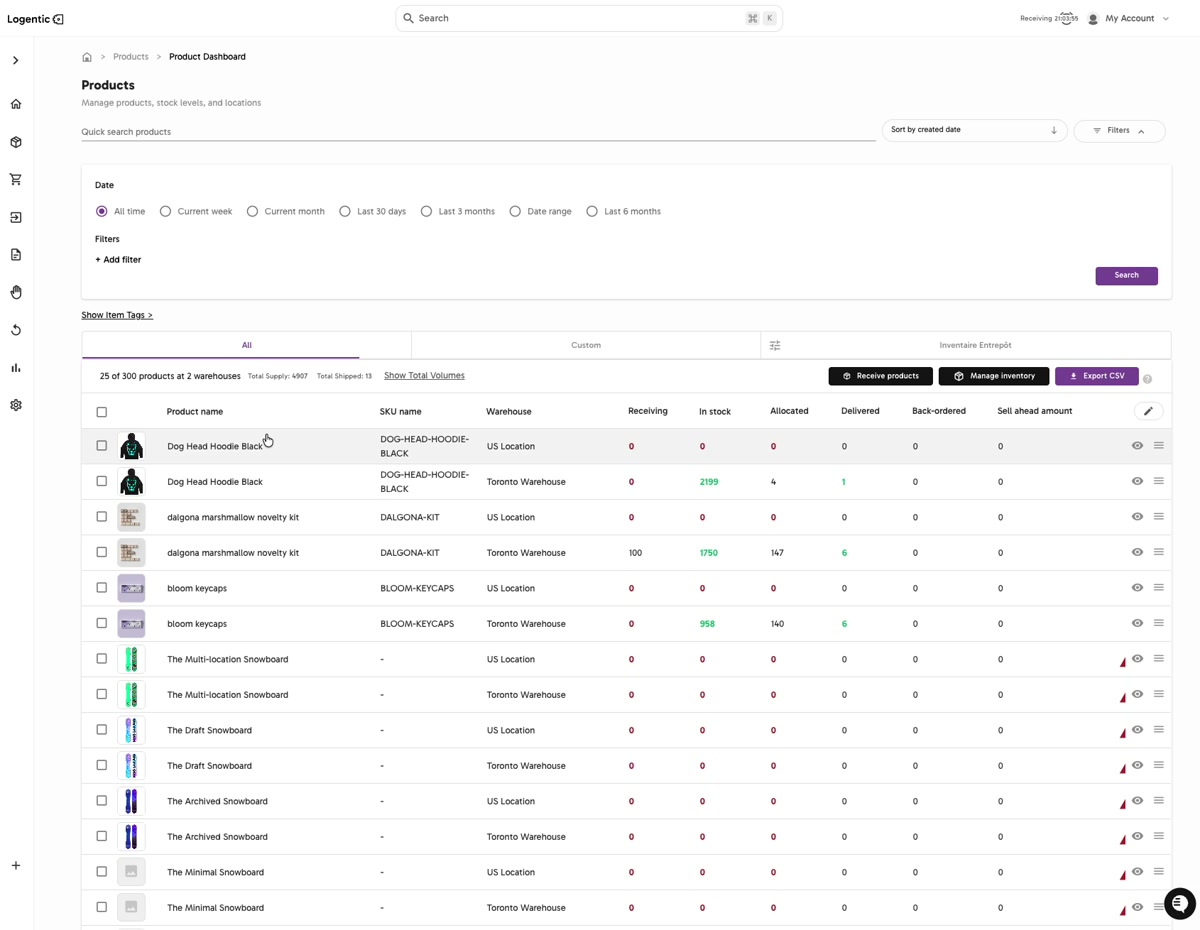
Steps 8-10: Use Show Total Volumes, row detail controls, or Export CSV from the same table when the product view is correct.
What good looks like
You can identify the correct product, SKU, and warehouse row, then read the visible stock columns before deciding whether to search, filter, export, receive products, manage inventory, or contact Logentic.
Common issues and next actions
| If this happens | What to do next |
|---|---|
| The same product appears more than once. | Check the Warehouse column. The same product can appear on different rows for different warehouses. |
| A product does not appear. | Clear search and filters, confirm the product name or SKU, then search again. |
| A count looks wrong. | Compare the row against the expected warehouse, Shopify, receiving, orders, or physical stock. Contact us if the mismatch affects fulfillment or sellable inventory. |
| The export is missing products. | Check active filters, saved tabs, date selection, and search terms before exporting again. |
Contact us when
Product counts disagree with Shopify, receiving, orders, a physical count, or customer-facing sellable inventory.
Contact options
- Email Logentic Support: best for detailed requests, screenshots, or follow-up context.
- Open in-app chat: fastest when you are already signed in and need help in context.
- Call Logentic: call (855) 529-0009 for an urgent launch, warehouse, or fulfillment blocker.
- Request Slack support access: ask us to add your team to a shared Logentic support channel.
Send us this information
- Screenshot of the product row and visible filters.
- Product name and SKU.
- Warehouse selected or row shown.
- Expected quantity and where it comes from.
- Actual quantity shown in Logentic.
- Shopify product or variant ID if relevant.
- Time and timezone when you checked.
Related workflow
- Open Product Dashboard.
- Search, sort, or filter to find the product.
- Review the stock columns by warehouse.
- Export or capture the row when the stock needs investigation.