How do I create a return automation?
Last updated: May 18, 2026
Quick answer
Use this article to create a return automation from Return Order Automations.
Common use cases
- Admin: Create a return rule with one or more conditions and actions.
- Operations manager: Review whether an automation is active and what it is supposed to do.
- Customer service lead: Automate a repeatable return decision after the policy has been approved by your team.
When to use this
- You need to find existing return automations.
- You need to create a simple return automation.
- You need to understand the rule builder structure: condition, matching type, match text, and action.
When not to use this
- You are unsure whether the automation should affect live customer returns.
- You need to promise a refund, inventory, label, or billing result.
- You need to troubleshoot an automation that already ran incorrectly.
At a glance
| What you are doing | What you need | Good result | Contact us if |
|---|---|---|---|
| Use this article to create a return automation from Return Order Automations. | Confirm your account has access to Return Automations. Know the return condition you want to match. | The automation appears in Return Order Automations with the intended condition, action, and active status. | The needed condition or action is missing, the automation cannot be submitted, an active automation does not run, an automation runs unexpectedly, or you are not sure whether the automation is safe for live returns. |
Before you start
- Confirm your account has access to Return Automations.
- Know the return condition you want to match.
- Know the action you want Logentic to apply.
- Confirm with your team whether the automation should be active.
Steps
- Go to Settings in the left navigation.
- Open Return Automations.
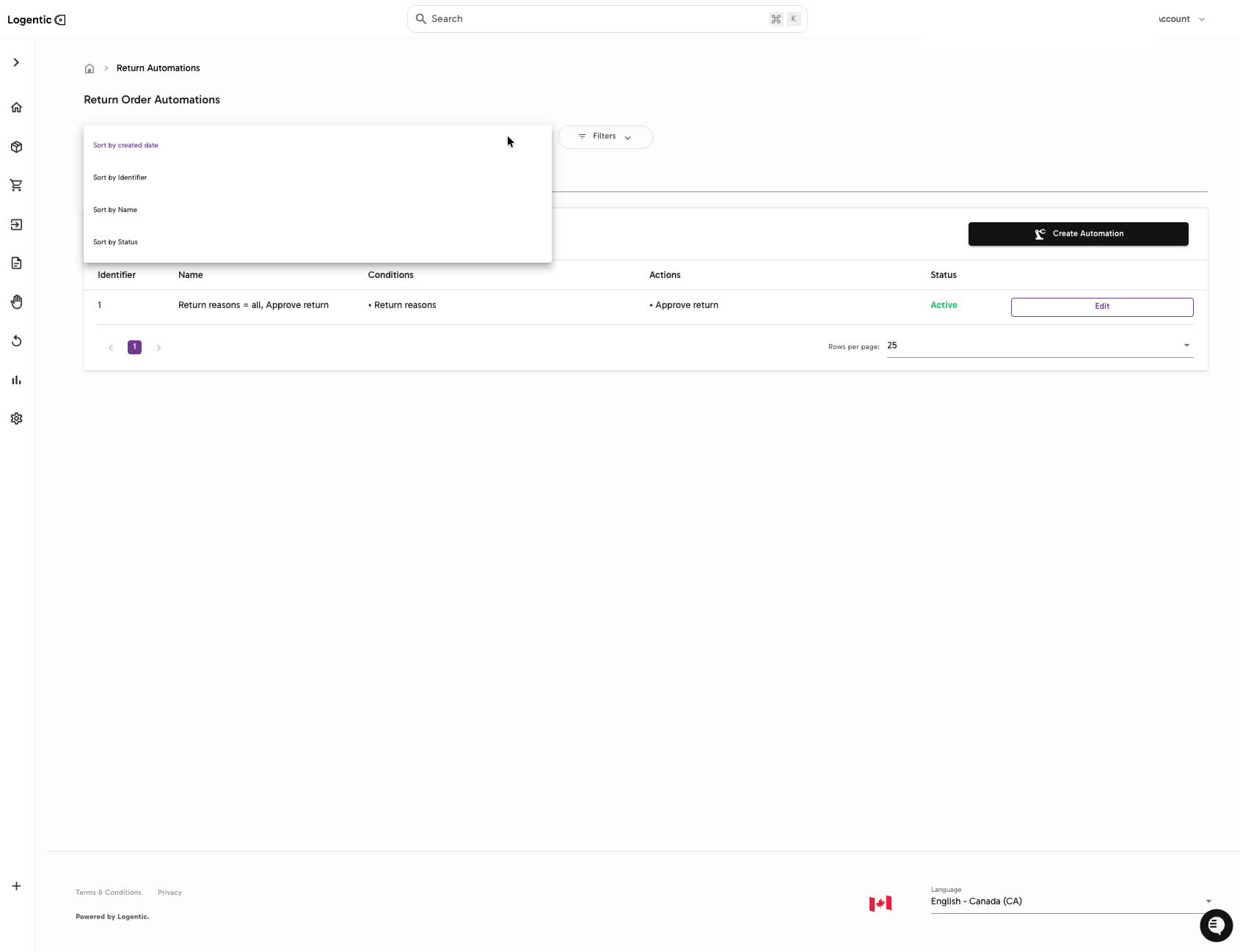
- Review existing automations, including Conditions, Actions, Status, and Edit.
- Select Create Automation.
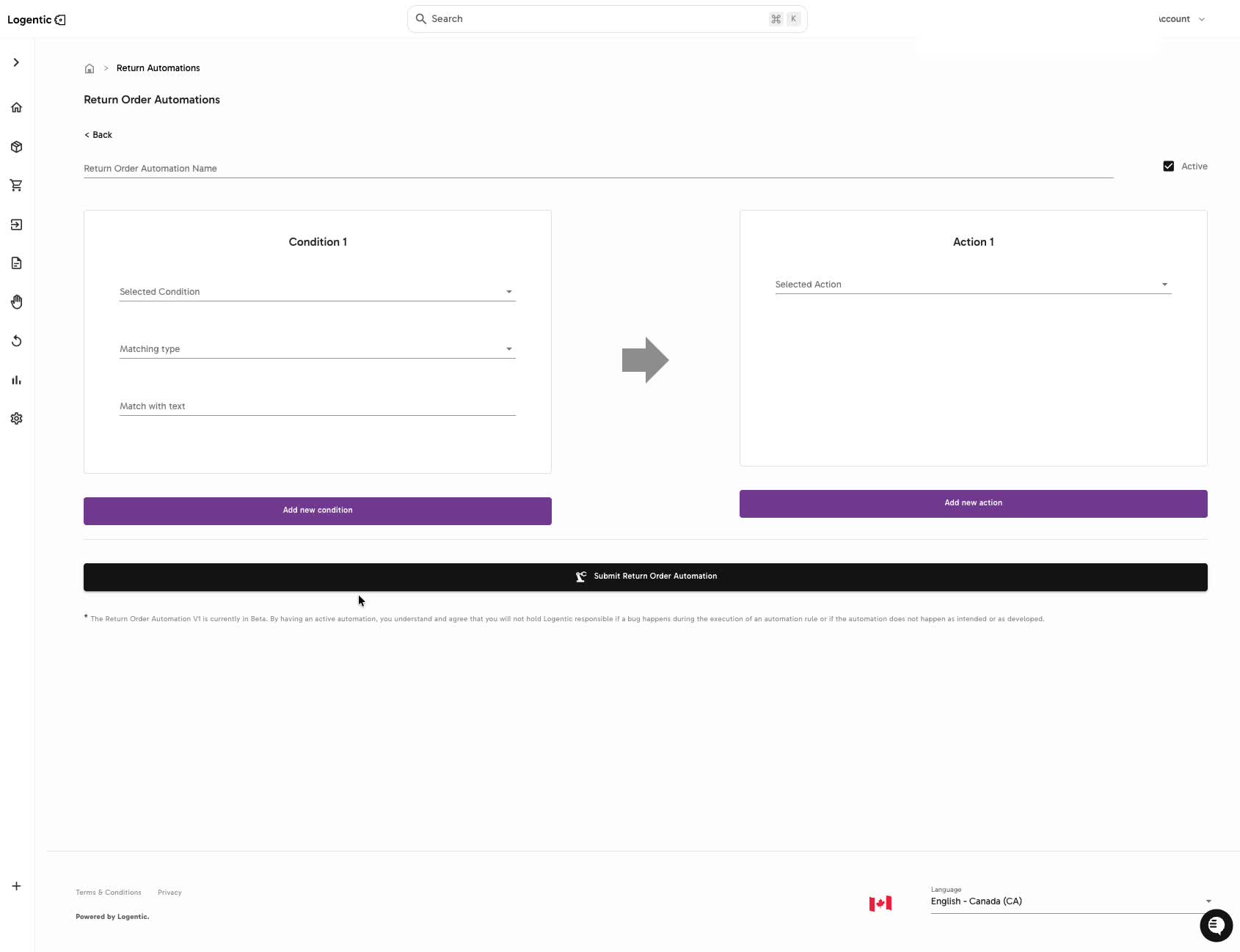
- Enter the Return Order Automation Name.
- Keep Active checked only if the automation is ready for live use.
- In Condition 1, choose the Selected Condition.
- Choose the Matching type.
- Enter Match with text when the selected condition requires text.
- In Action 1, choose the Selected Action.
- Use Add new condition or Add new action when the rule needs another condition or action.
- Select Submit Return Order Automation.
Screenshots
Steps 1-4: Open Return Order Automations, review existing automations, and select Create Automation.
Steps 5-12: Name the automation, set Active, define condition and action, then submit the automation.
What good looks like
The automation appears in Return Order Automations with the intended condition, action, and active status.
Automation options and examples
For the automation option map and starter examples, see What automation options can I use in Logentic?
Common issues and next actions
| If this happens | What to do next |
|---|---|
| The condition or action you need is not available. | Do not approximate with a different rule if it could affect live returns. Contact us with the rule you are trying to create. |
| The automation should not run yet. | Leave Active unchecked until the rule has been reviewed. |
| The automation ran differently than expected. | Pause or deactivate the automation if possible, then contact us with an example return. |
Contact us when
The needed condition or action is missing, the automation cannot be submitted, an active automation does not run, an automation runs unexpectedly, or you are not sure whether the automation is safe for live returns.
Contact options
- Email Logentic Support: best for detailed requests, screenshots, or follow-up context.
- Open in-app chat: fastest when you are already signed in and need help in context.
- Call Logentic: call (855) 529-0009 for an urgent launch, warehouse, or fulfillment blocker.
- Request Slack support access: ask us to add your team to a shared Logentic support channel.
Send us this information
- Screenshot of the automation list or builder.
- Automation name.
- Condition, matching type, and match text.
- Action selected.
- Whether Active was checked.
- Example return ID or order ID.
- Expected result.
- Actual result shown in Logentic.
Related workflow
- Review return settings and reasons.
- Create or edit the return automation.
- Watch the first matching return and escalate if the behavior differs from your policy.