How do I inspect and complete a returned item?
Last updated: May 18, 2026
Quick answer
Use this article to inspect a returned item after it arrives at the warehouse.
Common use cases
- Warehouse operator: Confirm whether the returned item passes or fails inspection.
- Warehouse lead: Make sure returned items are scanned or entered before the return is completed.
- Customer support coordinator: Check whether the warehouse has started processing the returned item.
When to use this
- The returned item has physically arrived.
- You need to process the return in Logentic.
- You need to pass, fail, scan, or manually enter the returned item.
When not to use this
- You still need to create the return request.
- You need to configure return reasons or self-return settings.
- You need to promise a refund, credit, restock, or inventory-sync outcome.
At a glance
| What you are doing | What you need | Good result | Contact us if |
|---|---|---|---|
| Use this article to inspect a returned item after it arrives at the warehouse. | Confirm you have the returned item in hand. Open the correct return record. | The returned item is processed through the inspection screen, the item scan or manual entry is accepted, and the return no longer appears blocked by missing inspection work. | You cannot process the return, the scan does not match, PASSED or FAILED does not update the workflow, Manual is unavailable when expected, or the return still appears blocked after inspection. |
Before you start
- Confirm you have the returned item in hand.
- Open the correct return record.
- Have the item barcode or code available, or be ready to use Manual if your process allows it.
Steps
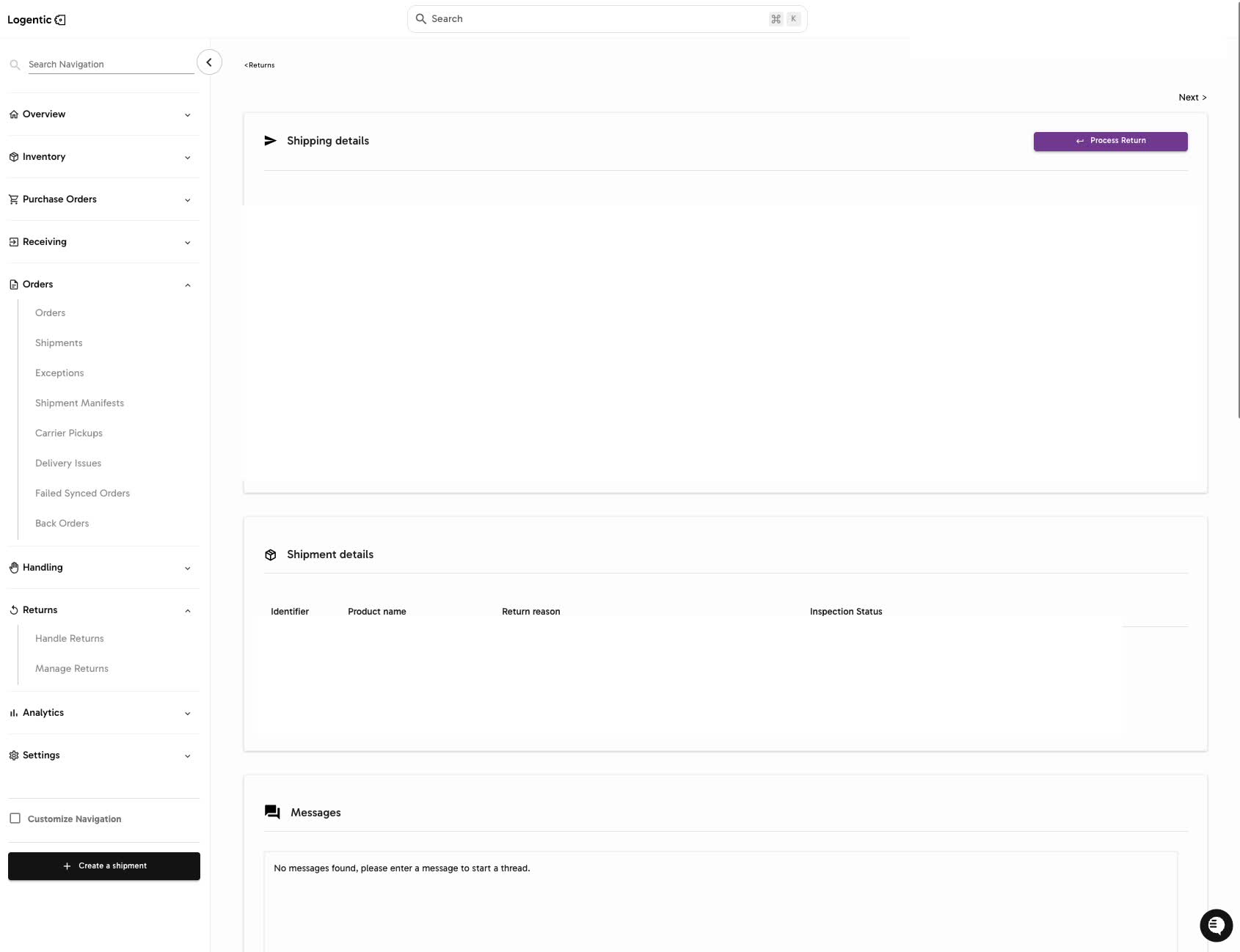
- Open the return from Manage Returns.
- Select Process Return.
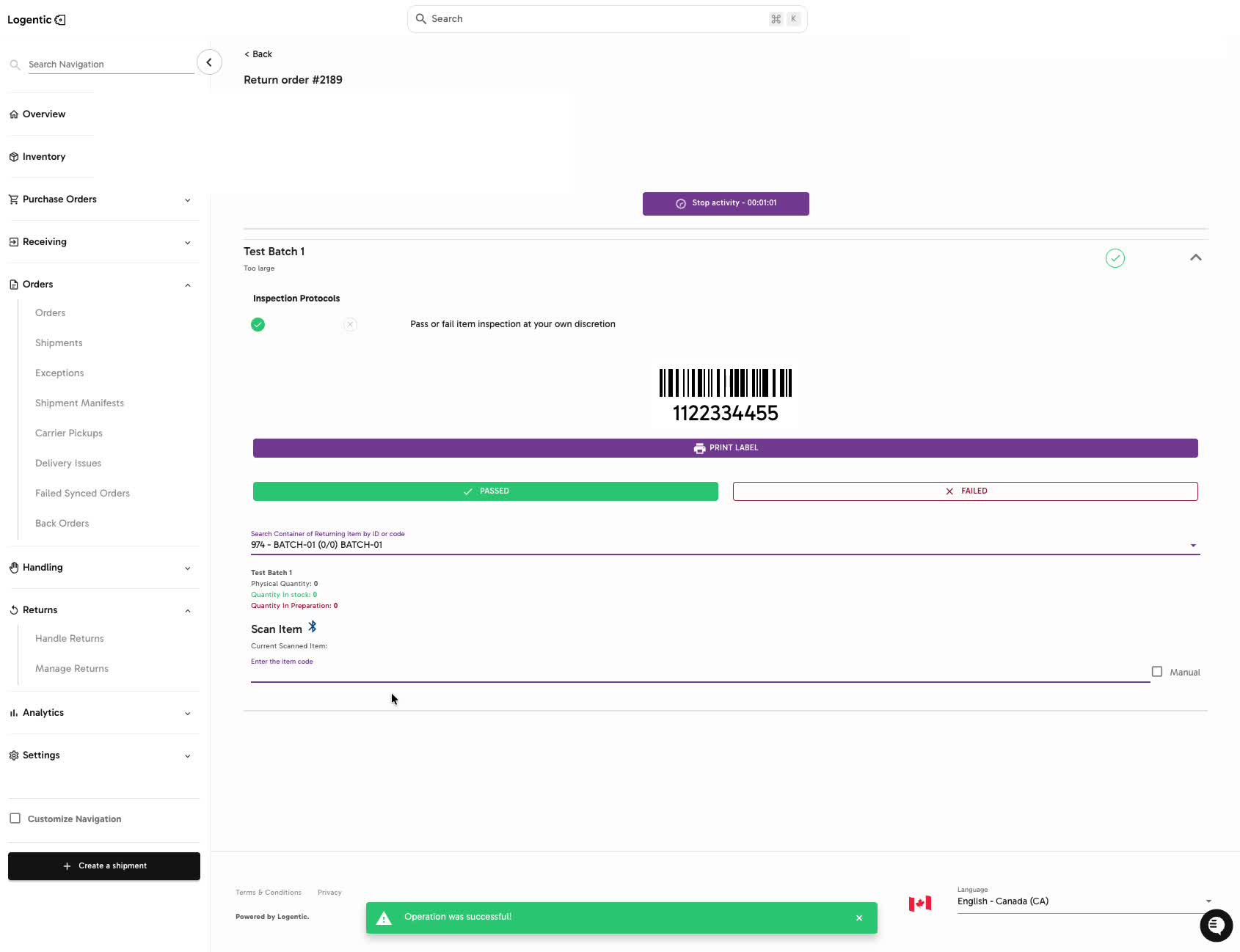
- Select Start Activity.
- Review the returned product and inspection protocol.
- Select PRINT LABEL if you need a physical label for the returned item.
- Choose the inspection result:
- PASSED when the item passes inspection.
- FAILED when the item does not pass inspection.
- In Search Container of Returning Item by ID or code, select or confirm the returning item container.
- In Scan Item, scan the item code.
- If scanning is not available and your process allows manual entry, use Manual and enter the item code.
- Review the progress and success state before leaving the page.
Screenshots
Steps 1-2: Open the return and select Process Return.
Steps 3-10: Start the activity, review the inspection protocol, print a label if needed, choose PASSED or FAILED, then scan or manually enter the item.
What good looks like
The returned item is processed through the inspection screen, the item scan or manual entry is accepted, and the return no longer appears blocked by missing inspection work.
Common issues and next actions
| If this happens | What to do next |
|---|---|
| The scan does not match the returned item. | Confirm you are processing the correct return and item. Try scanning again or use Manual only if your warehouse process allows it. |
| You selected the wrong inspection result. | Stop and contact your warehouse lead or Logentic before continuing if the return state now looks wrong. |
| Process Return or Start Activity is unavailable. | Confirm the return is approved and ready to process. Contact us if the return should be processable but the action is missing. |
Contact us when
You cannot process the return, the scan does not match, PASSED or FAILED does not update the workflow, Manual is unavailable when expected, or the return still appears blocked after inspection.
Contact options
- Email Logentic Support: best for detailed requests, screenshots, or follow-up context.
- Open in-app chat: fastest when you are already signed in and need help in context.
- Call Logentic: call (855) 529-0009 for an urgent launch, warehouse, or fulfillment blocker.
- Request Slack support access: ask us to add your team to a shared Logentic support channel.
Send us this information
- Screenshot of the return inspection page.
- Return identifier or order ID.
- Product/SKU.
- Barcode or item code scanned.
- Inspection result selected.
- Whether you used scan or Manual.
- Expected result.
- Actual result shown in Logentic.
Related workflow
- Create or find the return.
- Process and inspect the returned item.
- Review the return status in Manage Returns.