How do I complete Pick/Pack with an external label?
Last updated: May 18, 2026
Quick answer
Use this article when the package will use a shipping label that was created outside Logentic.
Common use cases
- Packer: Finish Pick/Pack when the external label is already printed or ready.
- Warehouse lead: Confirm the order was completed without buying a new carrier rate in Logentic.
- Operations manager: Know what to send Logentic if the external-label step does not complete.
When to use this
- You are in Pick/Pack.
- The products have been scanned or confirmed.
- The package has been built and validated.
- You already have the label that should go on the package.
When not to use this
- You need Logentic to generate the shipping label.
- You need to compare carrier rates.
- You need Logentic to confirm whether a label from another system is valid.
At a glance
| What you are doing | What you need | Good result | Contact us if |
|---|---|---|---|
| Use this article when the package will use a shipping label that was created outside Logentic. | Confirm the external label belongs to the correct order. Confirm the package contents match the order. | The package shows as complete, the screen indicates the external label was used, and PICK/PACK NEXT is available for the next order. | Ship Externally is missing, the package cannot be completed, the completed state does not appear, or the wrong order appears after completion. |
Before you start
- Confirm the external label belongs to the correct order.
- Confirm the package contents match the order.
- Confirm your team wants to ship the package externally instead of choosing a Logentic carrier rate.
Steps
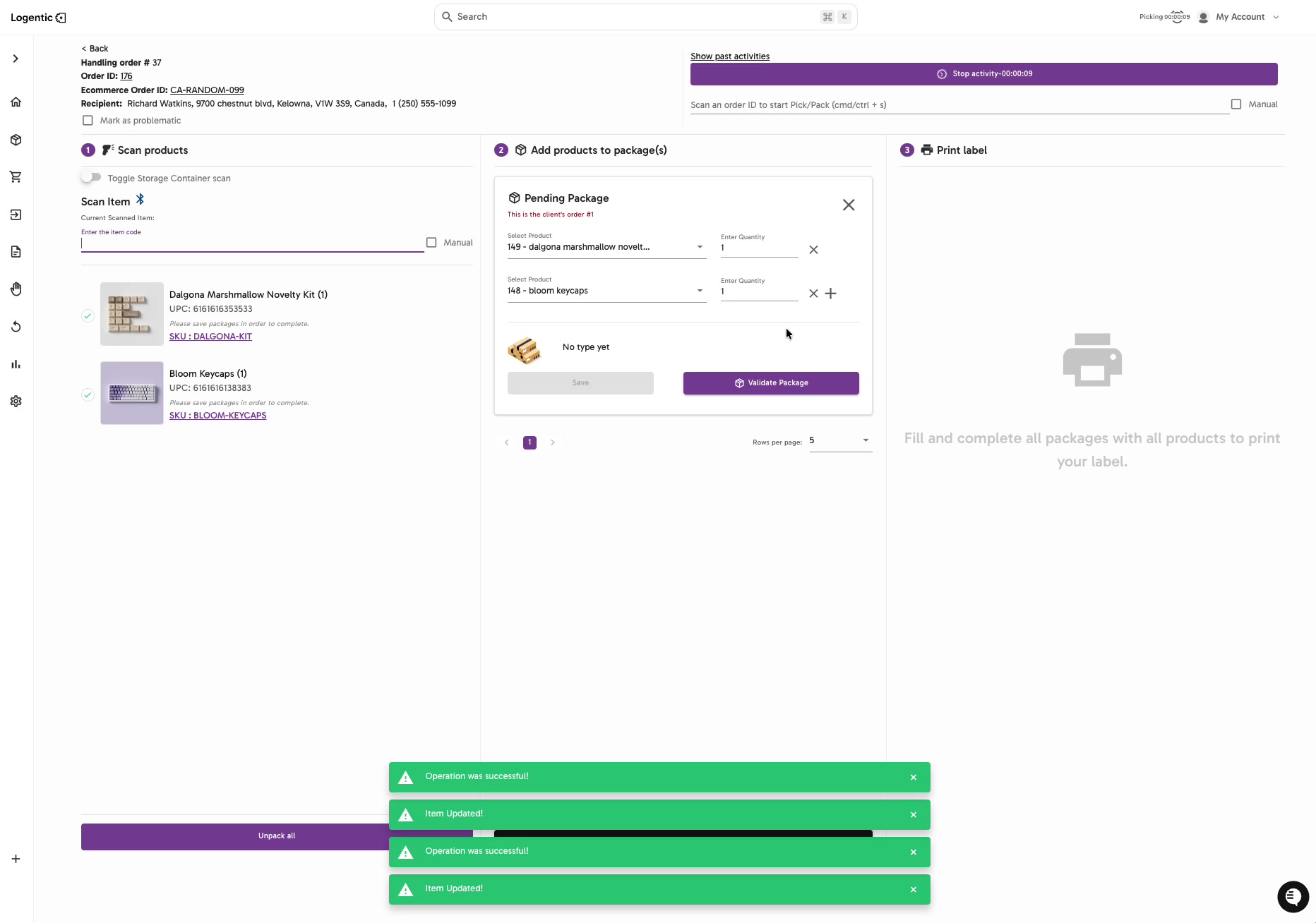
- Open the order in Pick/Pack.
- Select Start Activity if the activity has not started.
- Scan or confirm the products in Scan products.
- Add the products and quantities to Pending Package.
- Choose the packaging type.
- Validate the package.
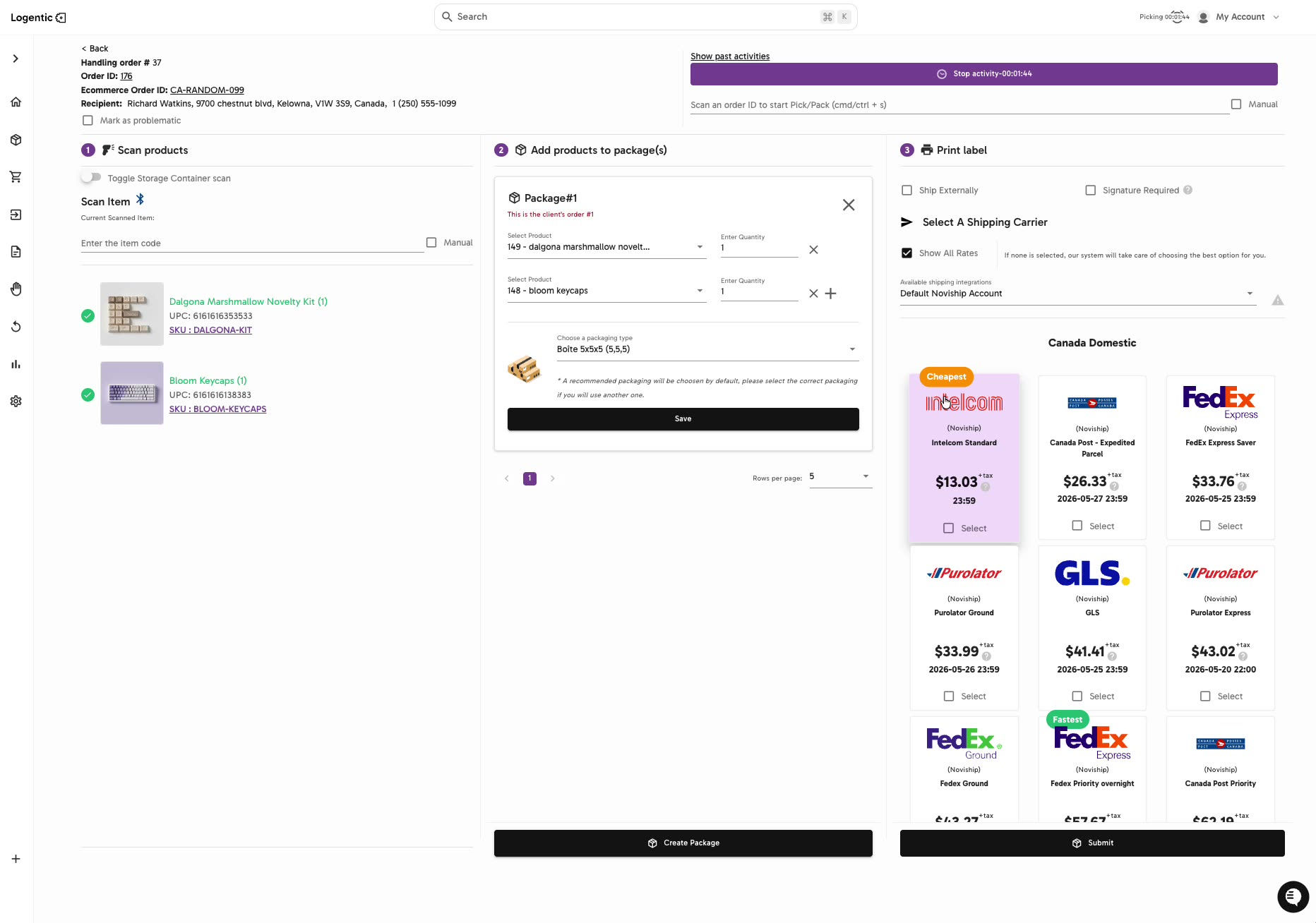
- In the Print label panel, select Ship Externally.
- Place the external label on the package.
- Complete the package when the screen asks you to use the externally provided label.
- Confirm the completed state appears.
- Use PICK/PACK NEXT when you are ready for the next order.
Screenshots
Steps 1-6: Complete the normal Pick/Pack product and package steps first.
Steps 7-10: Use Ship Externally and confirm the package is complete with the externally provided label.
Step 11: Continue with the next Pick/Pack job when the completed state is shown.
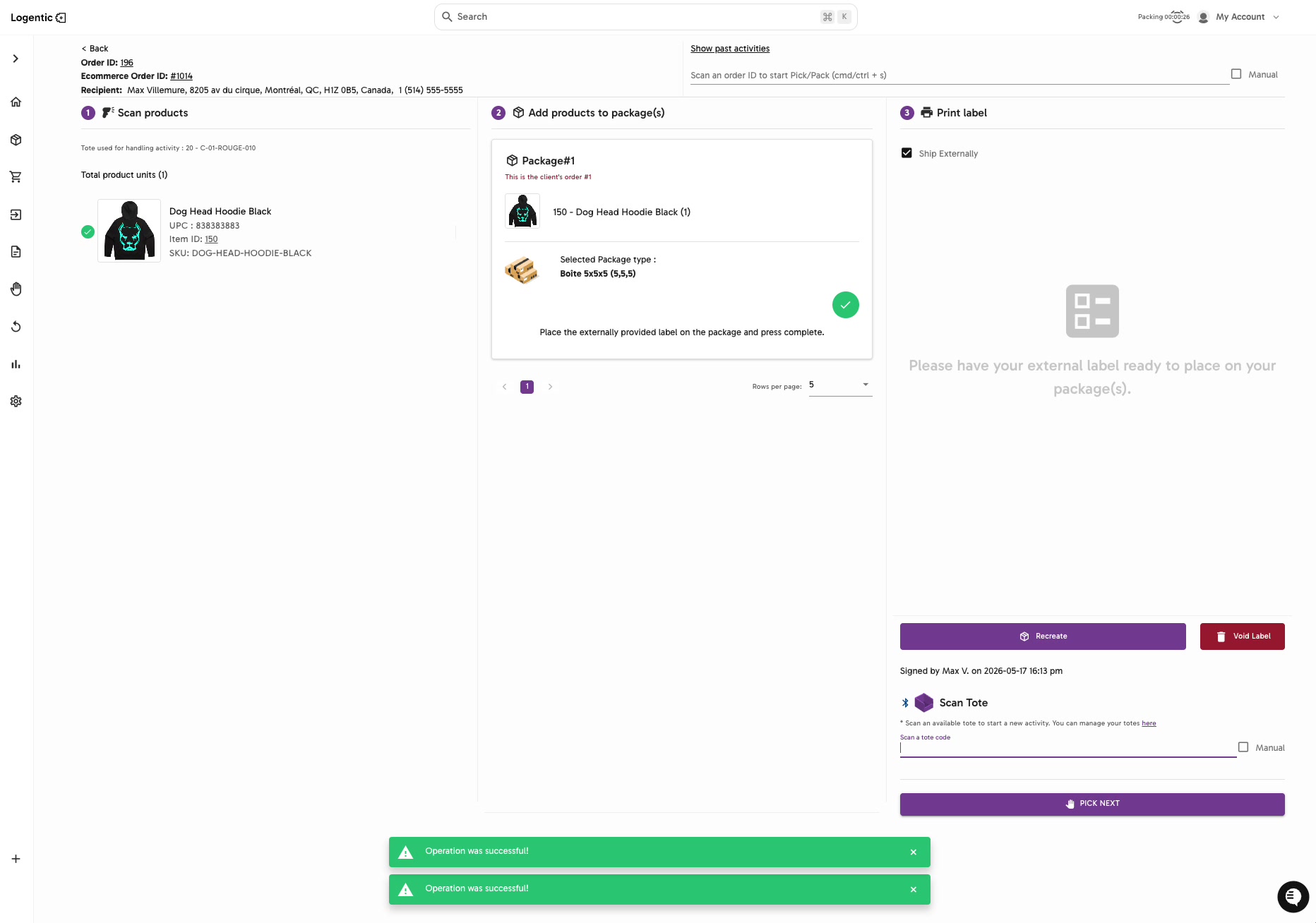
What good looks like
The package shows as complete, the screen indicates the external label was used, and PICK/PACK NEXT is available for the next order.
Common issues and next actions
| If this happens | What to do next |
|---|---|
| Ship Externally is not visible. | Confirm you are in the Print label step after validating the package. |
| The package does not complete. | Review the package contents and packaging type, then try again. Contact us if the completed state does not appear. |
| The external label may be wrong. | Do not continue if the label does not match the order. Confirm the label with your operations lead before placing it on the package. |
Contact us when
Ship Externally is missing, the package cannot be completed, the completed state does not appear, or the wrong order appears after completion.
Contact options
- Email Logentic Support: best for detailed requests, screenshots, or follow-up context.
- Open in-app chat: fastest when you are already signed in and need help in context.
- Call Logentic: call (855) 529-0009 for an urgent launch, warehouse, or fulfillment blocker.
- Request Slack support access: ask us to add your team to a shared Logentic support channel.
Send us this information
- Order ID or ecommerce order ID.
- Screenshot of the Print label panel.
- Screenshot of the completed package state.
- Whether Ship Externally was selected.
- Package type.
- Expected result.
- Actual result shown in Logentic.
- Time and timezone.
Related workflow
- Pick and pack the order.
- Validate the package.
- Select Ship Externally.
- Place the external label and complete the package.